
Model and Export Section Geometry, directly from CAD
Users can export shapes into Section Builder by creating Hatches in CloudCAD, making it easier and more capable to build and analyse your own custom shapes. Using the full modeling capabilities of CloudCAD, you can now create complex shapes and export direct to Section Builder. Follow this guide as it takes you through how you can do this in just a few easy steps.
Step 1: Build your closed shape
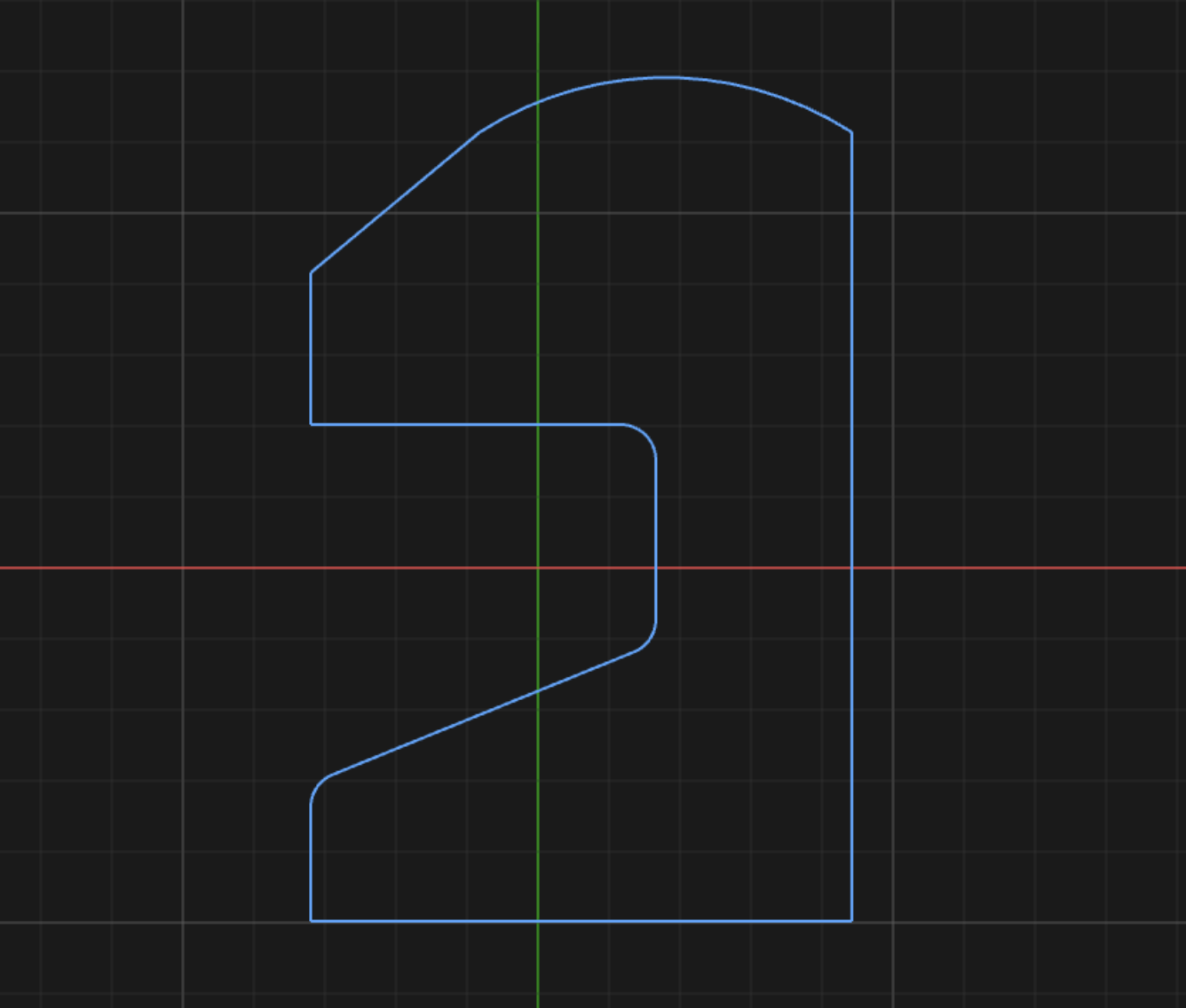
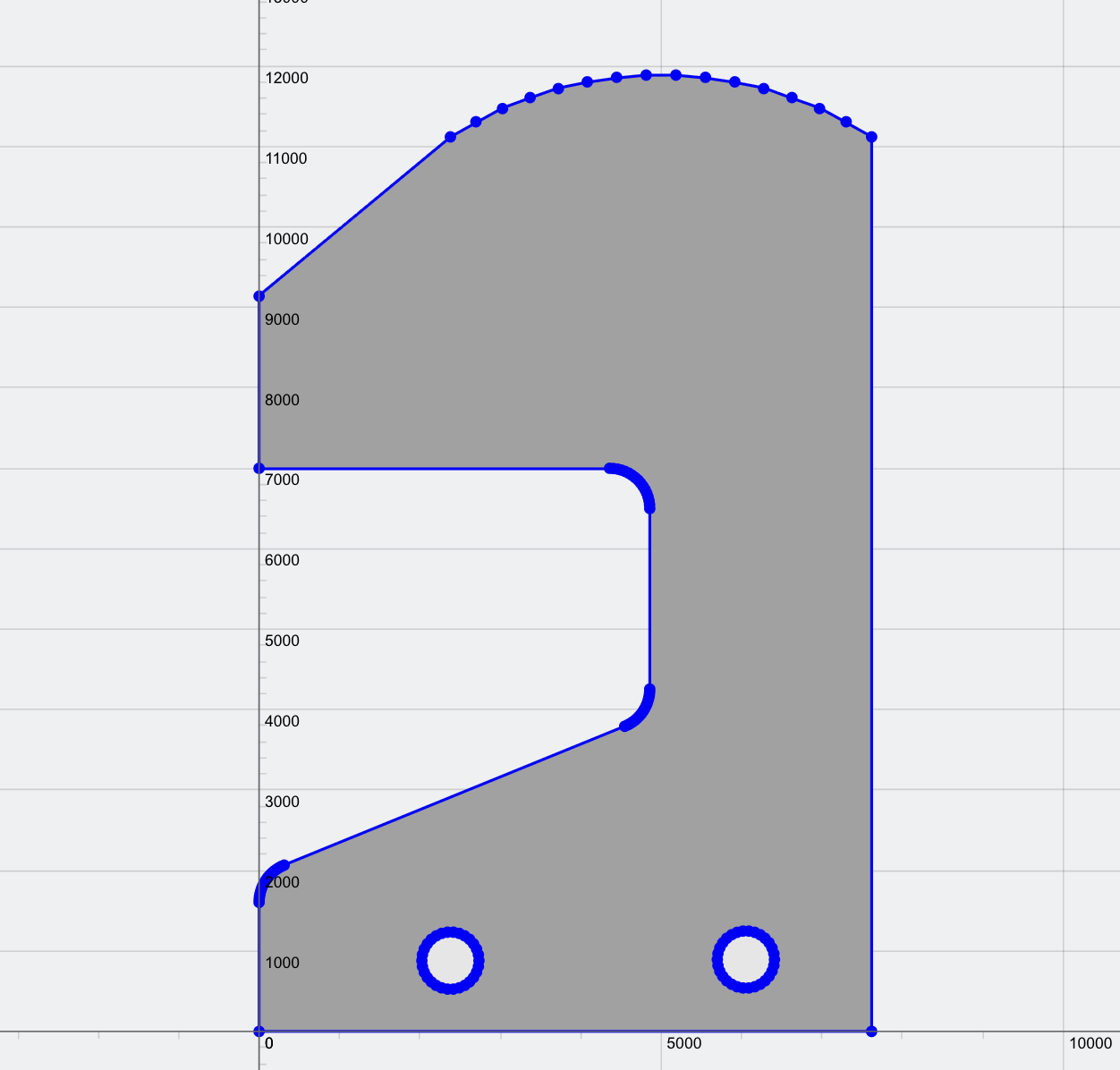
Using general modelling features like lines, polylines, splines and circles, users can crate a closed shape using our advanced and easy modelling tools. You can use a combination of features for complex shapes, as long as it makes a closed shape. For example, here we have used a combination of lines, arcs and the radius/fillet function:
Step 2: Create any cutouts or holes in your shape (optional)
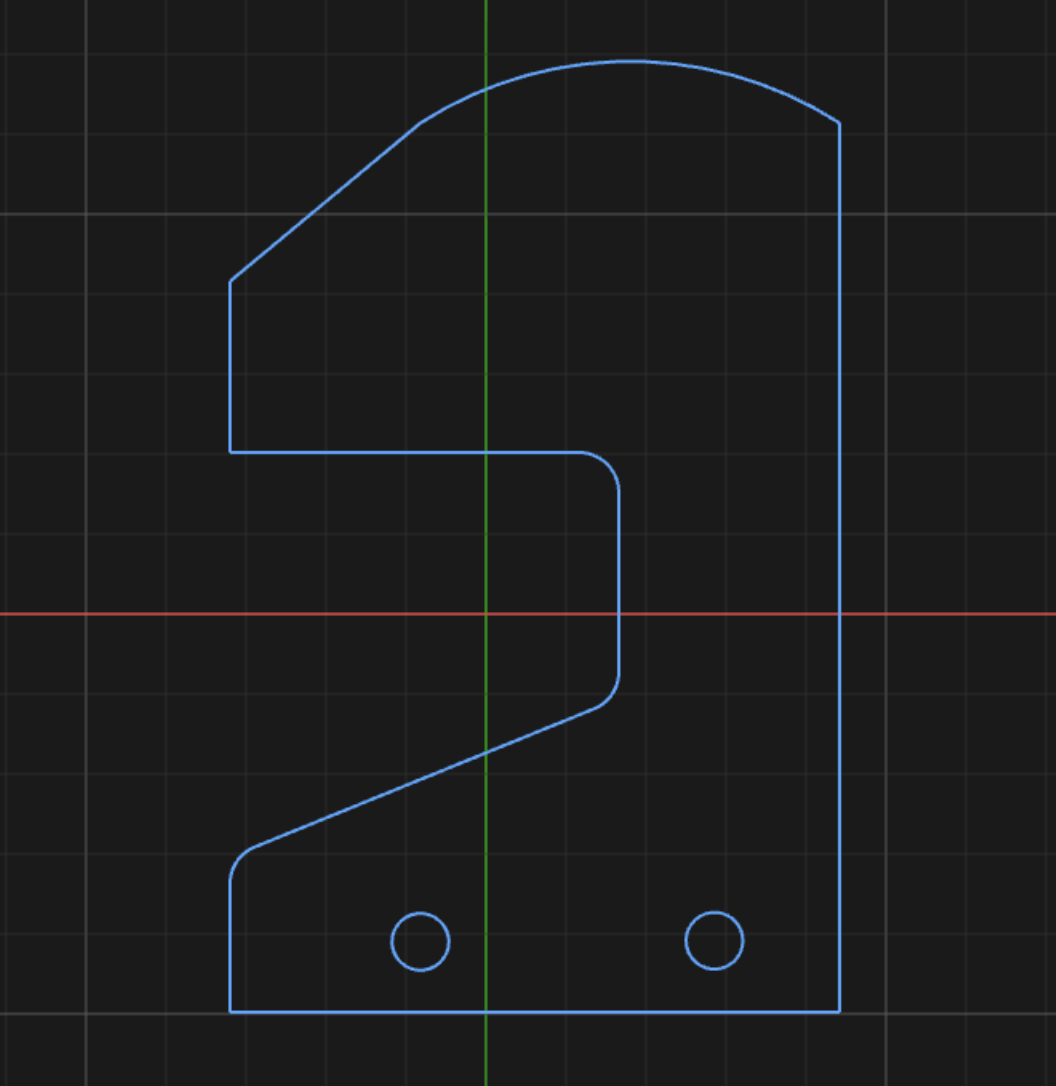
Users can also specify internal closed shapes to be used as cutouts or holes in your section. For example, we can include a few circular holes in the shape:
Spet 3: Create a Hatch
From there, users can highlight the area they wish to generate as a Section and click Hatch (or H as a shortcut). You can select an entire polygon simply by click-dragging part of your section, or CTRL + A to select the entire shape in your canvas:
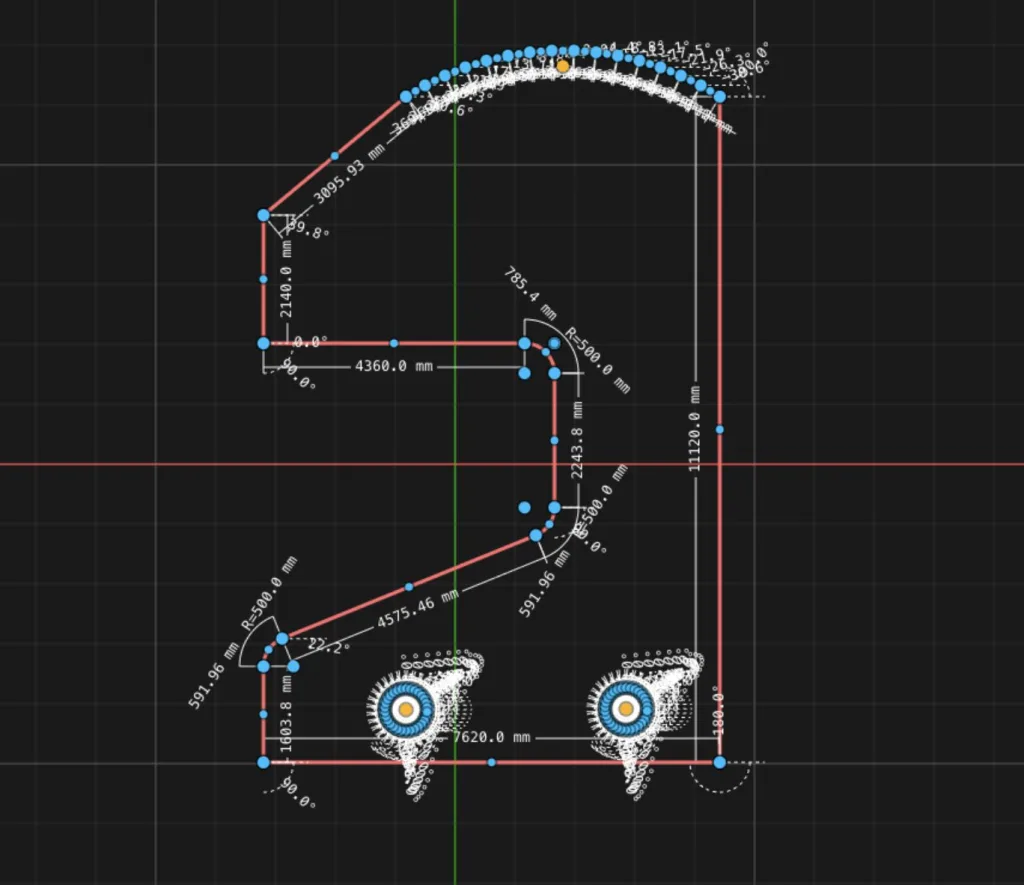
Then clicking the Hatch function will generate the hatch of the shape, and at the same time, cutout any internal shapes:
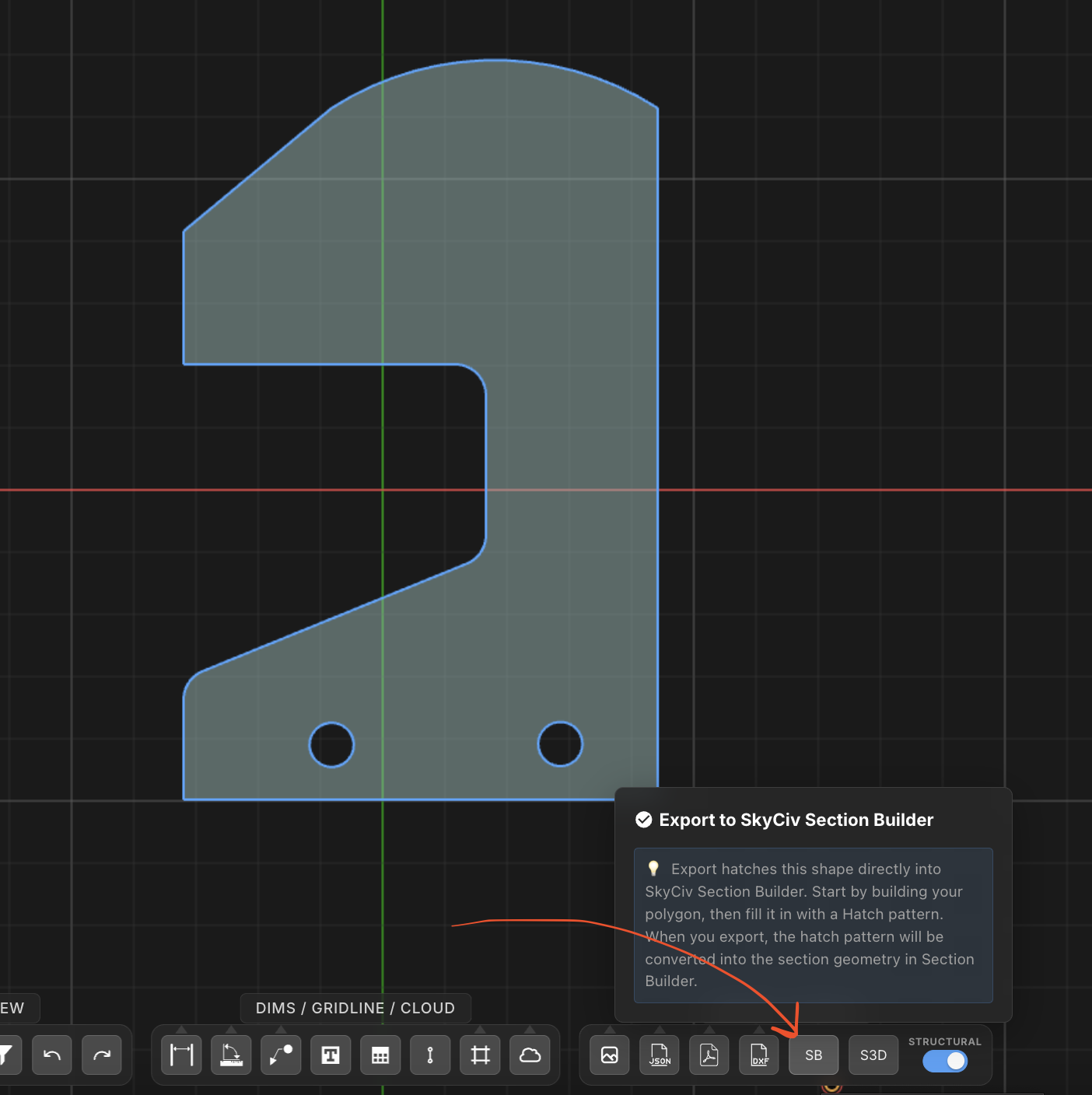
And that’s it! Simply click the Export to SB button and that will come through on the Section Builder software:
Finalise your Design in Section Builder
From there you can use this section in your structural analysis models, or even perform an FEA right there from the Section Builder. The Section Builder will generate a mesh, and allows users to input axial, bending, torsion and shear forces to analyse the cross section:
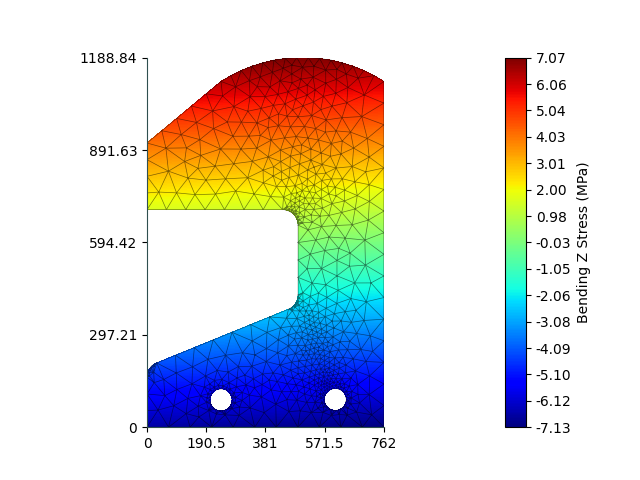
Users can also save this section to their cloud storage, via MySections to use on any Structural 3D analysis models.
