
The Plate Section Cuts tool lets you extract forces, moments, and other plate results across slabs, plates, or walls. It works in two modes: Cut, which reads results along a single line, and Strip, which integrates results over a defined width. This is useful for slab strip design, checking local plate behaviour, and verifying load distribution.
How to Use the Plate Section Cuts Tool
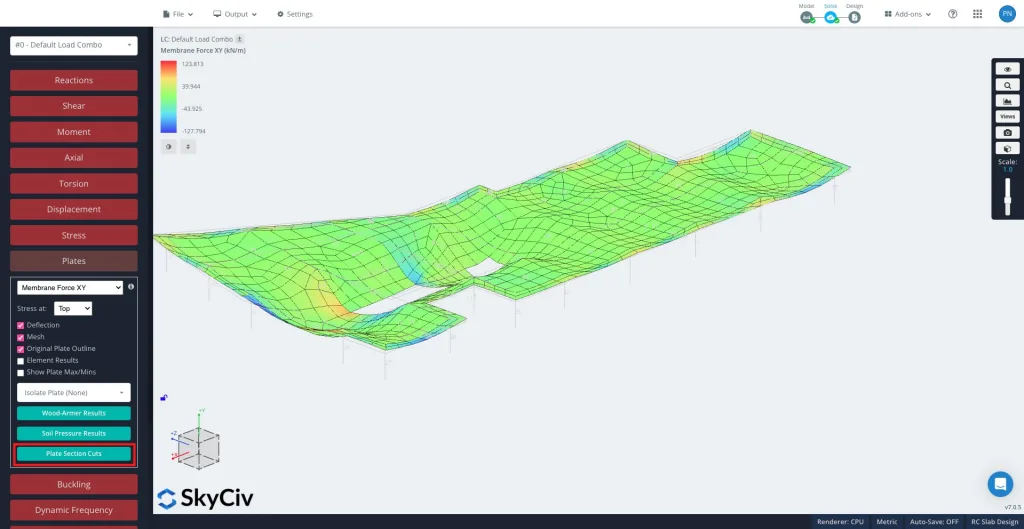
After solving, select Plates and then Plate Section Cuts in the left hand panel.
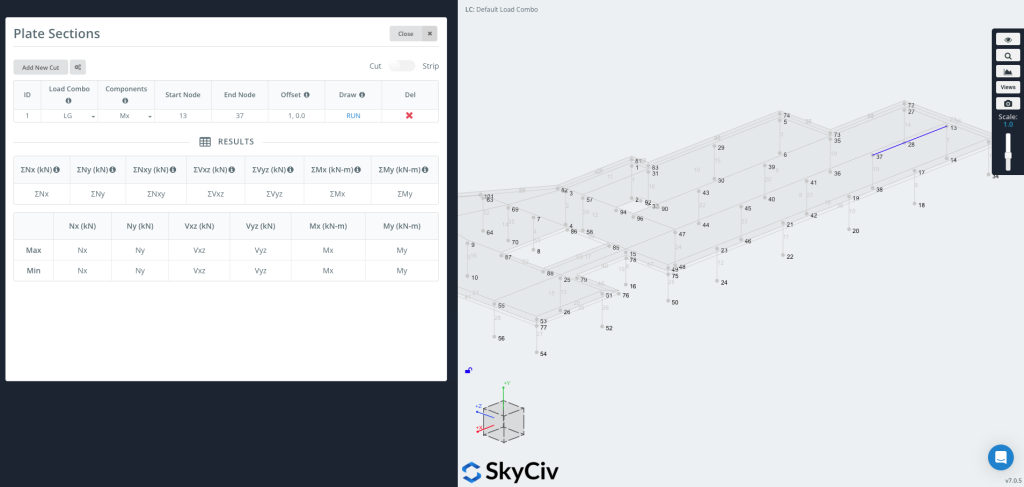
Click “Add New Cut” to create a new entry.
Each cut includes:
- Load Combo – Select which load combination to extract results from.
- Components – Choose the result type. The available components depend on the active mode (Cut or Strip) – see the sections below.
- Start Node / End Node – Define the segment where the cut will be placed. You can also enter coordinates directly, e.g.
[0,0,0]. - Offset – Optionally shift the cut line. Enter it as
a,b, where a is the node ID that sets the offset direction and b is the offset distance (e.g.1, 0.5).- This is useful when you want a graph at a set offset from an edge without manually calculating coordinates.
Use the Cut / Strip toggle in the top right corner to switch between the two modes. They differ in what they extract and which components are available.
Now you can Draw & Run the Cut
Press RUN to generate the cut. The cut line will appear on your model (as shown on the right side of the image), and the results table will populate with maximum and minimum values for each selected component.
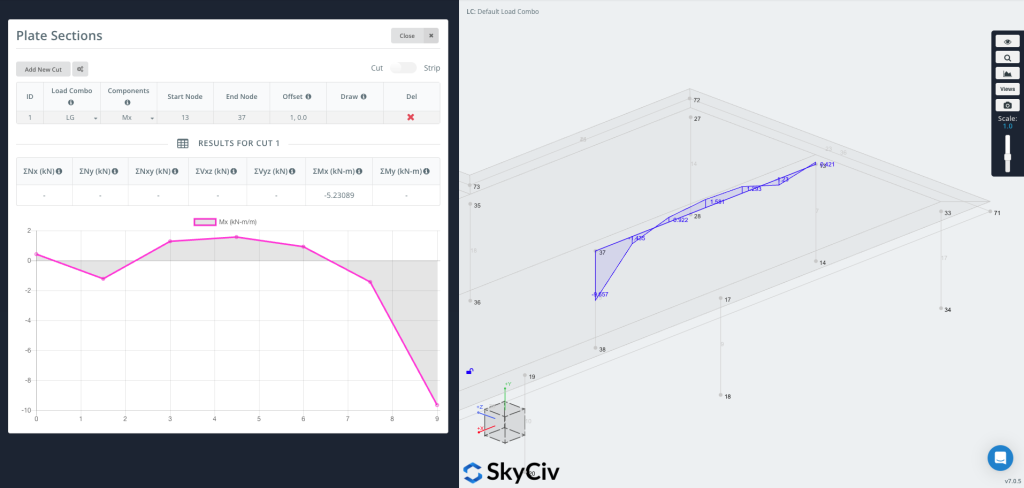
You can now plot the graph directly onto the geometry, showing result values visually along the cut line.
Cut Mode – Results Along a Line
In Cut mode the tool reads plate results along the cut line and reports them per unit length, together with the summed (Σ) total along the whole cut.
- Components – Nx, Ny, Nxy, Vxz, Vyz, Mx, My (or All at once), the Wood-Armer design moments (M1 / M2, Top / Bottom), and Soil Pressure.
- Axes – Results are reported in each plate’s local axes.
- Units – Force or moment per unit length for the diagram; the results table shows the totals ΣNx … ΣMy along the cut.
Strip Mode – Results Over a Width
Turn on the Strip toggle in the top right corner to generate a strip section.
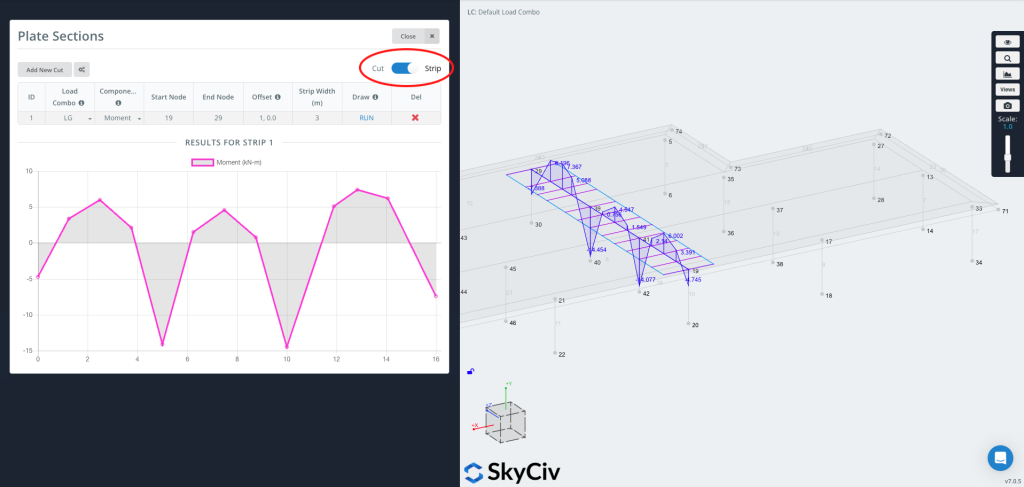
A Strip extracts results over a width, not just along a line. At each station along the cut it integrates the plate results across the strip width, so the reported value is the total force or moment carried by that slice of slab. This is typically used for slab strip design, where design codes work with forces and moments over a strip of slab rather than at a single point.
Strip axis convention
A strip has a longitudinal axis running from the start node to the end node, and it is treated as an equivalent beam along that axis. All plate results are first transformed into this axis and then integrated across the strip width: the bending moment is reported about the strip axis, just as you would read the bending moment of a beam running along it, and the axial, shear and in-plane shear forces are resolved and summed the same way. In short, the distributed plate forces are reduced to the resultant forces and moments that an equivalent beam of that width would carry.
A Strip is useful when you need:
- Design values for one-way or two-way slab strips
- More representative values over a physical strip rather than a single line
- Code-based averaging of peak values (see Peak Moment Ratio below)
Strip-specific inputs
- Strip Width – Enter
Wl,Wrfor an asymmetric strip, where Wl is the width to the left and Wr the width to the right (viewed from start to end). Enter a single value for a symmetric strip. - Components – Moment, Shear, Axial, In-plane Shear, and M comb top / M comb bot (combined reinforcement design moments – see below).
- Peak Moment Ratio (optional) – Enable this option in the settings to cap the peaks of the diagram and distribute the moment more evenly across the strip, as required by code-based averaging such as the CSA two-thirds rule. Enter a ratio between 0 and 1 (1.0 = no capping).
M comb top / M comb bot (combined design moments)
The “M comb” components are the combined Wood-Armer design moments. At every point a plate carries two bending moments and a twisting moment Mxy. Reinforcement bars resist bending along their own direction but not twist, so the twisting moment has to be folded into the bending moments – the Wood-Armer method does this, giving a single equivalent design moment for each reinforcement layer.
Top and bottom refer to the two reinforcement layers (the two faces of the plate), and they are defined by the local z-axis of each finite element’s coordinate system: the face the local +z axis points toward is the top, and the opposite face is the bottom. Because the local axes are assigned per element – and depend on how each element is defined and the order of its nodes – check the element local axes in the model to confirm which physical face is top and which is bottom. M comb top sizes the reinforcement near the top face, and M comb bot the reinforcement near the bottom face.
Because the results are integrated across the width, Strip values are reported in force or moment units (not per unit length).
Cut vs Strip – Which to Use
- Use Cut for a quick diagram of a result component along a line (in plate axes), or to get the total (Σ) across the cut.
- Use Strip when you need design forces and moments over a finite width (slab strip design), combined reinforcement moments (M comb), or code-based peak averaging.
