
Using the SkyCiv Load Generator for National Structural Code of the Philippines (NSCP) 2015 Wind Load Calculations
To calculate the wind load pressures for a structure using SkyCiv Load Generator, the process is to define first the code reference.From there, the workflow is to define the parameters in Project Details, Site Data, and Structure Data, respectively. However, free users can only use the calculation for a gable and open pitched/duopitched roof for a maximum of 3 solves per week. Note that NSCP 2015 is based on ASCE 7-10 wind load calculations. With a Professional Account or by purchasing the standalone Load Generator module, you can use all the features of this calculation as long as you want You can purchase the standalone module thru this link.
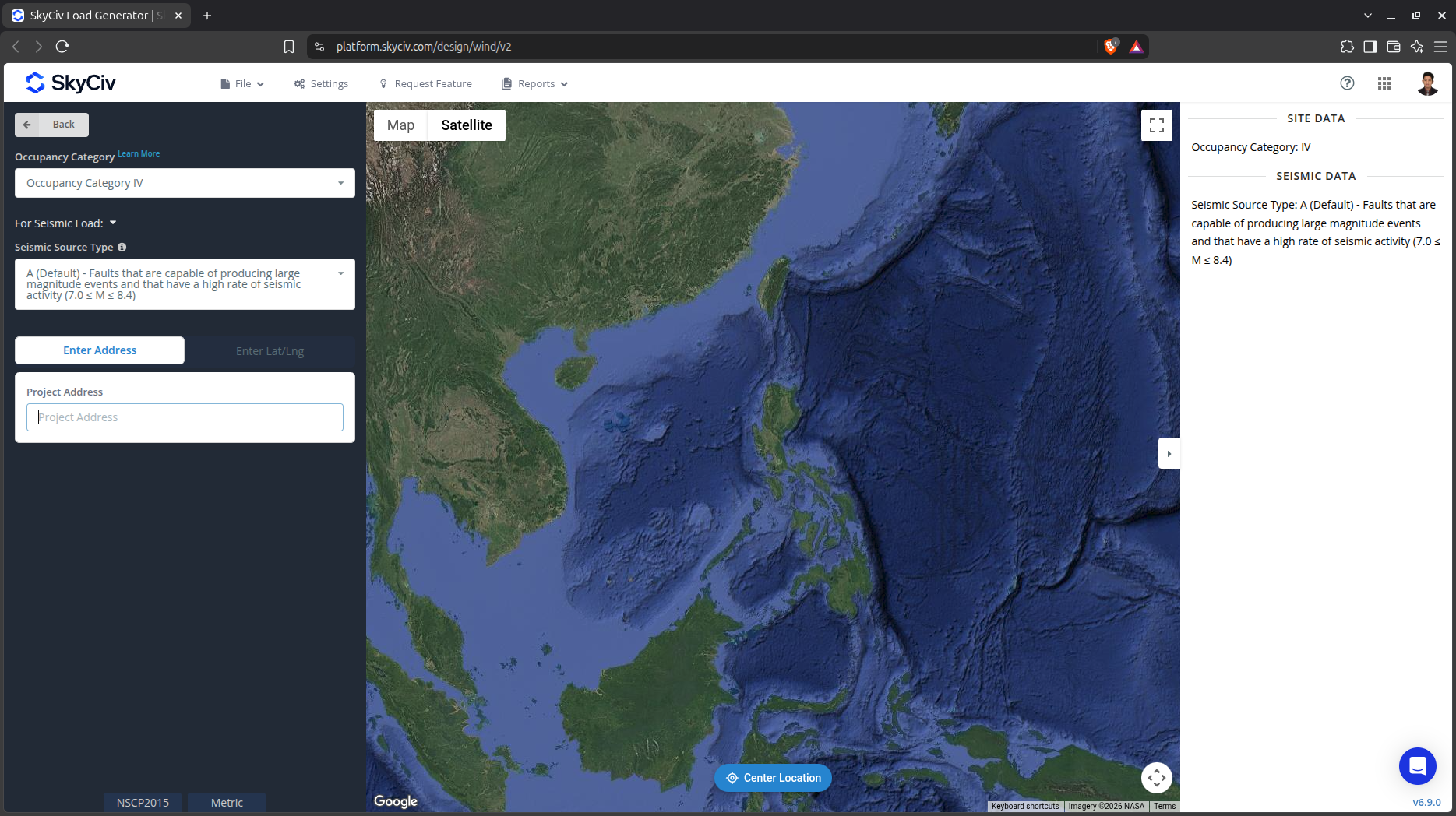
Figure 1. SkyCiv Load Generator UI
Site Data
Users can get the wind speed by location from the SkyCiv wind speed map database. Using NSCP 2015, you just need to define the Occupancy Category of the structure and put the address located in the Philippines. Note that some wind contours were extrapolated to provide an accurate calculation of wind speeds. Upon selecting NSCP 2015 from the design code modal, it will automatically proceed to the Site Data.
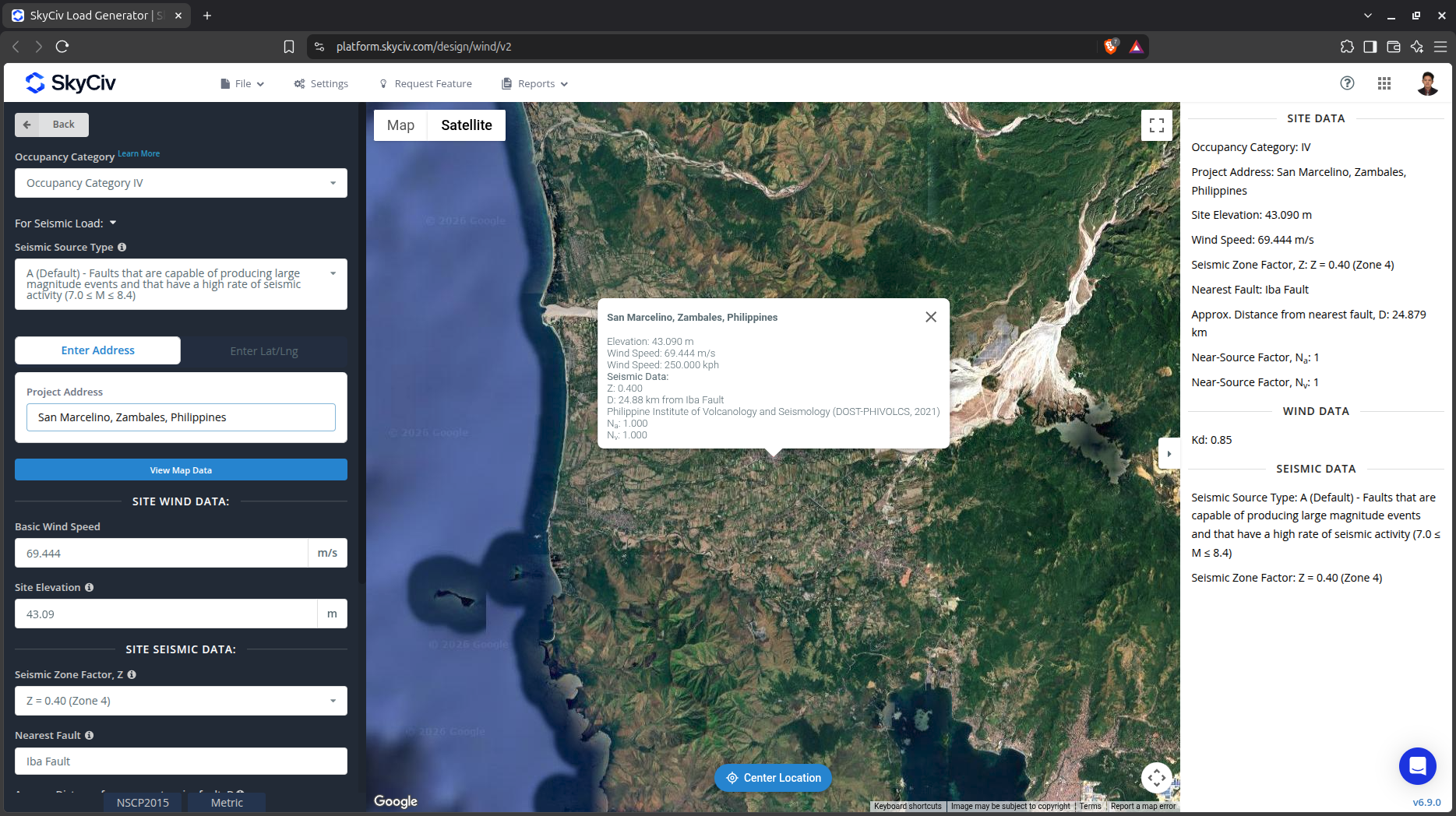
Figure 2. Site data of SkyCiv Load Generator
SkyCiv has digitalized the map as per the paperback standard. This means, you can simply enter in the site location and the software will automatically pull the wind speeds based on this input. There is a limit to how many times the wind speed can be calculated on the free tool. The software will use our internal interpolator to calculate values between the contours, to ensure accurate wind speeds are used in your designs.
Site Input Parameters for Wind Load Calculation
Risk Category – Used in determining the basic wind speed V value
Project Address – Used for getting the nearest wind speed based on the Occupancy Category selected
Basic Wind Speed – the basic wind speed to be used in calculating the design wind pressure. This is automatically determined based on Occupancy Category and Project Address and can be modified by the user
Once the parameters above are completed, we can click the “Confirm Site Data” to check if our input is okay. After this, we can now proceed to the Structure Data section.
Structure Data
The structure data and the wind and snow parameters are separated into different sections. You need to define first the Structure you are analyzing. Currently, only Building structure is supported in NSCP 2015.
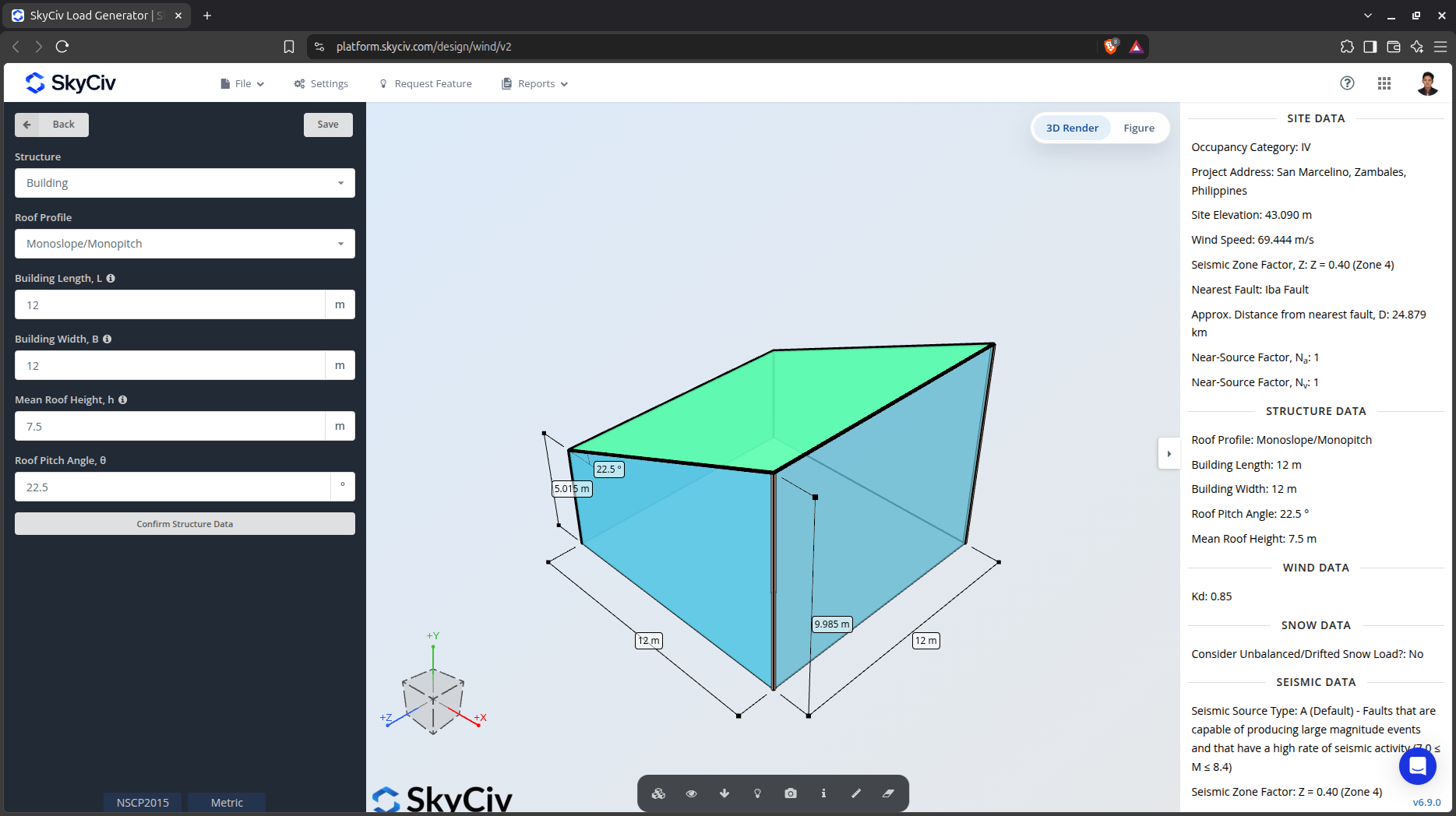
Figure 3. Structure data input for buildings.
For building structure, we need to fill the structure dimensions as shown in the building figure above. The option for the roof profiles are as follows:
- Gable
- Monoslope
- Hip
- Pitched (open gable)
- Troughed (open inverted gable)
- Open Monoslope
For free users, only Gable and Pitched roof are available for Building. The 3D Render at the right side will automatically visualize your dimension input. In addition, note that the building length is defined as the dimension parallel to the wind direction (as shown in arrow) and the building length is perpendicular to the wind direction
Structure Input Parameters for Wind Load Calculation
Roof Profile – Used in pressure coefficient values based on the selected roof profile and roof pitch angle
Building Length – the dimension parallel to the wind direction as defined in NSCP 2015. Used in calculation of pressure coefficients
Building Width – the dimension perpendicular to the wind direction as defined in NSCP 2015. Used in calculation of pressure coefficients
Mean Roof Height – the dimension of the structure from ground to the middle height of the sloping roof. Used in calculation of velocity pressure
Roof Pitch Angle – the roof slope in degree. Used in calculation of pressure coefficients
Once the parameters above are completed and validated (clicking Confirm Structure Data), we can now proceed to the Wind Load Parameters section.
Wind Data
To proceed with our wind load calculation, we need to check the checkbox first beside the Wind Load button. By default, this is checked when the site wind data has been defined.
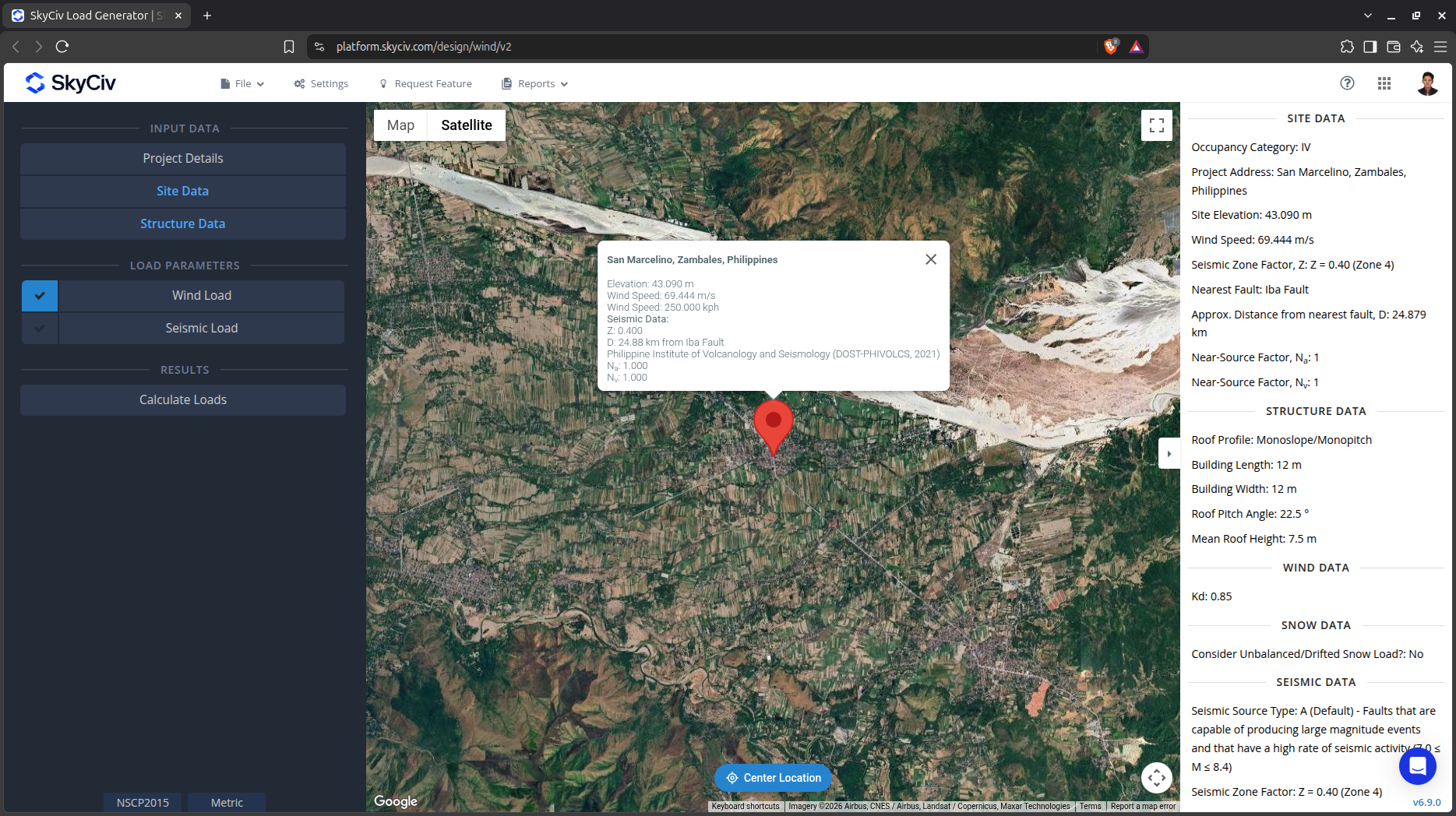
Figure 4. Checkbox for Wind Load Data.
The next step, is to define the Wind Source Direction the corresponding Exposure Category of the upwind area. The Wind Direction parameter is used in obtaining the upwind (left side) and downwind (right side) ground elevations to calculate for Topographic Factor, Kzt. In addition, the Exposure Category is used in determining the Velocity Pressure Coefficient Kz. For standalone users or Professional account, you can determine the worst wind source direction automatically so you can set the Exposure Category per upwind Wind Source Direction as represented by a 45-degree sector. Note that the default Exposure Category is set to Exposure D.
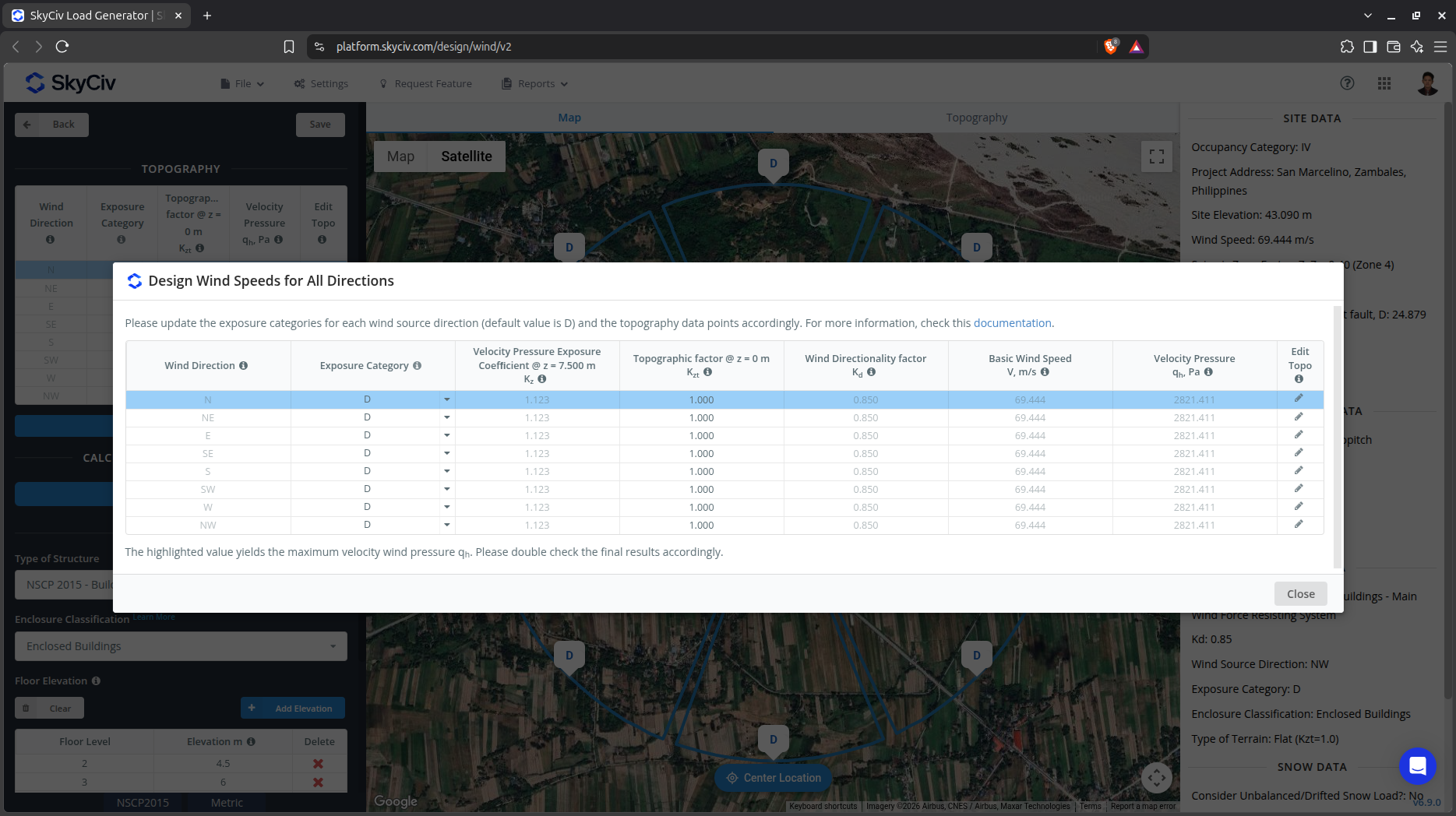
Figure 5. Design Wind Input for all Directions.
In version v6.x.x, we’ve introduced the automatic building detection for the site to automate exposure category analysis for each wind direction using Overpass API and Microsoft Global Footprint Data. If the building data are missing some areas, there is an option to use our trained AI model to detect these building footprints on the map. The algorithm uses the area and height of the building from the data sources to analyze the obstructions inside each direction sector.
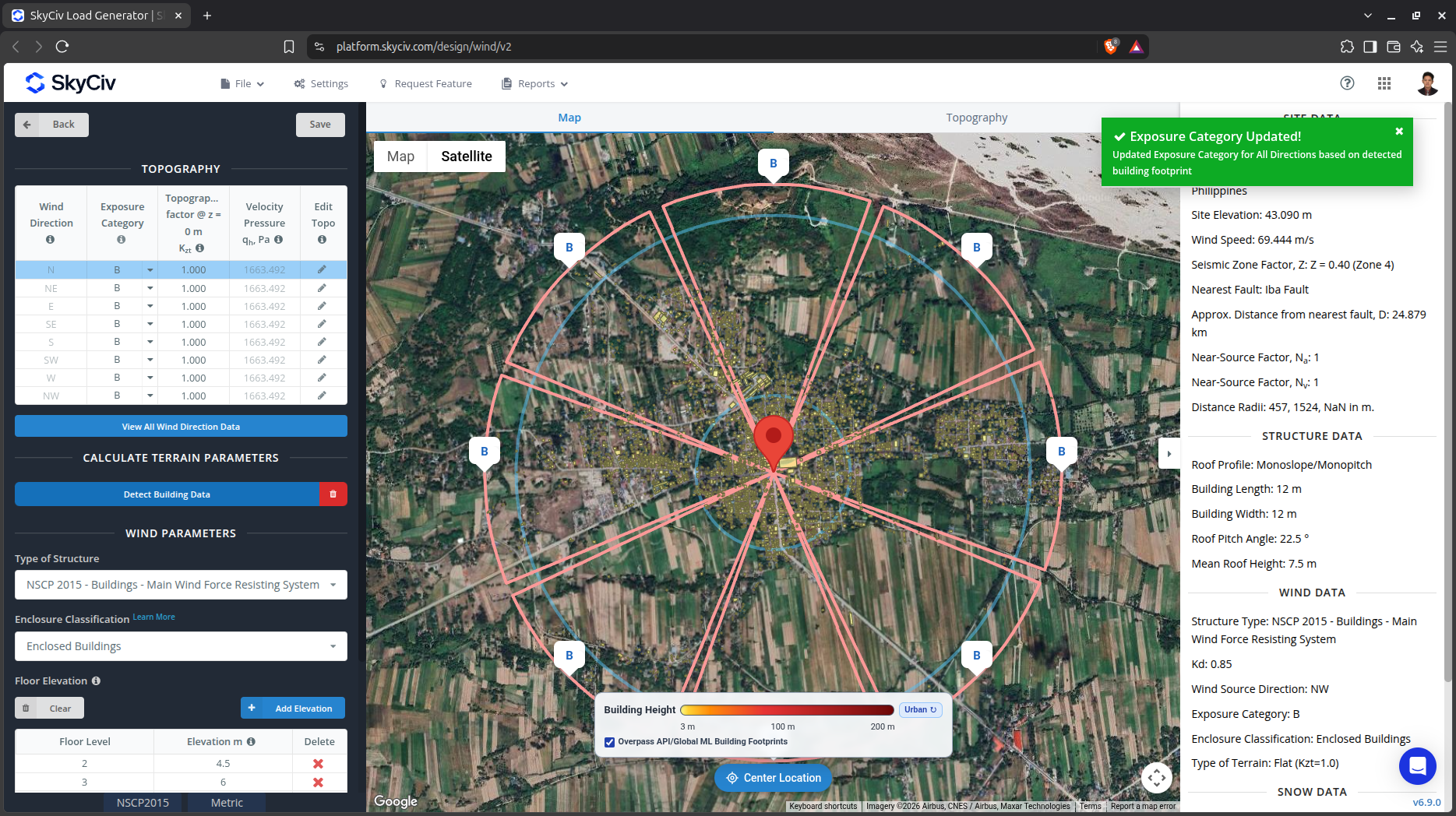
Figure 6. Detected building footprint for the site location using Overpass API and Microsoft Global Footprint Data.
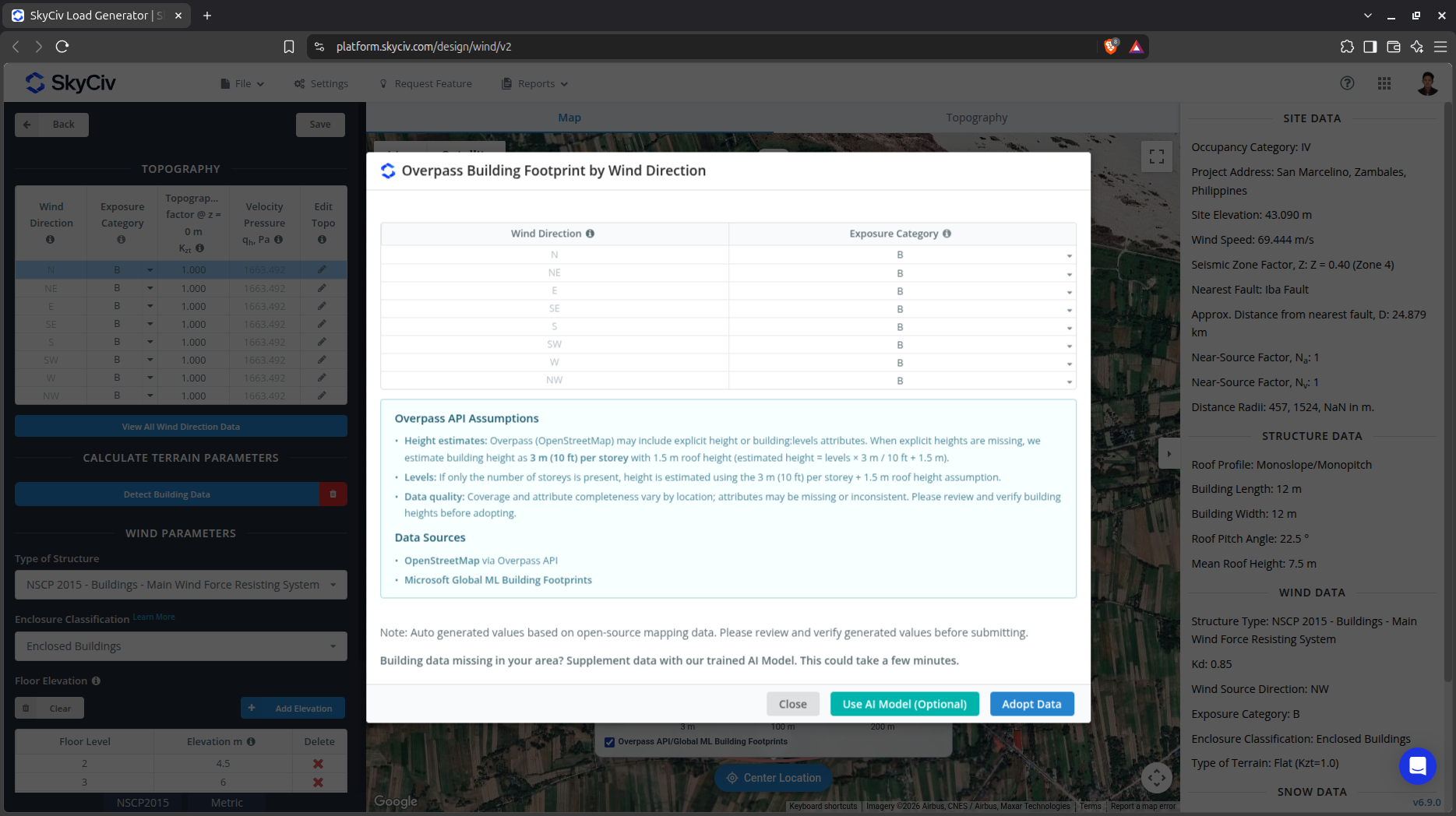
Figure 7. Analyzed Exposure Category for each wind source direction based on the detected building footprint data for the site location.
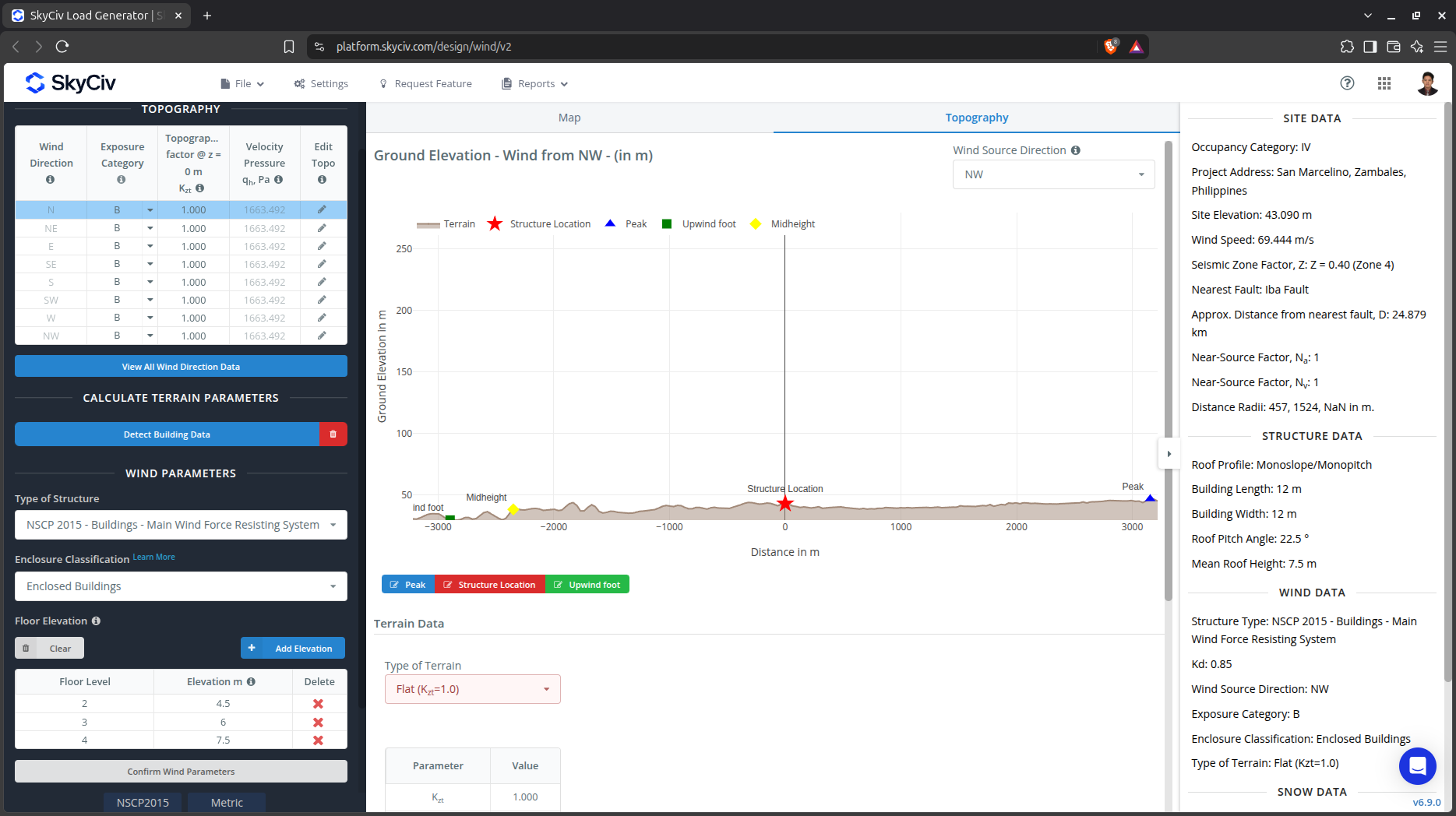
Figure 8. Elevation Data from Google Maps for upwind (left) and downwind side (right).
Topography Input Parameters
Exposure Category – Used in calculation of Velocity Pressure Coefficient Kz and Topographic Factor, Kzt . Assumed to be homogenous for each wind source direction
Wind Source Direction – used to obtain the elevation data on a specific direction section of the area. These elevation data are used in determining the Topographic Factor, Kzt
Type of Terrain – Options to select Flat, Hill, Escarpment, Ridge
H – Height of obstruction/terrain. For type of terrain is set to option other than Flat terrain, this is used in calculating the Topographic Factor, Kzt
Lh – Horizontal distance from peak to the middle height of the obstruction. For type of terrain is set to option other than Flat terrain, this is used in calculating the Topographic Factor, Kzt
x – Horizontal distance of structure to the peak of the obstruction with the peak as the point of reference. For type of terrain is set to option other than Flat terrain, this is used in calculating the Topographic Factor, Kzt
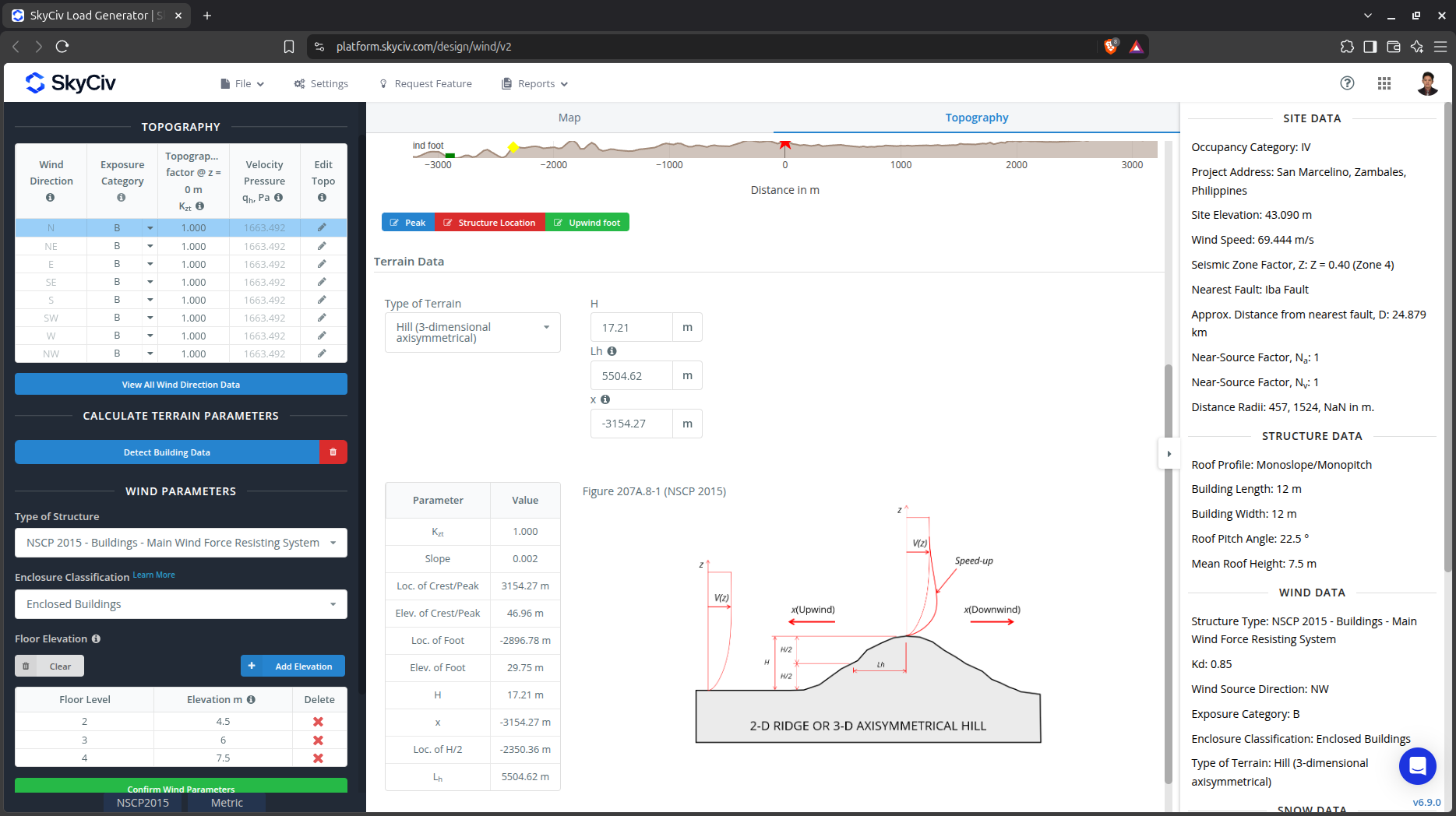
Figure 9. Topography Parameters for NSCP 2015.
Wind Input Parameters for MWFRS
Type of Structure – Required to be set to NSCP 2015 Buildings – Main Wind Force Resisting System (MWFRS)
Enclosure Classification – Enclosed, Partially Enclosed options for gable, hip, and monoslope roof; Open for pitched, troughed, open monoslope roof. Used in obtaining the internal pressure coefficients Cpi
Wind Blockage – For calculation of GCN for open roof profiles
Floor Elevation – Since the wind pressure acting on the windward is parabolic in nature, this is used to approximate this pressure by assigning multiple rectangular pressure acting on the wall in between the level
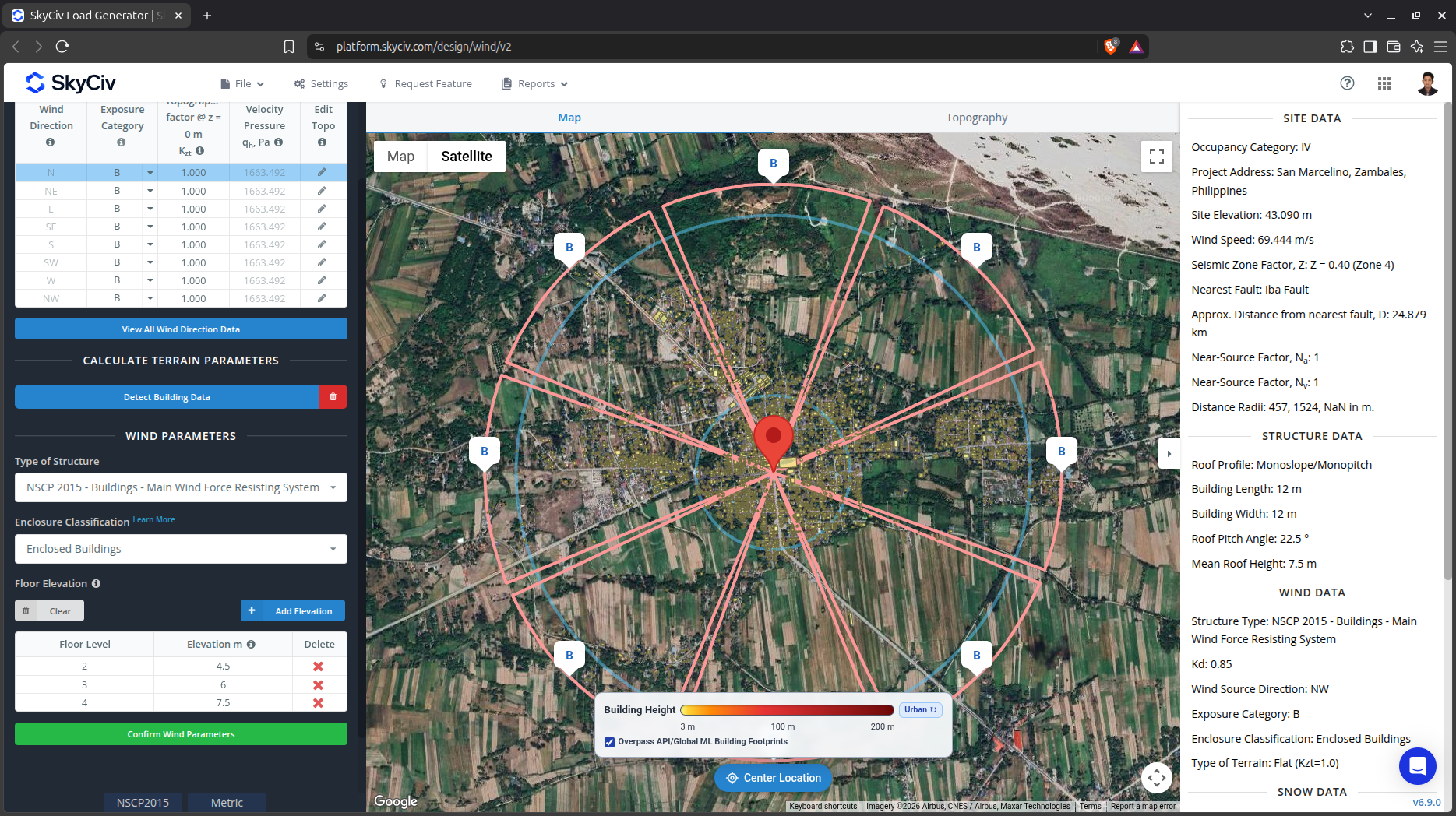
Figure 10. Wind Parameters for MWFRS.
Wind Input Parameters for Components and Cladding
Type of Structure – Required to be set to NSCP 2015 Buildings – Components and Cladding
Enclosure Classification – Enclosed, Partially Enclosed options for gable, hip, and monoslope roof; Open for pitched, troughed, open monoslope roof. Used in obtaining the internal pressure coefficients Cpi
Wind Blockage – For calculation of GCN for open roof profiles
Effective Area of Wall Cladding – Can be a comma-separated value (i.e. 23,44,20) for multiple effective wind area. Used in calculating the design wind pressure for wall cladding or components
Effective Area of Roof Cladding – Can be a comma-separated value (i.e. 23,44,20) for multiple effective wind area. Used in calculating the design wind pressure for roof cladding or components
Floor Elevation – Since the wind pressure acting on the windward is parabolic in nature, this is used to approximate this pressure by assigning multiple rectangular pressure acting on the wall in between the level
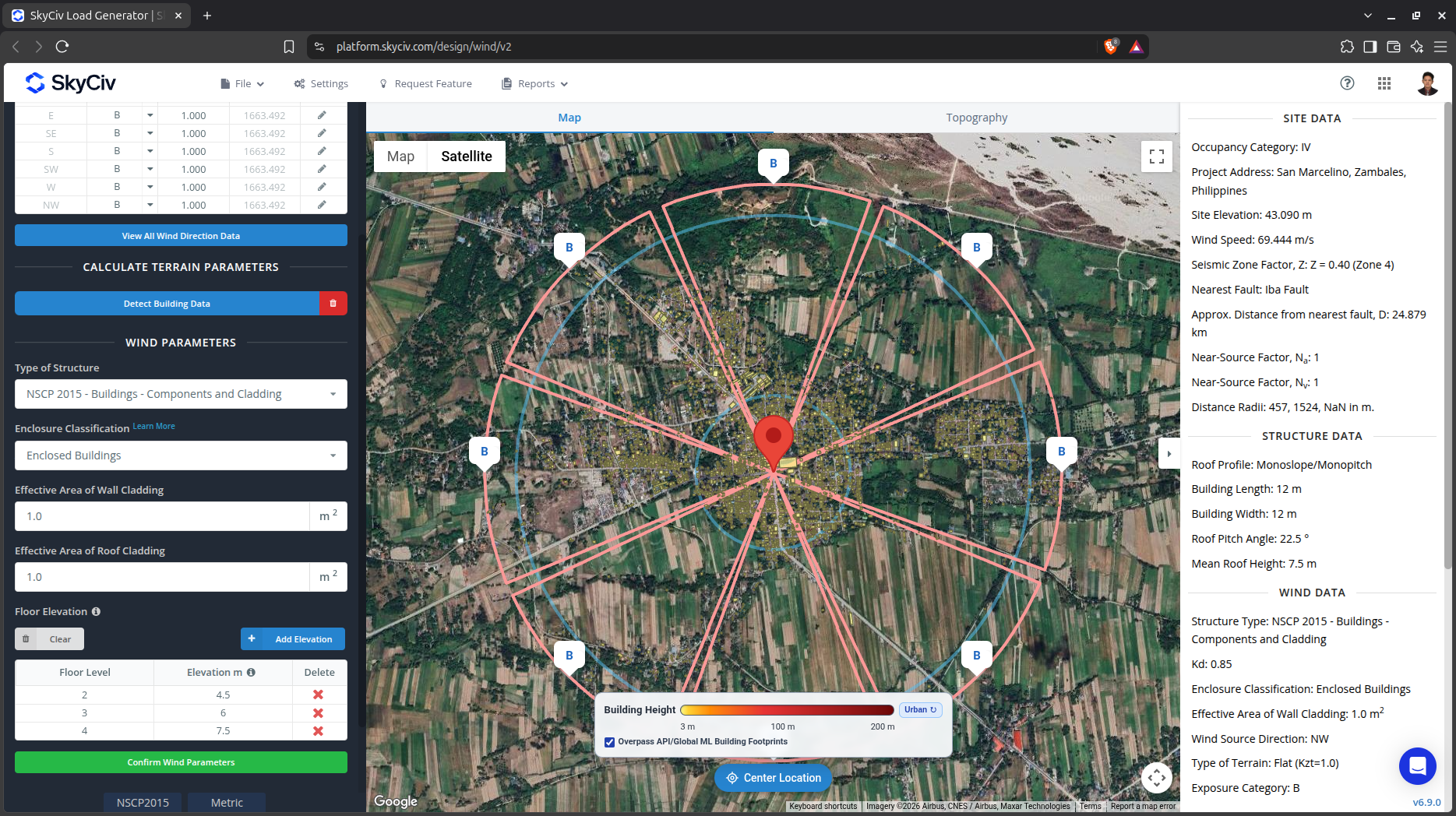
Figure 11. Wind Parameters for Components and Cladding.
After all these parameters are defined, the next step is to click the Calculate Loads on the left side of the UI.
Results
The results of the calculation are shown as follows:
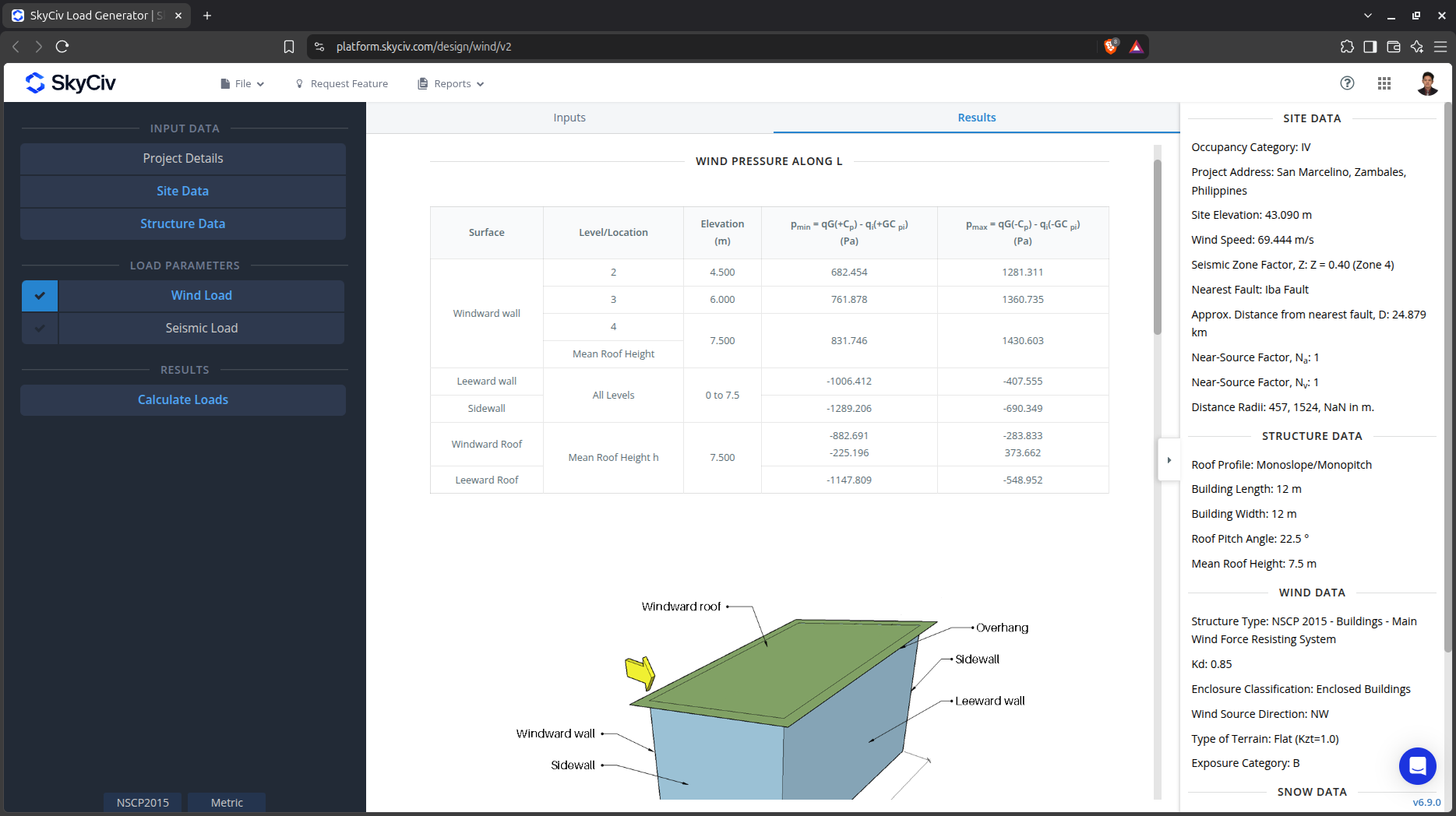
Figure 12. Wind results for Building – MWFRS.
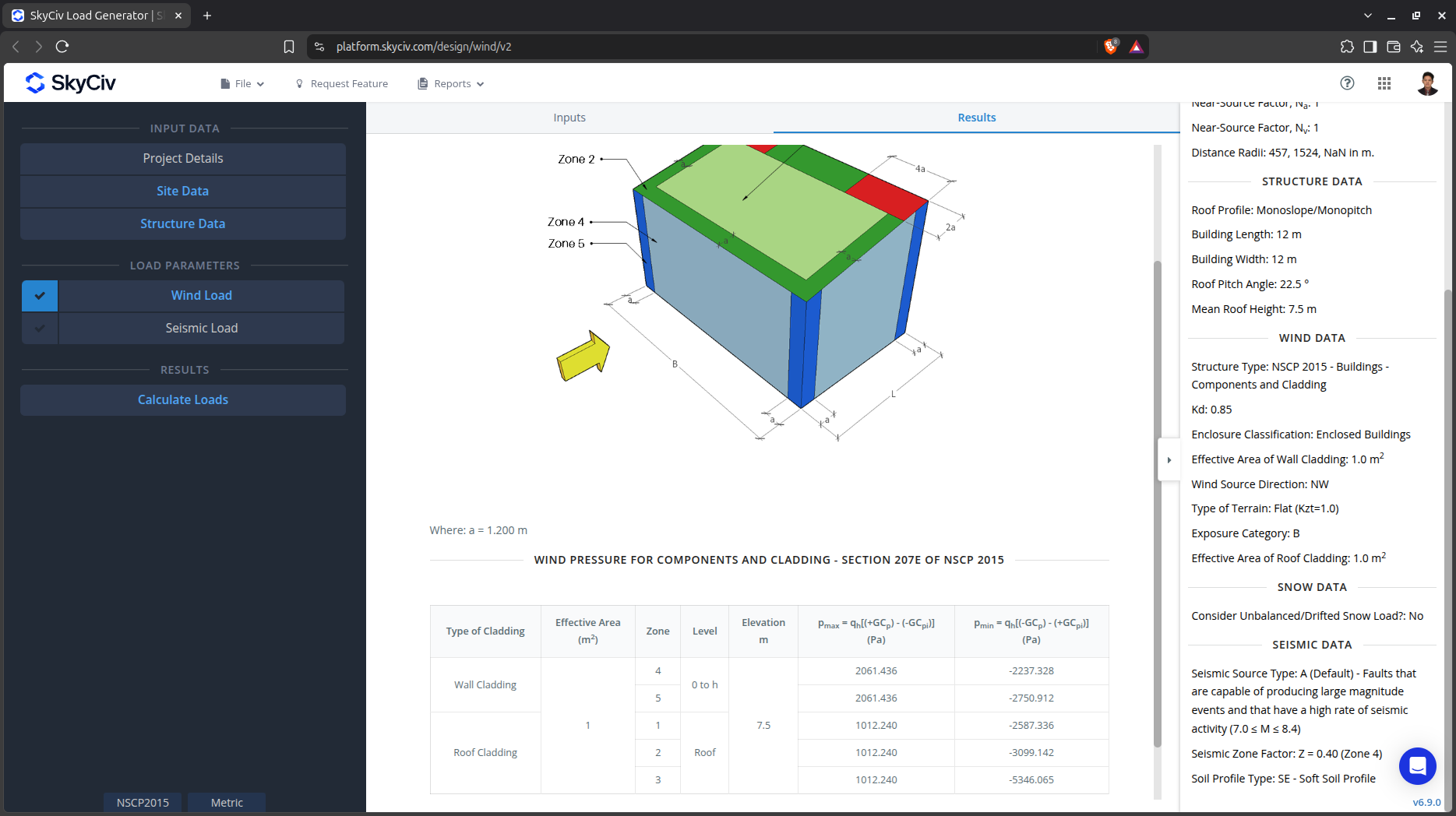
Figure 13. Wind results for Building – Components and Cladding.
The summarized results are shown on the middle of the screen. Other results are shown on the detailed report such as the approximate base shear, and many more.
Detailed Calculation
The detailed wind load calculations can be accessed only by Professional account users and those who purchased the standalone load generator module. All the parameters and assumptions used in the calculation are displayed on the report to make it transparent to the user. You can download a sample detailed calculation thru the following links:
NSCP 2015 MWFRS
NSCP 2015 Components and Cladding
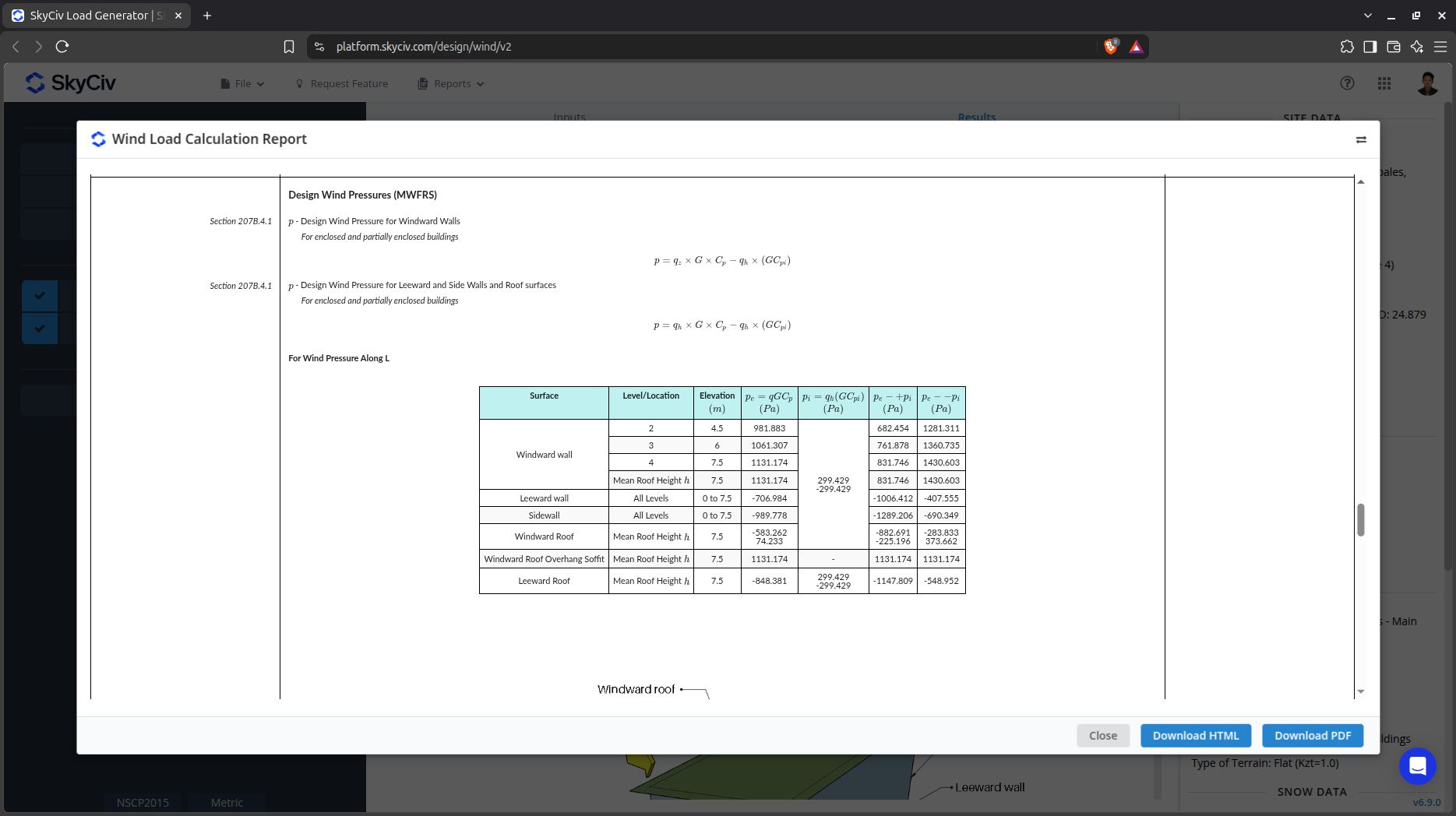
For additional resources, you can use these links for reference:

