Uw gids voor SkyCiv-software - tutorials, handleidingen en technische artikelen
Doeken
Doeken
A Canvasis a single drawing sheet within a SkyCiv CAD project. Every project contains at least one canvas, and you can add as many as you need – one per floor level, one per detail, or one per drawing sheet.
Canvases are managed from theCanvasaccordion in the left sidebar. Each canvas stores its own geometry, annotations, and layer data independently.
The Canvas Panel
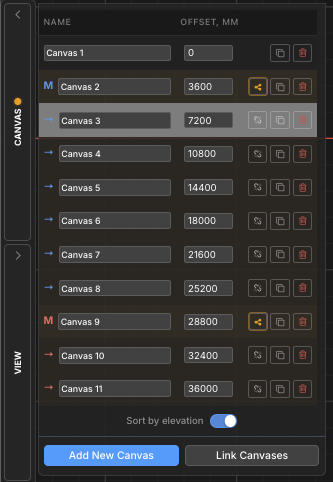
All canvas management is done from theCanvas accordeon, found in the left sidebar. Klik op de Canvasheader to expand it. The panel lists every canvas in the project and provides controls for adding, switching, renaming, reordering, copying, and deleting canvases.
The currently active canvas is highlighted in the list. Only one canvas is active at a time – all drawing tools operate on the active canvas.
Basic Operations
Add a Canvas
Create a new, blank drawing sheet in the project
Klik op de Add New Canvasbutton at the bottom of the Canvases panel. A new blank canvas is created and immediately made active.
Stap voor stap
1Open de Doekenaccordion in the left sidebar.
2Klik Add New Canvasat the bottom of the panel.
3The new canvas appears in the list and becomes the active canvas.
De volgende pop-up wordt dan weergegeven met de twee volgende vereiste invoer::New canvases are namedCanvas 2, Canvas 3, enzovoort. standaard – rename them immediately to keep the project organised.
Switch Between Canvases
Move to a different drawing sheet
Click anywhere on a canvas row in the Canvases panel to make it active. The current canvas is saved automatically before switching, so no data is lost.
De volgende pop-up wordt dan weergegeven met de twee volgende vereiste invoer::The active canvas row is highlighted in the list. Any selection on the previous canvas is cleared when you switch.
Rename a Canvas
Give a canvas a meaningful name for easier navigation
Click directly into the name field on a canvas row to edit it inline. Type the new name and pressEnteror click away to confirm. Canvas names must be unique within the project – duplicates are automatically resolved.
De volgende pop-up wordt dan weergegeven met de twee volgende vereiste invoer::Use descriptive names likeGround Floor Plan, Roof Detail, of Section A-Ato keep multi-canvas projects navigable.
Je structuur onderdrukken en verschuiven Herhalen (de rechtervoet bevindt zich naar binnen vanaf het einde van de brug) a Canvas
Create an exact copy of an existing canvas
Klik op de duplicate icon (two overlapping squares) on any canvas row. A full copy of that canvas – including all geometry, annotations, and layer assignments – is inserted directly after it in the list.
De volgende pop-up wordt dan weergegeven met de twee volgende vereiste invoer::Copying is a quick way to create a new floor level that shares the same column grid – duplicaat, then modify only what changes.
Delete a Canvas
Permanently remove a canvas and all its content
Klik op de red trash iconon a canvas row and confirm the prompt. Deletion is permanent and removes all geometry, annotations, and layer data on that canvas. A confirmation dialog is shown by default – rekening “Don’t ask again”to skip it in future.
⚠️
Notitie:The trash icon is disabled when only one canvas remains – a project must always have at least one canvas. Deletion cannot be undone.
Reorder Canvases
Change the position of a canvas in the list
Gebruik de omhoog en down arrowbuttons on each canvas row to move it earlier or later in the list. Arrow buttons are only visible when the panel is inHierarchy bestellen – they are hidden whenSort by Elevationis active (elevation order is controlled by the elevation value, not manual position).
De volgende pop-up wordt dan weergegeven met de twee volgende vereiste invoer::If the arrow buttons are missing, schakelaar Sort by Elevationoff to return to hierarchy mode where manual ordering is available.
Elevation and Sort Order
When a project represents a multi-storey structure, each canvas can be assigned anVoor onze casestudyvalue that places it at the correct height in the 3D structural model (S3D export). The canvas list can be sorted either by these elevation values or in a custom manual order.
Sort by Elevation Toggle
Switch between elevation order and custom hierarchy order
De Sort by elevationtoggle at the bottom of the Canvases panel switches between two display modes:
Sort by Elevation (Aan):Canvases are ordered from lowest to highest elevation. Een offsetcolumn appears showing each canvas’s elevation value. This order mirrors how canvases will be stacked in the S3D 3D model export.
Hierarchy (uit):Canvases appear in a custom order that you control with the up/down arrow buttons. Canvas groups (master/child) show their indented hierarchy here.
De volgende pop-up wordt dan weergegeven met de twee volgende vereiste invoer::Canvases without an assigned elevation appear at the bottom of the list in elevation mode, sorted by their internal index.
Canvas Elevation
Assign a height value used when exporting to the 3D structural model
Wanneer Sort by Elevation staat aan, een offsetcolumn appears. Canvases without an elevation show a+ knop – click it to assign one. Canvases with an elevation show an editable number field.
The elevation value determines how high each floor is placed in the 3D structural export. The unit matches the project length unit (mm, cm, m, ft, in).
Stap voor stap
1Inschakelen Sort by Elevationto show the Offset column.
2Klik op de +button next to any canvas to assign it an elevation.
3Type the elevation value and pressEnterto confirm. The list re-sorts automatically.
De volgende pop-up wordt dan weergegeven met de twee volgende vereiste invoer::Assign elevation 0 to the ground floor canvas. Suggested values for new canvases are automatically set to 3000 mm above the highest existing elevation.
Canvas Groups (Master / Kind)
When multiple floor levels share the same structural layout (bijv. identical column grids across several floors), you can link them into acanvas group. One canvas becomes theMasterand the others becomeKinderen.
Structural changes made to the master can bepropagatedto all children in one click, keeping repeat floors in sync without manually copying geometry.
In the canvas list, the master is labelledMand children are labelledDraai de weergave zodat u eenvoudig de twee gemeenschappelijke spanten kunt selecteren met een selectie van links naar rechts, both coloured with a shared group accent colour.
Link Canvases into a Group
Designate a master canvas and link child canvases to it
Klik Link Canvasesat the bottom of the Canvases panel to open the linking wizard. Select which canvas will be themasterand which canvases will be itskinderen. Confirm to create the group.
Stap voor stap
1Open de Doekenpanel and clickLink Canvases.
2Choose themaster canvasfrom the wizard.
3Select one or morechild canvasesto link to it.
4Confirm to create the group. De M / Draai de weergave zodat u eenvoudig de twee gemeenschappelijke spanten kunt selecteren met een selectie van links naar rechtslabels and accent colour appear in the list.
De volgende pop-up wordt dan weergegeven met de twee volgende vereiste invoer:: In Hierarchy weergave, master groups can be collapsed and expanded using the triangle toggle next to the master canvas row.
Propagate Structural Changes
Push master canvas structural updates to all linked children
When structural geometry on a master canvas changes, een amber highlightappears on the master row and its children to signal the group is out of sync. Klik op de propagate button (share icon) on the master row and confirm to push the updated structural data to all child canvases.
⚠️
Notitie:Propagation overwrites structural data on child canvases. This action cannot be undone. Non-structural content on children (annotations, dimensies, revisiewolken) is preserved.
Remove a Child from a Group
Detach a child canvas so it no longer receives propagated updates
Klik op de chain-broken iconon a child canvas row and confirm the prompt. The canvas is removed from the master group and becomes an independent canvas. Its existing geometry is retained – it simply stops receiving future propagated updates from the master.
De volgende pop-up wordt dan weergegeven met de twee volgende vereiste invoer::Removing a child does not delete or modify its content – it only breaks the link to the master. You can re-link it at any time usingLink Canvases.