
Work Faster with CloudCAD Default and your own Customized Shortcuts
Customizing Shortcuts
Users are able to customize their shortcuts to speed up their modelling and workflows. Actuellement, there are two ways to custom set your own shortcuts in SkyCiv CAD:
Option 1: Command Line
Users can define these from the command line (CTRL+SPACE):
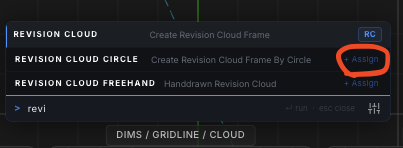
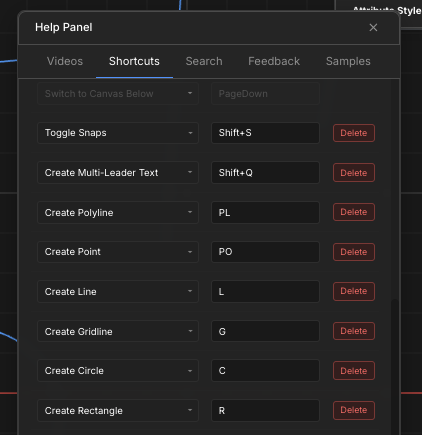
Option 2: Help Panel
Via the top toolbar, users can go Help Panel – Raccourcis:
Command Console
The command console (which opens by default) allows users to quickly type the function they wish to execute, to run and find what they’re looking for, plus rapide. Par exemple, if the user types “LI” it will automatically show any function with LI in it:
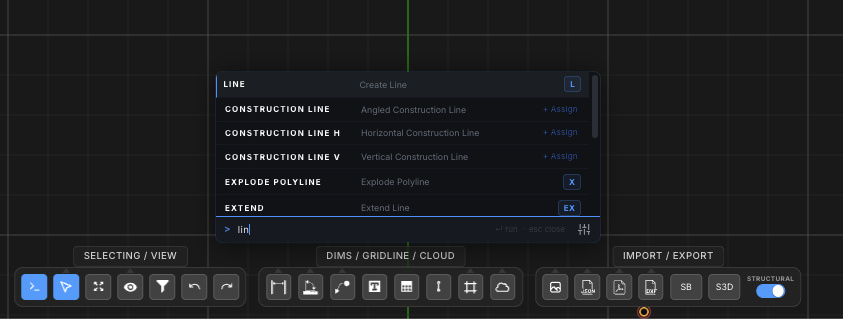
The user can then down press or space and hit enter to execute. Users can still assign shortcuts, par exemple RC for revision cloud, and when the user hits “RC” it will automatically open the console and highlight this operation.
Console Settings
The settings can be controlled by clicking the bottom right icon under the function list. This will allow users to edit the following:
- Open Command Line on keypress – when ticked on (par défaut) any letter keypress will open the command line
- Hit SPACE to Execute Command Line – when ticked on, the space bar will automatically execute the highlighted function
Video Tutorial of the Command Console:
FACTURE Erreur: incompatibilité srcfournisseur: youtube
URL: https://www.youtube.com/watch?v=eFuHcoMKqxY&t=1s
src dans l'organisation: https://www.youtube-nocookie.com/embed/eFuHcoMKqxY?start=1&fonctionnalité = oembed
src en mode: https://www.youtube-nocookie.com/embed/eFuHcoMKqxY?start=1
organisation de gènes src: https://www.youtube-nocookie.com/embed/eFuHcoMKqxY
Default Shortcuts