
The SkyCiv AI Assistant is an AI structural modeling tool built into SkyCiv Structural 3D and CloudCAD. Describe what you want in plain language and it works on your model for you: it can build models from scratch, modify your existing models, query your analysis results, diagnose and help repair issues, solve your model, and answer questions about using SkyCiv. This article covers what the AI Assistant can do in SkyCiv Structural 3D and how to use it.
Opening the AI Assistant
- Open a model in Structural 3D, or start a new one.
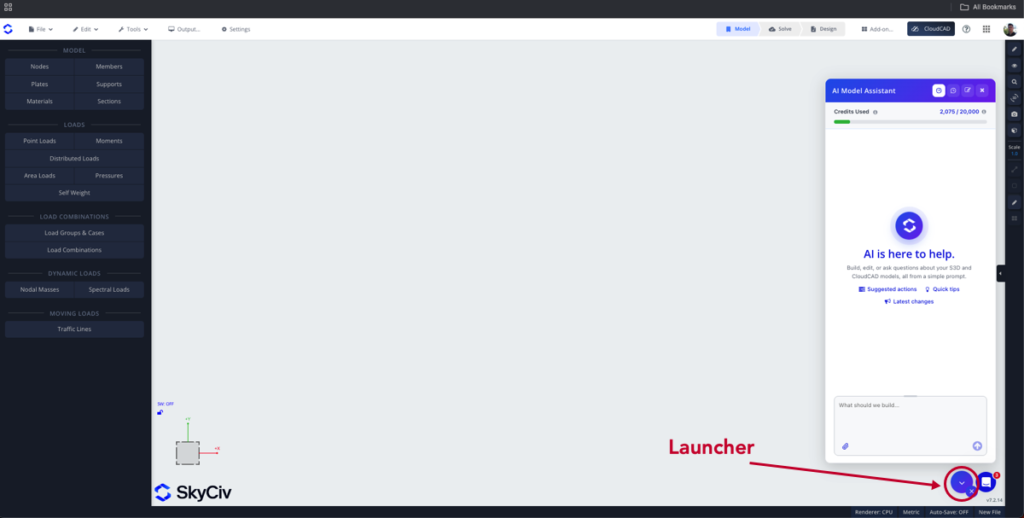
- Click the AI Assistant button (the sparkle icon) in the bottom right corner to open the AI Assistant panel (see below).
- Type your request in the prompt box and press Enter, or click Send, to run your prompt.
AI Credits
Each request uses AI credits, based on the work it takes to complete. A free monthly allowance of credits is available on paid commercial accounts (Basic, Professional, or Business). Click the Usage button at the top of the panel to see your Credits Used for the month, and hover over the info icon beside it to see when your credits reset. On a Business account, the credits are shared across the whole account.
If you use all your credits, the AI Assistant stops running new requests until your credits reset. You can add more credits at any time from the checkout page, or with the Add more credits button in the usage panel.
What You Can Ask the AI Assistant
| Intent | What it does | Example prompt |
|---|---|---|
| Build | Builds a structural model from scratch | “Build a 2-storey steel portal frame, 12 m span, 6 m bays” |
| Modify | Changes or adds to your existing model | “Change all internal columns to W12x26” |
| Query results | Answers questions about your analysis results, and can export or generate them in a format of your choice | “What is the maximum deflection, and in which member? Export all the member results in CSV format” |
| Diagnose | Finds potential issues and helps repair them. It can also re-solve the model to check that the issue is fixed | “Why won’t my model solve?” |
| Solve | Runs the analysis and opens the results; investigates a failed solve | “Can you run an analysis and locate the worst reaction in my outer columns?” |
| Software Support | Answers how-to questions from the SkyCiv documentation and guides you through using the software | “How do I export to DXF?” |
The intent of your prompt is detected automatically, and the appropriate agent runs to complete your task.
Agent Response Types
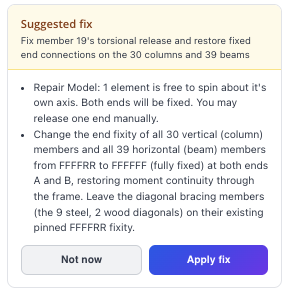
Suggested Fix
If the agent detects an issue in the model, it may ask you to confirm the repair:
Action Complete
When the action is complete, the agent tells you what it has done and gives you two options:
- Undo: undoes the changes made by the agent
- Keep: keeps the changes made to your model by the agent
Clarification
If the agent needs more information, it asks you to clarify. Give it more context in these cases so it can work effectively and accurately.
Video Tutorial
Tips
- Press the Up arrow in the prompt box to show your last prompt.
- Click node and element IDs in a response to highlight and locate them in the model.
- If the model won’t solve, ask the AI Assistant to diagnose it, or ask it to solve; it looks into what went wrong.
- Give it more context and clearer instructions for the best results.
Limitations
- Always check AI-generated models, changes and answers: the engineer remains responsible for the design.
- The AI Assistant doesn’t choose or optimize section sizes to meet a design criterion (such as passing design checks or a deflection limit). It can assign a section you name, or a reasonable section when no criterion is given.
- It doesn’t give a verdict on whether a design is safe or adequate, or make design decisions such as how to support or connect your structure.
- It can run any analysis, but it doesn’t read modal, buckling or dynamic results (mode shapes, frequencies, buckling factors).
- It doesn’t draw complex custom cross-sections: use the Section Builder for built-up, composite or arbitrary shapes. Simple shapes from dimensions you give (rectangle, circle, I-beam, angle, channel and similar) are supported.
- It doesn’t generate CAD, shop or connection drawings.
- Your credits are a monthly allowance: once they are used up, requests are refused until they reset or you add more.
