
O SkyCiv AI Assistant está integrado ao SkyCiv Structural 3D e CloudCAD. Descreva o que você deseja em linguagem simples e isso funcionará para você no seu modelo. Ele pode construir modelos do zero, modifique seus modelos existentes, consultar os resultados da sua análise, diagnosticar e ajudar a reparar problemas, resolva seu modelo, e responda a perguntas sobre o uso do SkyCiv. Neste artigo, abordaremos as habilidades e os principais recursos do AI Assistant no SkyCiv Structural 3D.
Abrindo o Assistente de IA
- Abra um modelo no Structural 3D, ou comece um novo.
- Clique no ícone azul no canto inferior direito para abrir o painel AI Assistant (Veja abaixo)
- Seus créditos serão exibidos acima do painel
- Digite sua solicitação e pressione Enter para executar seu prompt
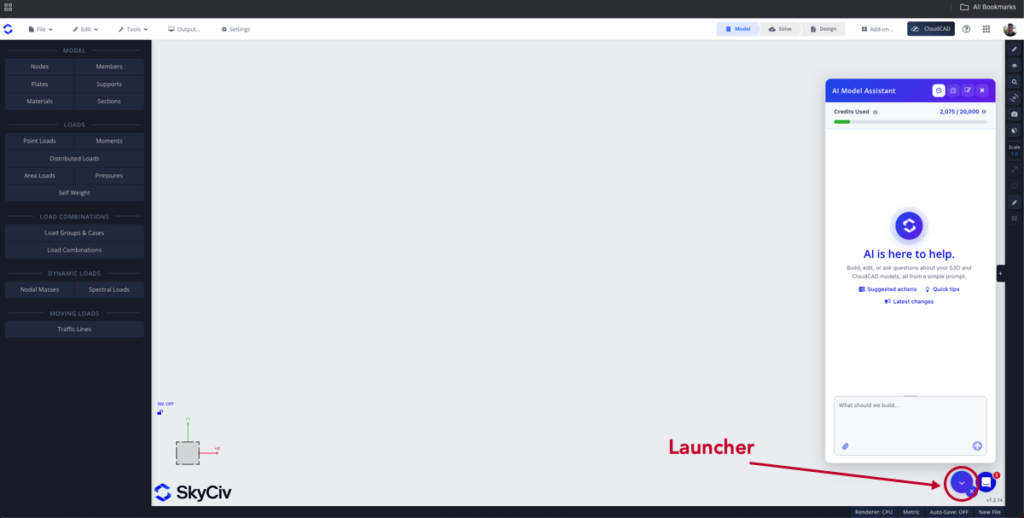
Tokens Alocados
Uma alocação gratuita de tokens está disponível em contas comerciais pagas (Básico, Professional, ou Negócios). Você também pode adicionar mais tokens do página de checkout a qualquer hora.
O que você pode perguntar
| Intenção | O que isso faz | Solicitação de exemplo |
|---|---|---|
| Construir | Constrói um modelo estrutural do zero | “Construa uma estrutura de portal de aço de 2 andares, 12 m vão, 6 m baías” |
| Modificar | Altera ou adiciona ao seu modelo existente | “Altere todas as colunas internas para W12x26” |
| Resultados da consulta | Responde a perguntas sobre os resultados da sua análise, pode exportá-los ou gerá-los no formato de sua escolha | “Qual é a deflexão máxima, e em qual membro? Exporte todos os resultados dos membros em formato CSV” |
| Diagnosticar | Encontra possíveis problemas e ajuda a repará-los. Também é possível executar uma resolução para garantir que o problema seja corrigido | “Por que meu modelo não resolve?” |
| Resolver | Executa a análise e abre os resultados; investiga uma solução falhada | “Você pode fazer uma análise e localizar a pior reação nas minhas colunas externas?” |
| Suporte de Software | Responde a perguntas de instruções da documentação do SkyCiv, fornece orientação sobre como usar o software | “Como faço para exportar para DXF?” |
A intenção do seu prompt será detectada automaticamente e o agente apropriado será executado para concluir sua tarefa.
Tipos de resposta do agente
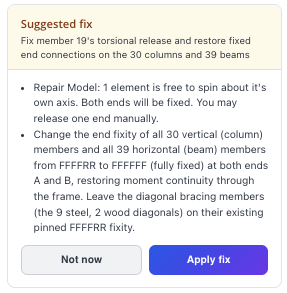
Correção sugerida:
Se o agente detectar um problema no modelo, pode solicitar que você confirme o reparo:
Ação concluída
Se a ação for concluída, o agente lhe dirá o que fez. Ele também fornecerá duas opções:
- Desfazer: irá desfazer as alterações feitas pelo agente
- Manter: mantenha as alterações feitas em seu modelo pelo agente
Esclarecimento
Se houver perguntas adicionais, o agente solicitará que você esclareça. Forneça mais contexto nesses casos para garantir que o agente possa trabalhar de maneira eficaz e precisa.
Vídeo tutorial
Pontas
- Pressione a seta para cima na caixa de prompt para mostrar seu último prompt.
- Clique nos IDs dos nós e dos elementos em uma resposta para destacá-los e localizá-los no modelo.
- Se o modelo não resolver, peça ao AI Assistant para diagnosticá-lo, ou peça para resolver; analisa o que deu errado.
- Forneça mais contexto e instruções para obter os melhores resultados
Limitações
- Sempre verifique os modelos gerados por IA, mudanças e respostas; o engenheiro permanece responsável pelo projeto.
- Tamanho do modelo e elementos suportados, tipos de análise para Solve, limites de uso por plano, desfazer com Ctrl + Z, usar em módulos de design, idiomas suportados.

