
Το SkyCiv AI Assistant είναι ενσωματωμένο στο SkyCiv Structural 3D και στο CloudCAD. Περιγράψτε τι θέλετε σε απλή γλώσσα και λειτουργεί σύμφωνα με το μοντέλο σας για εσάς. Μπορεί να δημιουργήσει μοντέλα από την αρχή, τροποποιήσετε τα υπάρχοντα μοντέλα σας, ρωτήστε τα αποτελέσματα της ανάλυσής σας, να διαγνώσουν και να βοηθήσουν στην επιδιόρθωση προβλημάτων, λύσε το μοντέλο σου, και απαντήστε σε ερωτήσεις σχετικά με τη χρήση του SkyCiv. Σε αυτό το άρθρο, θα καλύψουμε τις ικανότητες και τα βασικά χαρακτηριστικά του AI Assistant στο SkyCiv Structural 3D.
Άνοιγμα του AI Assistant
- Ανοίξτε ένα μοντέλο στο Structural 3D, ή ξεκινήστε ένα νέο.
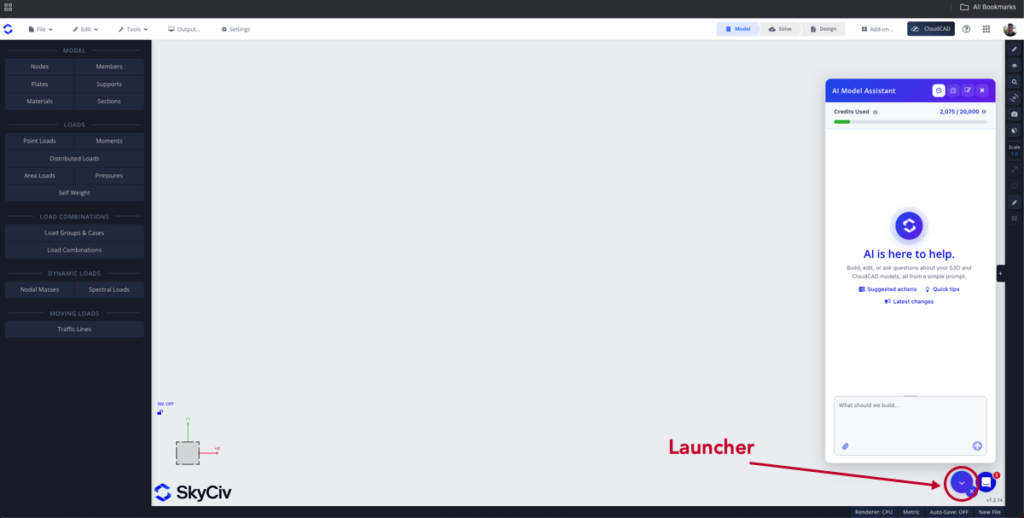
- Κάντε κλικ στο μπλε εικονίδιο στην κάτω δεξιά γωνία για να ανοίξετε τον πίνακα του AI Assistant (Δες παρακάτω)
- Οι πιστώσεις σας θα εμφανίζονται στο παραπάνω μέρος του πίνακα
- Πληκτρολογήστε το αίτημά σας και πατήστε Enter για να εκτελέσετε την προτροπή σας
Κατανεμημένα Tokens
Διατίθεται δωρεάν κατανομή κουπονιών σε εμπορικούς λογαριασμούς επί πληρωμή (Βασικός, Επαγγελματίας, ή Επιχείρηση). Μπορείτε επίσης να προσθέσετε περισσότερα διακριτικά από το σελίδα ολοκλήρωσης αγοράς ανά πάσα στιγμή.
Τι μπορείτε να ρωτήσετε
| Πρόθεση | Τι κάνει | Παράδειγμα προτροπής |
|---|---|---|
| Οικοδομώ | Κατασκευάζει ένα δομικό μοντέλο από την αρχή | “Κατασκευάστε ένα διώροφο πλαίσιο πύλης από χάλυβα, 12 m άνοιγμα, 6 μ κόλπους” |
| Τροποποιώ | Αλλάζει ή προσθέτει στο υπάρχον μοντέλο σας | “Αλλάξτε όλες τις εσωτερικές στήλες σε W12x26” |
| Αποτελέσματα ερωτημάτων | Απαντάει σε ερωτήσεις σχετικά με τα αποτελέσματα της ανάλυσής σας, μπορείτε να τα εξάγετε ή να τα δημιουργήσετε σε μορφή της επιλογής σας | “Ποια είναι η μέγιστη απόκλιση, και σε ποιο μέλος? Εξαγωγή όλων των αποτελεσμάτων μελών σε μορφή CSV” |
| Διαγιγνώσκω | Εντοπίζει πιθανά προβλήματα και βοηθά στην επιδιόρθωση τους. Μπορεί επίσης να εκτελέσει μια εκ νέου επίλυση για να διασφαλίσει ότι το πρόβλημα έχει επιλυθεί | “Γιατί δεν λύνεται το μοντέλο μου?” |
| Λύσει | Εκτελεί την ανάλυση και ανοίγει τα αποτελέσματα; διερευνά μια αποτυχημένη λύση | “Μπορείτε να κάνετε μια ανάλυση και να εντοπίσετε τη χειρότερη αντίδραση στις εξωτερικές μου στήλες?” |
| Υποστήριξη λογισμικού | Απαντάει σε ερωτήσεις σχετικά με τις οδηγίες από την τεκμηρίωση του SkyCiv, παρέχει καθοδήγηση σχετικά με τον τρόπο χρήσης του λογισμικού | “Πώς μπορώ να κάνω εξαγωγή σε DXF?” |
Η πρόθεση του μηνύματός σας θα εντοπιστεί αυτόματα και ο κατάλληλος πράκτορας θα εκτελεστεί για να ολοκληρώσει την εργασία σας.
Τύποι απόκρισης πράκτορα
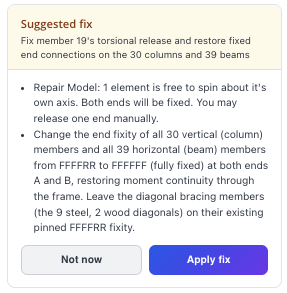
Προτεινόμενη Διόρθωση:
Εάν ο πράκτορας εντοπίσει ένα πρόβλημα στο μοντέλο, μπορεί να σας ζητήσει να επιβεβαιώσετε την επισκευή:
Η δράση ολοκληρώθηκε
Εάν η ενέργεια ολοκληρωθεί, ο πράκτορας θα σας πει τι έχει κάνει. Θα σας προσφέρει επίσης δύο επιλογές:
- Ξεκάνω: θα αναιρέσει τις αλλαγές που έγιναν από τον πράκτορα
- Διατήρηση: κρατήστε τις αλλαγές που έγιναν στο μοντέλο σας από τον αντιπρόσωπο
Διευκρίνιση
Εάν υπάρχουν επιπλέον ερωτήσεις, ο πράκτορας θα σας ζητήσει να διευκρινίσετε. Παρέχετε περισσότερο πλαίσιο σε αυτές τις περιπτώσεις για να διασφαλίσετε ότι ο αντιπρόσωπος μπορεί να λειτουργήσει αποτελεσματικά και με ακρίβεια.
Εκμάθηση βίντεο
Συμβουλές
- Πατήστε το επάνω βέλος στο πλαίσιο προτροπής για να εμφανιστεί η τελευταία σας ερώτηση.
- Κάντε κλικ στα αναγνωριστικά κόμβων και στοιχείων σε μια απάντηση για να τα επισημάνετε και να τα εντοπίσετε στο μοντέλο.
- Αν το μοντέλο δεν λύσει, ζητήστε από τον Βοηθό AI να το διαγνώσει, ή ζητήστε του να λύσει; εξετάζει τι πήγε στραβά.
- Δώστε του περισσότερο πλαίσιο και οδηγίες για βέλτιστα αποτελέσματα
Περιορισμοί
- Να ελέγχετε πάντα τα μοντέλα που δημιουργούνται με AI, αλλαγές και απαντήσεις; ο μηχανικός παραμένει υπεύθυνος για το σχεδιασμό.
- Μέγεθος μοντέλου και υποστηριζόμενα στοιχεία, τύποι ανάλυσης για Επίλυση, όρια χρήσης ανά σχέδιο, αναίρεση με Ctrl + ΜΕ, χρήση σε ενότητες σχεδιασμού, υποστηριζόμενες γλώσσες.

