
The SkyCiv AI Assistant is an AI structural modeling tool built into SkyCiv Structural 3D and CloudCAD. Describe lo que quieres en un lenguaje sencillo y funcionará en tu modelo.: it can build models from scratch, modifica tus modelos existentes, consultar los resultados de su análisis, diagnosticar y ayudar a reparar problemas, resuelve tu modelo, y responder preguntas sobre el uso de SkyCiv. This article covers what the AI Assistant can do in SkyCiv Structural 3D and how to use it.
Abrir el Asistente de IA
- Abrir un modelo en 3D estructural, o empezar uno nuevo.
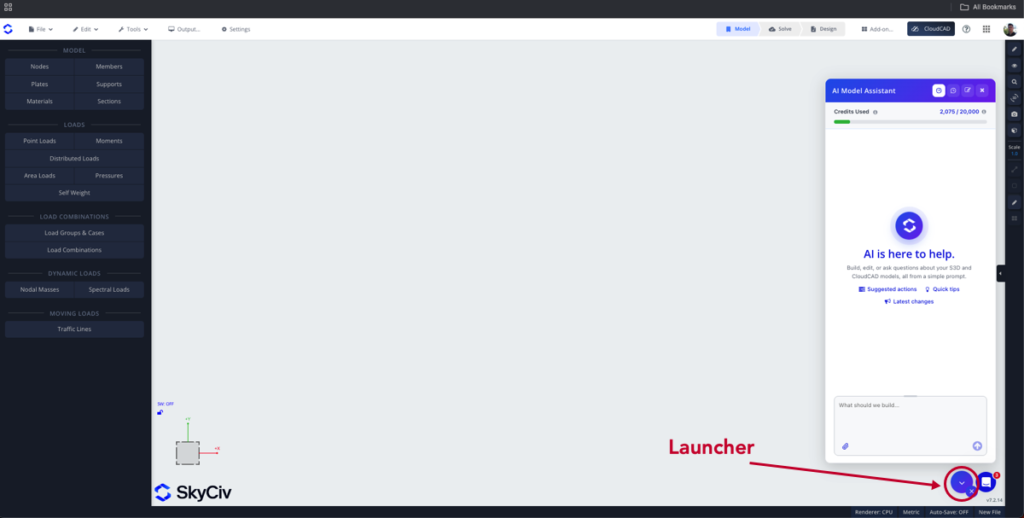
- Click the AI Assistant button (the sparkle icon) in the bottom right corner to open the AI Assistant panel (vea abajo).
- Type your request in the prompt box and press Enter, or click Send, to run your prompt.
AI Credits
Each request uses AI credits, based on the work it takes to complete. A free monthly allowance of credits is available on paid commercial accounts (Basic, Professional, o Negocios). Haga clic en el botón Uso button at the top of the panel to see your Credits Used for the month, and hover over the info icon beside it to see when your credits reset. On a Business account, the credits are shared across the whole account.
If you use all your credits, the AI Assistant stops running new requests until your credits reset. You can add more credits at any time from the página de pago, or with the Add more credits button in the usage panel.
What You Can Ask the AI Assistant
| Intención | que hace | Instrucción de ejemplo |
|---|---|---|
| Construir | Construye un modelo estructural desde cero. | “Build a 2-storey steel portal frame, 12 m de luz, 6 m bays” |
| Modificar | Cambia o agrega a su modelo existente | “Change all internal columns to W12x26” |
| Resultados de la consulta | Responde preguntas sobre los resultados de su análisis, and can export or generate them in a format of your choice | “What is the maximum deflection, y en que miembro? Export all the member results in CSV format” |
| Diagnosticar | Encuentra problemas potenciales y ayuda a repararlos. It can also re-solve the model to check that the issue is fixed | “Why won’t my model solve?" |
| Resolver | Ejecuta el análisis y abre los resultados.; investiga una solución fallida | “Can you run an analysis and locate the worst reaction in my outer columns?" |
| Soporte de software | Answers how-to questions from the SkyCiv documentation and guides you through using the software | “How do I export to DXF?" |
The intent of your prompt is detected automatically, and the appropriate agent runs to complete your task.
Tipos de respuesta del agente
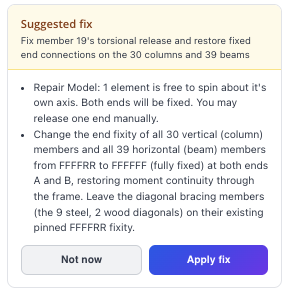
Solución sugerida
Si el agente detecta un problema en el modelo, it may ask you to confirm the repair:
Acción completa
When the action is complete, the agent tells you what it has done and gives you two options:
- Deshacer: undoes the changes made by the agent
- Mantener: keeps the changes made to your model by the agent
Clarificación
If the agent needs more information, it asks you to clarify. Give it more context in these cases so it can work effectively and accurately.
Vídeotutorial
Consejos
- Presione la flecha hacia arriba en el cuadro de mensaje para mostrar su último mensaje.
- Haga clic en los ID de nodos y elementos en una respuesta para resaltarlos y ubicarlos en el modelo..
- Si el modelo no resuelve, Pídale al asistente de IA que lo diagnostique, o pedirle que resuelva; investiga lo que salió mal.
- Give it more context and clearer instructions for the best results.
Limitaciones
- Verifique siempre los modelos generados por IA, cambios y respuestas: el ingeniero sigue siendo responsable del diseño.
- The AI Assistant doesn’t choose or optimize section sizes to meet a design criterion (such as passing design checks or a deflection limit). It can assign a section you name, or a reasonable section when no criterion is given.
- It doesn’t give a verdict on whether a design is safe or adequate, or make design decisions such as how to support or connect your structure.
- It can run any analysis, but it doesn’t read modal, buckling or dynamic results (formas modales, frecuencias, buckling factors).
- It doesn’t draw complex custom cross-sections: use the Section Builder for built-up, composite or arbitrary shapes. Simple shapes from dimensions you give (rectángulo, círculo, Viga en I, ángulo, channel and similar) son compatibles.
- It doesn’t generate CAD, shop or connection drawings.
- Your credits are a monthly allowance: once they are used up, requests are refused until they reset or you add more.

