This page explains how to apply a point load (a concentrated force) to a node or to any point along a member in SkyCiv Structural 3D. In both cases you specify the location of the load and its magnitude in the global X, Y and Z directions, so a force at an angle is entered as its X, Componentes Y y Z.
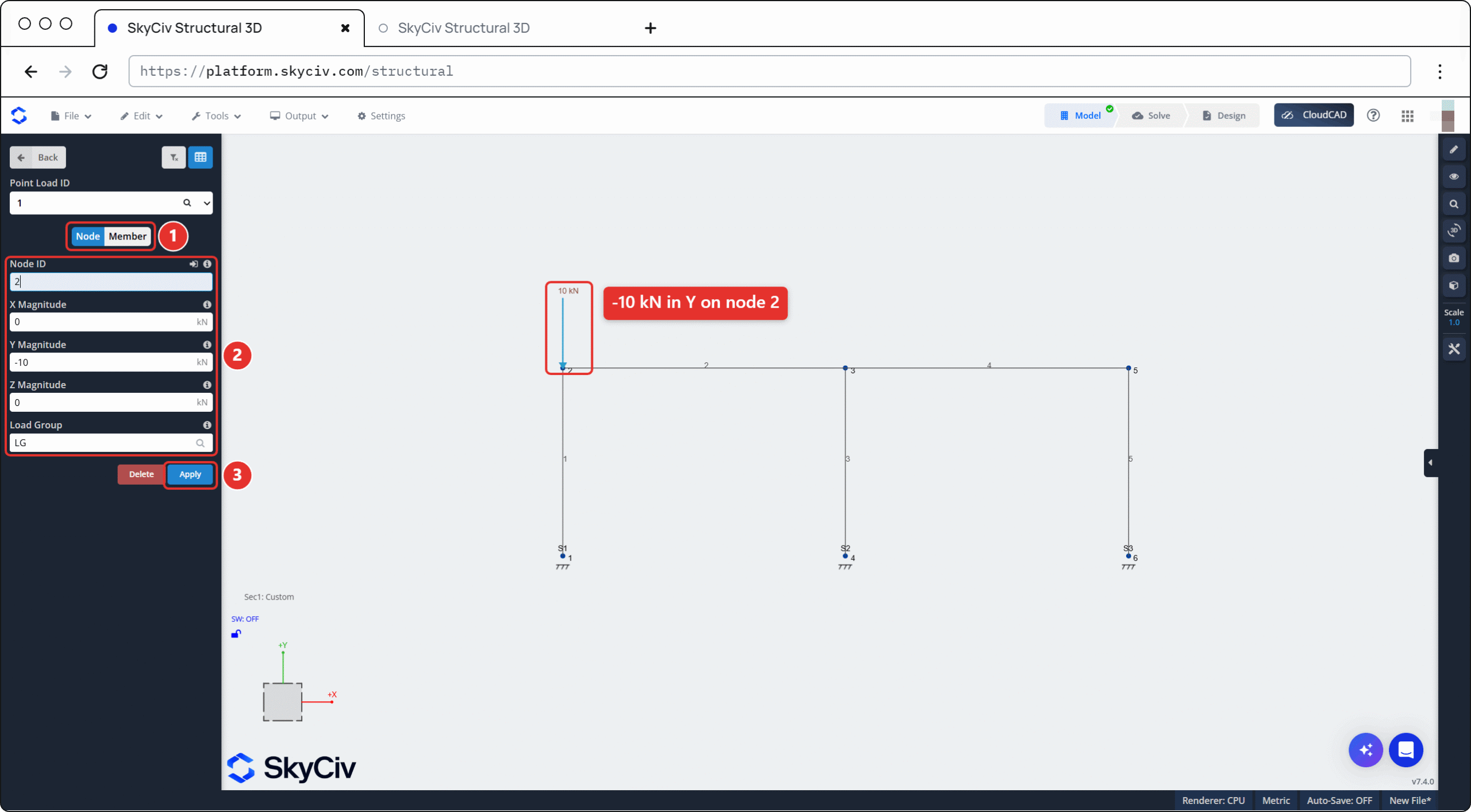
To add a point load, abierto Cargas puntuales under the loads section of the left menu. At the top of the form, use el Nodo y Miembro toggle to choose where the load is applied, fill in the fields below, luego haga clic Aplicar.
Cargas puntuales aplicadas a nodos
Con Nodo seleccionado, specify values for:
- ID de carga puntual – El ID numérico utilizado para identificar cada carga puntual. Pick an existing ID from the list to edit that load.
- ID de nodo – El nodo donde se aplica la carga puntual. You can enter several nodes at once (por ejemplo 1,2,3, 1-3 o todo), or highlight nodes in the model and double-click to fill in the field.
- Magnitud X – La magnitud de la fuerza en la dirección X global. Utilice negativos para especificar la dirección X negativa.
- Magnitud Y – La magnitud de la fuerza en la dirección Y global. Utilice negativos para especificar la dirección Y negativa.
- Magnitud Z – La magnitud de la fuerza en la dirección Z global. Utilice negativos para especificar la dirección Z negativa.
- Grupo de carga – The name of the load group the load belongs to (LG by default). Load groups are assigned to load cases and can then be multiplied by a factor in combinaciones de carga.
Cargas puntuales aplicadas a miembros
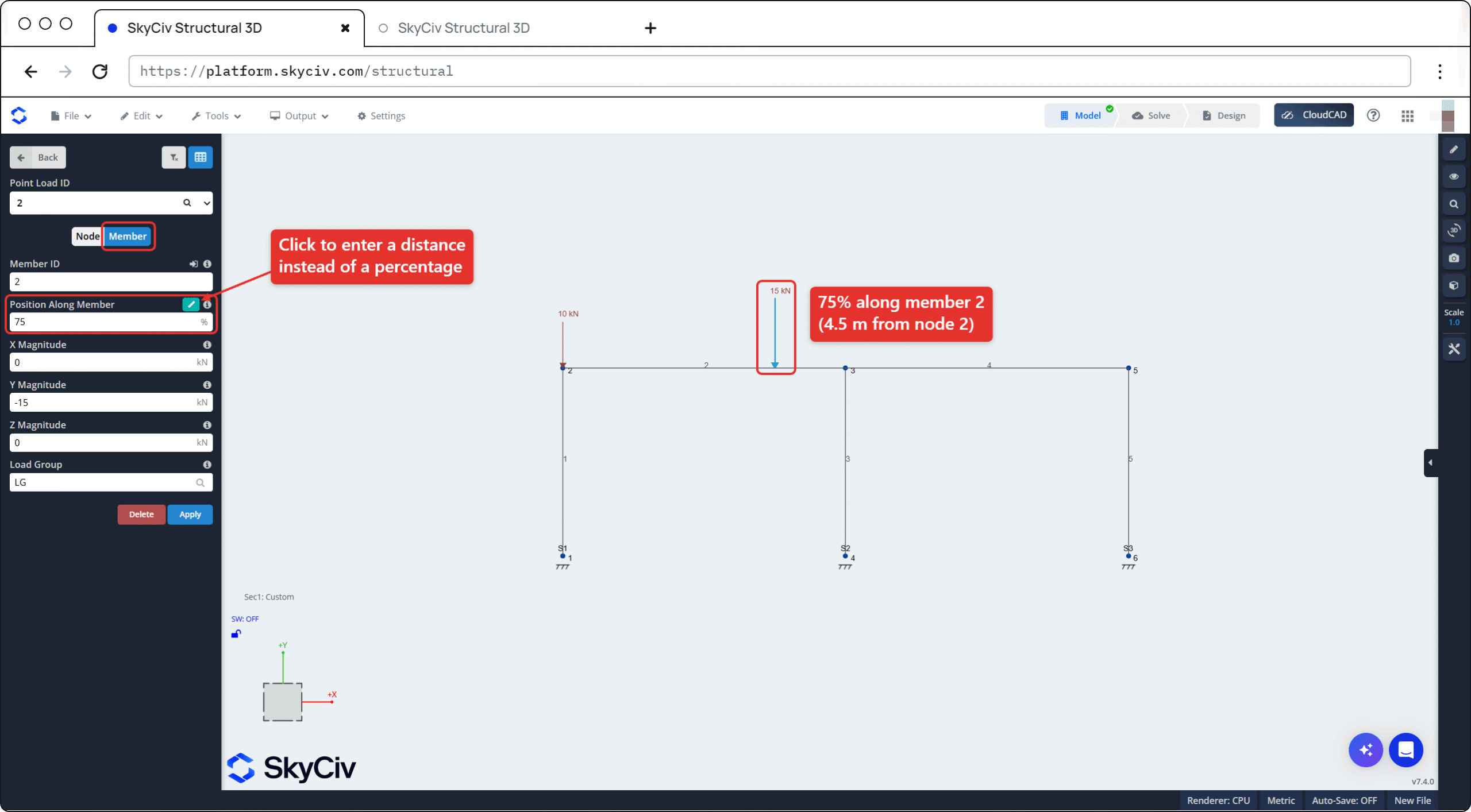
Con Miembro seleccionado, specify values for:
- ID de carga puntual – El ID numérico utilizado para identificar cada carga puntual.
- Identificación de miembro – El miembro donde se aplica la carga puntual. Like the Node ID, it accepts several members at once (1,2,3, 1-3 o todo) and highlighted members.
- Posición junto al miembro – The position of the load along the member, as a percentage of its length from node A (0%) to node B (100%). To enter a distance instead, click the small button next to the field label (Enter a distance rather than a percentage): un Enter Distance box asks for a distance from node A, entre 0 and the member length in the length units of the model, and converts it to a percentage when you click Enviar.
- Magnitud X – La magnitud de la fuerza en la dirección X global. Utilice negativos para especificar la dirección X negativa.
- Magnitud Y – La magnitud de la fuerza en la dirección Y global. Utilice negativos para especificar la dirección Y negativa.
- Magnitud Z – La magnitud de la fuerza en la dirección Z global. Utilice negativos para especificar la dirección Z negativa.
- Grupo de carga – The name of the load group the load belongs to. Load groups can then be multiplied by a factor in load combinations.
Cargas en ángulo
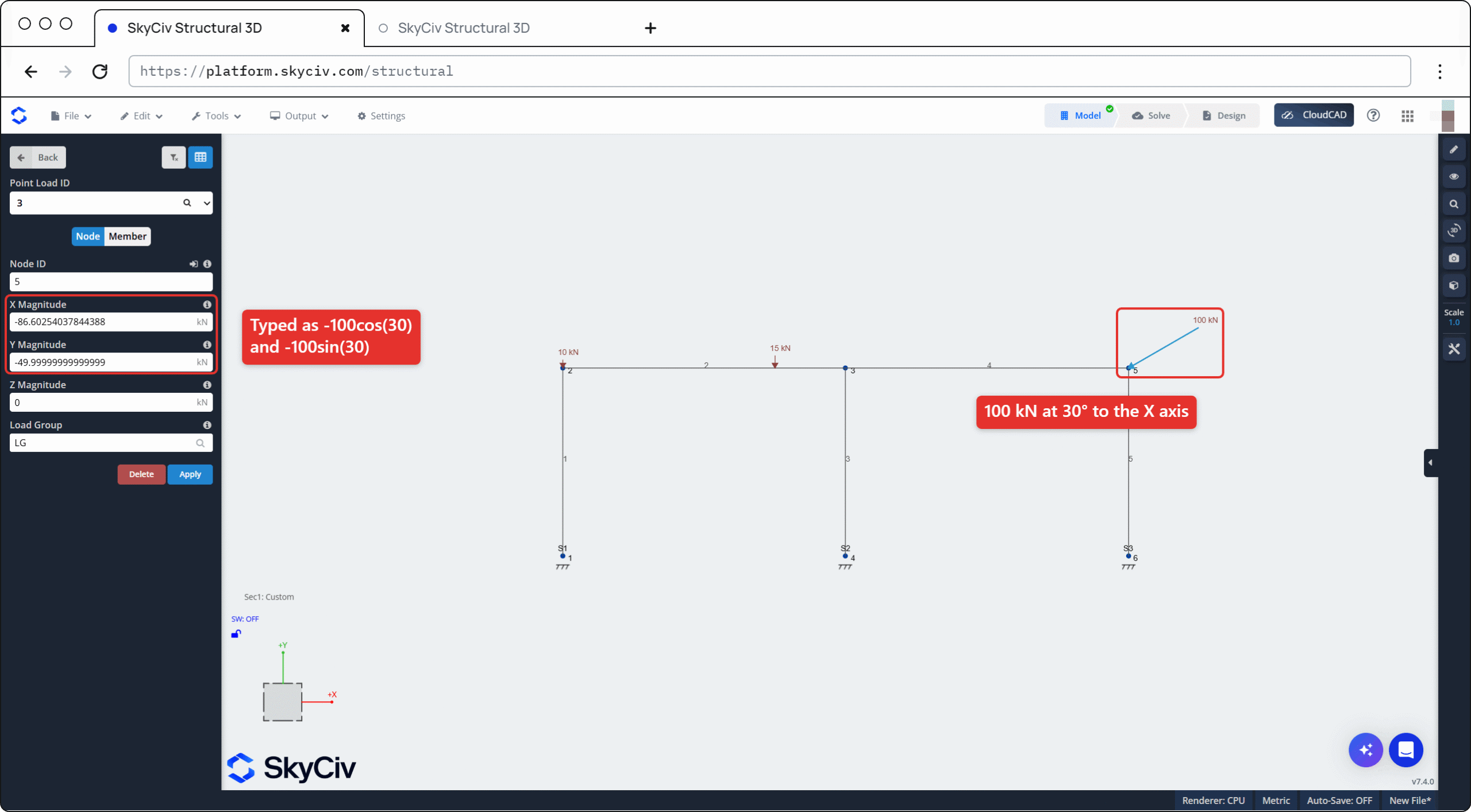
A continuación, se muestra un breve ejemplo de cómo aplicar una carga puntual en ángulo.. Say you want to apply a 100 kN load acting downwards in the XY plane, a 30 degrees below the negative X axis. Since the load inputs are global X, Y and Z magnitudes, the force is split into its components.
Break the force into its X and Y components as follows:
Xmag = -100cos(30) = -86.602 kN
Ymag = -100sin(30) = -50 kN
Combinado, these create a 100 kN force at a 30° angle: