
El Operaciones El grupo en la barra de herramientas derecha contiene herramientas de edición de geometría para recortar., extensión, terrible, unión, escalada, y coincidencia de propiedades.
La mayoría de las operaciones funcionan en la geometría seleccionada.. Usa el activo puntos de referencia ajustes para selecciones y puntos de destino precisos.
Operaciones
Las herramientas de operaciones están agrupadas en pilas desplegables en la barra derecha. Haga clic en el botón de categoría para activar la herramienta actual, o abra la mini barra de herramientas para elegir otra herramienta en la misma pila.
Propiedades del partido
Copie propiedades de estilo y atributos de un objeto a otros
El Propiedades del partido El comando aplica propiedades de un objeto de origen a objetos de destino compatibles..
Paso a paso
- 1Seleccione un objeto de origen para copiar sus propiedades.
- 2Haz clic Propiedades del partido para activar el modo cepillo.
- 3Haga clic en elementos de destino compatibles para aplicar propiedades al instante.
- 4Continuar haciendo clic, o utilice la selección de valla o ventana para múltiples objetivos.
- 5Presiona Esc para salir del modo pincel.
Consejo: Match Properties copia propiedades visuales como el color, grosor de línea, estilo de línea, y capa. Solo se aplican propiedades compatibles con el tipo de objeto de destino..
Estirar
Mover los vértices seleccionados usando una ventana de cruce o un lazo
Estirar mueve vértices preservando la topología alrededor de la geometría conectada.
[__INSERTAR_IMAGEN__]
Paso a paso
- 1Activar Estirar.
- 2Seleccione vértices con una ventana de cruce de derecha a izquierda o un lazo.
- 3Arrastra el tirador central para moverte libremente, o los controles X/Y para un movimiento restringido.
Consejo: Sólo se mueven los vértices dentro de la selección de cruce.; Las líneas conectadas a esos vértices fuera de la selección se estiran para mantener la conectividad..
Extender línea
Extender una línea hasta que se encuentre con una línea o punto objetivo
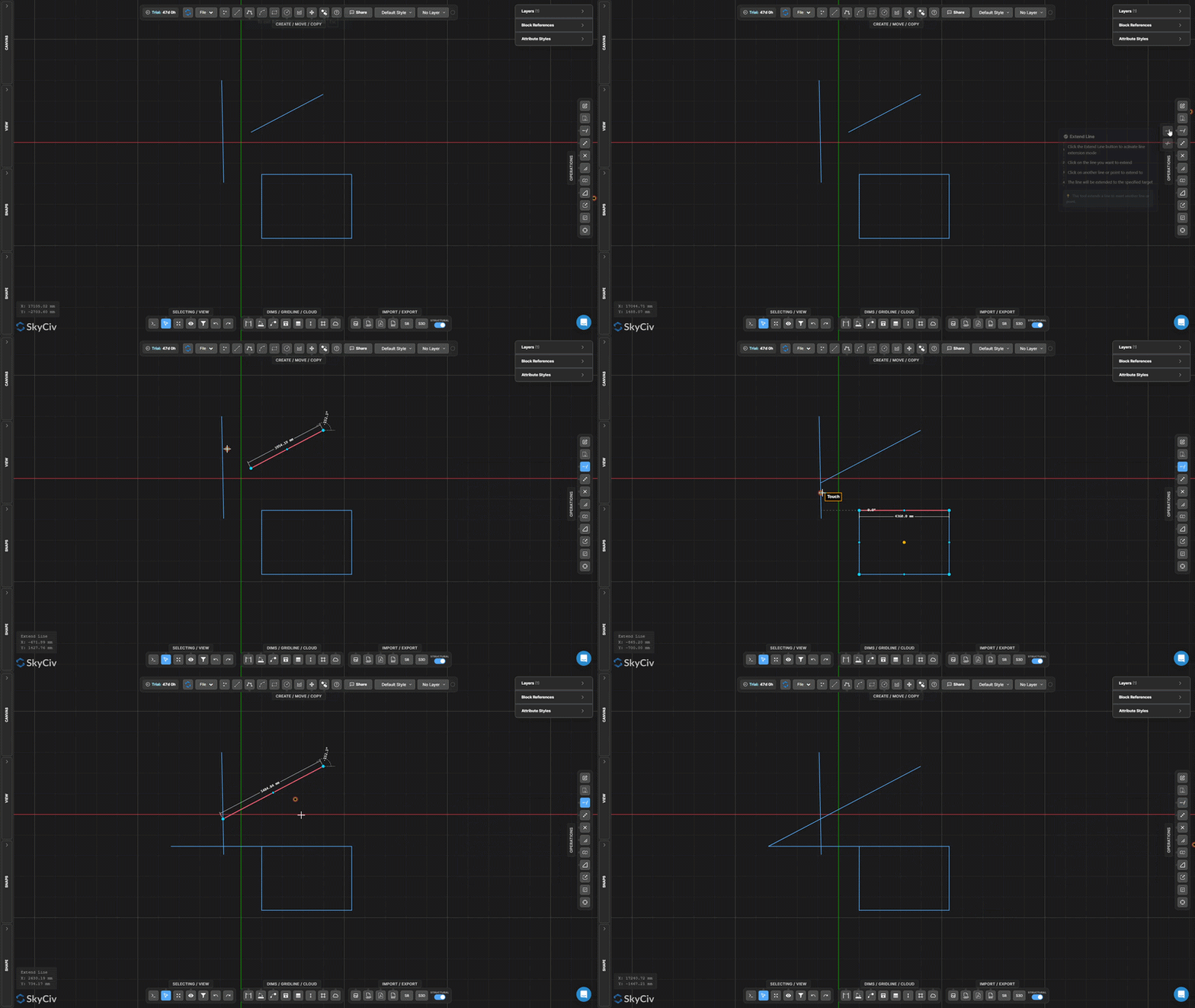
Extender línea alarga una línea seleccionada para alcanzar un límite objetivo. La línea se extiende a lo largo de su dirección existente hasta que se cruza con el objetivo elegido..
Paso a paso
- 1Activar Extender línea.
- 2Haga clic en la línea para ampliar (cerca del final quieres crecer).
- 3Haga clic en la línea objetivo o en el punto para extenderla.
Consejo: Haga clic cerca del final de la línea que desea extender – la herramienta se extiende desde el punto final más cercano en dirección al objetivo.
Recortar
Eliminar segmentos de línea o arco definidos por bordes cortantes
Recortar elimina porciones de líneas o arcos utilizando otra geometría como bordes de corte. Primero seleccione los bordes de corte., confirmarlos, luego haga clic o cerque los segmentos que desea eliminar.
Paso a paso
- 1Activar Recortar.
- 2Seleccione la geometría del filo (líneas, arcos, círculos).
- 3Presiona Ingresar o Barra espaciadora para confirmar los bordes cortantes.
- 4Haga clic o cerque los segmentos para eliminar.
Consejo: Puede utilizar una selección de ventana o valla para recortar varios segmentos simultáneamente después de confirmar los bordes de corte..
Dividir línea en segmentos
Dividir una recta en N segmentos iguales
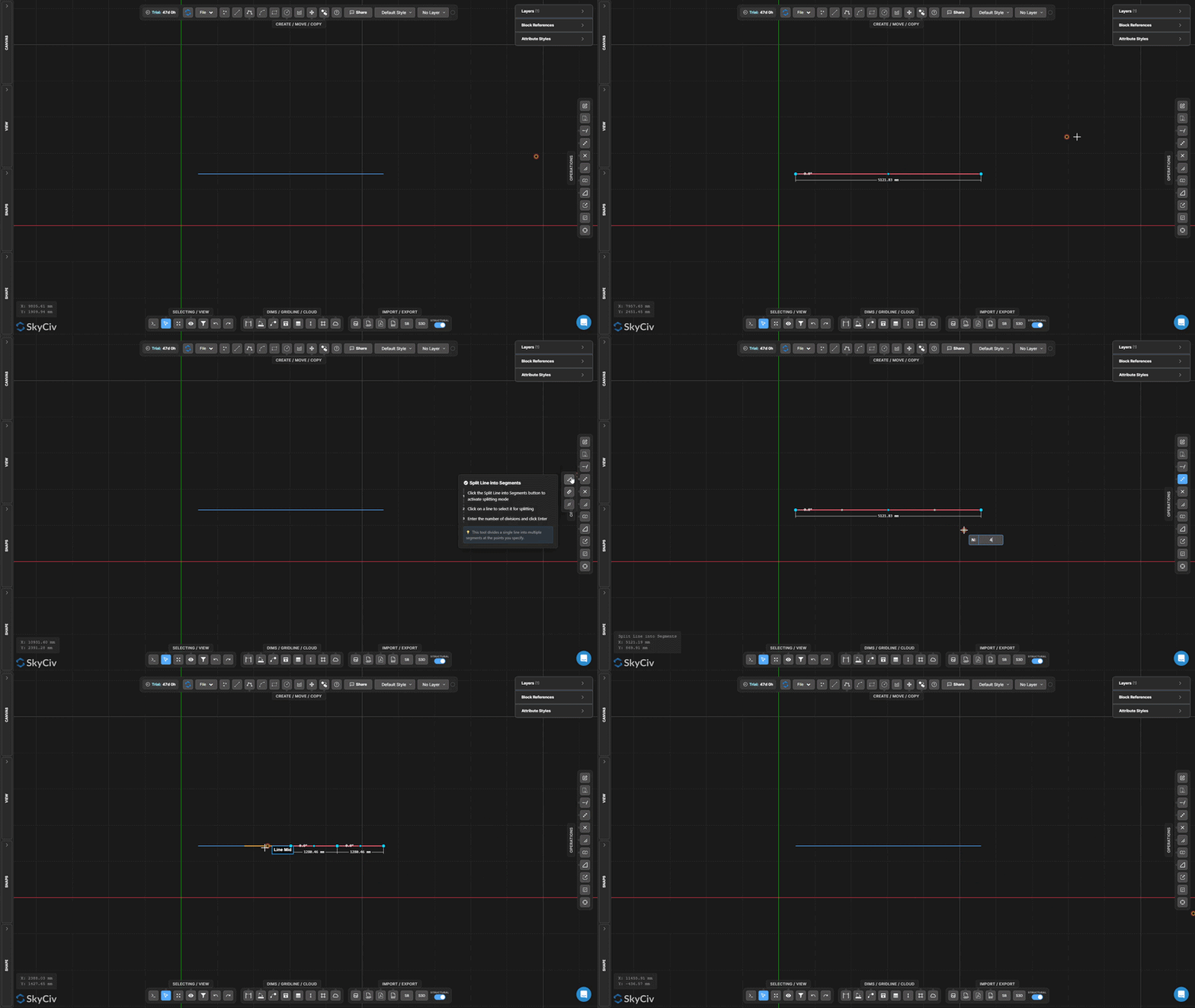
Dividir línea en segmentos divide una sola línea en un número específico de segmentos de igual longitud. Cada segmento resultante es un elemento de línea independiente..
Paso a paso
- 1Activar la herramienta.
- 2Haga clic en la línea para dividir.
- 3Ingrese el número de divisiones y presione Ingresar.
Consejo: Útil para crear puntos de apoyo igualmente espaciados a lo largo de una viga o dividir un tramo para análisis de distribución de carga..
Línea dividida por intervalo
Dividir una línea en intervalos repetidos de longitud fija
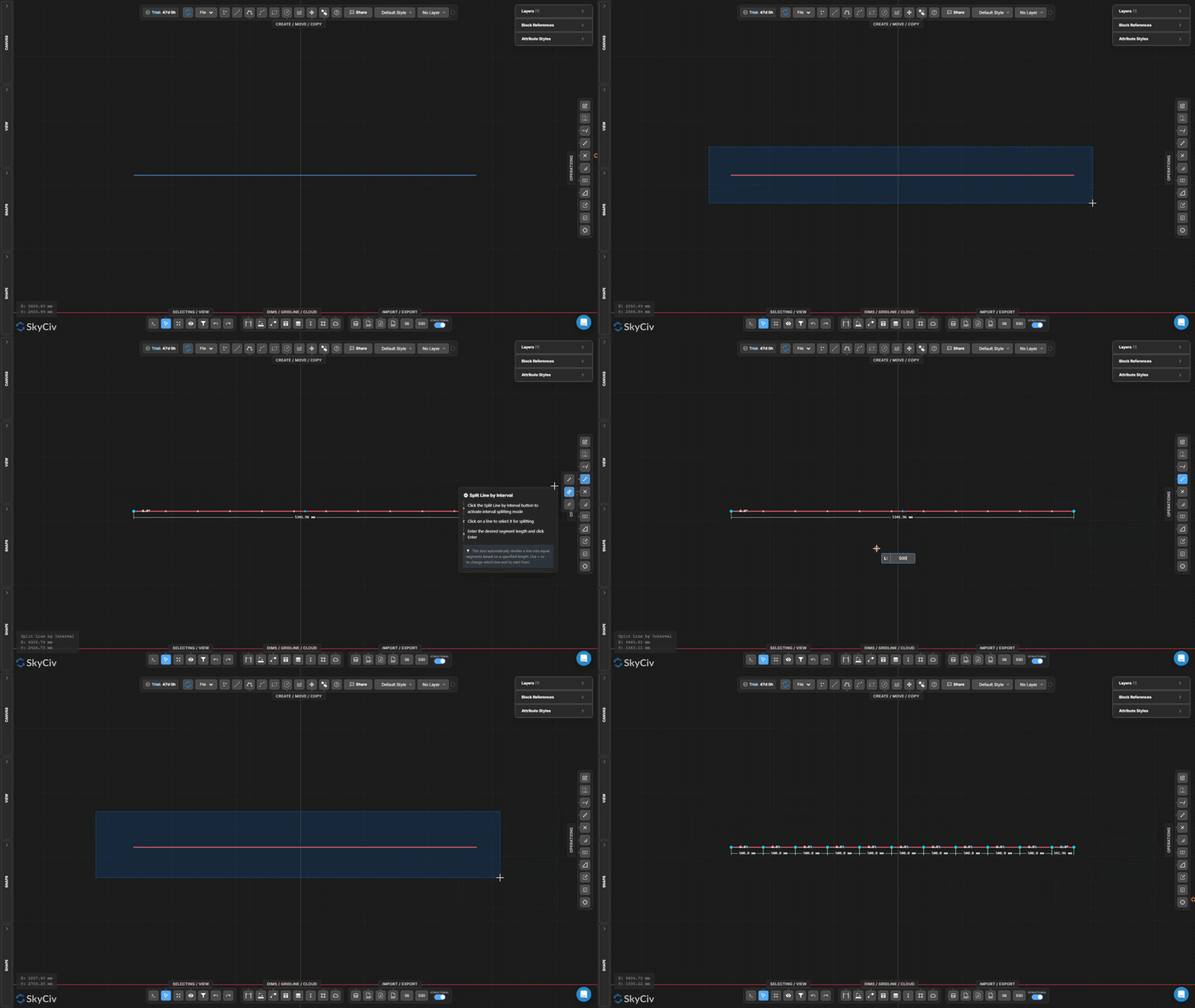
Línea dividida por intervalo divide una línea en segmentos de una longitud fija especificada. Se crea un segmento restante al final si la longitud de la línea no es un múltiplo entero del intervalo..
Paso a paso
- 1Activar la herramienta.
- 2Haga clic en la línea para dividir.
- 3Ingrese la duración del intervalo y presione Ingresar.
Consejo: Utilícelo para crear nodos intermedios espaciados uniformemente a lo largo de un miembro continuo con un espaciado conocido. (p.ej., cada 500 mm para disposición de vigas).
Dividir por posición a lo largo de la línea
Dividir una línea a una distancia desplazada de uno de sus puntos finales
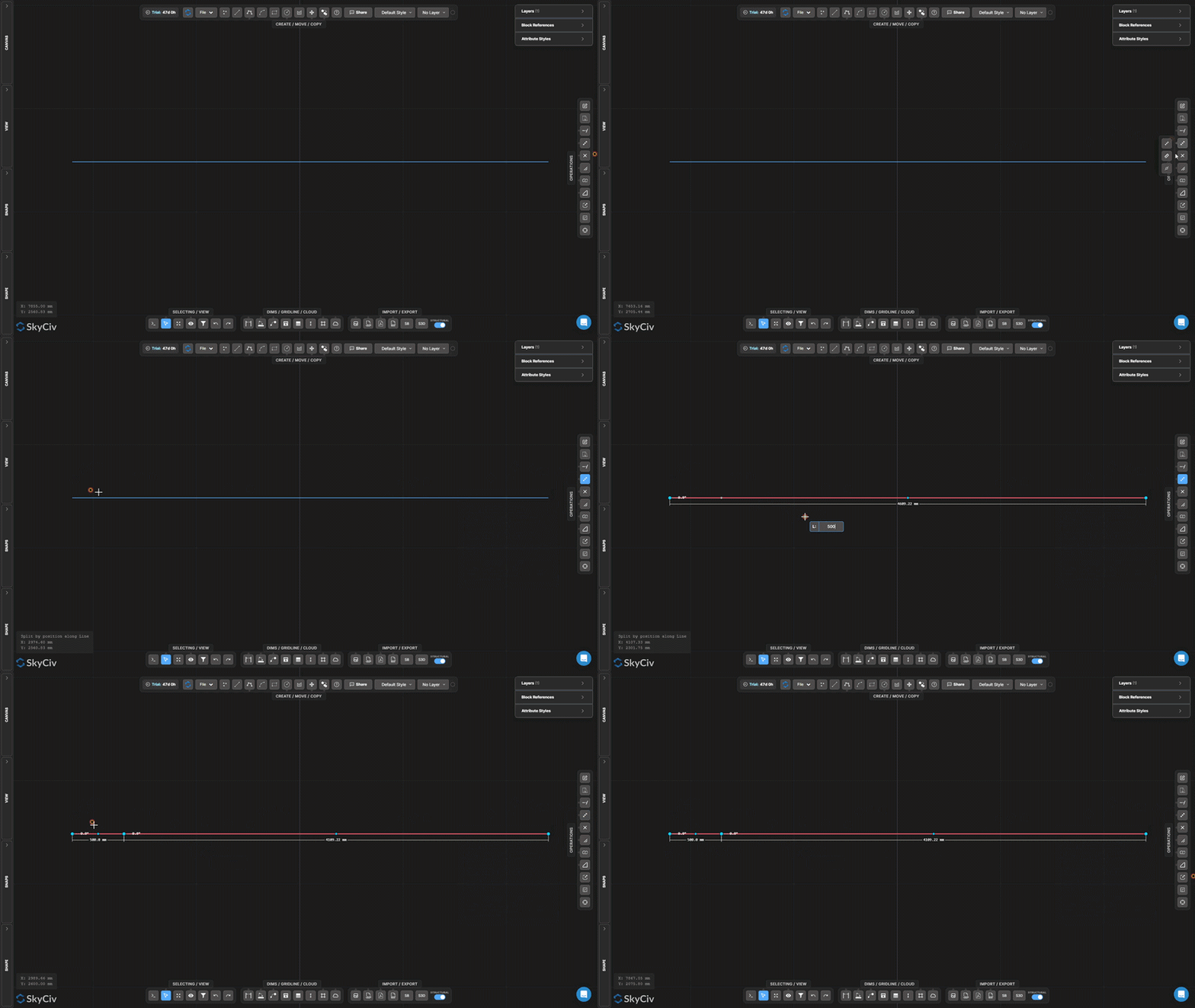
Dividir por posición inserta un punto de interrupción a una distancia medida desde un extremo de la línea seleccionada, creando dos segmentos separados en esa posición de desplazamiento.
Paso a paso
- 1Activar la herramienta.
- 2Haga clic en una línea (la posición del clic determina desde qué punto final medir).
- 3Ingrese la distancia de desplazamiento y presione Ingresar.
Consejo: Haga clic cerca del punto final desde el que desea medir – la herramienta utiliza el punto final más cercano como referencia para la distancia de desplazamiento.
Dividir líneas en las intersecciones
Divida automáticamente todas las líneas seleccionadas en los puntos de cruce
Dividir líneas en las intersecciones encuentra todos los puntos donde las líneas seleccionadas se cruzan e inserta nodos divididos en cada intersección. No se requieren valores de entrada – el funcionamiento es totalmente automático.
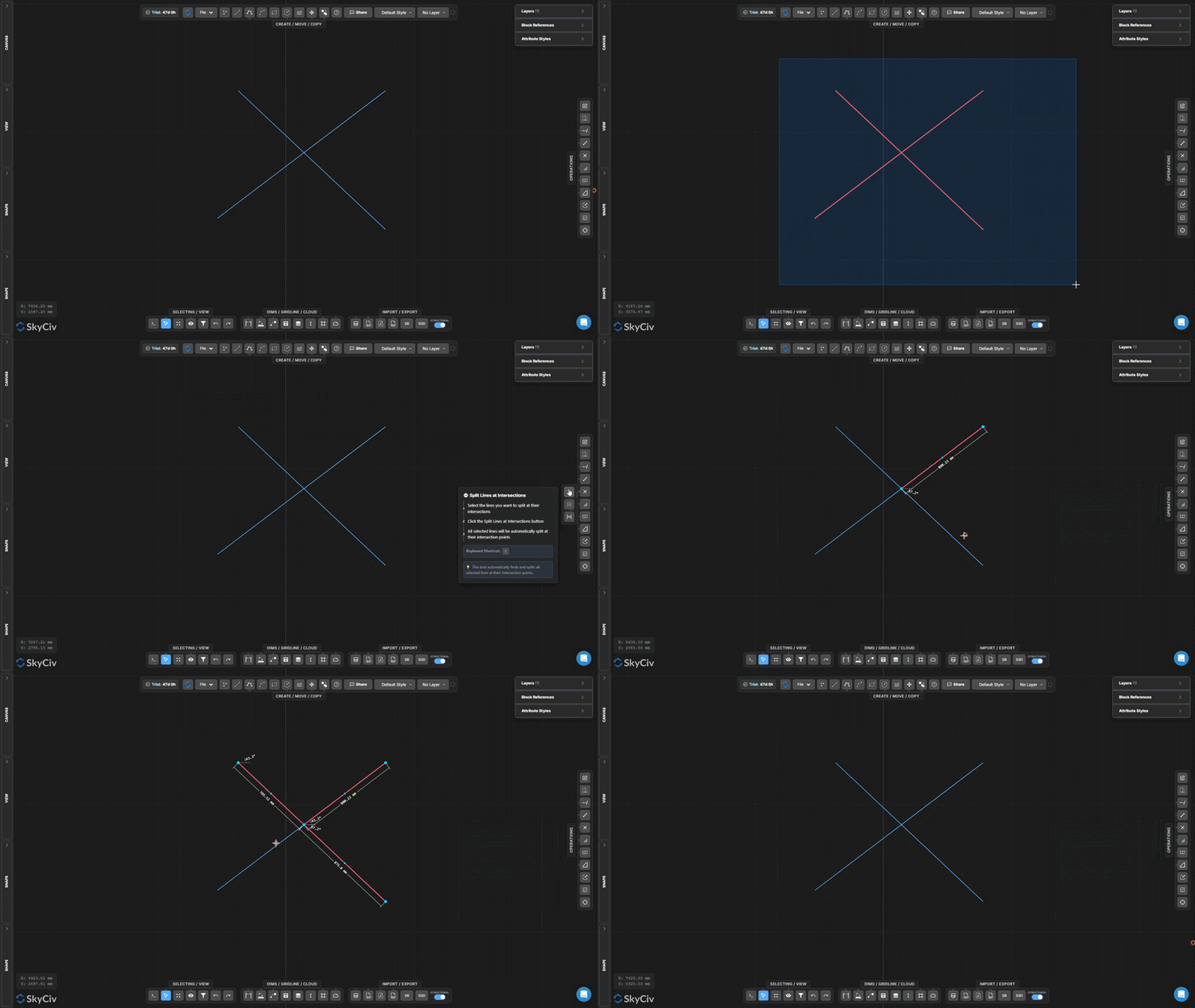
Paso a paso
- 1Seleccione las líneas a procesar.
- 2Haz clic Dividir líneas en las intersecciones.
- 3Todas las intersecciones de cruce se detectan y dividen automáticamente.
Consejo: Ejecute esto antes de usar Selección conjunta o realizar operaciones dependientes de la topología – Garantiza que las líneas cruzadas compartan puntos de nodo reales..
Objetivo dividido
Divida los objetos de destino preseleccionados usando una geometría divisoria separada
Objetivo dividido es una división de dos etapas donde primero se marcan los objetos que se van a dividir (objetivos), luego seleccione por separado la geometría para dividirlos (divisores). Sólo se cortan los objetos de destino.
[__INSERTAR_IMAGEN__]
Paso a paso
- 1Preseleccione los objetos de destino que se dividirán.
- 2Activar Objetivo dividido.
- 3Seleccione la geometría del divisor.
- 4Presiona Ingresar dividir objetivos en las intersecciones con divisores.
Consejo: Utilice Dividir destino cuando desee dividir líneas específicas con un filo pero necesite conservar intacta la geometría de corte. (a diferencia de recortar, que también modifica el cortador).
Dividir en superposiciones
Detectar y separar segmentos de línea colineales superpuestos
Dividir en superposiciones encuentra segmentos de líneas seleccionadas que son colineales y se superponen entre sí, luego los divide para que las regiones superpuestas se vuelvan discretas, geometría seleccionable individualmente.
[__INSERTAR_IMAGEN__]
Paso a paso
- 1Seleccione líneas que puedan tener porciones colineales superpuestas.
- 2Haz clic Dividir en superposiciones.
- 3Las regiones superpuestas se dividen en segmentos separados.
Consejo: combinar con Seleccionar duplicados para identificar y eliminar líneas superpuestas redundantes en archivos DXF importados.
Explotar polilínea
Dividir una polilínea en segmentos de línea o arco independientes
Explotar polilínea descompone una polilínea de múltiples segmentos en segmentos independientes individuales. Útil cuando necesitas editar, borrar, o aplicar operaciones solo a una parte de una polilínea.
[__INSERTAR_IMAGEN__]
Paso a paso
- 1Seleccione la polilínea a explotar.
- 2Haz clic Explotar polilínea.
- 3Cada segmento se puede seleccionar y editar individualmente.
Consejo: La operación inversa es Unir líneas y arcos, que fusiona segmentos conectados nuevamente en una sola polilínea.
Unir líneas y arcos
Fusionar líneas y arcos conectados en una sola polilínea
Unir líneas y arcos combina una cadena de segmentos conectados en un único objeto de polilínea continuo. Las líneas y los arcos deben compartir puntos finales para unirse.
Paso a paso
- 1Seleccionar líneas y arcos que comparten puntos finales.
- 2Haz clic Unir líneas y arcos.
- 3Los segmentos conectados se fusionan en una polilínea continua.
Consejo: Todos los segmentos seleccionados deben formar una única cadena continua.. Si los segmentos tienen espacios, usar Ajustar a extremos de línea y la herramienta Mover punto primero para cerrar los puntos finales.
Crear filete
Redondea una esquina afilada entre dos líneas con un arco.
Crear filete reemplaza una esquina afilada entre dos líneas con un arco tangente de un radio específico. Los extremos de la línea original se recortan para acomodar el arco..
Paso a paso
- 1Activar Crear filete.
- 2Establecer el radio de empalme en el cuadro de diálogo.
- 3Haga clic en la esquina (área de intersección) de las dos líneas a aplicar.
Consejo: El radio debe ser lo suficientemente pequeño como para caber dentro de las longitudes de ambas líneas desde la esquina.. Se muestra una vista previa en vivo antes de confirmar..
Crear chaflán
Cree un corte en bisel recto en una esquina
Crear chaflán corta un bisel diagonal recto a través de una esquina entre dos líneas. Establezca la distancia del chaflán para controlar qué tan lejos de la esquina se recorta cada línea.
Paso a paso
- 1Activar Crear chaflán.
- 2Establezca la distancia del chaflán en el cuadro de diálogo.
- 3Haga clic en la geometría de la esquina para aplicar el chaflán..
Consejo: El chaflán corta por igual desde ambas líneas de forma predeterminada. Para un bisel asimétrico (diferentes distancias en cada lado), establecer dos valores de chaflán separados en el cuadro de diálogo.
Escalar objetos
Escalar la geometría seleccionada por un factor desde un punto de pivote
Escalar objetos cambia el tamaño de la geometría seleccionada mediante un factor de escala uniforme en relación con un punto de pivote elegido. Un cuadro de diálogo le permite elegir si las anotaciones (dimensiones, texto, líderes, Líneas de cuadrícula, mesas) también están escalados.
Paso a paso
- 1Seleccione los objetos a escalar.
- 2Haz clic Escalar objetos y configurar las opciones de escala de anotación en el cuadro de diálogo.
- 3Haga clic en el lienzo para establecer el pivote de escala (origen) punto.
- 4Escriba el factor de escala y presione Ingresar (1.0 = sin cambios, 0.5 = la mitad, 2.0 = doble).
Consejo: Utilice el cuadro de diálogo Opciones de escala para controlar si los tamaños de anotación (dimensiones, texto, líderes, mesas) escalar con la geometría o permanecer en sus tamaños actuales.
Marco de escala
Cree una zona de escala local persistente con un marco visible
Marco de escala crea una zona rectangular persistente con un factor de escala asociado. La geometría dibujada o colocada dentro del marco se representa a esa escala local.. Útil para llamadas detalladas en una escala de dibujo diferente.
[__INSERTAR_IMAGEN__]
Paso a paso
- 1Activar Marco de escala.
- 2Haga clic en la primera esquina, luego la esquina opuesta para definir el marco.
- 3Escriba el factor de escala en la entrada y presione Esc aplicar.
Consejo: El marco persiste en el lienzo después de la creación.. Selecciónelo y elimínelo cuando ya no sea necesario.. La entrada de escala permanece disponible para su edición posterior mientras se selecciona el marco..
Actualizar origen
Mover el origen de las coordenadas del dibujo. (0,0) a una nueva ubicación
Actualizar origen Reubica el sistema de coordenadas de referencia del dibujo.. Todos los valores de coordenadas (X, Y) mostrados en el lienzo y exportados en datos se recalculan en relación con el nuevo origen.
[__INSERTAR_IMAGEN__]
Paso a paso
- 1Activar Actualizar origen.
- 2Haga clic en la nueva ubicación de origen en el lienzo..
- 3Las lecturas de coordenadas se actualizan inmediatamente en relación con el nuevo (0,0) punto.
Consejo: Ajuste a un nodo existente para obtener un nuevo origen preciso. Para dibujos estructurales, ajuste a una columna conocida o intersección de referencia para alinear las coordenadas con la cuadrícula de referencia del proyecto.
