
DIMS / LINHA DE GRADE / Comandos CLOUD
A DIMS / LINHA DE GRADE / NUVEM grupo da barra de ferramentas contém anotação, linha de grade, e ferramentas de marcação de revisão usadas para elaboração e documentação no SkyCiv CAD.
A maioria das ferramentas usa posicionamento baseado em clique e oferece suporte a configurações de snap ativas para alinhamento preciso.
Dimensões
Use ferramentas de dimensão para fazer anotações lineares, projetado, angular, e medições de raio diretamente na tela.
Criar dimensão
Coloque uma dimensão de distância linear padrão entre dois pontos
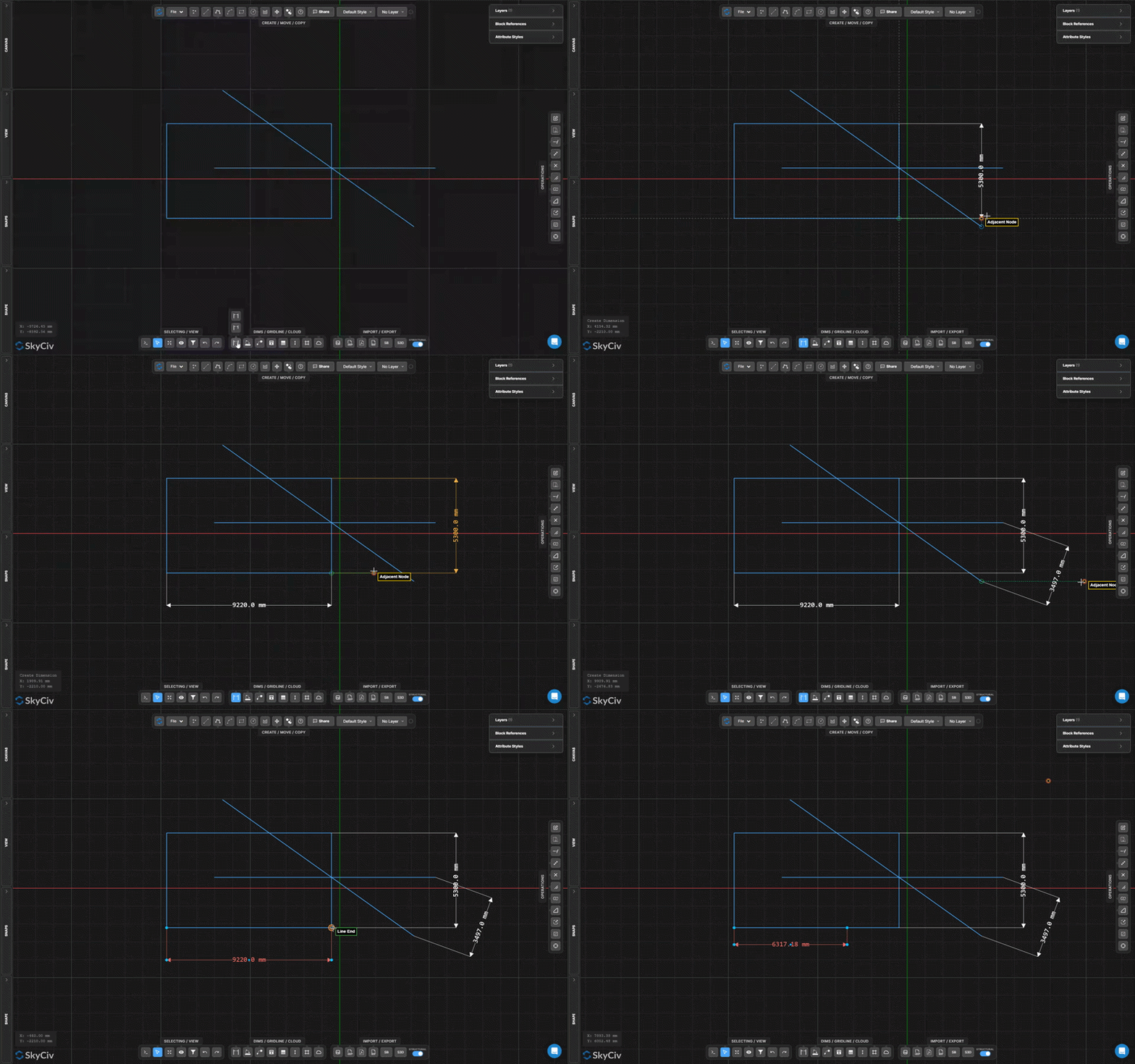
A Criar dimensão ferramenta coloca uma dimensão linear mostrando a distância real entre dois pontos clicados, completo com linhas de extensão, linha de dimensão, setas, e uma etiqueta de medição.
Passo a passo
- 1Ativar Criar dimensão.
- 2Clique no primeiro ponto de medição.
- 3Clique no segundo ponto de medição.
- 4Mova o cursor para deslocar a linha de cota, depois clique para colocá-lo.
Comece selecionando a parte da estrutura que você deseja espelhar: Os snaps ajudam você a alinhar pontos finais e médios exatos para medições precisas. Use o acordeão de configurações de Dimensões para controlar o estilo da seta, deslocamento de texto, e lacunas na linha de extensão.
Criar dimensão projetada
Mostrar distância de projeção horizontal ou vertical entre dois pontos
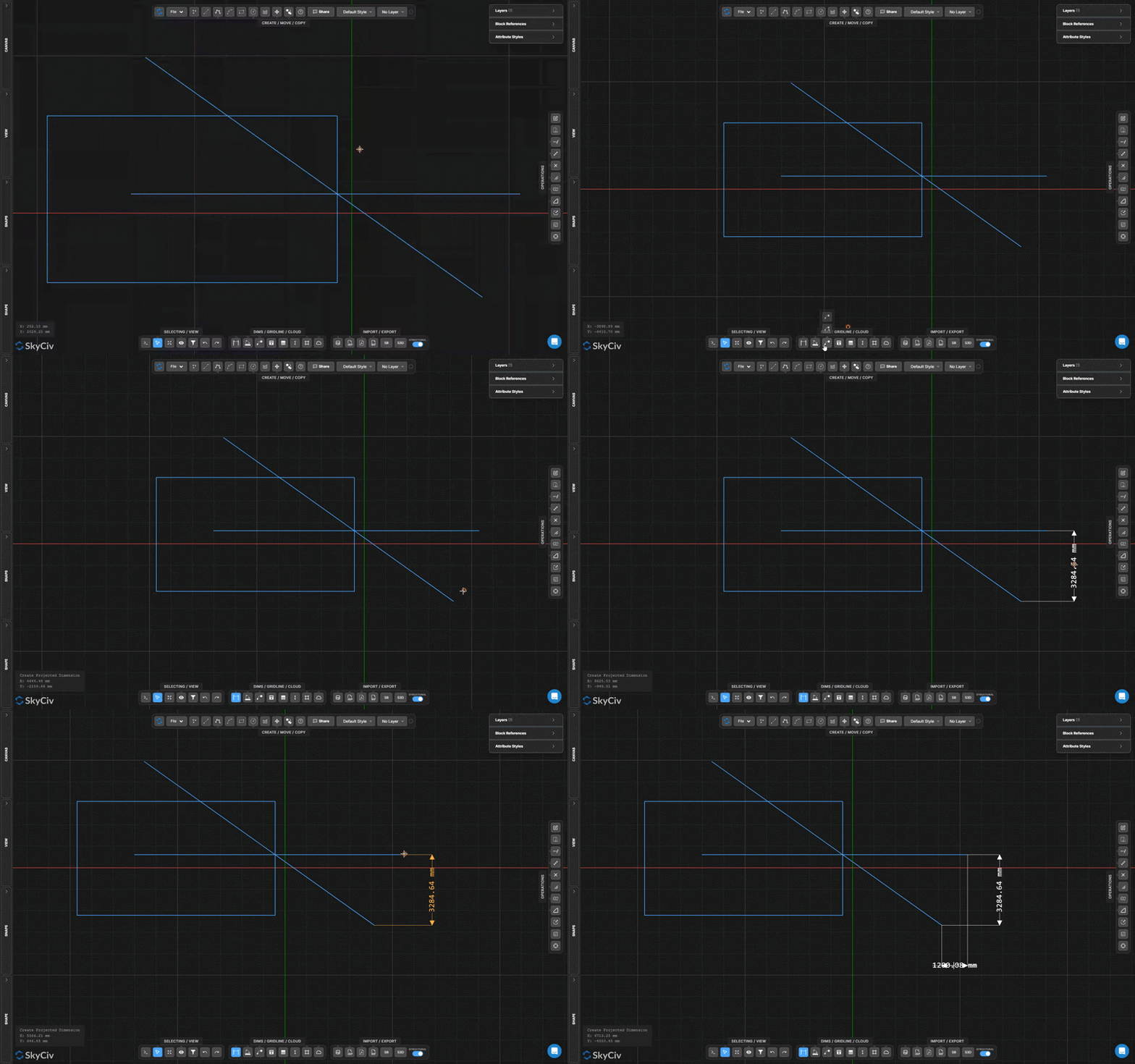
Dimensão projetada mede e anota apenas o componente horizontal ou vertical da distância entre dois pontos – útil para membros inclinados onde você precisa da planta ou vão de elevação.
Passo a passo
- 1Ativar Criar dimensão projetada.
- 2Clique no primeiro ponto.
- 3Clique no segundo ponto.
- 4Clique para colocar a dimensão projetada.
Comece selecionando a parte da estrutura que você deseja espelhar: A cota projetada escolhe automaticamente horizontal ou vertical com base na posição do cursor ao colocar. Mova o cursor acima/abaixo dos pontos para horizontal, ou esquerda/direita para vertical.
Criar dimensão angular
Meça e anote o ângulo entre duas linhas
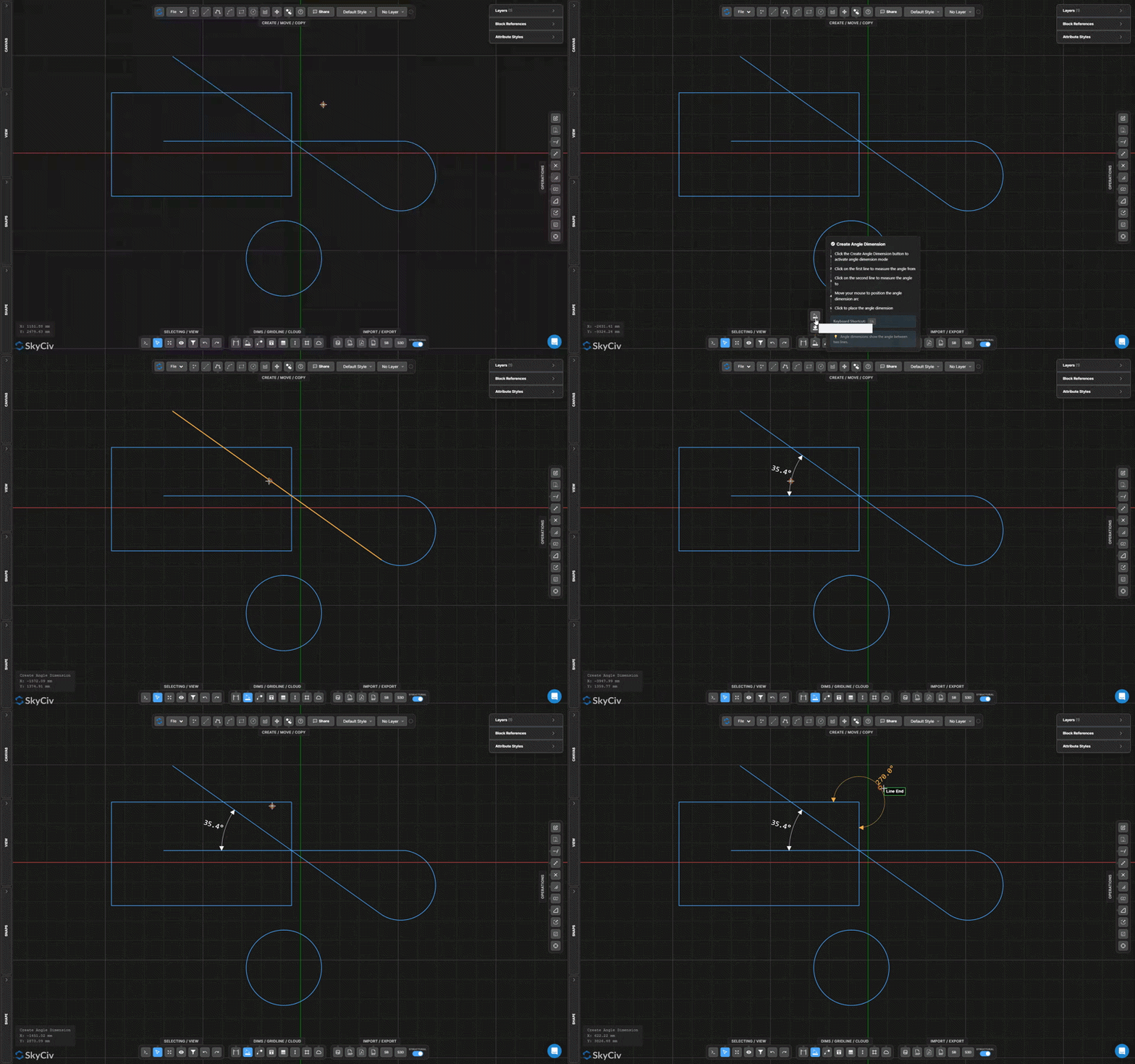
Dimensão do ângulo coloca uma cota em forma de arco mostrando o ângulo incluído entre duas linhas selecionadas, com a etiqueta de medição posicionada ao longo do arco.
Passo a passo
- 1Ativar Criar dimensão angular.
- 2Clique na primeira linha.
- 3Clique na segunda linha.
- 4Mova o cursor e clique para posicionar o arco angular e o rótulo.
Comece selecionando a parte da estrutura que você deseja espelhar: A posição do cursor ao posicionar determina qual dos quatro setores angulares possíveis é mostrado – interior, exterior, ou os dois ângulos suplementares. Posicione o cursor dentro do setor desejado.
Criar dimensão de raio
Anote o raio de um arco ou círculo
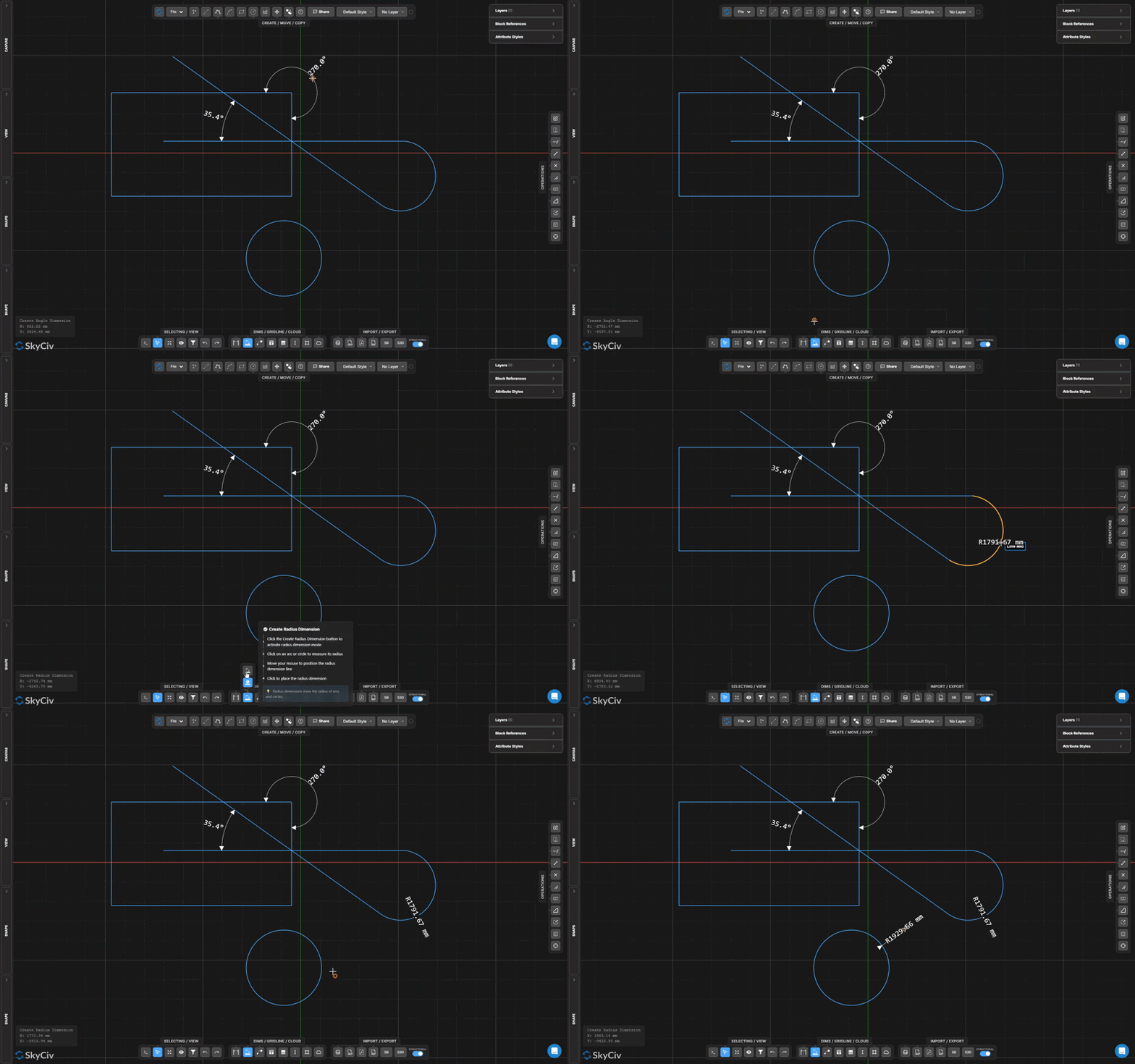
Dimensão do raio coloca uma chamada a partir do centro de um arco ou círculo mostrando seu raio, com uma linha líder e rótulo com prefixo R.
Passo a passo
- 1Ativar Criar dimensão de raio.
- 2Clique em um arco ou círculo.
- 3Mova o cursor e clique para posicionar a chamada de detalhe do raio.
Comece selecionando a parte da estrutura que você deseja espelhar: Use o acordeão de configurações de Dimensões para controlar o estilo da seta e se deseja mostrar o prefixo R antes do valor.
Texto e Líder
Criar texto líder
Adicione uma ponta de seta apontando para um objeto com uma nota de texto
A Texto do líder ferramenta cria uma ponta de seta apontando para um local específico no desenho e a conecta a uma chamada de texto. Usado para notas materiais, marcadores de detalhes, e etiquetas de referência.
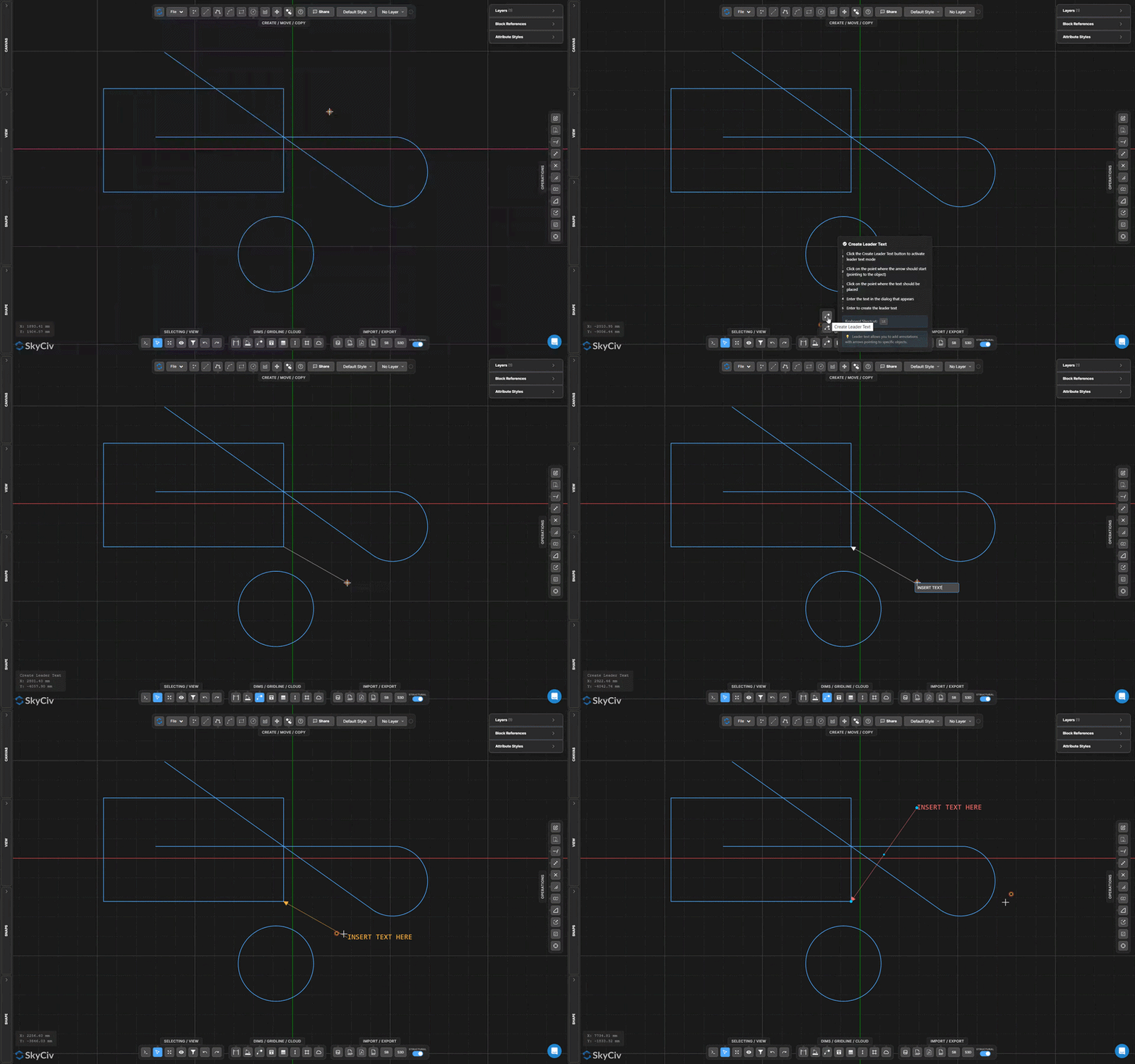
Passo a passo
- 1Ativar Criar texto líder.
- 2Clique no local da ponta da seta no objeto.
- 3Clique no local da âncora do texto.
- 4Insira o texto da anotação e confirme.
Comece selecionando a parte da estrutura que você deseja espelhar: Quando uma única nota se aplica a vários locais, usar Texto com vários líderes em vez disso, conecte várias pontas de seta a um bloco de texto explicativo.
Criar texto com vários líderes
Crie uma nota de texto explicativo com várias setas de chamada de detalhe
Texto com vários líderes cria um único bloco de anotação com múltiplas setas apontando para locais diferentes. Use-o quando uma nota se aplicar a vários objetos ou posições ao mesmo tempo.
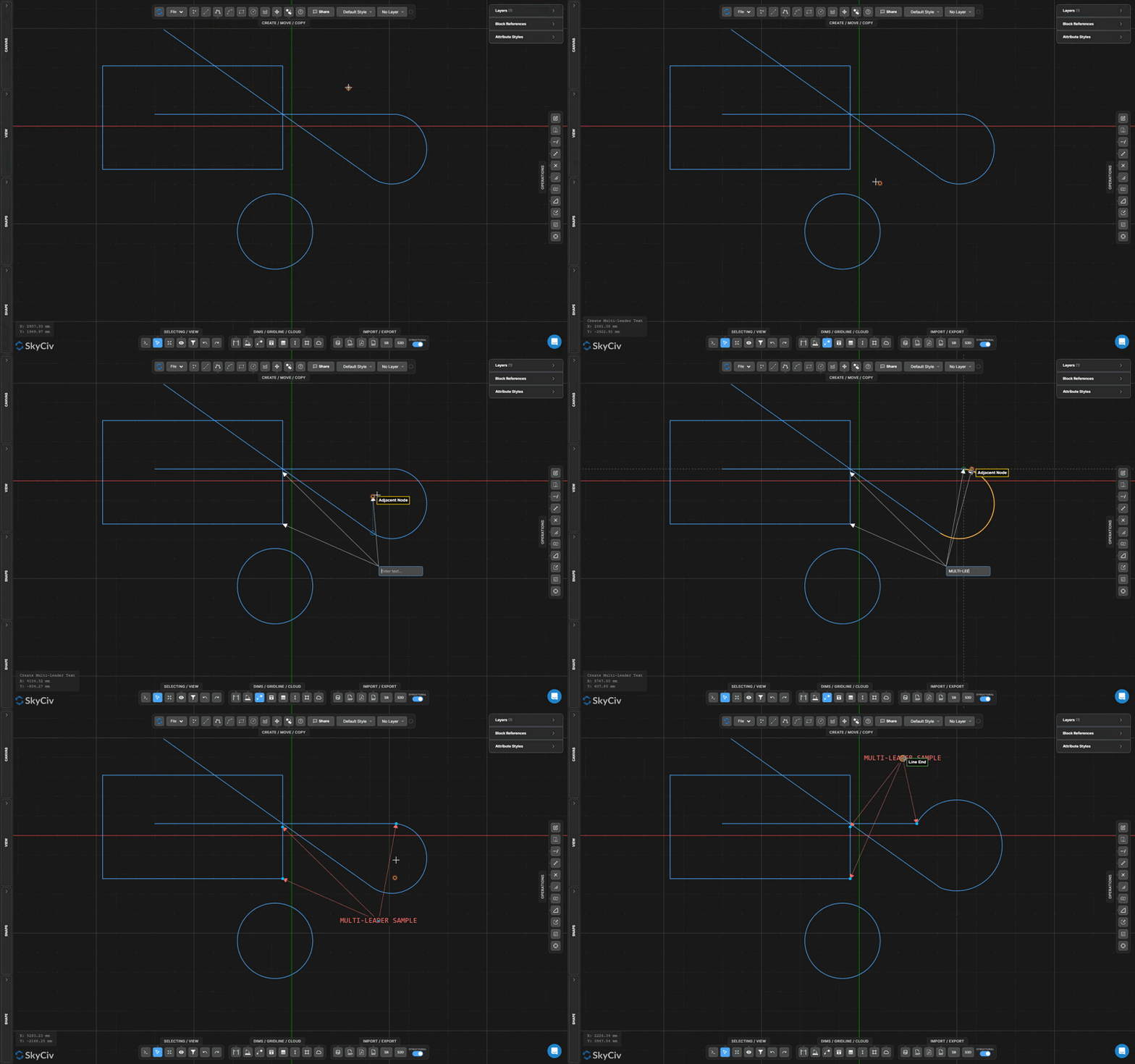
Passo a passo
- 1Ativar Criar texto com vários líderes.
- 2Clique no ponto de ancoragem do texto.
- 3Clique em cada local da ponta da seta.
- 4Insira o texto da anotação e pressione Encomende Viagra online na Inglaterra confirmar.
Comece selecionando a parte da estrutura que você deseja espelhar: Depois de colocar, você pode mover o ponto de ancoragem e as pontas das setas individuais de forma independente selecionando a anotação e arrastando as alças.
Criar texto
Coloque rótulos de texto estilizados com fonte, Tamanho, e controles de alinhamento
A Criar texto ferramenta coloca um rótulo de texto independente na tela. Fonte, Tamanho, estilo negrito/itálico, alinhamento, e a cor são configuráveis antes ou depois da colocação.
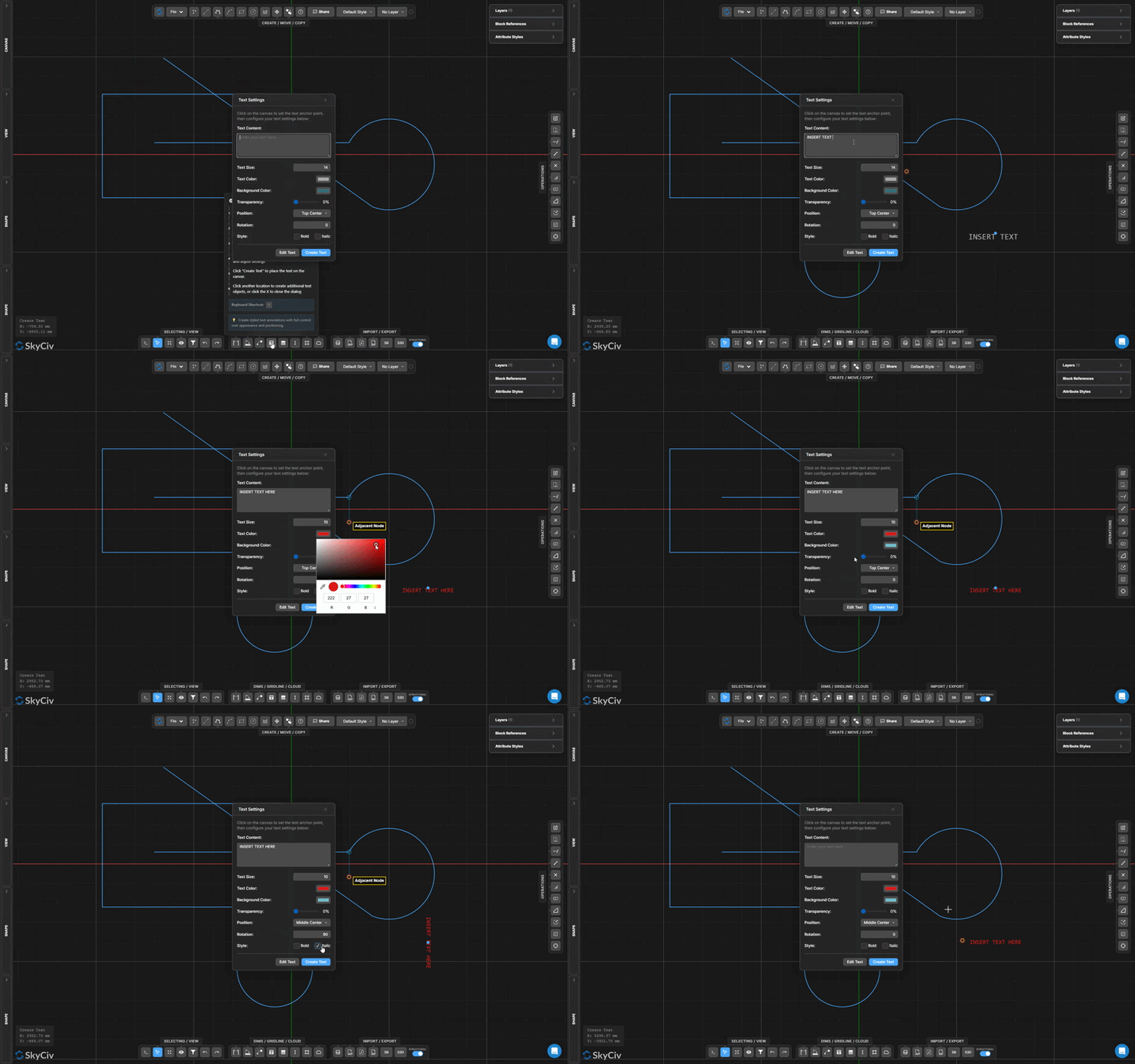
Passo a passo
- 1Ativar Criar texto.
- 2Clique no ponto de ancoragem na tela para abrir a caixa de diálogo de texto.
- 3Insira o conteúdo do texto e configure a fonte, Tamanho, e alinhamento.
- 4Clique Criar texto para colocar a etiqueta.
Comece selecionando a parte da estrutura que você deseja espelhar: Objetos de texto se ajustam à posição do cursor; habilitando Ajustar para alinhar facilita o alinhamento horizontal ou vertical de etiquetas com a geometria existente.
Criar tabela
Insira uma anotação de tabela formatada diretamente no desenho
A Criar tabela ferramenta insere uma tabela de dados estruturados como uma anotação de desenho. Use-o para agendamentos, propriedades da seção, carregar tabelas, ou dados de referência gerais na planilha.
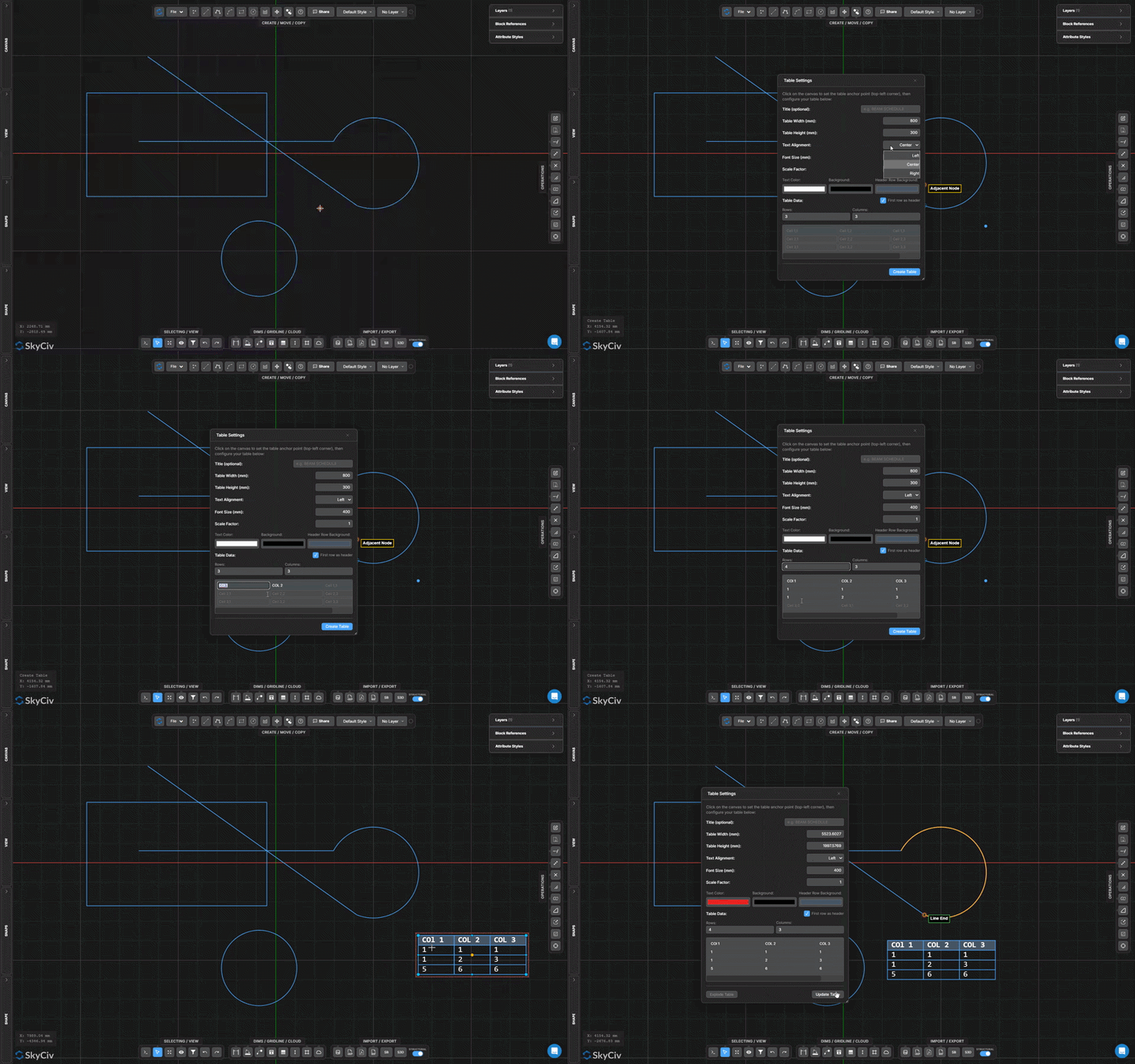
Passo a passo
- 1Ativar Criar tabela.
- 2Clique no ponto de ancoragem para posicionamento da tabela.
- 3Configurar o conteúdo da tabela, linhas, e estilo na caixa de diálogo.
- 4Confirme para inserir a tabela.
Comece selecionando a parte da estrutura que você deseja espelhar: Depois de colocar, clique duas vezes na tabela para reabrir o editor e modificar o conteúdo da célula, adicionar linhas, ou ajuste as larguras das colunas.
Grade e construção
Criar linha de grade
Desenhe linhas de grade de referência estrutural rotuladas
Linhas de grade são rotulados como eixos de referência usados em desenhos estruturais para definir a grade do edifício. Eles exibem uma bolha de etiqueta em cada extremidade e suportam o encaixe através do Ajustar às linhas de grade Selecione os membros que você deseja repetir.
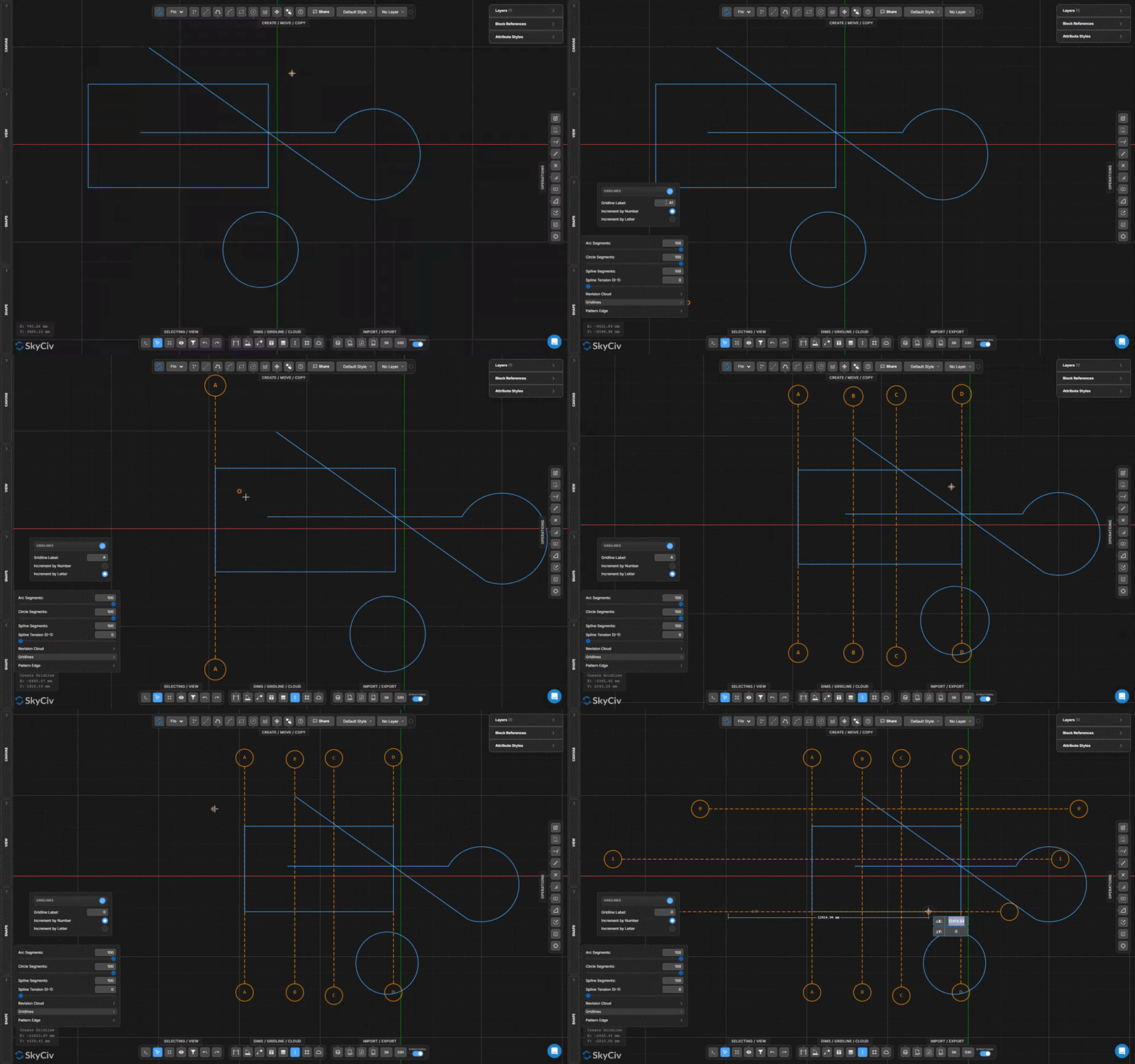
Passo a passo
- 1Ativar Criar linha de grade.
- 2Defina o rótulo da linha de grade no painel Configurações.
- 3Clique no primeiro ponto final.
- 4Clique no segundo ponto final para colocar a linha de grade.
Comece selecionando a parte da estrutura que você deseja espelhar: Linhas de grade com o mesmo incremento automático de rótulo (A, A1, A2…). Habilitar Ajustar às linhas de grade no painel Snaps para ajustar a geometria aos caminhos de linha de grade estendidos.
Linha de construção vertical
Crie linhas de referência verticais infinitas que não aparecem nas exportações
Linhas de construção verticais são linhas de referência verticais infinitas usadas para alinhamento e encaixe. Eles ficam visíveis na tela, mas são excluídos de todas as exportações.
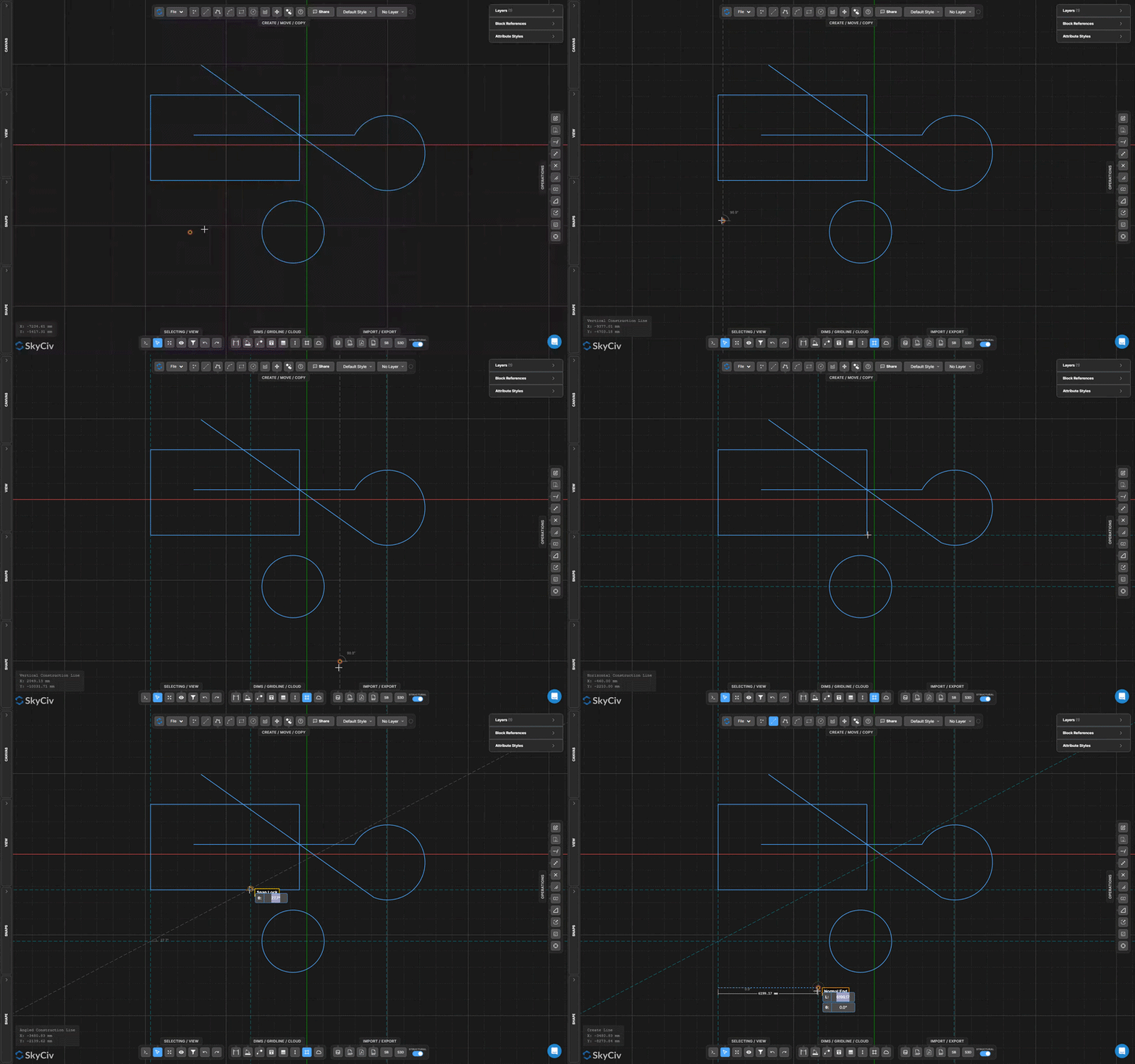
Passo a passo
- 1Ativar modo de linha de construção vertical.
- 2Clique na posição X na tela para posicionar a linha.
- 3Continue clicando para colocar mais linhas. Aperte Esc sair.
Comece selecionando a parte da estrutura que você deseja espelhar: Habilitar Ajustar às linhas de construção no painel Snaps para usar linhas de construção como alvos de snap ao desenhar outra geometria.
Linha de construção horizontal
Crie linhas de referência horizontais infinitas que não aparecem nas exportações
Linhas de construção horizontais são infinitas linhas de referência horizontais para alinhamento e encaixe. Como linhas de construção verticais, eles são visíveis na tela, mas excluídos de todas as exportações.
Passo a passo
- 1Ativar modo de linha de construção horizontal.
- 2Clique na posição Y na tela para posicionar a linha.
- 3Continue clicando para colocar mais linhas. Aperte Esc sair.
Comece selecionando a parte da estrutura que você deseja espelhar: Combine linhas de construção horizontais e verticais para criar uma grade de referência personalizada, então ative Ajustar às linhas de construção trabalhar precisamente dentro dele.
Linha de construção angular
Crie linhas de referência infinitas em qualquer ângulo
Linhas de construção angulares são linhas de referência infinitas definidas por dois pontos clicados. Eles se estendem infinitamente em ambas as direções no ângulo definido pelas duas pontas, suportando o encaixe da mesma forma que as variantes vertical e horizontal.
Passo a passo
- 1Ativar modo de linha de construção angular.
- 2Clique no primeiro ponto.
- 3Clique no segundo ponto para definir a direção do ângulo.
- 4Uma linha infinita é criada através de ambos os pontos.
Comece selecionando a parte da estrutura que você deseja espelhar: Utilize uma linha de construção angular para definir uma direção de referência para um membro inclinado, então use Ajustar para paralelo para desenhar outra geometria no mesmo ângulo.
Nuvem de revisão
Criar quadro de nuvem de revisão
Desenhe uma nuvem de revisão retangular a partir de um quadro clique e arraste
A Quadro de nuvem de revisão ferramenta gera uma borda de cadeia de arco retangular arrastando uma caixa delimitadora. O tamanho do relevo do arco é configurável no acordeão Shapes.
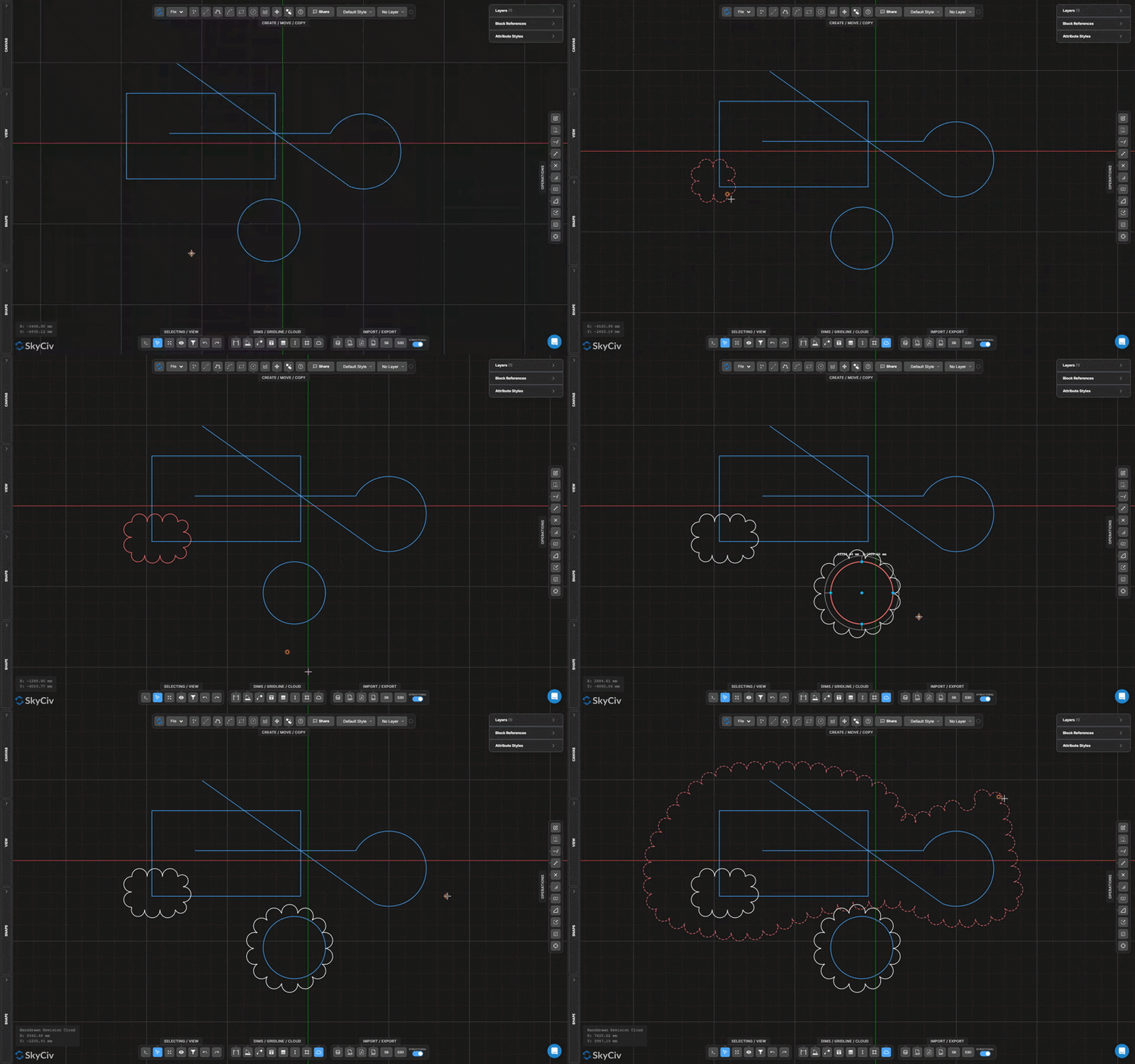
Passo a passo
- 1Ativar Criar quadro de nuvem de revisão.
- 2Clique e arraste para definir os limites do quadro.
- 3Solte para gerar a borda da nuvem automaticamente.
- 4Ajuste o raio do arco no acordeão Formas, se necessário.
Comece selecionando a parte da estrutura que você deseja espelhar: Defina o raio do arco de revisão no acordeão Formas antes da desenho para obter a densidade de nuvem desejada. Raio maior = menos, solavancos redondos; raio menor = mais saliências ao longo do perímetro.
Criar nuvem de revisão quadro por círculo
Desenhe uma nuvem de revisão circular por centro e raio
Quadro de nuvem por círculo cria uma borda de nuvem circular em cadeia de arco definida por um ponto central e raio – ideal para destacar uma área circular ou pontual no desenho.
Passo a passo
- 1Ative o modo nuvem circular.
- 2Clique no ponto central.
- 3Mova o cursor para fora e clique para definir o raio.
- 4A nuvem é criada como uma estrutura de cadeia de arco circular.
Comece selecionando a parte da estrutura que você deseja espelhar: Digite um raio numérico e pressione Encomende Viagra online na Inglaterra para obter um tamanho de círculo preciso em vez de clicar visualmente.
Nuvem de revisão desenhada à mão
Esboce um limite de nuvem de revisão de forma livre
A Nuvem de revisão desenhada à mão permite esboçar um contorno de forma livre que é automaticamente convertido em uma borda de nuvem em cadeia de arco irregular. Ótimo para áreas de revisão orgânica ou assimétrica.
Passo a passo
- 1Ativar Nuvem de revisão desenhada à mão.
- 2Clique uma vez para iniciar o caminho do limite.
- 3Segure e arraste para esboçar o contorno de forma livre.
- 4Solte para completar o limite da nuvem.
Comece selecionando a parte da estrutura que você deseja espelhar: Esboce lentamente para obter resultados mais suaves. A frequência de colisão do arco segue a Raio do arco de revisão configuração no acordeão Shapes – valores menores produzem saliências mais densas.
Como podemos ajudar?
×Mapa do site
Ferramentas gratuitas
- Calculadora de vigas
- Calculadora de treliças
- Calculadora de pórticos
- Calculadora de shafts
- Calculadora de momentos de inercia
- Calculadora de cargas de vento
- Calculadora de Fundações
- Calculadora de placas base
- Calculadora de muros de arrimo
- Atualize para um plano pago para desbloquear recursos completos Permitindo que você resolva cenários de muros de contenção mais complexos com recursos avançados
- Calculador de Capacidade de Carga de Viga I
© SkyCiv Engenharia 2026 | ABN: 73 605 703 071
