
A Operações grupo na barra de ferramentas direita contém ferramentas de edição de geometria para corte, estendendo, divisão, juntando-se, dimensionamento, e correspondência de propriedades.
A maioria das operações funciona na geometria selecionada. Use o ativo foto configurações para escolhas precisas e pontos alvo.
Operações
As ferramentas de operações são agrupadas em pilhas suspensas na barra direita. Clique no botão de categoria para ativar a ferramenta atual, ou abra a mini barra de ferramentas para escolher outra ferramenta na mesma pilha.
Propriedades de correspondência
Copiar propriedades de estilo e atributos de um objeto para outro
A Propriedades de correspondência O comando aplica propriedades de um objeto de origem a objetos de destino compatíveis.
Passo a passo
- 1Selecione um objeto de origem para copiar suas propriedades.
- 2Clique Propriedades de correspondência para ativar o modo pincel.
- 3Clique nos elementos de destino compatíveis para aplicar propriedades instantaneamente.
- 4Continuar clicando, ou use a seleção de cerca ou janela para vários alvos.
- 5Aperte Esc para sair do modo pincel.
Comece selecionando a parte da estrutura que você deseja espelhar: Match Properties copia propriedades visuais como cor, espessura da linha, estilo de linha, e camada. Somente propriedades compatíveis com o tipo de objeto de destino são aplicadas.
Esticar
Mova os vértices selecionados usando uma janela cruzada ou laço
Esticar move vértices enquanto preserva a topologia em torno da geometria conectada.
[__INSERT_IMAGE__]
Passo a passo
- 1Ativar Esticar.
- 2Selecione vértices com uma janela ou laço de cruzamento da direita para a esquerda.
- 3Arraste a alça central para um movimento livre, ou as alças X/Y para um movimento restrito.
Comece selecionando a parte da estrutura que você deseja espelhar: Somente os vértices dentro da seleção de cruzamento são movidos; as linhas conectadas aos vértices fora da seleção são esticadas para manter a conectividade.
Estender linha
Estender uma linha até que ela encontre uma linha ou ponto alvo
Estender linha alonga uma linha selecionada para atingir um limite alvo. A linha é estendida ao longo de sua direção existente até cruzar o alvo escolhido.
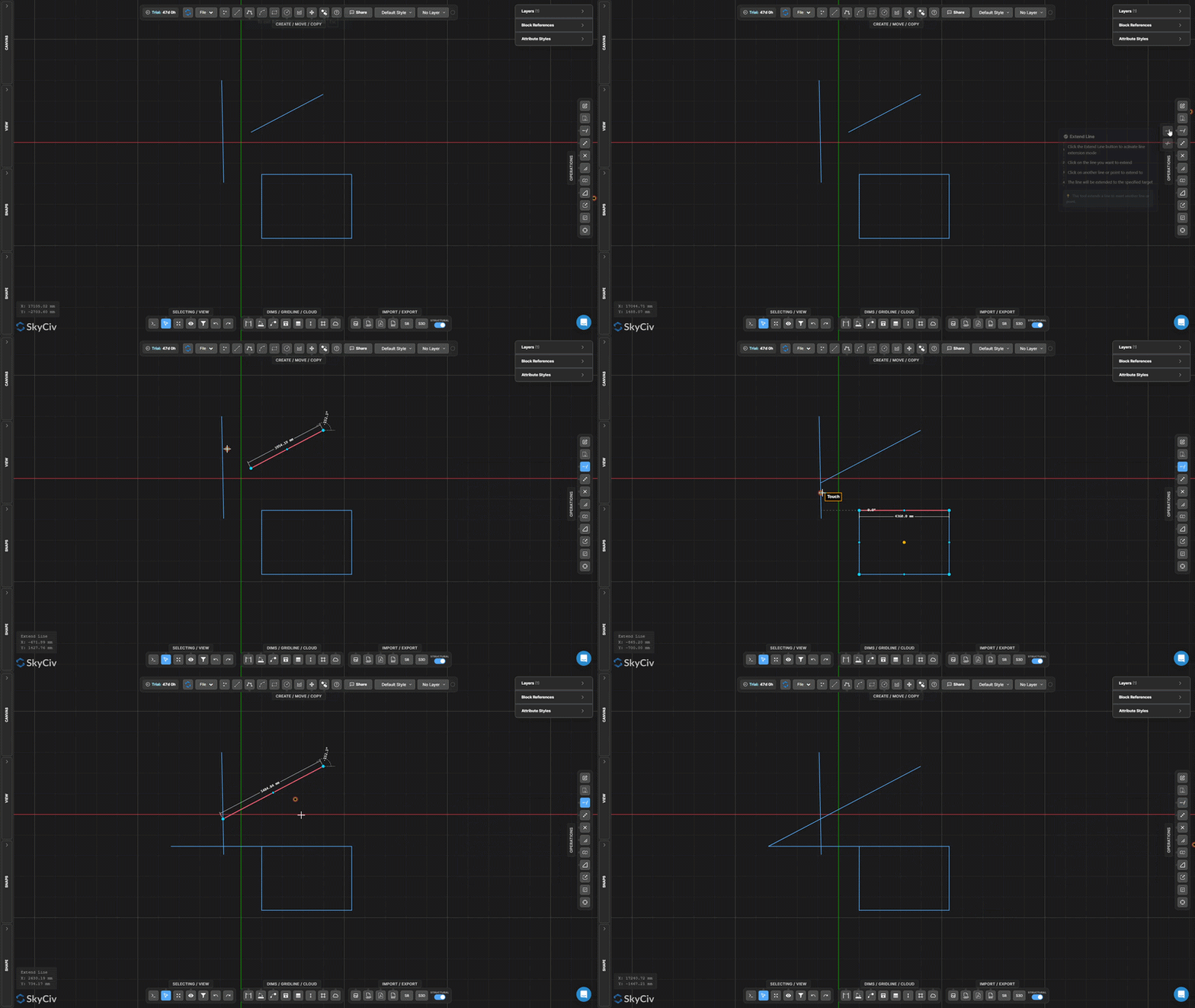
Passo a passo
- 1Ativar Estender linha.
- 2Clique na linha para estender (perto do fim você quer crescer).
- 3Clique na linha ou ponto alvo para estender.
Comece selecionando a parte da estrutura que você deseja espelhar: Clique próximo ao final da linha que você deseja estender – a ferramenta se estende do ponto final mais próximo na direção do alvo.
Aparar
Remover segmentos de linha ou arco definidos por arestas de corte
Aparar remove porções de linhas ou arcos usando outra geometria como arestas de corte. Primeiro selecione as arestas de corte, confirme-os, em seguida, clique ou cerque os segmentos que deseja remover.
Passo a passo
- 1Ativar Aparar.
- 2Selecione a geometria da aresta de corte (linhas, SkyCiv pode pegar seu arquivo DXF e importá-lo diretamente para o Section Builder para ser analisado, círculos).
- 3Aperte Encomende Viagra online na Inglaterra ou Barra de espaço para confirmar arestas de corte.
- 4Clique ou cerque os segmentos para remover.
Comece selecionando a parte da estrutura que você deseja espelhar: Você pode usar uma seleção de janela ou cerca para cortar vários segmentos simultaneamente após confirmar as arestas de corte.
Dividir linha em segmentos
Divida uma linha em N segmentos iguais
Dividir linha em segmentos divide uma única linha em um número especificado de segmentos de comprimento igual. Cada segmento resultante é um elemento de linha independente.
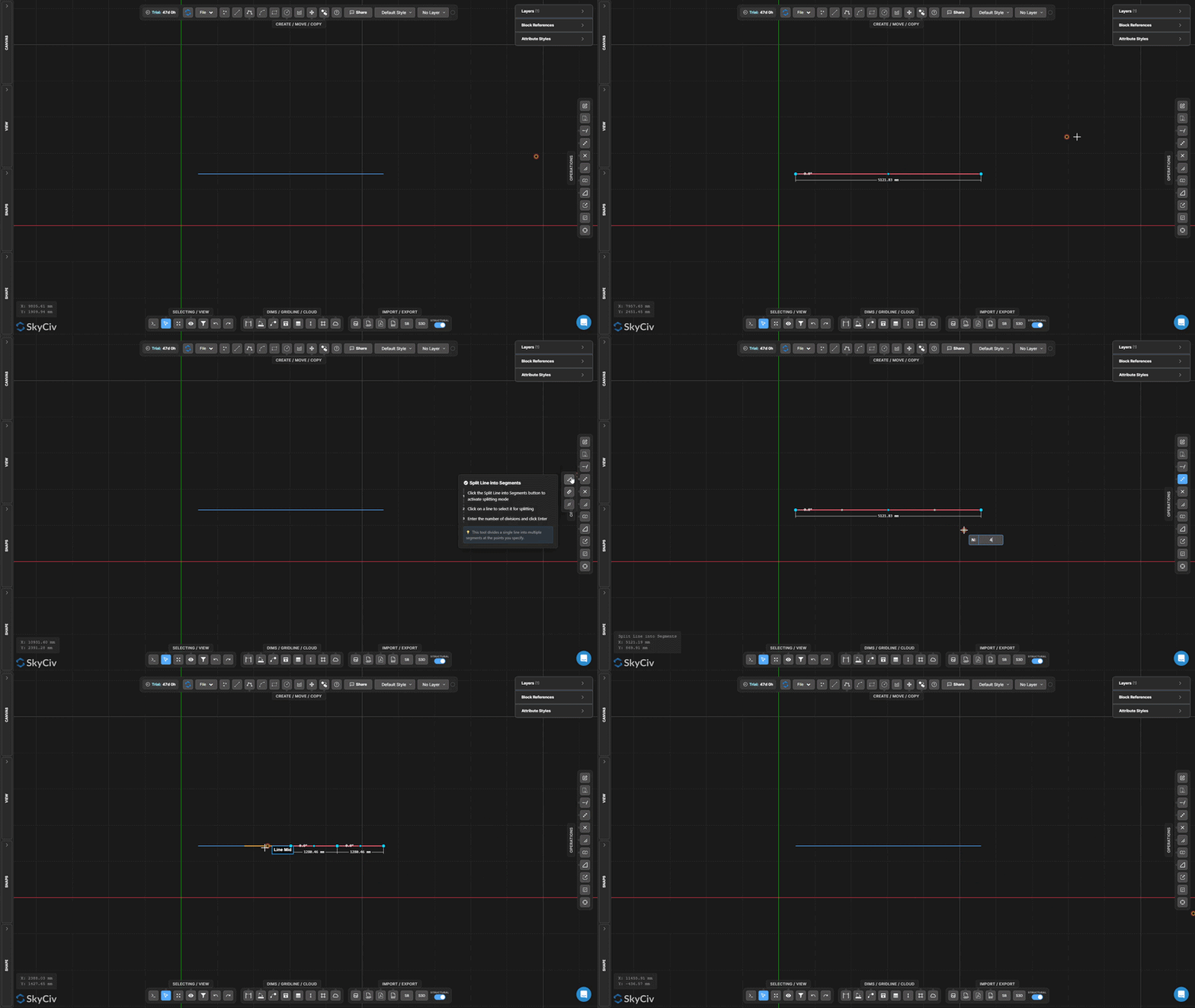
Passo a passo
- 1Ative a ferramenta.
- 2Clique na linha para dividir.
- 3Digite o número de divisões e pressione Encomende Viagra online na Inglaterra.
Comece selecionando a parte da estrutura que você deseja espelhar: Útil para criar pontos de apoio igualmente espaçados ao longo de uma viga ou dividir um vão para análise de distribuição de carga.
Dividir linha por intervalo
Dividir uma linha em intervalos repetidos de comprimento fixo
Dividir linha por intervalo divide uma linha em segmentos de um comprimento fixo especificado. Um segmento restante é criado no final se o comprimento da linha não for um múltiplo inteiro do intervalo.
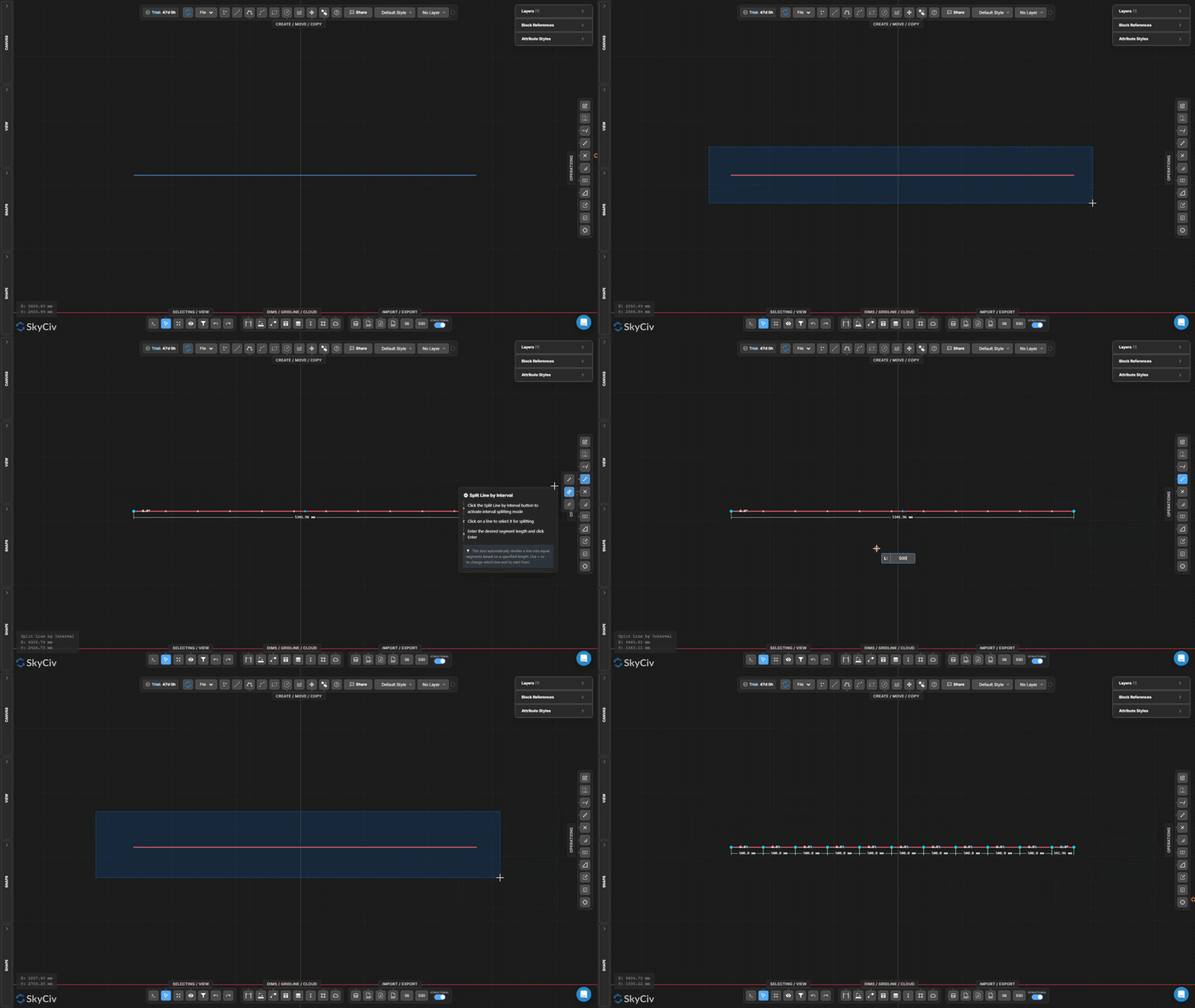
Passo a passo
- 1Ative a ferramenta.
- 2Clique na linha para dividir.
- 3Insira a duração do intervalo e pressione Encomende Viagra online na Inglaterra.
Comece selecionando a parte da estrutura que você deseja espelhar: Use isto para criar nós intermediários espaçados uniformemente ao longo de um membro contínuo em um espaçamento conhecido (por exemplo., cada 500 mm para layout de vigas).
Dividir por posição ao longo da linha
Divida uma linha a uma distância de deslocamento de uma de suas extremidades
Dividir por posição insere um ponto de interrupção a uma distância medida de uma extremidade da linha selecionada, criando dois segmentos separados nessa posição de deslocamento.
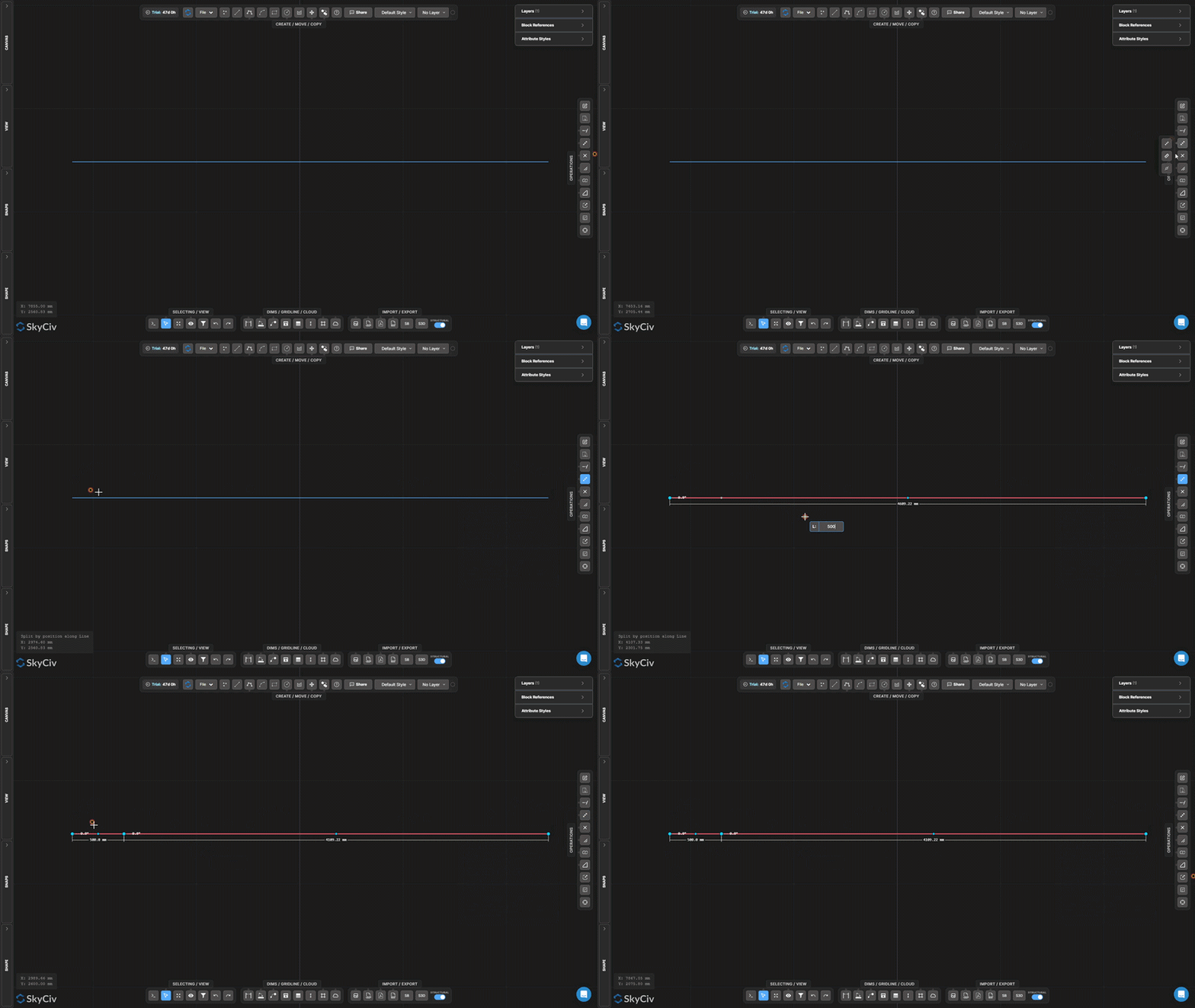
Passo a passo
- 1Ative a ferramenta.
- 2Clique em uma linha (a posição do clique determina de qual ponto final medir).
- 3Insira a distância de deslocamento e pressione Encomende Viagra online na Inglaterra.
Comece selecionando a parte da estrutura que você deseja espelhar: Clique perto do ponto final a partir do qual você deseja medir – a ferramenta usa o ponto final mais próximo como referência para a distância de deslocamento.
Linhas divididas em interseções
Dividir automaticamente todas as linhas selecionadas em pontos de cruzamento
Linhas divididas em interseções encontra todos os pontos onde as linhas selecionadas se cruzam e insere nós divididos em cada interseção. Nenhum valor de entrada é necessário – a operação é totalmente automática.
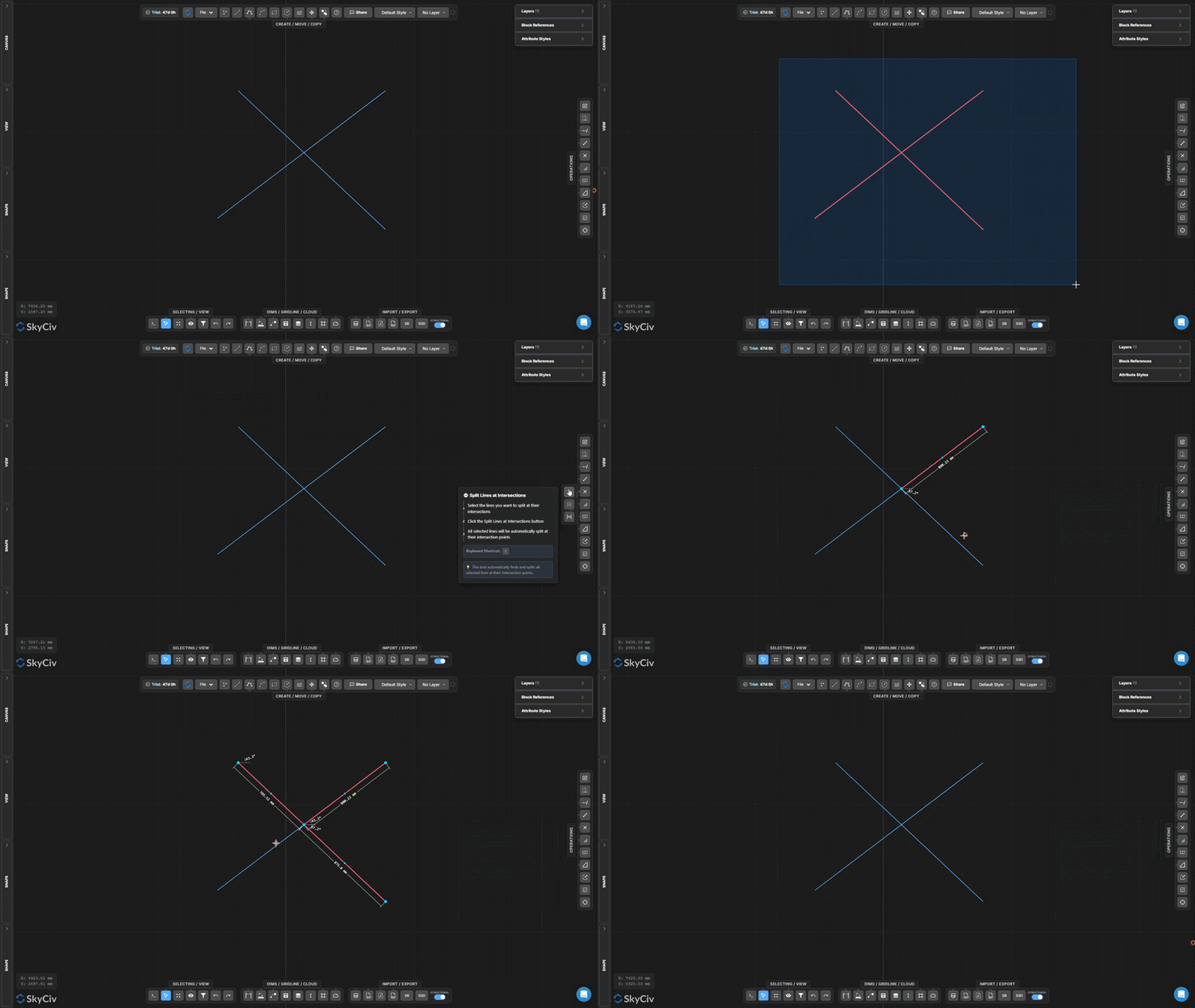
Passo a passo
- 1Selecione as linhas a serem processadas.
- 2Clique Linhas divididas em interseções.
- 3Todos os cruzamentos são detectados e divididos automaticamente.
Comece selecionando a parte da estrutura que você deseja espelhar: Execute isso antes de usar Seleção Conjunta ou realizando operações dependentes de topologia – garante que as linhas cruzadas compartilhem pontos de nó reais.
Meta dividida
Divida objetos de destino pré-selecionados usando geometria de divisão separada
Meta dividida é uma divisão em dois estágios onde você primeiro marca os objetos a serem divididos (alvos), em seguida, selecione separadamente a geometria para dividi-los com (divisores). Somente objetos alvo são cortados.
[__INSERT_IMAGE__]
Passo a passo
- 1Pré-selecione os objetos alvo a serem divididos.
- 2Ativar Meta dividida.
- 3Selecione a geometria do divisor.
- 4Aperte Encomende Viagra online na Inglaterra para dividir alvos em cruzamentos com divisores.
Comece selecionando a parte da estrutura que você deseja espelhar: Use Dividir alvo quando desejar dividir linhas específicas com uma aresta de corte, mas precisar preservar a geometria de corte intacta (ao contrário de guarnição, que também modifica o cortador).
Dividir em sobreposições
Detectar e separar segmentos de linha colineares sobrepostos
Dividir em sobreposições encontra segmentos de linhas selecionadas que são colineares e se sobrepõem, em seguida, divide-os para que as regiões sobrepostas se tornem discretas, geometria selecionável individualmente.
[__INSERT_IMAGE__]
Passo a passo
- 1Selecione linhas que possam ter porções colineares sobrepostas.
- 2Clique Dividir em sobreposições.
- 3Regiões sobrepostas são divididas em segmentos separados.
Comece selecionando a parte da estrutura que você deseja espelhar: Combine com Selecione duplicatas para identificar e remover linhas sobrepostas redundantes em arquivos DXF importados.
Explodir polilinha
Quebrar uma polilinha em segmentos de linha ou arco independentes
Explodir polilinha decompõe uma polilinha multissegmento em segmentos independentes individuais. Útil quando você precisa editar, excluir, ou aplicar operações apenas a parte de uma polilinha.
[__INSERT_IMAGE__]
Passo a passo
- 1Selecione a polilinha para explodir.
- 2Clique Explodir polilinha.
- 3Cada segmento torna-se individualmente selecionável e editável.
Comece selecionando a parte da estrutura que você deseja espelhar: A operação inversa é Junte linhas e arcos, que mescla segmentos conectados novamente em uma única polilinha.
Junte linhas e arcos
Mesclar linhas e arcos conectados em uma única polilinha
Junte linhas e arcos combina uma cadeia de segmentos conectados em um único objeto de polilinha contínua. Linhas e arcos devem compartilhar pontos finais para serem unidos.
Passo a passo
- 1Selecione linhas e arcos que compartilham pontos finais.
- 2Clique Junte linhas e arcos.
- 3Segmentos conectados se fundem em uma polilinha contínua.
Comece selecionando a parte da estrutura que você deseja espelhar: Todos os segmentos selecionados devem formar uma única cadeia contínua. Se os segmentos tiverem lacunas, usar Ajustar às extremidades da linha e a ferramenta Move Point primeiro para fechar os pontos finais.
Criar filete
Arredonde um canto agudo entre duas linhas com um arco
Criar filete substitui um canto agudo entre duas linhas por um arco tangente de um raio especificado. As extremidades da linha original são cortadas para acomodar o arco.
Passo a passo
- 1Ativar Criar filete.
- 2Defina o raio do filete na caixa de diálogo.
- 3Clique no canto (área de intersecção) das duas linhas a serem aplicadas.
Comece selecionando a parte da estrutura que você deseja espelhar: O raio deve ser pequeno o suficiente para caber nos comprimentos de ambas as linhas do canto. Uma visualização ao vivo é mostrada antes da confirmação.
Criar chanfro
Crie um corte chanfrado reto em um canto
Criar chanfro corta um chanfro diagonal reto em um canto entre duas linhas. Defina a distância do chanfro para controlar a que distância do canto cada linha é cortada.
Passo a passo
- 1Ativar Criar chanfro.
- 2Defina a distância do chanfro na caixa de diálogo.
- 3Clique na geometria do canto para aplicar o chanfro.
Comece selecionando a parte da estrutura que você deseja espelhar: O chanfro corta igualmente em ambas as linhas por padrão. Para um bisel assimétrico (distâncias diferentes de cada lado), defina dois valores de chanfro separados na caixa de diálogo.
Dimensionar objetos
Dimensionar a geometria selecionada por um fator a partir de um ponto de articulação
Dimensionar objetos redimensiona a geometria selecionada por um fator de escala uniforme em relação a um ponto de articulação escolhido. Uma caixa de diálogo permite escolher se as anotações (dimensões, texto, Nesta nova série de artigos, linhas de grade, tabelas) também são dimensionados.
Passo a passo
- 1Selecione os objetos para dimensionar.
- 2Clique Dimensionar objetos e configure as opções de escala de anotação na caixa de diálogo.
- 3Clique na tela para definir o pivô da escala (origem) ponto.
- 4Digite o fator de escala e pressione Encomende Viagra online na Inglaterra (1.0 = sem alteração, 0.5 = metade, 2.0 = duplo).
Comece selecionando a parte da estrutura que você deseja espelhar: Use a caixa de diálogo Opções de escala para controlar se os tamanhos das anotações (dimensões, texto, Nesta nova série de artigos, tabelas) dimensionar com a geometria ou permanecer em seus tamanhos atuais.
Quadro de escala
Crie uma zona de escala local persistente com um quadro visível
Quadro de escala cria uma zona retangular persistente com um fator de escala associado. A geometria desenhada ou colocada dentro do quadro é renderizada nessa escala local. Útil para chamadas de detalhes em uma escala de desenho diferente.
[__INSERT_IMAGE__]
Passo a passo
- 1Ativar Quadro de escala.
- 2Clique no primeiro canto, depois o canto oposto para definir a moldura.
- 3Digite o fator de escala na entrada e pressione Esc aplicar.
Comece selecionando a parte da estrutura que você deseja espelhar: A moldura persiste na tela após a criação. Selecione e exclua quando não for mais necessário. A entrada de escala permanece disponível para edição posterior enquanto o quadro é selecionado.
Atualizar origem
Mover a origem das coordenadas do desenho (0,0) para um novo local
Atualizar origem realoca o sistema de coordenadas de referência do desenho. Todos os valores de coordenadas (X, Y) exibidos na tela e exportados em dados são recalculados em relação à nova origem.
[__INSERT_IMAGE__]
Passo a passo
- 1Ativar Atualizar origem.
- 2Clique no novo local de origem na tela.
- 3As leituras das coordenadas são atualizadas imediatamente em relação ao novo (0,0) ponto.
Comece selecionando a parte da estrutura que você deseja espelhar: Snap a um nó existente para uma nova origem precisa. Para desenhos estruturais, encaixe em uma coluna conhecida ou interseção de dados para alinhar as coordenadas com a grade de referência do projeto.
