This page walks through a fixed base plate design to AISC 360-22 和ACI 318-19 in SkyCiv Base Plate Design. It covers each input tab and sub-tab in order, the Settings window, the info panel and 3D viewer, the Results tab, the calculation reports and the detail drawing.
The steps across the top of the input panel are 细节, 几何, 锚, 焊缝, Column Loads 和 结果. You can move between them in any order. The 3D model on the right updates as you change the inputs.
This guide uses a fixed base plate. Pinned base plates are also available.
Values in this page are given in imperial units, 四舍五入, with metric in brackets.
Starting a design
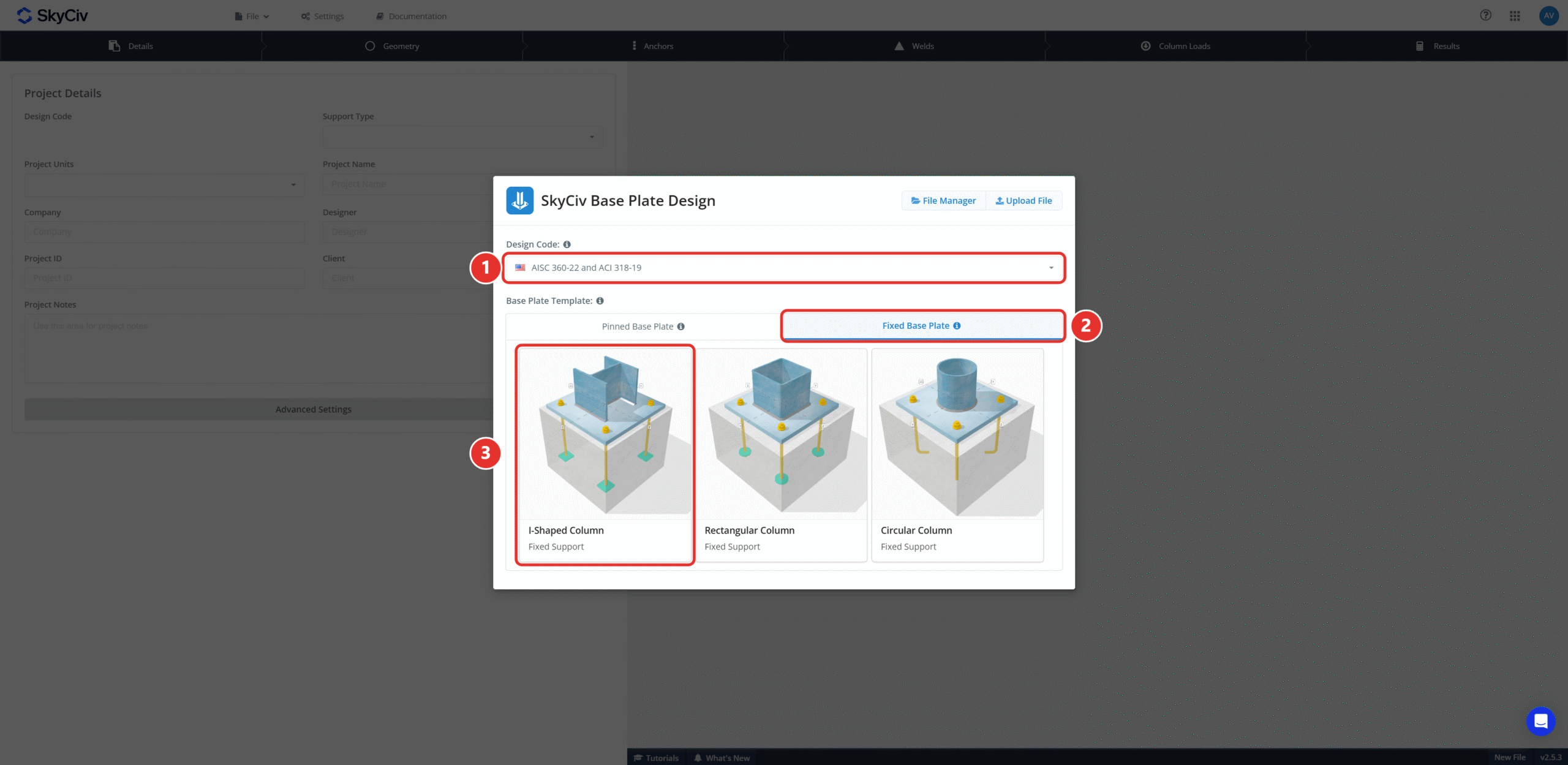
Open SkyCiv Base Plate Design from the SkyCiv dashboard or from platform.skyciv.com/design/base-plate/v2. The start window opens with two inputs:
- 设计规范: 选择 AISC 360-22 和ACI 318-19. The first standard applies to the steel elements and the second to the foundation.
- Base Plate Template: 选择 Fixed Base Plate 标签, then click the card for the column shape: I-Shaped Column, Rectangular Column 要么 Circular Column.
A fixed base plate restrains column rotation at the base, so bending moments are transferred to the foundation.
Clicking a card loads the template and closes the window. There is no separate New button. The template sets the starting column section.
Templates are stored in metric. If your SkyCiv account is set to imperial units, the model is converted to imperial after it loads, so the app shows the exact converted values.
The top-right of the window also has 文件管理器 (open a saved file) 和 上传文件 (load a .json 文件).
Details tab
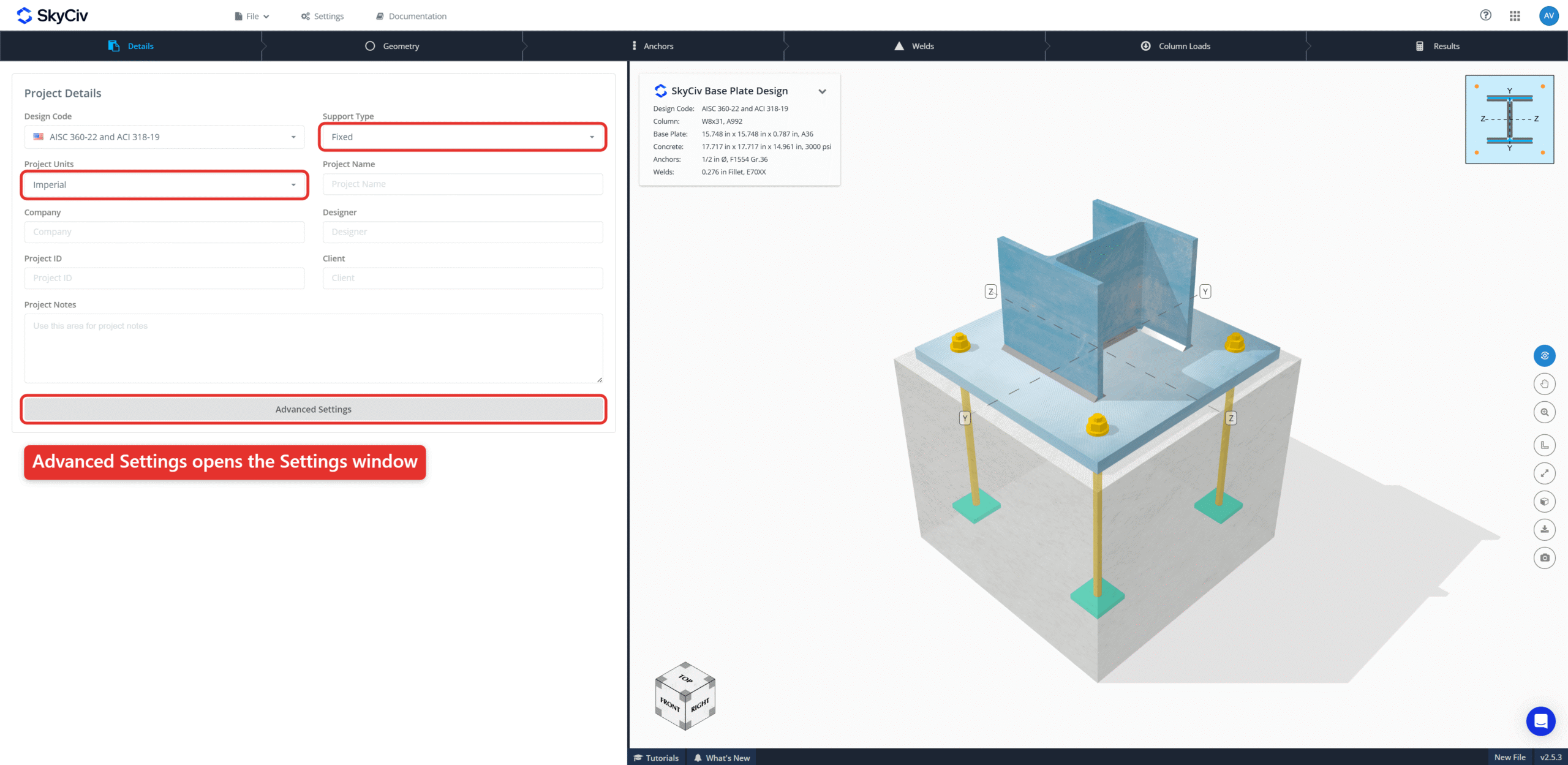
该 细节 tab holds the project information and project-wide options. It has no sub-tabs.
| 输入值 | 描述 |
|---|---|
| 设计规范 | The current design code. Changing it resets all design parameters and reloads the page, after a confirmation. Nothing from the current design is kept. |
| 支撑类型 | 固定 要么 固定. Changing it, after a confirmation, rebuilds the Anchors tab (tension zones and groups) and the Column Loads tab. 几何, welds and settings are kept. |
| 项目单位 | 英制 要么 公制. Only AISC lets you change the units. 看 Project units. |
| 项目名称, 公司, 设计师, 项目编号, 客户 | Free text. Saved with the file and shown in the calculation report and the drawing title block. |
| 项目说明 | Free text for project notes. |
| 高级设置 | Opens the Settings window. 看 设置. |
Project units
| 数量 | 英制 | 公制 |
|---|---|---|
| 长度 | 在 | 毫米 |
| 力量 | ps | 千牛 |
| 时刻 | 基普英尺 | 千牛·米 |
| Steel strength | KSI | 兆帕 |
| 混凝土强度 | 压力 | 兆帕 |
When you change the units, all dimensions, custom strengths and loads are converted. The column section is reloaded in the new unit system. The concrete strength and the anchor diameter are not converted numerically: they move to the item in the same position in the other list (例如, 4000 psi becomes 27.58 兆帕, 和一个 1/2 in anchor becomes 12 毫米). The settings factors are unitless and do not change.
设置
点击 高级设置 on the Details tab to open the 设置 窗户. It has three tabs: 影响因素 & Other Inputs, 设计 和 细部.
点击 保存 to keep your changes. If you click 关闭 with unsaved changes, you are asked whether to Discard 要么 保存 他们. Changing a setting after a design has run does not re-run it. The Results tab shows 结果需要更新 until you run the design checks again.
影响因素 & Other Inputs
This tab lists the resistance factors (披) used in the design checks. Each label has an information icon that shows the code clause. Each group has a Reset to Default button that restores the defaults of that group.
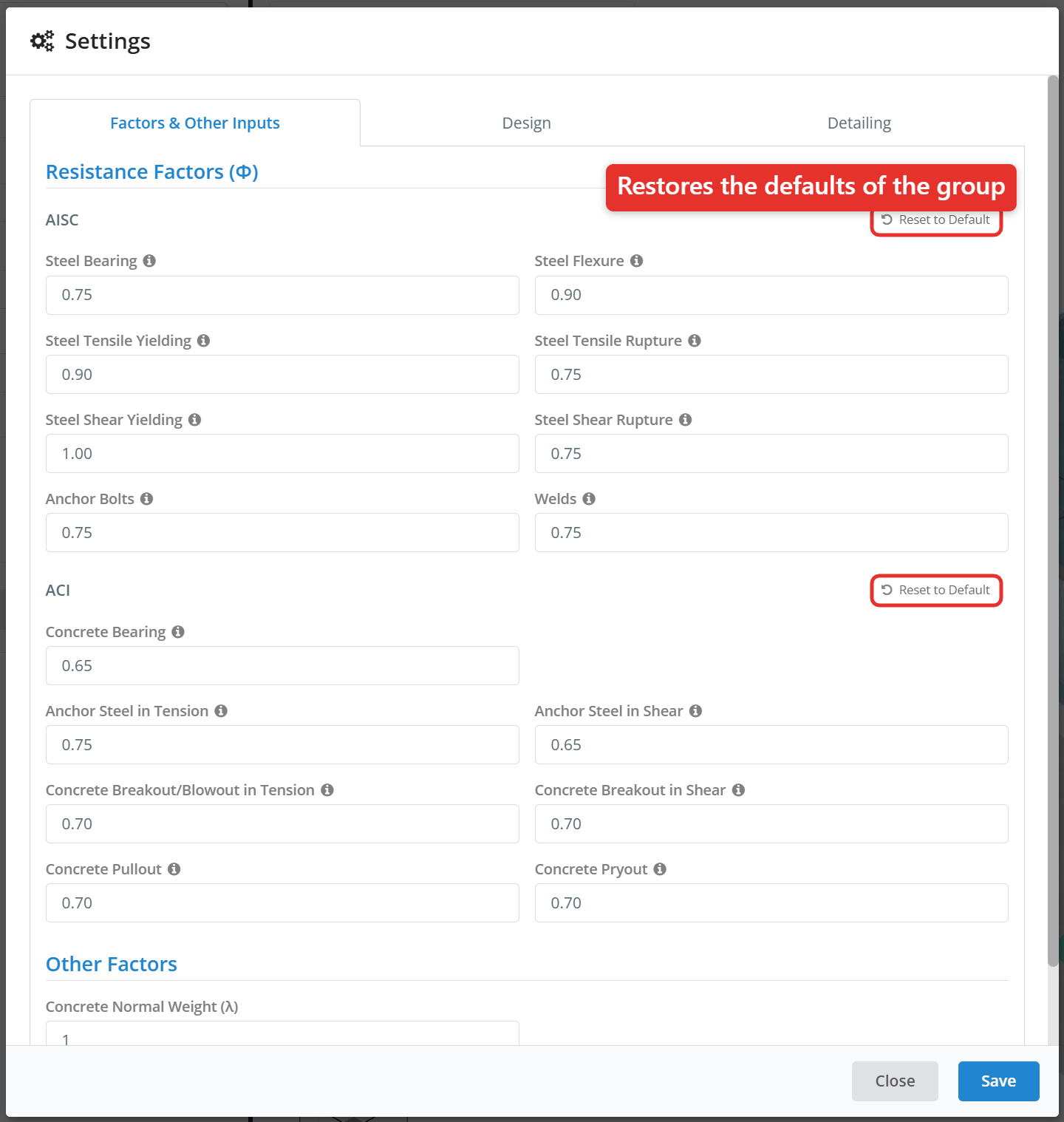
Resistance Factors (披): AISC
| 因素 | 默认 | 参考 |
|---|---|---|
| Steel Bearing | 0.75 | AISC 360-22 J7 |
| Steel Flexure | 0.90 | AISC 360-22 F1(一个) |
| Steel Tensile Yielding | 0.90 | AISC 360-22 J4.1(一个) |
| Steel Tensile Rupture | 0.75 | AISC 360-22 J4.1(b) |
| Steel Shear Yielding | 1.00 | AISC 360-22 J4.2(一个) |
| Steel Shear Rupture | 0.75 | AISC 360-22 J4.2(b) |
| 下面是一些在底板设计中常用的美国底板计算示例 | 0.75 | AISC 360-22 J3.7 |
| 焊缝 | 0.75 | AISC 360-22 J2.4, Table J2.5 |
Resistance Factors (披): ACI
| 因素 | 默认 | 参考 |
|---|---|---|
| 混凝土支座 | 0.65 | ACI 318-19 桌子 21.2.1(d) |
| Anchor Steel in Tension | 0.75 | ACI 318-19 桌子 17.5.3(一个), ductile steel |
| Anchor Steel in Shear | 0.65 | ACI 318-19 桌子 17.5.3(一个), ductile steel |
| Concrete Breakout/Blowout in Tension | 0.70 | ACI 318-19 桌子 17.5.3(b), 铸造, no supplementary reinforcement |
| Concrete Breakout in Shear | 0.70 | ACI 318-19 桌子 17.5.3(b), 铸造, no supplementary reinforcement |
| Concrete Pullout | 0.70 | ACI 318-19 桌子 17.5.3(C), 铸造 |
| Concrete Pryout | 0.70 | ACI 318-19 桌子 17.5.3(C), 铸造 |
Other Factors
| 因素 | 默认 |
|---|---|
| Concrete Normal Weight (λ) | 1 |
Each factor must be a number greater than zero. An invalid factor stops the design from running and shows a link back to the input. 该 Reset to Default buttons do not reset λ.
设计
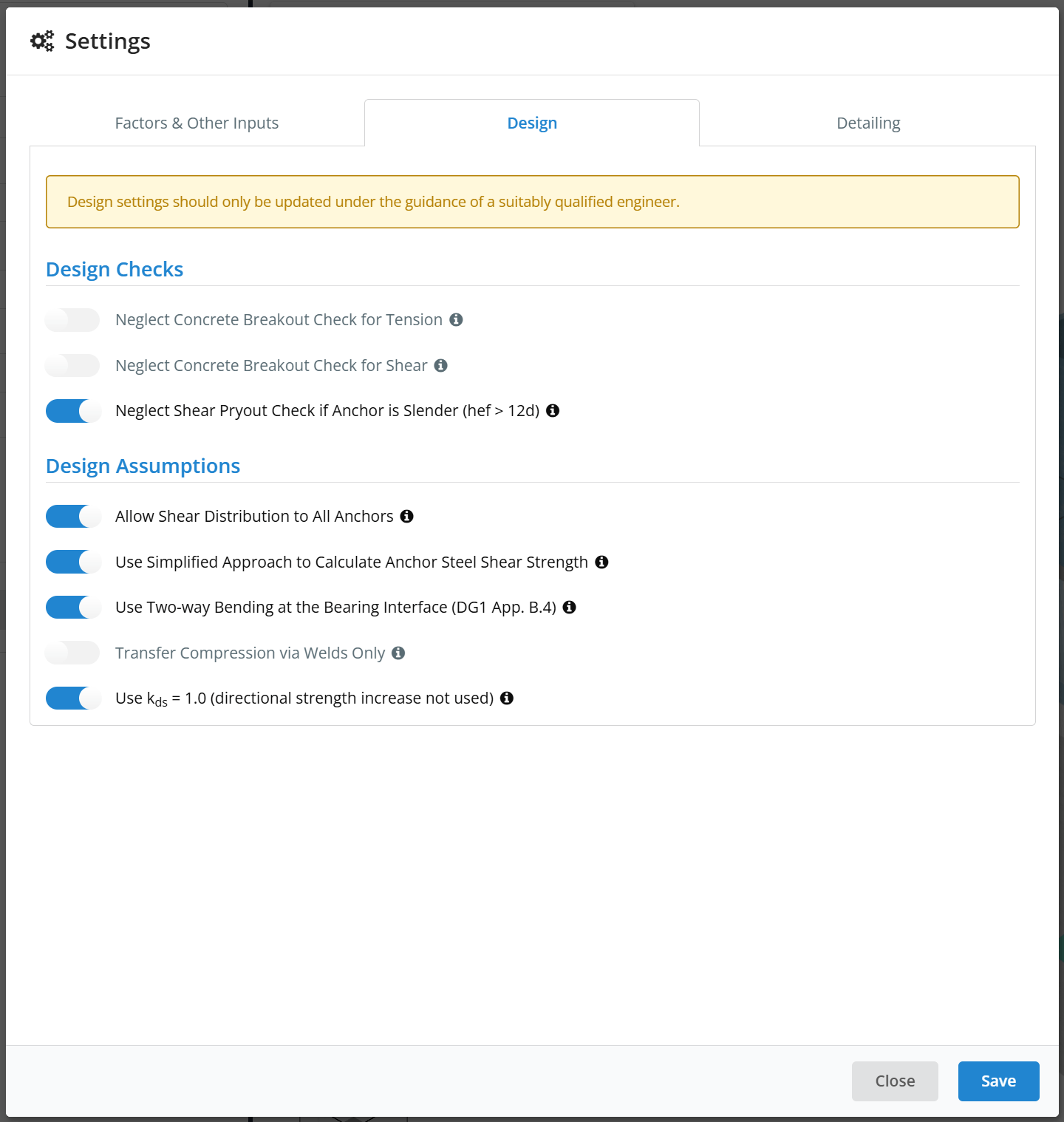
This tab controls which checks run and the design assumptions. Design settings should only be changed under the guidance of a suitably qualified engineer.
设计检查
| 环境 | 默认 | 描述 |
|---|---|---|
| Neglect Concrete Breakout Check for Tension | 离开 | Skips the tension breakout check. Use only where steel reinforcement designed for the load transfer is present. The reinforcement is not checked by the software. |
| Neglect Concrete Breakout Check for Shear | 离开 | Skips the shear breakout check, under the same condition. |
| Neglect Shear Pryout Check if Anchor is Slender (有 > 12d) | 上 | Skips the pryout check for anchors with hef > 12d. 关闭时, pryout is checked for all anchors. |
A check that is skipped by these settings is shown greyed out in the results and left out of the report.
Design Assumptions
| 环境 | 默认 | 描述 |
|---|---|---|
| Allow Shear Distribution to All Anchors | 上 | 开启时, shear is distributed to all anchors and the failure cases of ACI 318-19 条款 17.7 申请. 关闭时, shear is taken only by the anchors closest to the concrete edge in the direction of the load (保守的). This setting is locked on when Use Welded Plate Washers is selected on the Anchors tab. |
| Use Simplified Approach to Calculate Anchor Steel Shear Strength | 上 | When on and a grout pad is present, the ACI approach with a 0.8 reduction factor is used. 关闭时, the anchor steel is checked for combined shear and axial stress. |
| Use Two-way Bending at the Bearing Interface (DG1 App. B.4) | 上 | When the cross cantilever governs, the effective width of AISC Design Guide 1 Appendix B.4 (Eqs. B-27 to B-29) 用来. 关闭时, DG1 Eq. 4-51a is used. Applies to fixed supports only. |
| Transfer Compression via Welds Only | 离开 | Excludes the column section from compression transfer, so the compression is transferred by the welds only. Intended for lightly loaded connections. Not available for CJP welds. |
| Use kDS = 1.0 (directional strength increase not used) | 上 | 开启时, all fillet welds use kDS = 1.0 (AISC 360-22 J2.4(一个)(3)). 关闭时, 情商. J2-5 is used with the load angle. Not available for CJP welds. |
细部
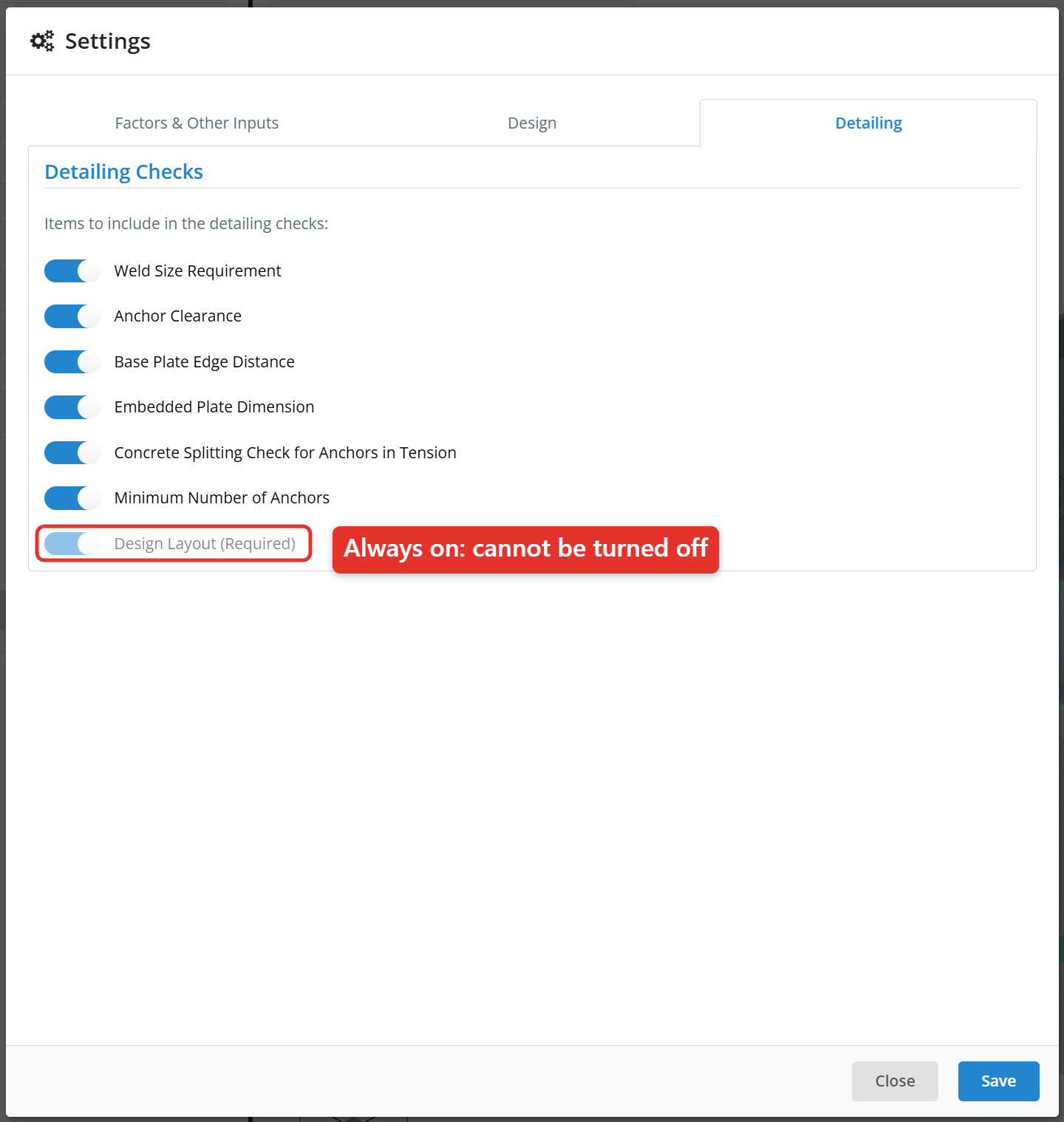
This tab sets which detailing checks run before the design. A detailing check that fails stops the design from running. A check that is turned off is left out of the Results tab and the report.
| 验算 | 默认 |
|---|---|
| Weld Size Requirement | 上 |
| Anchor Clearance | 上 |
| Base Plate Edge Distance | 上 |
| Embedded Plate Dimension | 上 |
| Concrete Splitting Check for Anchors in Tension | 上 |
| Minimum Number of Anchors | 上 |
| Design Layout (必需的) | 始终开启 |
Design Layout checks the model for clashes and unsupported layouts and cannot be turned off. The weld size check does not apply to CJP welds.
几何选项卡
该 几何 tab has three sub-tabs: 柱, 底盘 和 混凝土. Each sub-tab has a 2D drawing above its inputs. The drawings are included in the calculation report.
Text inputs are checked when you leave the field. An error (红) or a warning (橙子) appears under the input. Values with errors are listed again on the Results tab and stop the design from running.
柱
| 输入值 | 描述 |
|---|---|
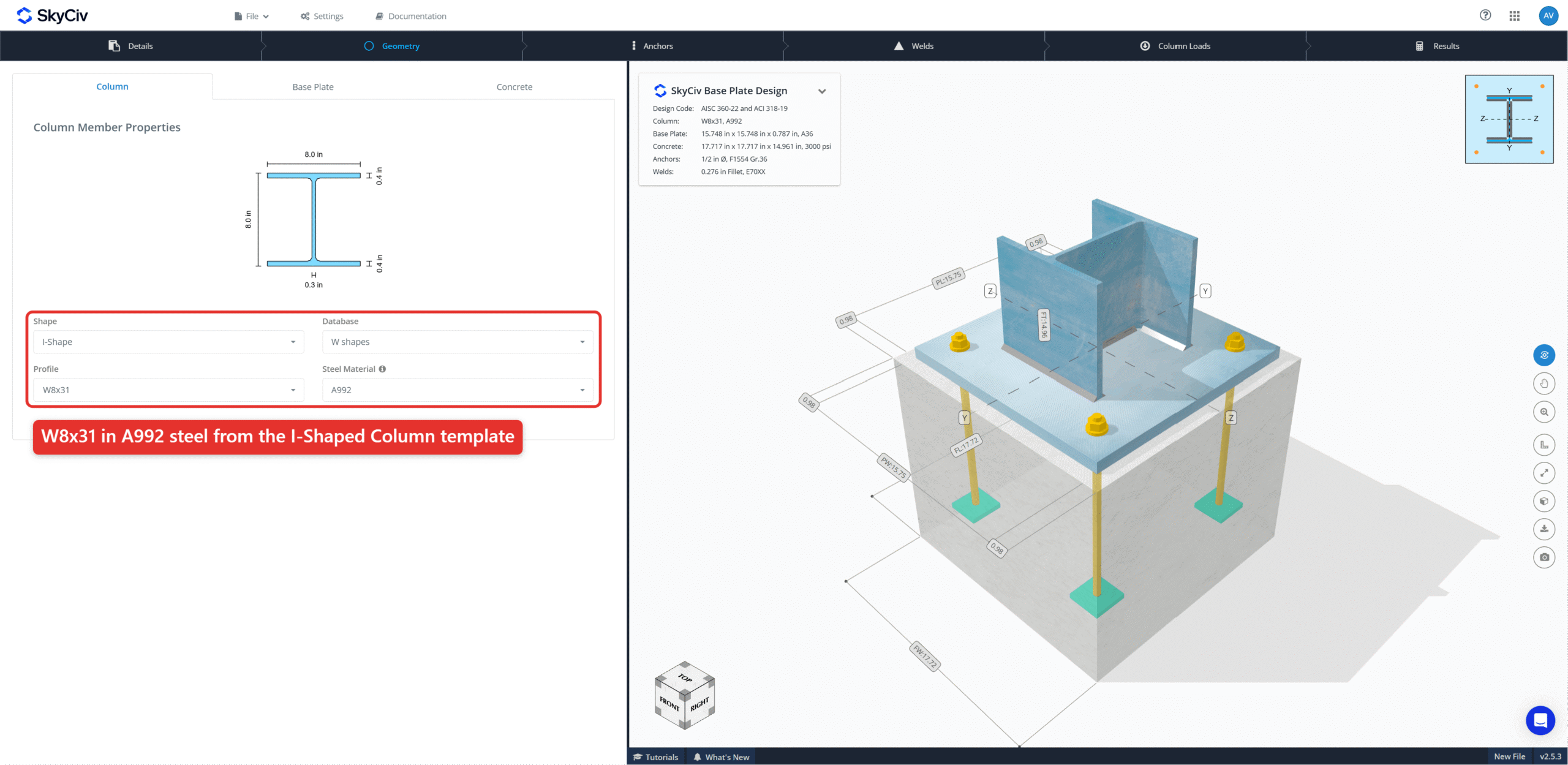
| 形状 | 工字形, 长方形 要么 Pipe. Changing the shape also changes the anchor patterns available on the Anchors tab. |
| 数据库 | 工字形: W 形状, S 形, M shapes, HP shapes. 长方形: 矩形高速钢, 它的屈服强度和终极强度, and obsolete rectangular and square tubes. Pipe: 圆形高速钢, 它的屈服强度和终极强度, and obsolete pipes. |
| Profile | The section from the selected database. The section library is the same one used in SkyCiv Section Builder. Changing the shape or database selects the first profile in the list. |
| 钢材 | ASTM steel grades for the column. 选择 自订 at the end of the list to enter your own strengths. |
| Yield Stress | Shown for Custom material only. |
| 抗拉强度 | Shown for Custom material only. Must not be less than the yield stress. |
The column drawing shows the section with its main dimensions: flange width and thickness, web thickness and depth for an I-shape; b, h and t for a rectangular section; D and t for a pipe.
底盘
| 输入值 | 描述 |
|---|---|
| Plate Width | Plate dimension along the Z-axis. |
| Plate Length | Plate dimension along the Y-axis. |
| 板厚 | Thickness of the base plate. |
| 钢材 | ASTM steel grades for the plate, 要么 自订. |
| Yield Stress, 抗拉强度 | Shown for Custom material only. |
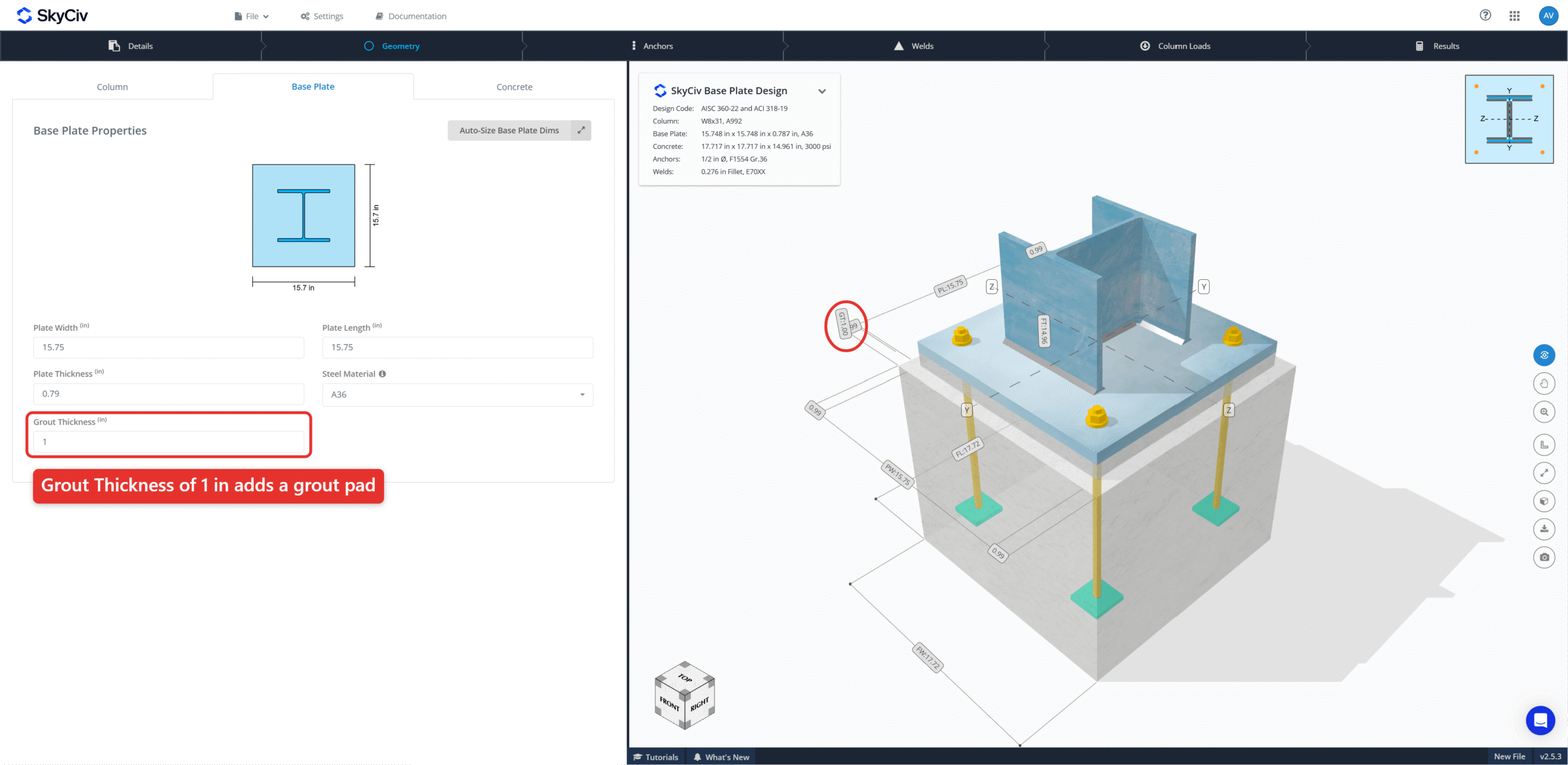
| 灌浆厚度 | Thickness of the grout pad. 通过去 0 for no grout pad. |
For this guide, enter a 灌浆厚度 的 1 在 (25 毫米) to add a grout pad.
Auto-Size Base Plate Dims sets the plate width and length from the column size, so the plate is larger than the column section. Use it after changing the column section. The anchor layout is updated with the plate.
The base plate drawing shows the plate in plan with the column outline and the plate width and length.
混凝土
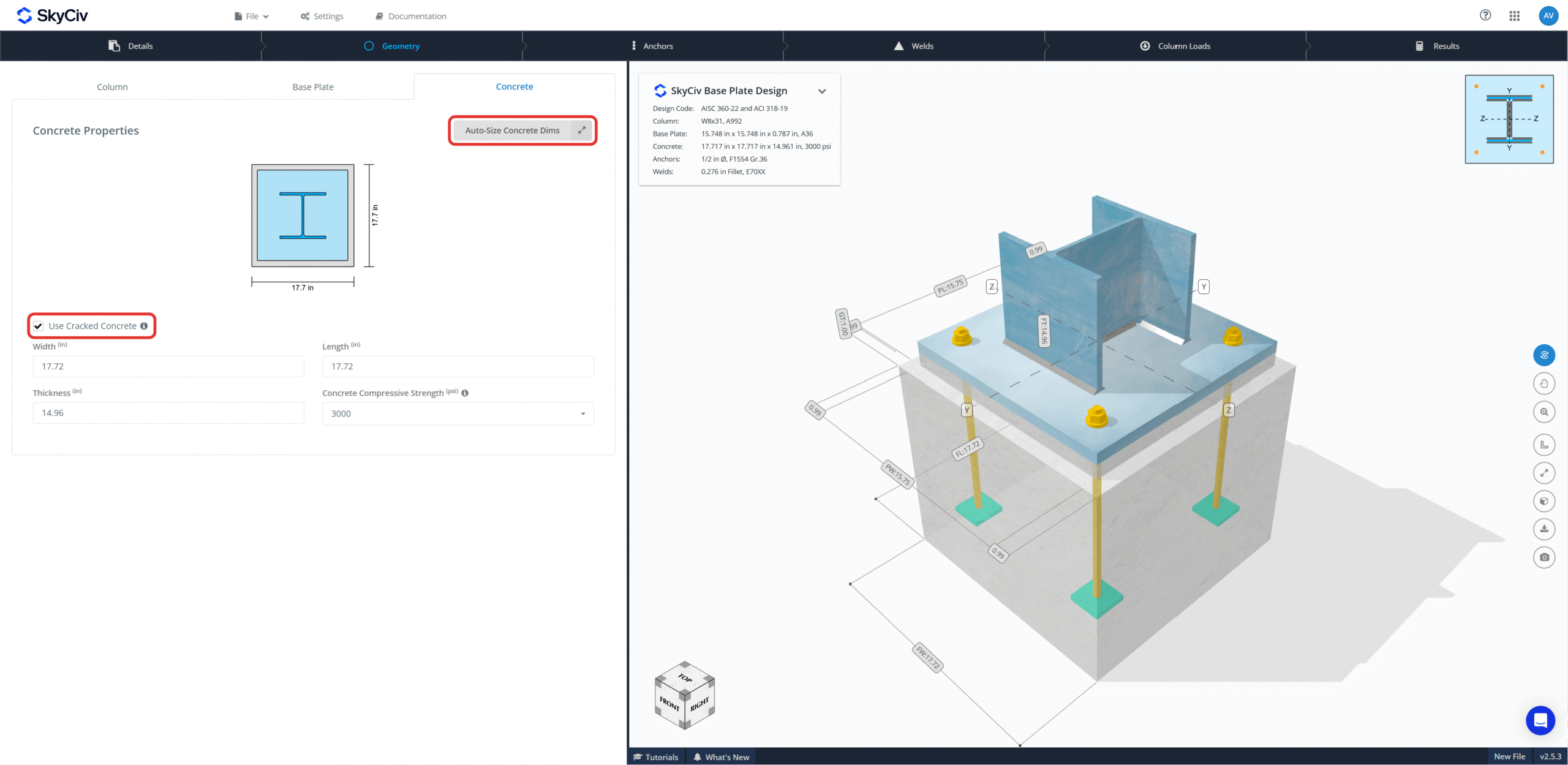
| 输入值 | 描述 |
|---|---|
| Use Cracked Concrete | Cracked concrete at service loads is the conservative default. Only assume uncracked concrete if it is justified by analysis. |
| 宽度 | Concrete dimension along the Z-axis. |
| 长度 | Concrete dimension along the Y-axis. |
| 厚度 | Thickness of the concrete. |
| Concrete Compressive Strength | 3000, 4000, 4500, 5000 要么 6000 压力 (20.68, 27.58, 31.03, 34.47 要么 41.36 兆帕), 要么 自订. |
| Custom Compressive Strength | Shown for Custom only. |
Auto-Size Concrete Dims sets the concrete width and length from the base plate size, so the concrete is larger than the base plate.
Changing the concrete width or length updates the distances from the anchors to the concrete edge, which are used for the anchor groups and the detailing checks.
The concrete drawing shows the concrete in plan with the base plate and column outlines and the concrete width and length.
Anchors tab
该 锚 tab has three sub-tabs: 物产, 位置 和 Failure Modes. All anchors are cast-in and have the same properties.
物产
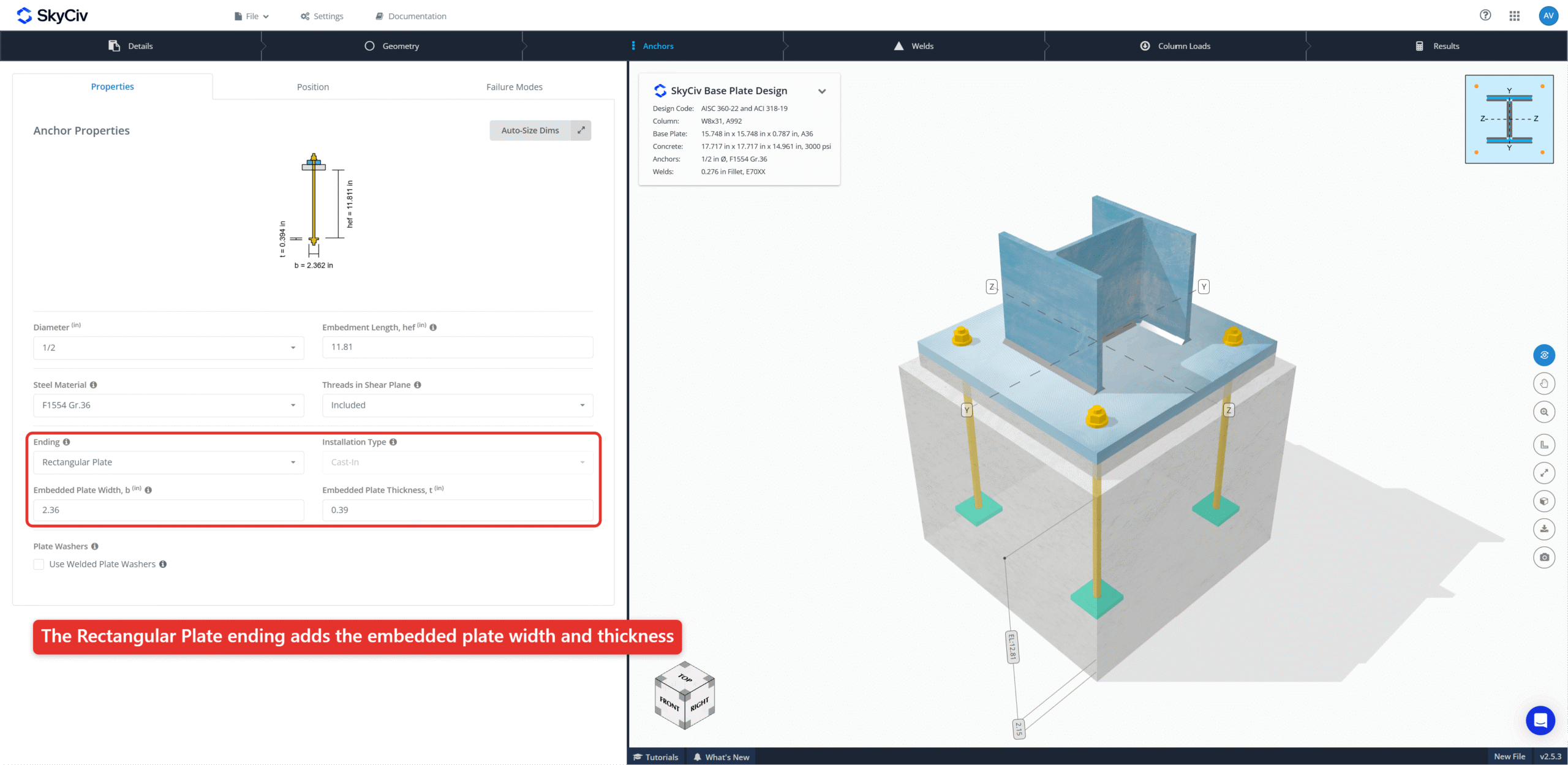
| 输入值 | 描述 |
|---|---|
| 直径 | 3/8, 1/2, 5/8, 3/4, 7/8, 1, 1-1/8, 1-1/4, 1-3/8 要么 1-1/2 在 (10, 12, 16, 20, 22, 24, 27, 30, 33 要么 36 毫米). |
| 埋置长度, 有 | Effective embedment depth, measured as shown in the drawing. The total anchor length must fit within the concrete thickness. |
| 钢材 | 螺栓 (A307, A325, A490), 锚杆 (A36, A193, A354, A449, A572, A588 and F1554 grades), 要么 自订. |
| Yield Stress, 抗拉强度 | Shown for Custom material only. The tensile strength must not be less than the yield stress. |
| 剪切平面中的螺纹 | 包括 (N bolts, 保守的) 要么 Excluded (X bolts). |
| Ending | Straight, 矩形板, 圆板 要么 Hooked. A straight ending cannot be used when the anchors are in tension. |
| Installation Type | Only cast-in anchors are supported. |
| Use Welded Plate Washers | Adds welded plate washers. 选择时, Allow Shear Distribution to All Anchors is turned on and locked in Settings. When cleared, that setting is unlocked and turned off. |
| Plate Washer Thickness | Shown when Use Welded Plate Washers 被选中. Must be greater than zero. |
The ending adds these inputs:
| Ending | 输入 |
|---|---|
| Straight | 没有任何 |
| 矩形板 | Embedded Plate Width, b 和 Embedded Plate Thickness, Ť. A width of 4 times the anchor diameter is typically recommended. The width cannot be less than the anchor diameter. |
| 圆板 | Embedded Plate Diameter, b 和 Embedded Plate Thickness, Ť, with the same limits. |
| Hooked | Hook Length, eh, between 3d and 4.5d. Hook Direction (您现在将为要创建的每个节点输入 x 和 y 值, 正面, 剩下, 正确的, Outward, Inward) sets the hook direction in the 3D model only. |
Auto-Size Dims sets the embedded plate width or the hook length relative to the anchor diameter. It is hidden for straight anchors.
The elevation drawing shows one anchor through the base plate and grout into the concrete, with hef and the embedded plate or hook dimensions.
位置
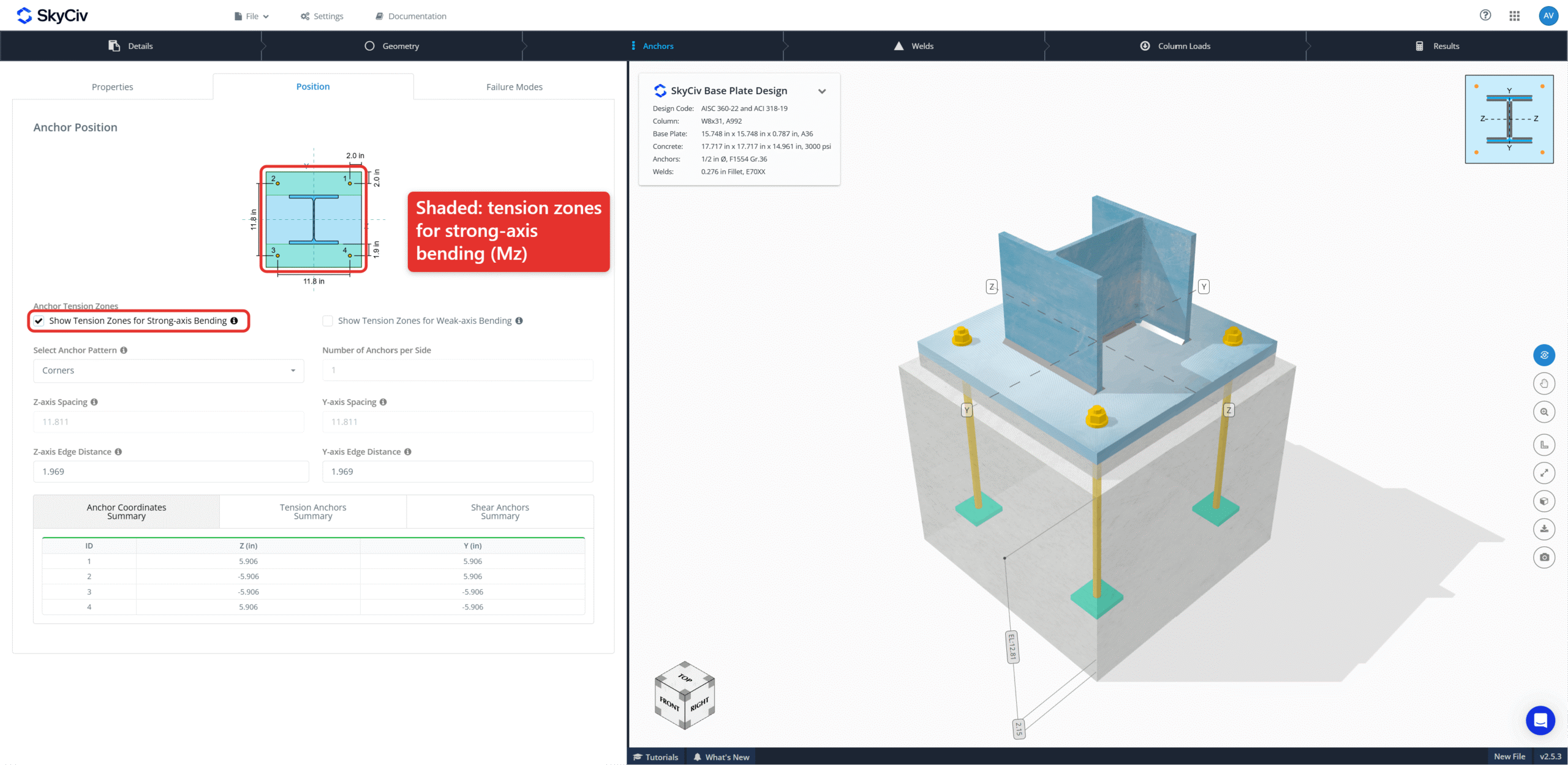
The Position sub-tab sets the anchor layout. The plan drawing at the top shows the base plate, column and anchors with their IDs, edge distances and spacings.
Select a pattern in Select Anchor Pattern. The patterns depend on the column shape:
| Column shape | 图案 |
|---|---|
| 工字形 | 角球, 仅法兰, 仅限网络 |
| 长方形 | 角球, Top/Bottom Walls of Profile, Left/Right Walls of Profile, 所有方面 |
| Pipe | 角球 |
该 Guide to SkyCiv Anchor Patterns shows each pattern. Changing the pattern resets the position inputs to the defaults of that pattern.
The position inputs that can be edited depend on the pattern. The others are calculated and shown greyed out.
| 输入值 | 角球 | 仅法兰, Top/Bottom | 仅限网络, Left/Right | 所有方面 |
|---|---|---|---|---|
| Number of Anchors per Side | Fixed at 1 (4 锚点) | Editable | Editable | – |
| Number of Anchors along Z-axis / Y轴 | – | – | – | Editable |
| Z-axis Spacing, Y-axis Spacing | 已计算 | Editable | Editable | Editable |
| Z-axis Edge Distance, Y-axis Edge Distance | Editable | 已计算 | 已计算 | Editable |
The edge distance is measured from the edge of the base plate to the centre of the nearest anchor. It cannot be more than half the plate dimension.
Plate Bending Direction for Web Anchors Nearest Flange is shown for I-shaped columns that have more than one web anchor per side. Neglect Flanges (默认) assumes all anchor loads bend the plate toward the column web. Consider Flanges assumes anchors near the flange bend the plate toward the flange.
Anchor Tension Zones: 选择 显示强轴弯曲的张力区域 要么 显示弱轴弯曲的张力区域 to shade the zone on the plan drawing. Only anchors within a tension zone resist tension from that moment:
- Strong-axis bending (Mz): anchors beyond the column flanges, at a distance of at least half the column depth from the centre.
- Weak-axis bending (我的): anchors beyond half the flange width (half the width b for a rectangular column, half the diameter for a pipe).
A corner anchor can be in both zones.
The menu below the inputs has three tables:
- Anchor Coordinates Summary: the ID and the Z and Y coordinates of each anchor, measured from the centre of the plate.
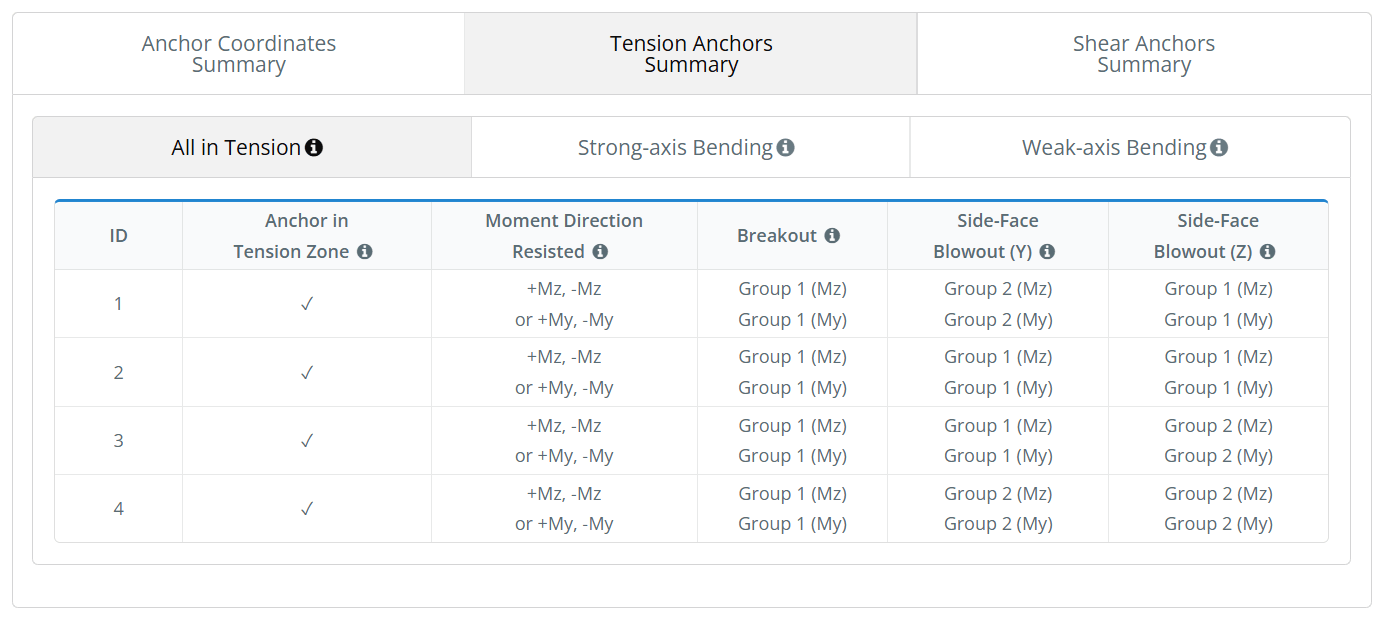
- Tension Anchors Summary: three tabs, All in Tension, Strong-axis Bending 和 Weak-axis Bending. For each anchor, the table shows whether it is in the tension zone, the moment direction it resists (+Mz, −Mz, +我的, −My), and its group for concrete breakout and side-face blowout in Y and Z. Anchors whose 3hef projected areas overlap form a group, and the others are shown as Single. 不适用 means side-face blowout does not occur because the anchor is far enough from the concrete edge.
- Shear Anchors Summary: for each anchor, the shear direction it resists and its group for concrete breakout and pryout in Vy and Vz. 和 Allow Shear Distribution to All Anchors 上, all anchors resist shear in all directions. With it off, +Vz is taken by the right-most column of anchors, −Vz by the left-most, +Vy by the top row and −Vy by the bottom row.
Failure Modes
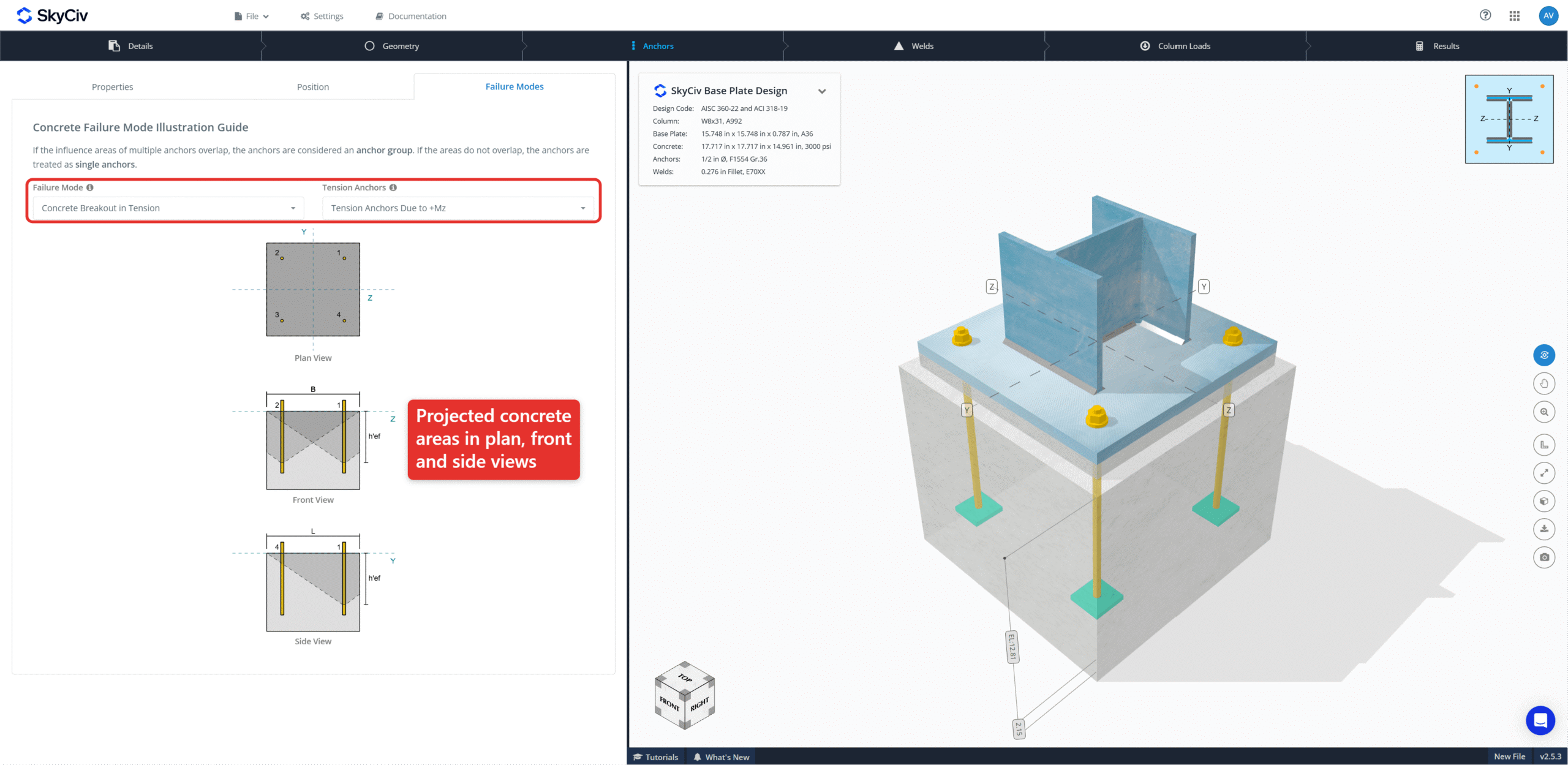
该 Concrete Failure Mode Illustration Guide shows the projected concrete areas for each failure mode on your anchor layout, 计划中, front and side views. It has no inputs that affect the design. The capacities are calculated when the design runs.
If the influence areas of several anchors overlap, the anchors are treated as an anchor group. If they do not overlap, the anchors are treated as single anchors.
A message replaces the figure when the selected mode does not apply, for example when no anchors are in the tension zone, or when side-face blowout does not occur because the anchors are far enough from the edge. Side-face blowout does not apply to hooked or straight anchors.
The failure mode figures are included in the calculation report.
Welds tab
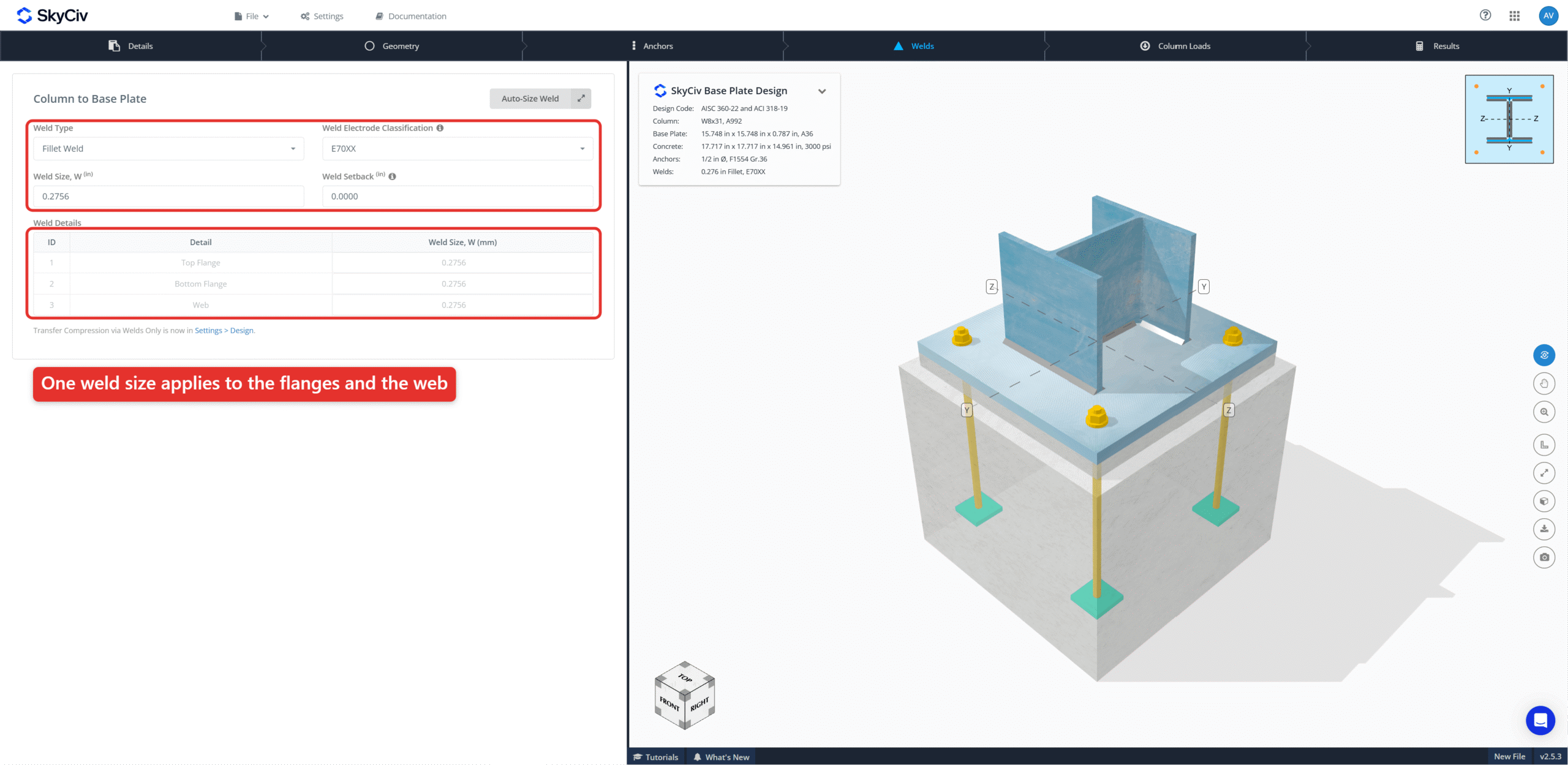
该 焊缝 tab sets the weld between the column and the base plate. The welds are shown in the 3D model only.
| 输入值 | 描述 |
|---|---|
| Weld Type | 圆角焊缝 要么 完全关节穿透 (CJP). |
| Weld Electrode Classification | E60XX to E120XX, 要么 自订. |
| Weld Material Strength | Shown for Custom only. |
| 焊缝尺寸, w ^ | The leg size of the fillet weld. One size is used for the flanges and the web. |
| Weld Setback | I-shaped columns only. Length near the root radius that is not welded. 通过去 0 if not used. Cannot exceed the flat length of the flange or web. |
For an I-shaped column, 的 Weld Details table lists the top flange, bottom flange and web welds with the weld size. The values follow the Weld Size input. For rectangular and pipe columns, one weld size applies around the whole perimeter.
Auto-Size Weld sets the weld size to the minimum of AISC 360-22 Table J2.4 for the thinner of the parts joined. It is a geometric minimum and does not consider the weld strength.
为一个 CJP 焊接, 尺寸, setback and Auto-Size Weld are hidden. Transfer Compression via Welds Only 和 Use kDS = 1.0 are turned off and disabled in Settings.
Transfer Compression via Welds Only is set in 设置 > 设计. The link on this tab opens it.
Column Loads tab
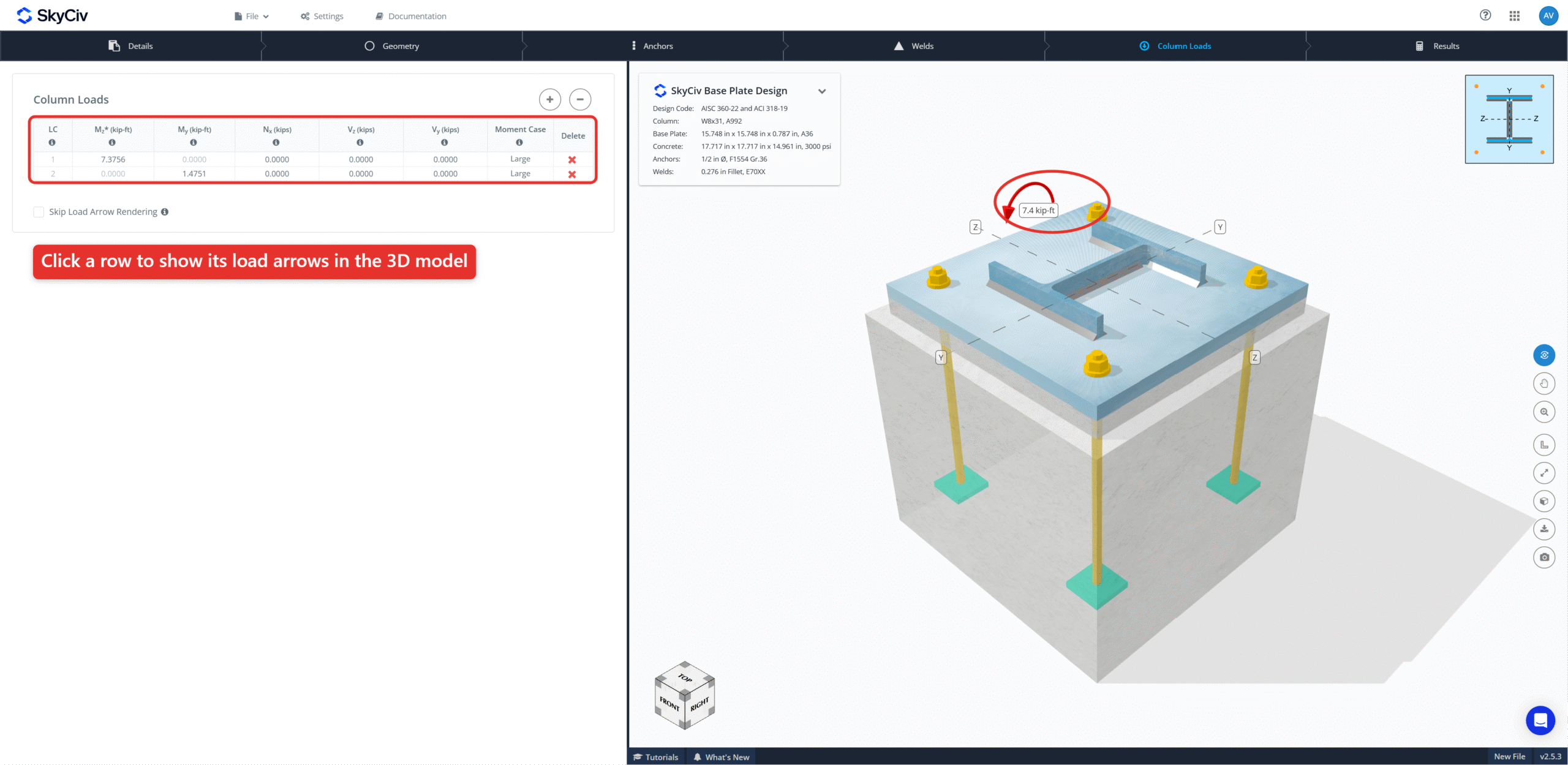
该 Column Loads tab holds the factored load combinations. Each row is one combination. There is no load combination generator.
| 柱 | 单位 | 描述 |
|---|---|---|
| 液晶 | Load combination number, assigned automatically. | |
| m与 | 基普英尺 (千牛·米) | Strong-axis bending moment. |
| m和 | 基普英尺 (千牛·米) | Weak-axis bending moment. |
| ñX | ps (千牛) | 轴向力. Positive is compression and negative is tension. |
| V与 | ps (千牛) | Shear along the plate width (与). The sign sets the direction. |
| V和 | ps (千牛) | Shear along the plate length (和). The sign sets the direction. |
| Moment Case | 低的 要么 Large, calculated per AISC Design Guide 1, 3RD版. Read only. |
Notes on the load table:
- Biaxial bending is not supported. When you enter M与, the M和 cell of that row is disabled, and the reverse.
- At least one combination must have a moment, because the support is fixed.
- 点击 + to add a row and - to remove the last row. The delete icon removes a specific row.
- You can paste rows from a spreadsheet. If a pasted row has both M与 和M和, both are set to zero and a message is shown.
- Rows with all values zero are removed when the design runs.
该 Moment Case is recalculated when M与, m和 or NX 变化. With compression, it compares the eccentricity e = M / N with the critical eccentricity based on the maximum bearing stress. With tension, it compares e with the distance from the plate centre to the tension anchors. A moment with no axial force is a Large moment case.
Load arrows are shown in the 3D model while the Column Loads tab is open. The first combination is shown when you open the tab. Click a row to show that combination. 选择 Skip Load Arrow Rendering to turn the arrows off, which can make editing large tables faster.
Info panel
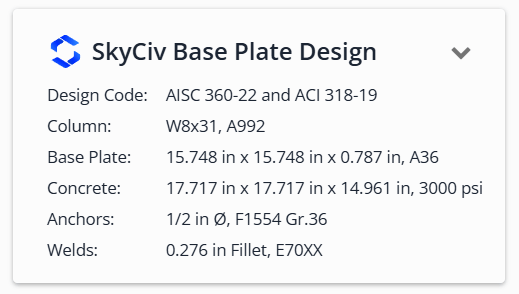
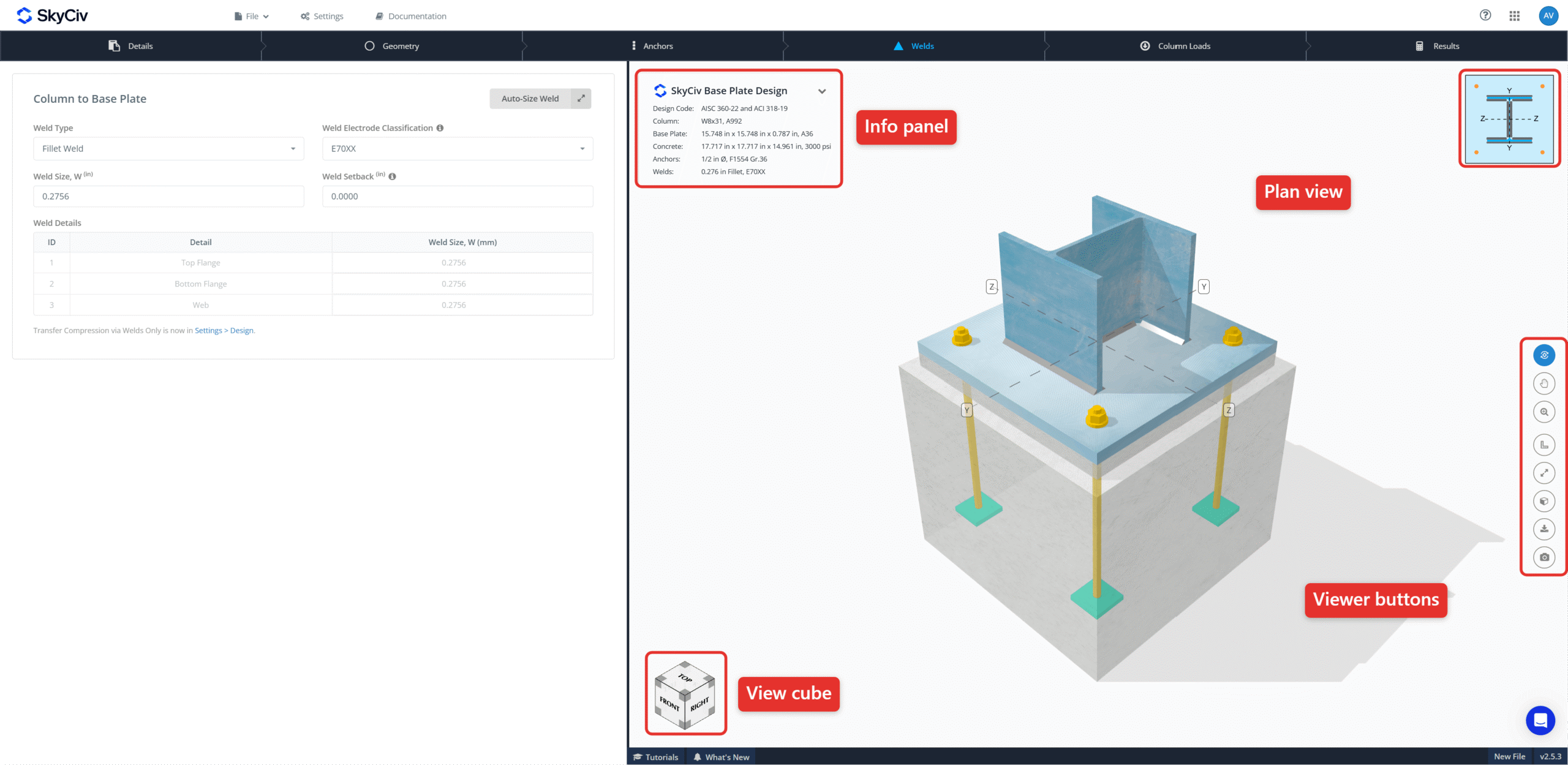
The info panel sits in the top-left corner of the 3D viewer and summarises the model:
| Row | 内容 |
|---|---|
| 设计规范 | AISC 360-22 和ACI 318-19 |
| 柱 | Section and material |
| 底盘 | Width × length × thickness and material |
| 混凝土 | Width × length × thickness and compressive strength |
| 锚 | Diameter and material |
| 焊缝 | 焊缝尺寸, type and electrode (CJP welds show no size) |
Click the arrow next to the heading to collapse the table. The panel updates when the inputs change and is included in the viewer screenshot.
3D viewer
The 3D viewer shows the column, 基板, grout, 木结构, anchors and welds. Dimensions are shown on the Geometry tab (concrete and base plate) and the Anchors tab (锚点). Load arrows are shown on the Column Loads tab.
Viewer buttons
The buttons on the right edge of the viewer, from top to bottom:
| 按钮 | 描述 |
|---|---|
| 旋转 | Left-drag rotates the model. This is the default mode. |
| 平底锅 | Left-drag pans the model. |
| 飞涨 | Left-drag zooms the model. |
| 展示 / Hide dimensions | Shows or hides the dimension lines. |
| Fit model to view | Centres and zooms on the model, keeping the current view angle. |
| Switch to orthographic / perspective view | Toggles the camera type. Perspective is the default. |
| Download the 3D model (国际金融公司) | Downloads the model as an IFC4 file. |
| Download an image of the model | Downloads a PNG of the current view on a white background, with the info panel. |
In all modes, right-drag pans and the mouse wheel zooms.
View cube
The view cube in the bottom-left corner has the faces TOP, BOT, FRONT, BACK, LEFT and RIGHT. Click a face or a corner to turn the camera to that view.
Plan view
The small plan in the top-right corner shows the base plate, 柱子, anchors and welds from above, with the Z (水平的) 和 Y (垂直) 轴. It updates with the inputs.
Bottom bar
The bar under the viewer shows:
- 教程, which starts the guided tour
- What’s New, which opens the release notes
- the version number, which opens the changelog
- the file name, which saves the file when clicked
结果选项卡
打开 结果 tab to run the design. Before the design runs, 输入, the design layout and the detailing checks are validated.
- If the validation passes, the design runs. Until the first successful run, opening the Results tab runs the design automatically.
- If the validation fails, the design does not run. 一个 Design Checks Unavailable message lists each problem with a Click here to modify link to the input. If there are only warnings, Click here to proceed anyway runs the design. If a detailing check fails, the message links to 设置 > 细部.
- After a run, if you change an input, the results are blurred and a 结果需要更新 message is shown. 点击 运行设计检查 to run the design again.
Run banner
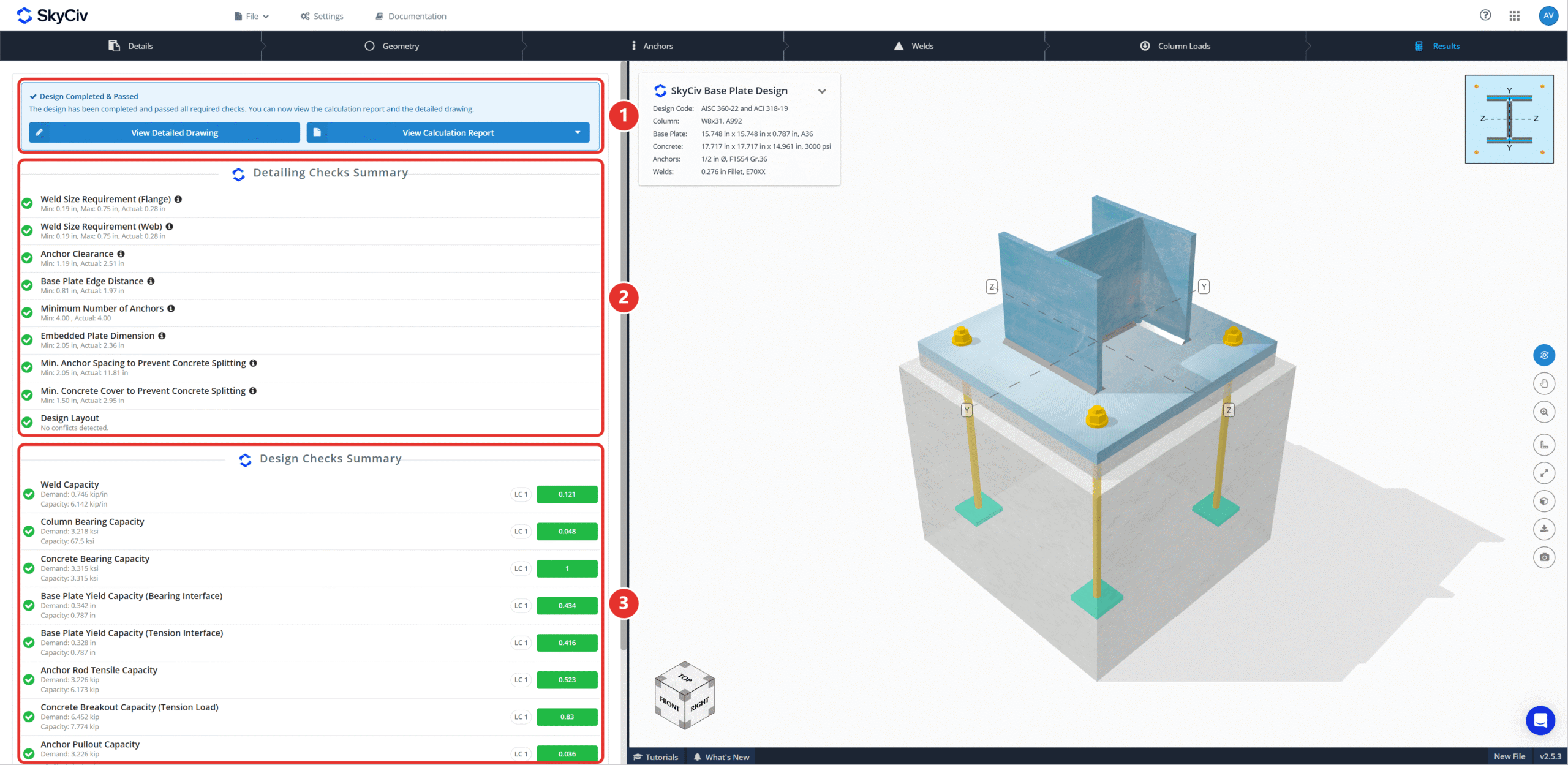
The banner at the top shows the outcome:
| Banner | 含义 |
|---|---|
| 设计完成 & 已通过 | All checks passed. The calculation report and the detail drawing are available. |
| 设计完成 & 失败的 | One or more checks failed. The calculation report is available. The detail drawing is available only after all checks pass. |
The banner has the 查看详细图纸 和 查看计算报告 纽扣.
Detailing Checks Summary
Each detailing check that is turned on in 设置 > 细部 is listed with a pass or fail icon and its minimum, maximum and actual values. Some checks have an information icon with the code clause. The last row is Design Layout, which shows No conflicts detected or lists each conflict with a link to the input.
For a fixed support, the design layout check requires that:
- at least one combination has a moment
- no combination has both M与 和M和
- each tension zone has only one row of anchors
设计检查摘要
Each design check is listed with:
- a status icon: a green tick (经过), a red cross (失败) or a grey minus (skipped by a Design setting)
- the check name
- the demand and capacity
- LC n: the governing load combination
- the utilization ratio: green when the ratio is less than 1.0, red when it is 1.0 或更多
Each row shows the result of the governing load combination, which is the one with the highest ratio. A check that does not apply to any combination shows 不适用. A check skipped by a Design setting shows "-" and the note This design check is excluded from the report based on user settings.
The step-by-step calculations for each check are in the calculation report.
If the server returns an error for the design, 一个 Design Check Requires Attention message lists the issues.
Calculation report
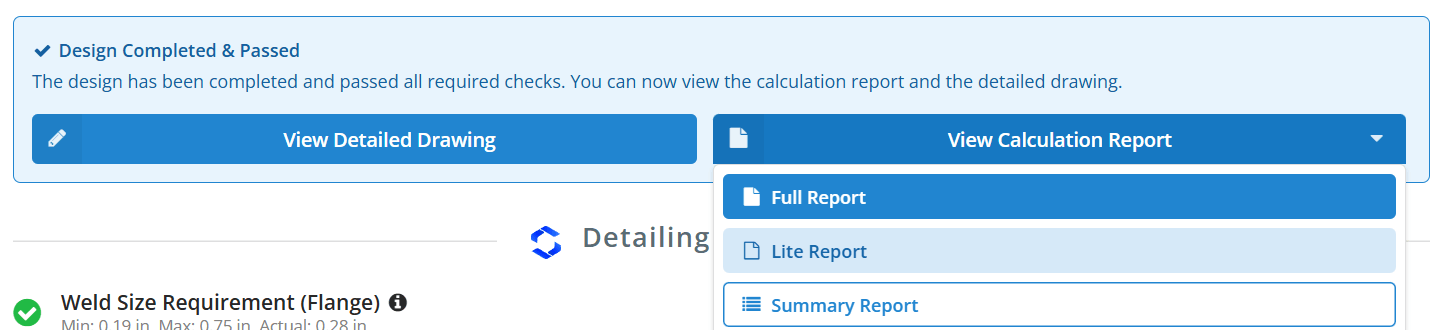
点击 查看计算报告 in the run banner and choose a report:
| 报告 | 内容 |
|---|---|
| 完整报告 | Step-by-step calculations with diagrams |
| 精简版报告 | 分步计算, no diagrams |
| 总结报告 | Check results only, no calculation steps |
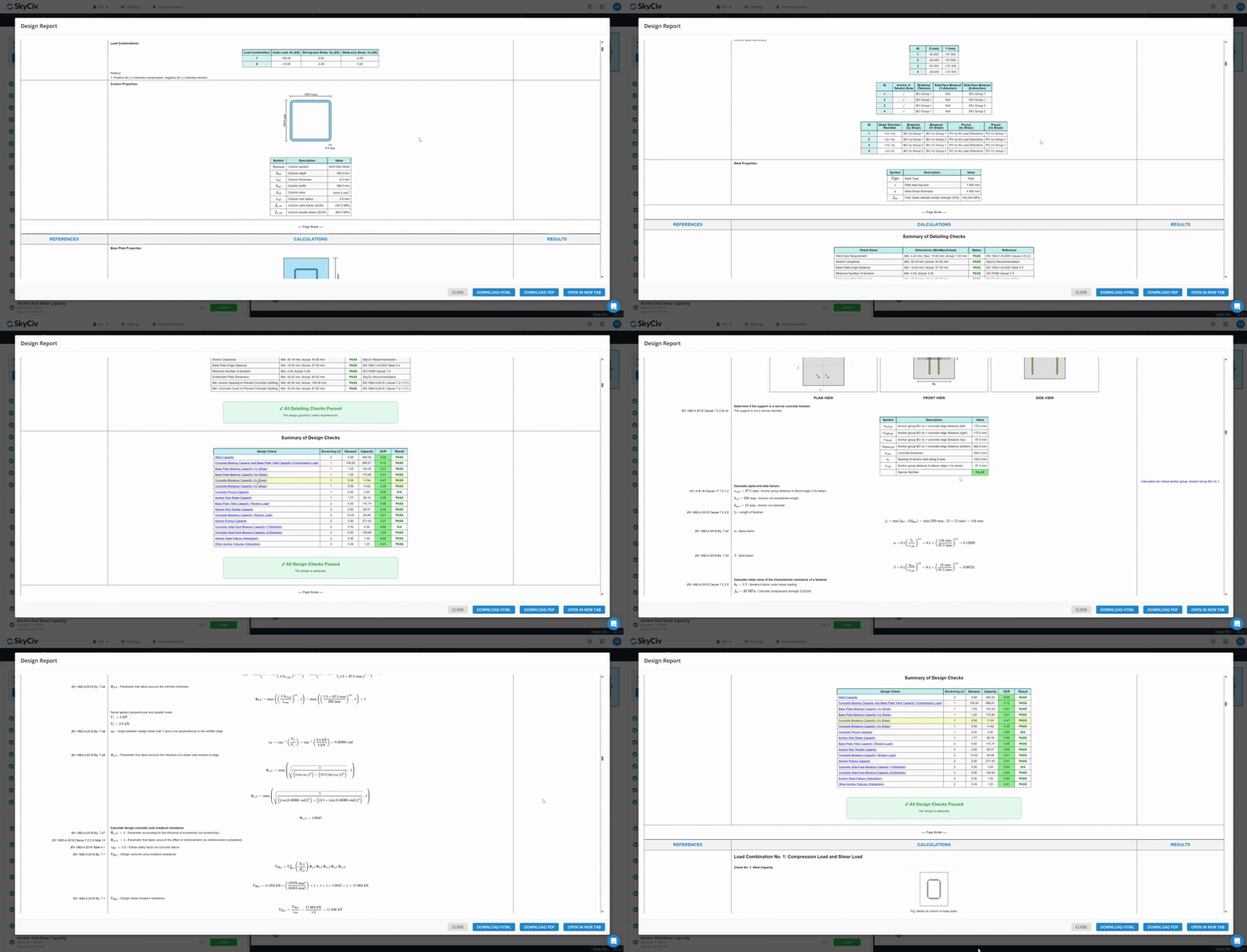
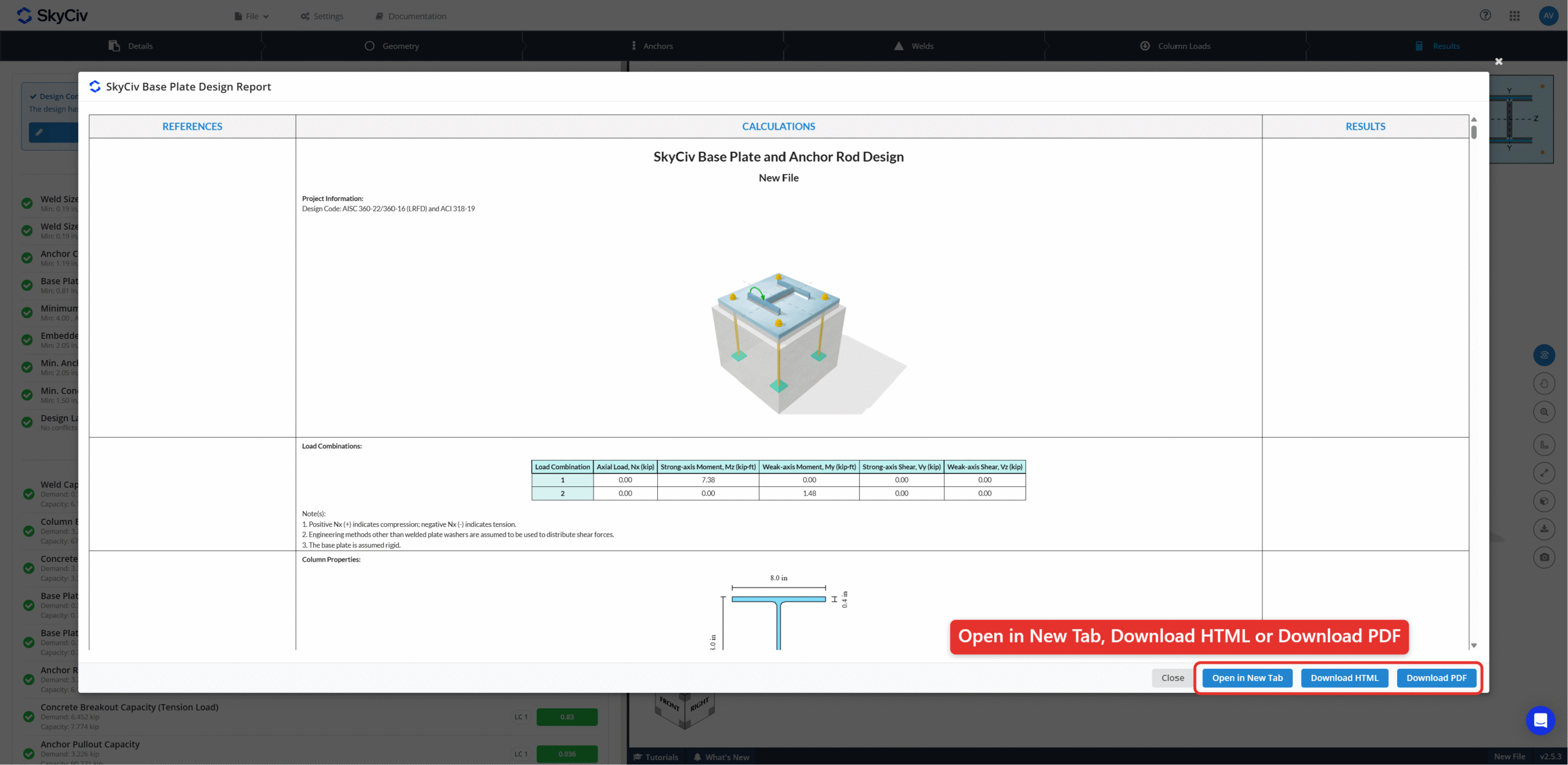
The report opens in a window with 在新选项卡中打开, 下载 HTML 和 下载PDF. The PDF is named after the file name in the bottom bar.
Detail drawing
点击 查看详细图纸 in the run banner to open the Structural Drawing 窗户. The button is available after all checks pass. In the free version, the drawing preview always opens and shows a watermark.
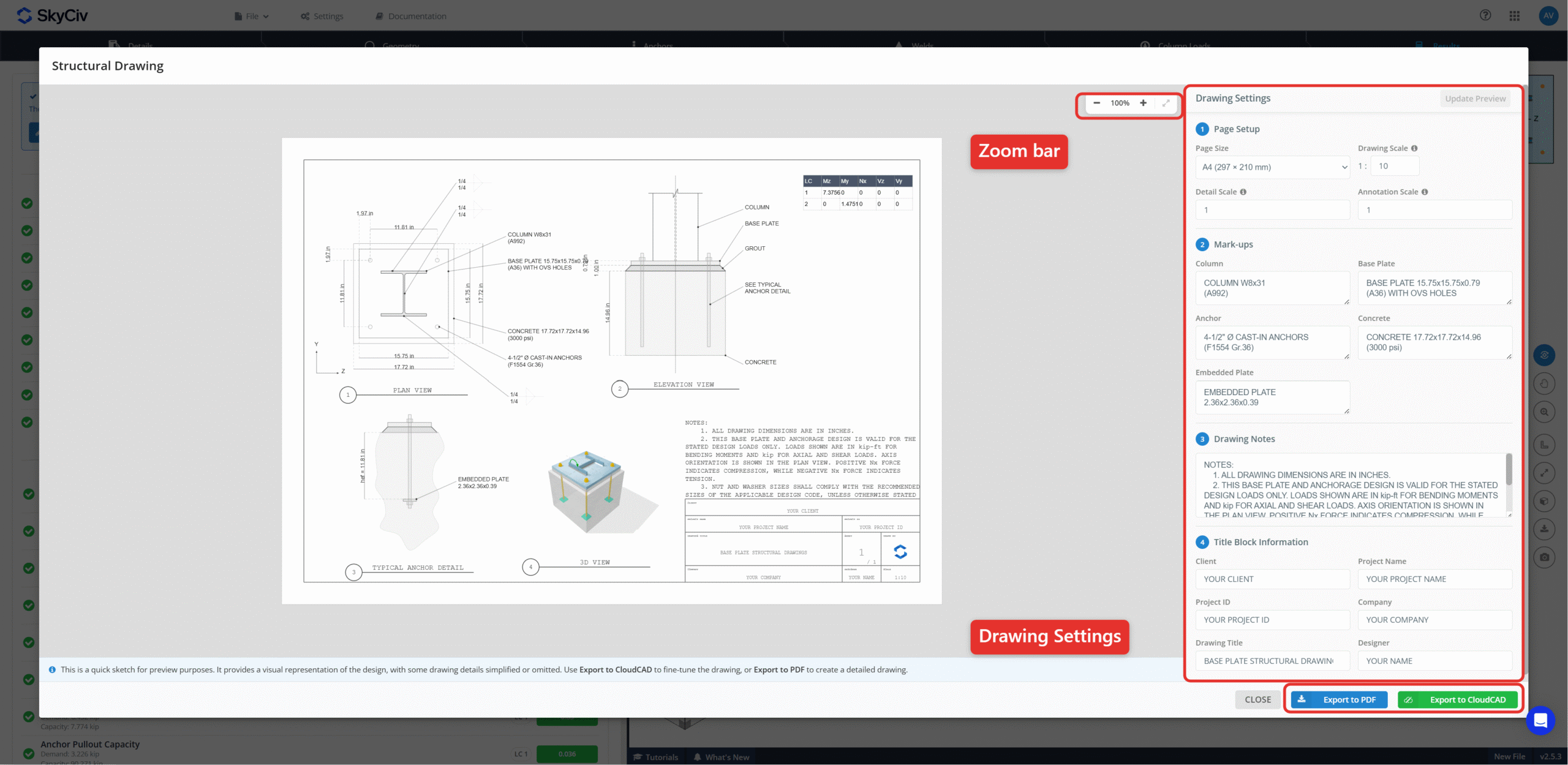
The drawing sheet has these views:
- Plan view
- 立面图
- Typical anchor detail
- 3D view
It also has the drawing notes, 加载计划和标题栏.
The preview on the left is a quick sketch. Use the zoom bar in the top-right corner of the preview to zoom in or out or to fit the full page. You can also drag to pan, use the mouse wheel to zoom, and double-click to fit.
Drawing Settings 在右侧:
| 截面 | 输入 |
|---|---|
| 页面设置 | Page Size (A4 to A0, Letter, 合法的, Tabloid), Drawing Scale, Detail Scale, Annotation Scale. 默认情况下, the page size is the smallest A size that fits the drawing. |
| Mark-ups | Labels for the 柱, 底盘, 锚, 混凝土 和, for plate endings, Embedded Plate. Filled from the design. |
| Drawing Notes | The notes printed on the sheet. |
| Title Block Information | 客户, 项目名称, 项目编号, 公司, Drawing Title 和 设计师. Filled from the Details tab. |
点击 Update Preview to apply the settings to the preview. The settings are not saved and are reset each time you open the window.
导出为 PDF
导出为 PDF creates a PDF of the drawing and downloads it.
导出到 CloudCAD
导出到 CloudCAD opens the drawing in SkyCiv CloudCAD, where you can edit it further.
Free version
The free version of SkyCiv Base Plate Design has these limits for an AISC fixed design:
| 区 | 限制 |
|---|---|
| Start window | 文件管理器 和 上传文件 不可用. |
| 几何 | Column Shape, 数据库, 钢材, Base Plate Steel Material and Concrete Compressive Strength cannot be changed from the template values. The profile can be changed within the template database. Custom materials are not available. |
| 锚 | 钢材, 剪切平面中的螺纹, Ending and Failure Mode cannot be changed. The group columns of the Tension and Shear Anchors Summary tables are hidden. |
| 焊缝 | Weld Type and Weld Electrode Classification cannot be changed. |
| Column Loads | One load combination only. Rows cannot be added or removed, but the values can be edited. |
| 设置 | The detailing checks cannot be turned off. The factors and design settings can be edited. |
| 结果 | The banner shows 设计完成, without Passed or Failed. 需求, capacity and ratio are hidden for the anchor, 混凝土突破, pryout, concrete bearing, base plate and interaction checks. Weld checks show their values. |
| Calculation report | Not available. |
| Detail drawing | The preview has a watermark. Page Setup and Drawing Notes cannot be changed. Export to PDF and Export to CloudCAD are not available. |
| 3D viewer | The screenshot and IFC buttons are not available. The base plate shows the SkyCiv logo. |
Locked items are marked 专业版. Selecting one opens the upgrade prompt.