
ο Λειτουργίες group in the right toolbar contains geometry editing tools for trimming, extending, splitting, joining, απολέπιση, and property matching.
Most operations work on selected geometry. Use the active θραύση settings for precise picks and target points.
Λειτουργίες
Operations tools are grouped into drop-down stacks in the right bar. Click the category button to activate the current tool, or open the mini toolbar to choose another tool in the same stack.
Ιδιότητες αντιστοίχισης
Copy style and attribute properties from one object to others
ο Ιδιότητες αντιστοίχισης command applies properties from a source object to compatible target objects.
Step-by-step
- 1Select a source object to copy its properties from.
- 2Κάντε κλικ Ιδιότητες αντιστοίχισης to activate brush mode.
- 3Click compatible target elements to apply properties instantly.
- 4Continue clicking, or use fence or window selection for multiple targets.
- 5Τύπος Esc to exit brush mode.
Υπόδειξη: Match Properties copies visual properties such as color, line weight, line style, and layer. Only properties compatible with the target object type are applied.
Τέντωμα
Move selected vertices using a crossing window or lasso
Τέντωμα moves vertices while preserving topology around connected geometry.
[__INSERT_IMAGE__]
Step-by-step
- 1Δραστηριοποιώ Τέντωμα.
- 2Select vertices with a right-to-left crossing window or lasso.
- 3Drag the center handle for a free move, or the X/Y handles for a constrained move.
Υπόδειξη: Only the vertices inside the crossing selection are moved; lines connected to those vertices outside the selection are stretched to maintain connectivity.
Επέκταση γραμμής
Extend a line until it meets a target line or point
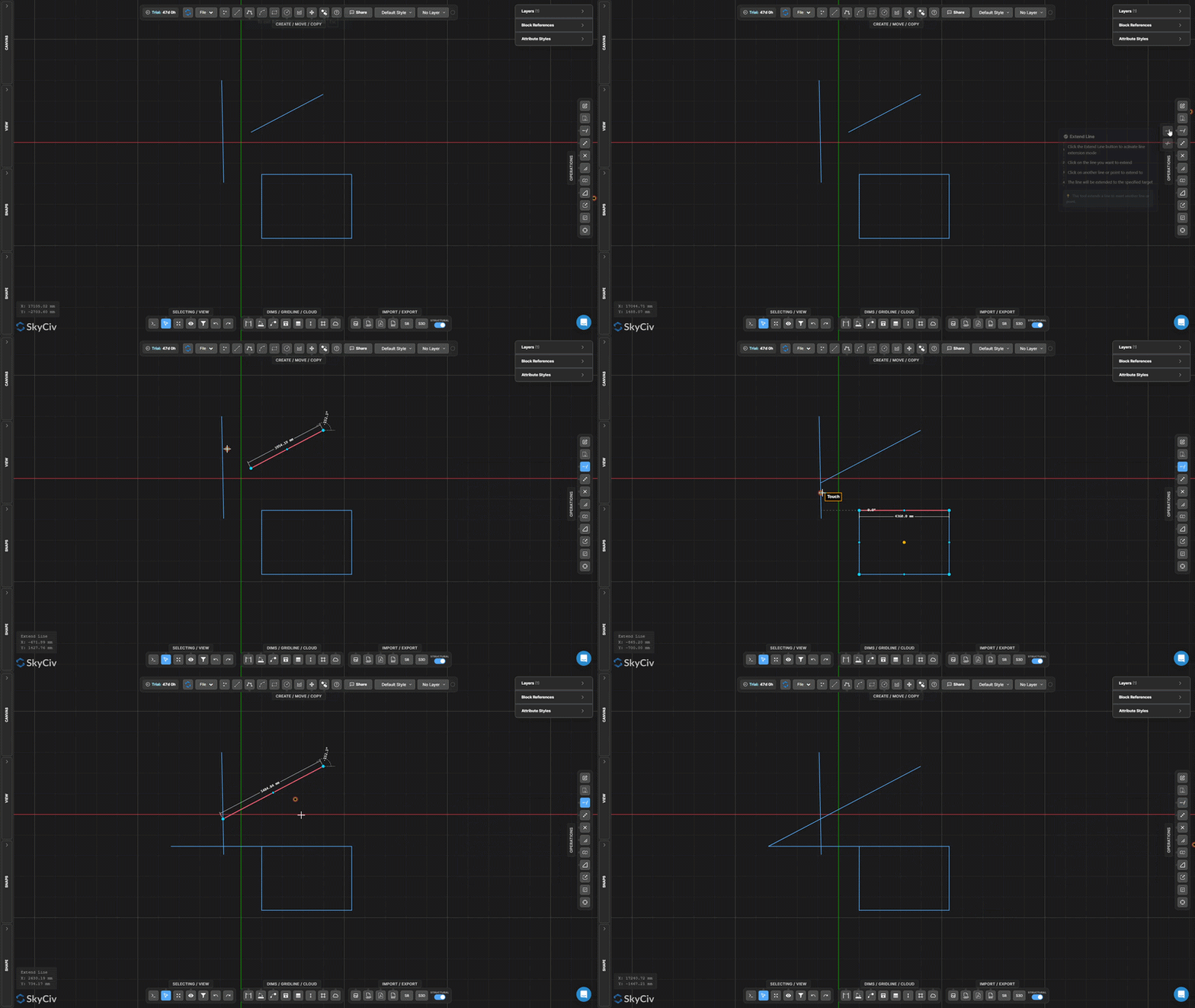
Επέκταση γραμμής lengthens a selected line to meet a target boundary. The line is extended along its existing direction until it intersects the picked target.
Step-by-step
- 1Δραστηριοποιώ Επέκταση γραμμής.
- 2Click the line to extend (near the end you want to grow).
- 3Click the target line or point to extend to.
Υπόδειξη: Click near the end of the line you want extended – the tool extends from the nearest endpoint in the direction of the target.
Τακτοποίηση
Remove line or arc segments defined by cutting edges
Τακτοποίηση removes portions of lines or arcs using other geometry as cutting edges. First select the cutting edges, confirm them, then click or fence the segments you want to remove.
Step-by-step
- 1Δραστηριοποιώ Τακτοποίηση.
- 2Select the cutting edge geometry (γραμμές, τόξα, κύκλους).
- 3Τύπος Επίλεξε το ή Spacebar to confirm cutting edges.
- 4Click or fence the segments to remove.
Υπόδειξη: You can use a window or fence selection to trim multiple segments simultaneously after confirming the cutting edges.
Διαχωρίστε τη γραμμή σε τμήματα
Divide a line into N equal segments
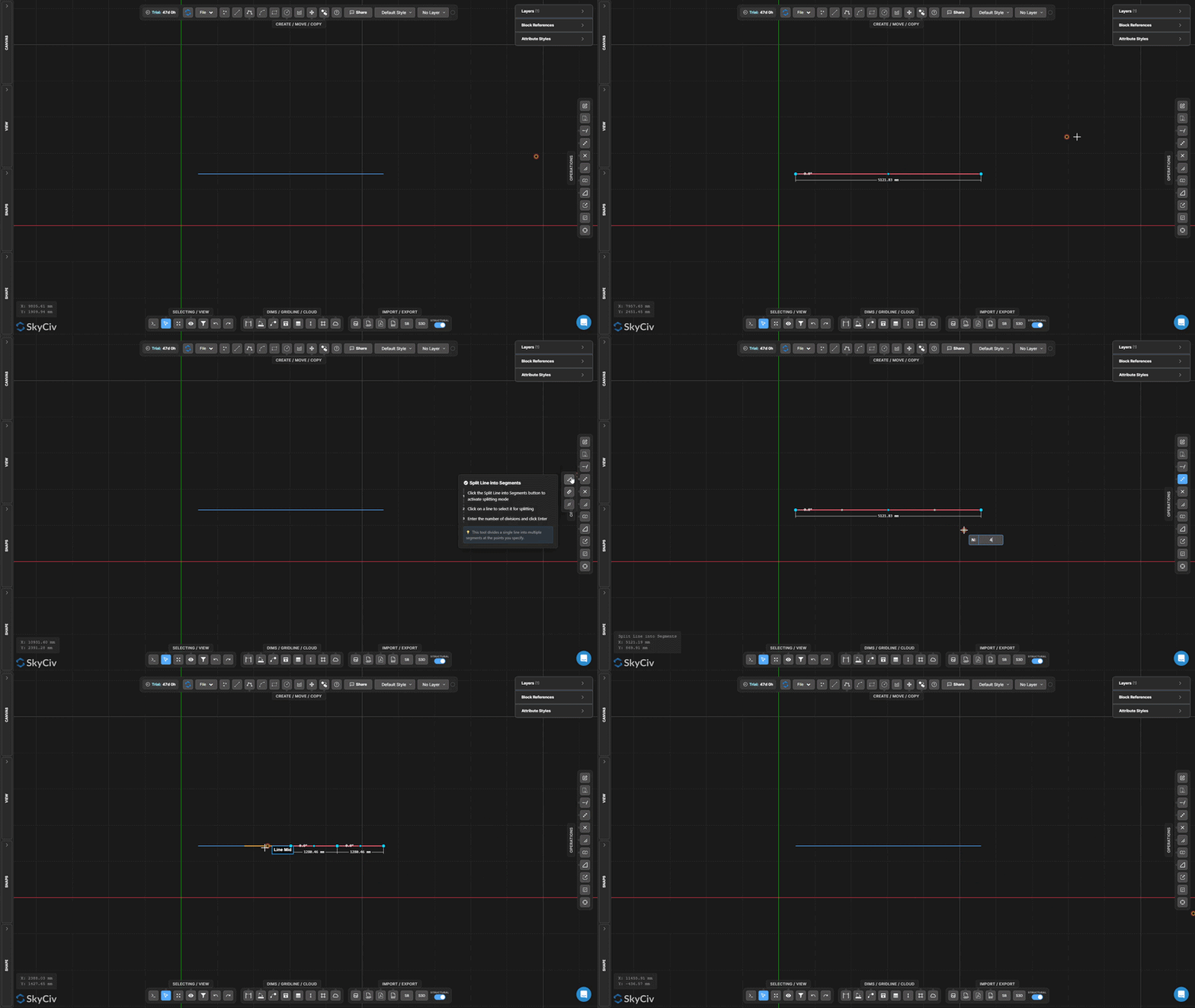
Διαχωρίστε τη γραμμή σε τμήματα divides a single line into a specified number of equal-length segments. Each resulting segment is an independent line element.
Step-by-step
- 1Activate the tool.
- 2Click the line to split.
- 3Enter the number of divisions and press Επίλεξε το.
Υπόδειξη: Useful for creating equally spaced support points along a beam or dividing a span for load distribution analysis.
Διαίρεση γραμμής ανά διάστημα
Split a line into repeated fixed-length intervals
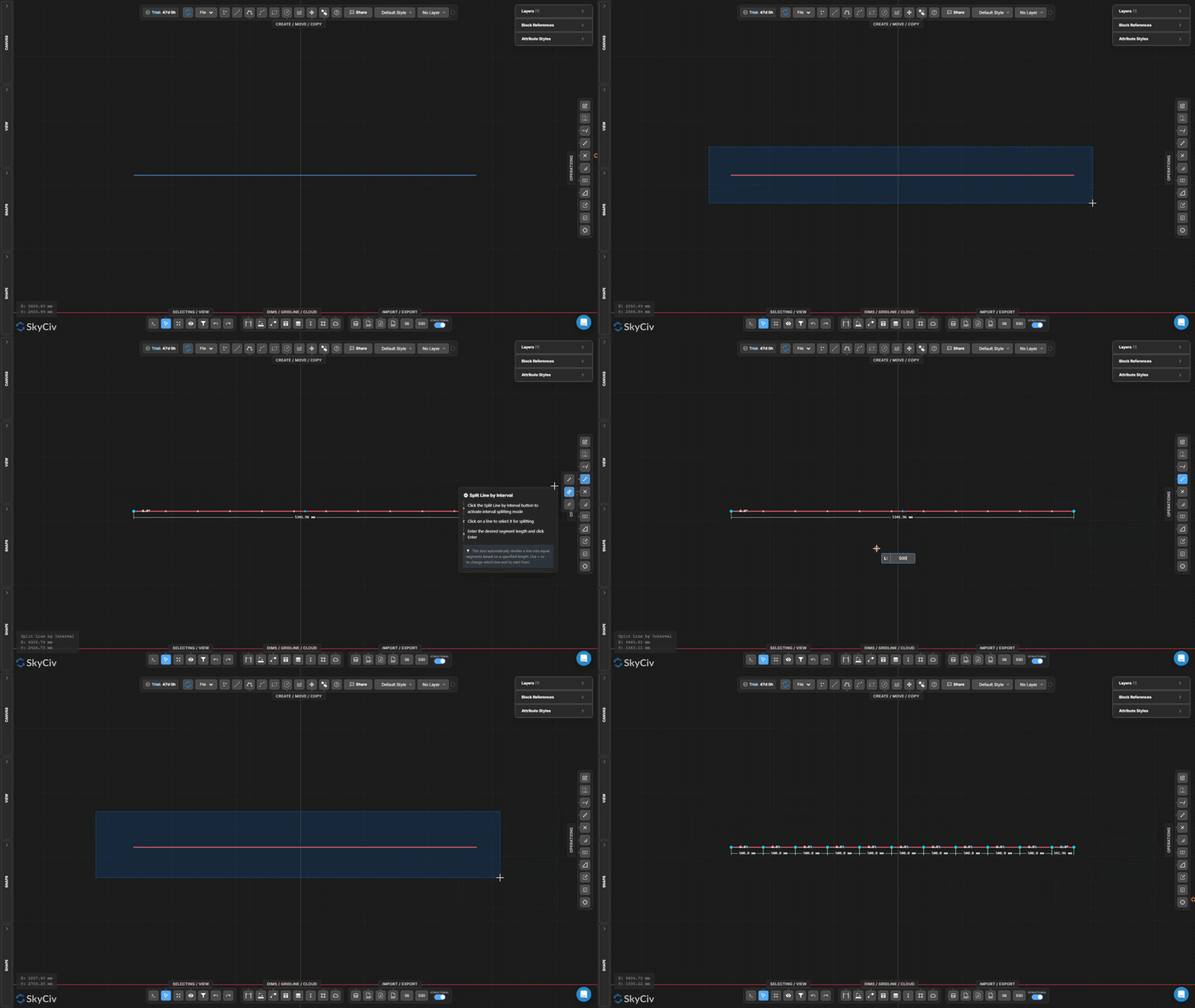
Διαίρεση γραμμής ανά διάστημα divides a line into segments of a specified fixed length. A remainder segment is created at the end if the line length is not a whole multiple of the interval.
Step-by-step
- 1Activate the tool.
- 2Click the line to split.
- 3Enter the interval length and press Επίλεξε το.
Υπόδειξη: Use this for creating evenly spaced intermediate nodes along a continuous member at a known spacing (π.χ., κάθε 500 mm for joist layout).
Διαίρεση κατά θέση κατά μήκος της γραμμής
Split a line at an offset distance from one of its endpoints
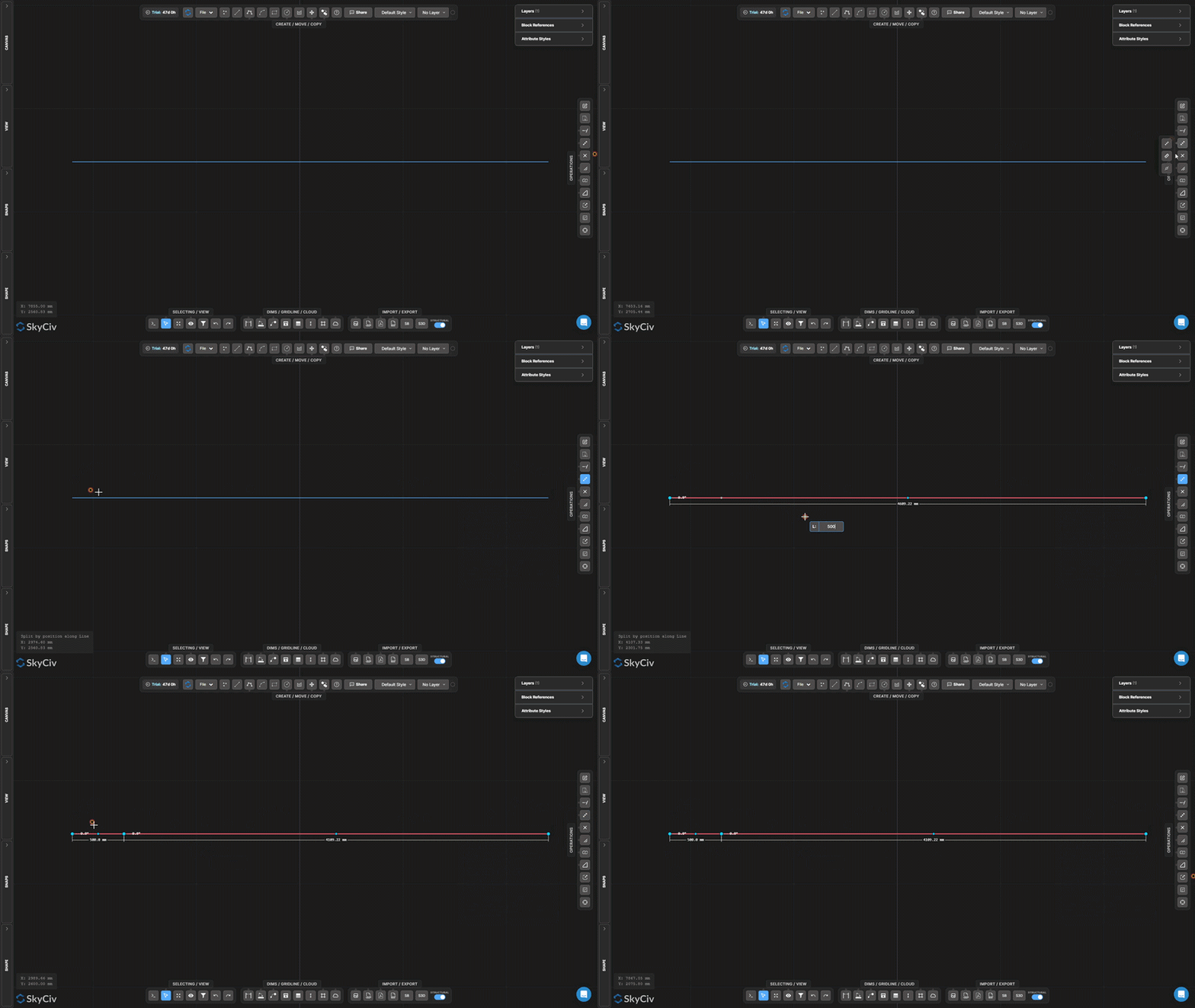
Split by Position inserts a break point at a measured distance from one end of the selected line, creating two separate segments at that offset position.
Step-by-step
- 1Activate the tool.
- 2Click a line (the click position determines which endpoint to measure from).
- 3Enter the offset distance and press Επίλεξε το.
Υπόδειξη: Click near the endpoint you want to measure from – the tool uses the nearest endpoint as the reference for the offset distance.
Split Lines at Intersections
Automatically split all selected lines at crossing points
Split Lines at Intersections finds all points where selected lines cross each other and inserts split nodes at each intersection. No input values are required – the operation is fully automatic.
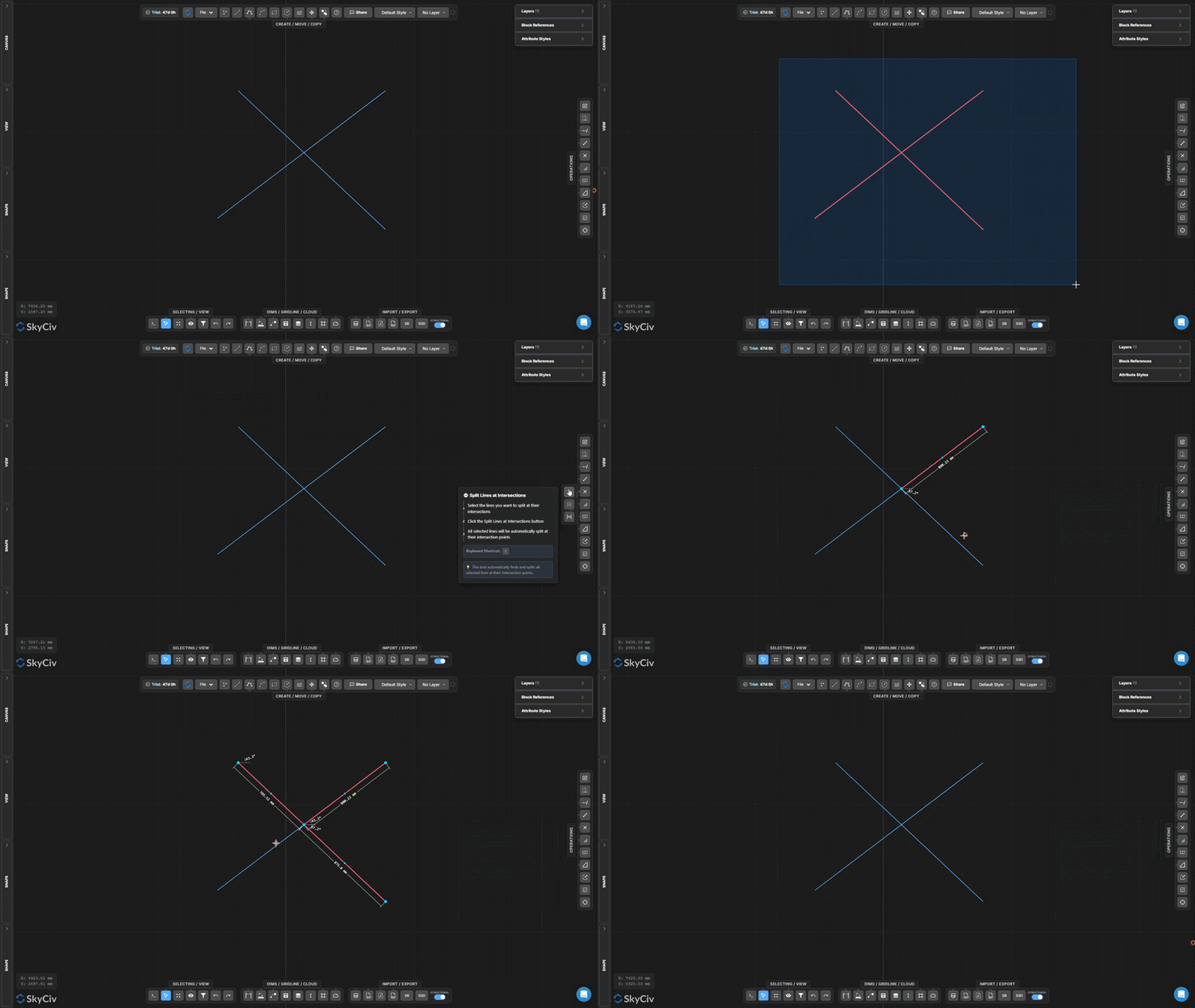
Step-by-step
- 1Select the lines to process.
- 2Κάντε κλικ Split Lines at Intersections.
- 3All crossing intersections are detected and split automatically.
Υπόδειξη: Run this before using Joint Selection or performing topology-dependent operations – it ensures crossing lines share actual node points.
Split Target
Split pre-selected target objects using separate splitter geometry
Split Target is a two-stage split where you first mark the objects to be split (targets), then separately select the geometry to split them with (splitters). Only target objects are cut.
[__INSERT_IMAGE__]
Step-by-step
- 1Pre-select the target objects to be split.
- 2Δραστηριοποιώ Split Target.
- 3Select the splitter geometry.
- 4Τύπος Επίλεξε το to split targets at intersections with splitters.
Υπόδειξη: Use Split Target when you want to split specific lines with a cutting edge but need to preserve the cutting geometry intact (unlike Trim, which also modifies the cutter).
Διαίρεση σε επικαλύψεις
Detect and separate overlapping collinear line segments
Διαίρεση σε επικαλύψεις finds segments of selected lines that are collinear and overlap each other, then splits them so the overlapping regions become discrete, individually selectable geometry.
[__INSERT_IMAGE__]
Step-by-step
- 1Select lines that may have overlapping collinear portions.
- 2Κάντε κλικ Διαίρεση σε επικαλύψεις.
- 3Overlapping regions are split into separate segments.
Υπόδειξη: Combine with Επιλέξτε Διπλότυπα to identify and remove redundant overlapping lines in imported DXF files.
Explode Polyline
Break a polyline into independent line or arc segments
Explode Polyline decomposes a multi-segment polyline into individual independent segments. Useful when you need to edit, διαγράφω, or apply operations to only part of a polyline.
[__INSERT_IMAGE__]
Step-by-step
- 1Select the polyline to explode.
- 2Κάντε κλικ Explode Polyline.
- 3Each segment becomes individually selectable and editable.
Υπόδειξη: The inverse operation is Συνδέστε τις γραμμές και τα τόξα, which merges connected segments back into a single polyline.
Συνδέστε τις γραμμές και τα τόξα
Merge connected lines and arcs into a single polyline
Συνδέστε τις γραμμές και τα τόξα combines a chain of connected segments into a single continuous polyline object. Lines and arcs must share endpoints to be joined.
Step-by-step
- 1Select lines and arcs that share endpoints.
- 2Κάντε κλικ Συνδέστε τις γραμμές και τα τόξα.
- 3Connected segments merge into one continuous polyline.
Υπόδειξη: All selected segments must form a single continuous chain. If segments have gaps, χρήση Snap to Line Ends and the Move Point tool first to close the endpoints.
Create Fillet
Round a sharp corner between two lines with an arc
Create Fillet replaces a sharp corner between two lines with a tangent arc of a specified radius. The original line ends are trimmed to accommodate the arc.
Step-by-step
- 1Δραστηριοποιώ Create Fillet.
- 2Set the fillet radius in the dialog.
- 3Click the corner (intersection area) of the two lines to apply.
Υπόδειξη: The radius must be small enough to fit within the lengths of both lines from the corner. A live preview is shown before confirming.
Create Chamfer
Create a straight bevel cut at a corner
Create Chamfer cuts a straight diagonal bevel across a corner between two lines. Set the chamfer distance to control how far back from the corner each line is trimmed.
Step-by-step
- 1Δραστηριοποιώ Create Chamfer.
- 2Set the chamfer distance in the dialog.
- 3Click the corner geometry to apply the chamfer.
Υπόδειξη: Chamfer cuts equally from both lines by default. For an asymmetric bevel (different distances on each side), set two separate chamfer values in the dialog.
Κλίμακα αντικειμένων
Scale selected geometry by a factor from a pivot point
Κλίμακα αντικειμένων resizes selected geometry by a uniform scale factor relative to a chosen pivot point. A dialog lets you choose whether annotations (διαστάσεις, κείμενο, ηγέτες, γραμμές πλέγματος, tables) are also scaled.
Step-by-step
- 1Select the objects to scale.
- 2Κάντε κλικ Κλίμακα αντικειμένων and configure annotation scale options in the dialog.
- 3Click the canvas to set the scale pivot (προέλευση) Τυχόν παραβιάσεις αυτού θα θεωρούνται παραβίαση των νόμων περί πνευματικών δικαιωμάτων.
- 4Type the scale factor and press Επίλεξε το (1.0 = no change, 0.5 = half, 2.0 = double).
Υπόδειξη: Use the Scale Options dialog to control whether annotation sizes (διαστάσεις, κείμενο, ηγέτες, tables) scale with the geometry or remain at their current sizes.
Scale Frame
Create a persistent local scale zone with a visible frame
Scale Frame creates a persistent rectangular zone with an associated scale factor. Geometry drawn or placed inside the frame is rendered at that local scale. Useful for detail callouts at a different drawing scale.
[__INSERT_IMAGE__]
Step-by-step
- 1Δραστηριοποιώ Scale Frame.
- 2Click the first corner, then the opposite corner to define the frame.
- 3Type the scale factor in the input and press Esc to apply.
Υπόδειξη: The frame persists on canvas after creation. Select and delete it when no longer needed. The scale input remains available for later editing while the frame is selected.
Ενημέρωση προέλευσης
Move the drawing coordinate origin (0,0) to a new location
Ενημέρωση προέλευσης relocates the drawing’s reference coordinate system. All coordinate values (Χ, ΚΑΙ) displayed in the canvas and exported in data are recalculated relative to the new origin.
[__INSERT_IMAGE__]
Step-by-step
- 1Δραστηριοποιώ Ενημέρωση προέλευσης.
- 2Click the new origin location on the canvas.
- 3Coordinate readouts update immediately relative to the new (0,0) Τυχόν παραβιάσεις αυτού θα θεωρούνται παραβίαση των νόμων περί πνευματικών δικαιωμάτων.
Υπόδειξη: Snap to an existing node for a precise new origin. For structural drawings, snap to a known column or datum intersection to align coordinates with the project reference grid.
