
模型和导出截面几何形状, 直接从 CAD
用户可以通过在 CloudCAD 中创建剖面线将形状导出到剖面生成器, 使构建和分析您自己的自定义形状变得更容易、更有能力. 使用完整建模 CloudCAD 的功能, 您现在可以创建复杂的形状并直接导出到剖面生成器. 请遵循本指南,它会引导您通过几个简单的步骤完成此操作.
步 1: 构建您的闭合形状
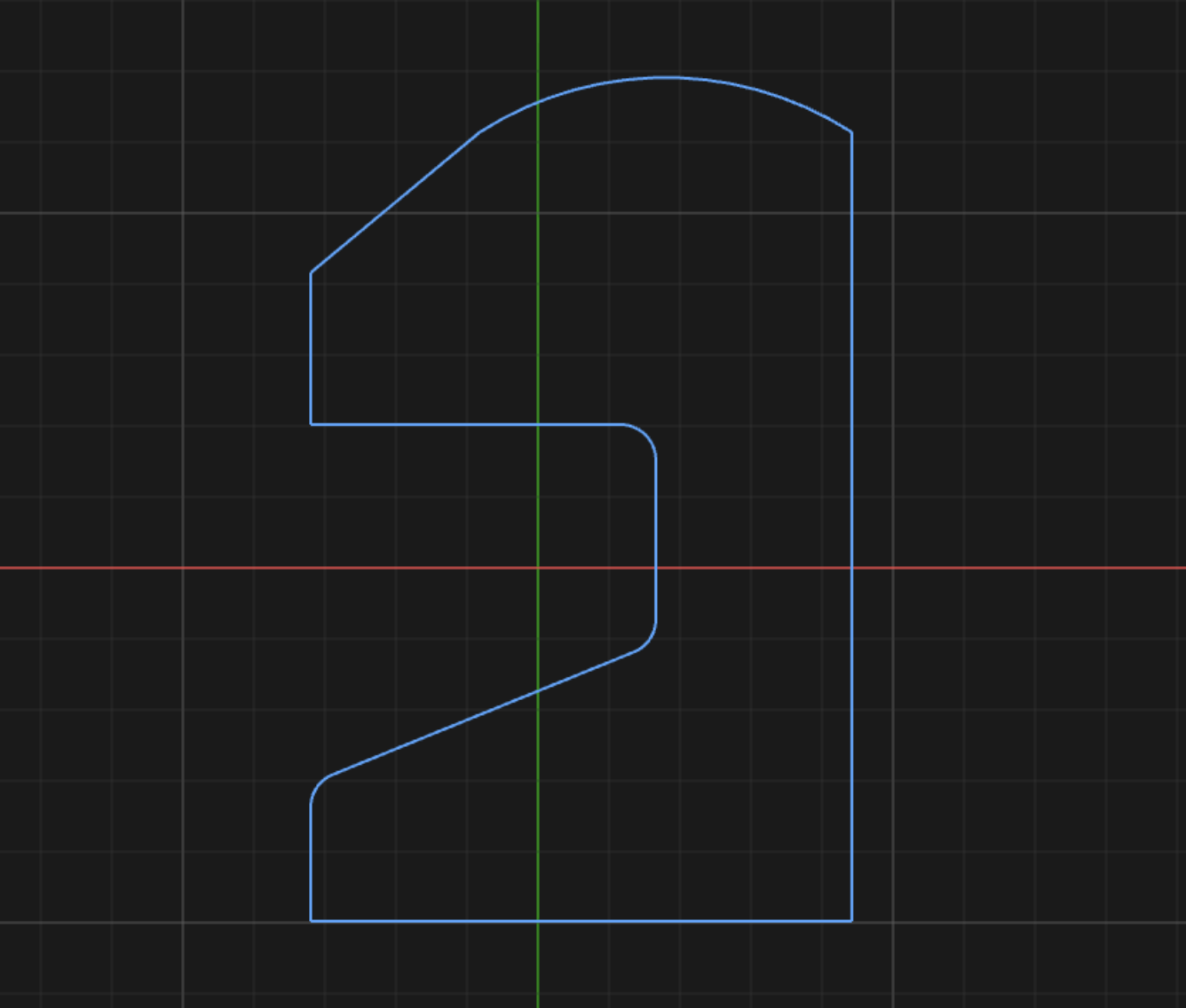
使用线条等通用建模功能, 折线, 样条曲线和圆, 用户可以使用我们先进且简单的建模工具创建闭合形状. 您可以对复杂形状使用特征组合, 只要它形成一个封闭的形状. 例如, 这里我们使用了线条的组合, 圆弧和半径/圆角函数:
步 2: 在您的形状上创建任何切口或孔 (可选的)
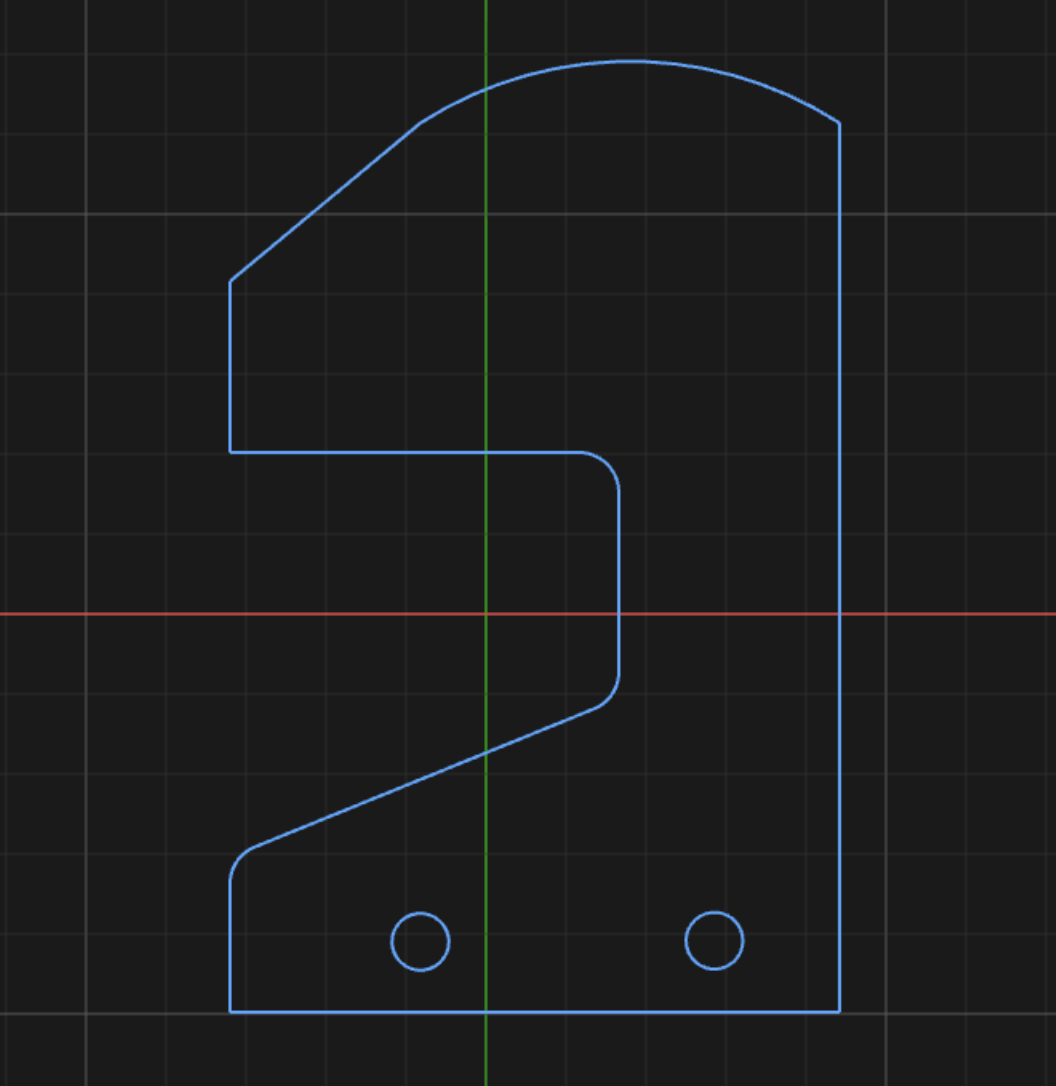
用户还可以指定内部封闭形状用作截面中的切口或孔. 例如, 我们可以在形状中包含一些圆孔:
再次 3: 创建舱口
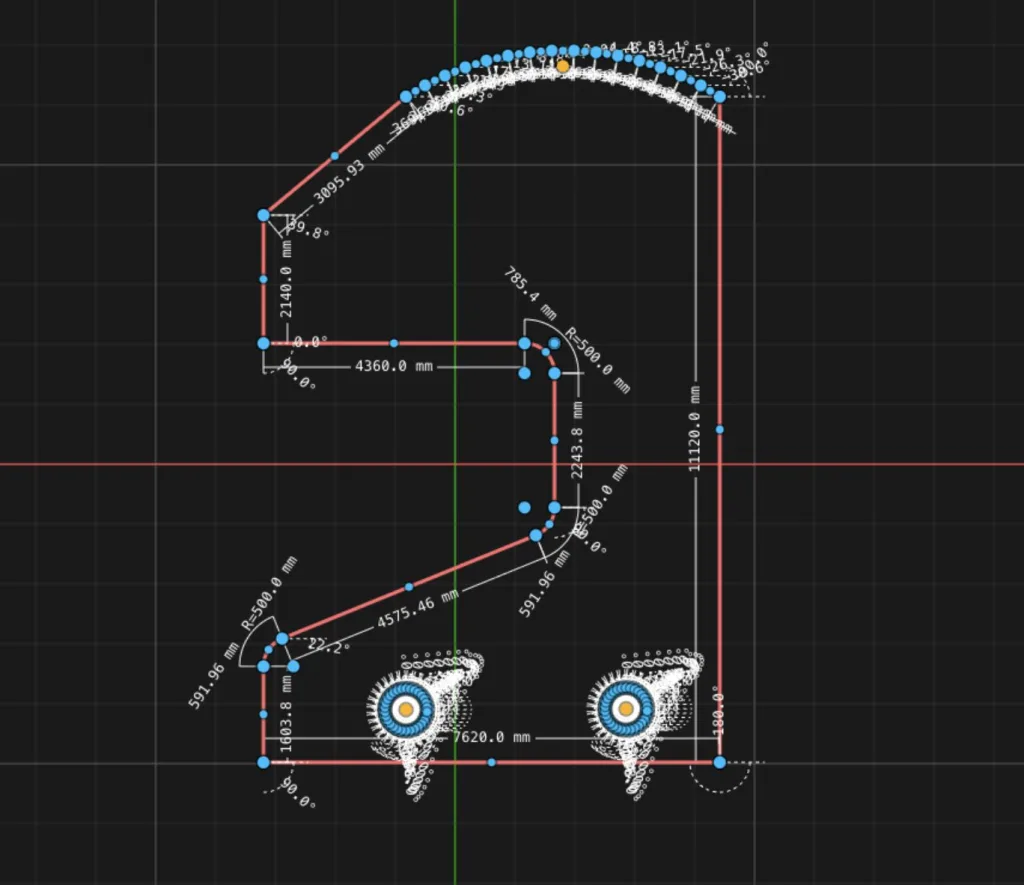
从那里, 用户可以突出显示他们希望生成为部分的区域,然后单击 孵化 (或 H 作为快捷方式). 您只需单击并拖动部分即可选择整个多边形, 或 CTRL + A 选择画布中的整个形状:
然后点击Hatch函数就会生成形状的阴影, 同时, 剪掉任何内部形状:
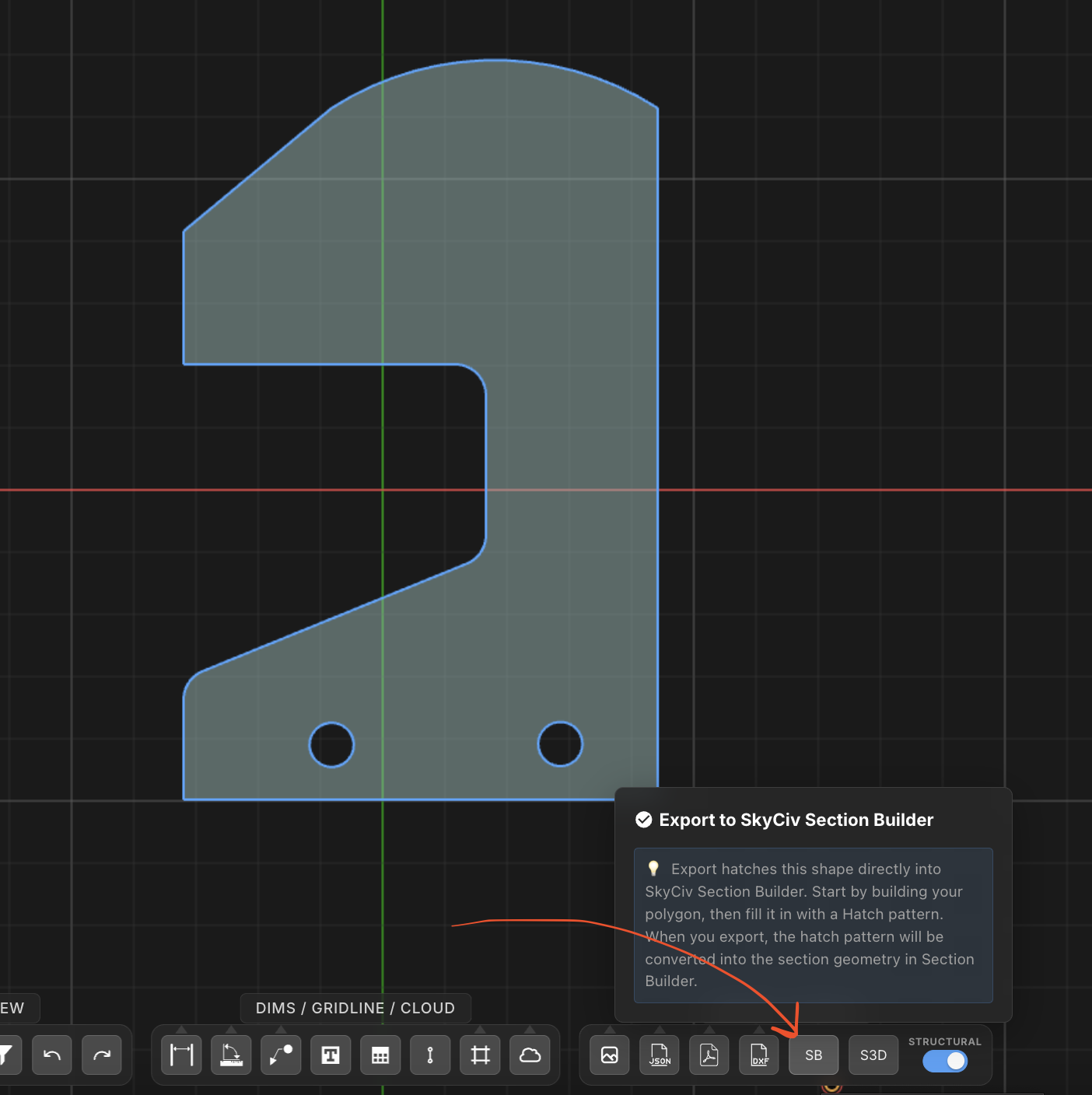
就是这样! 只需点击 导出至SB 按钮,该按钮将在剖面生成器软件上显示:
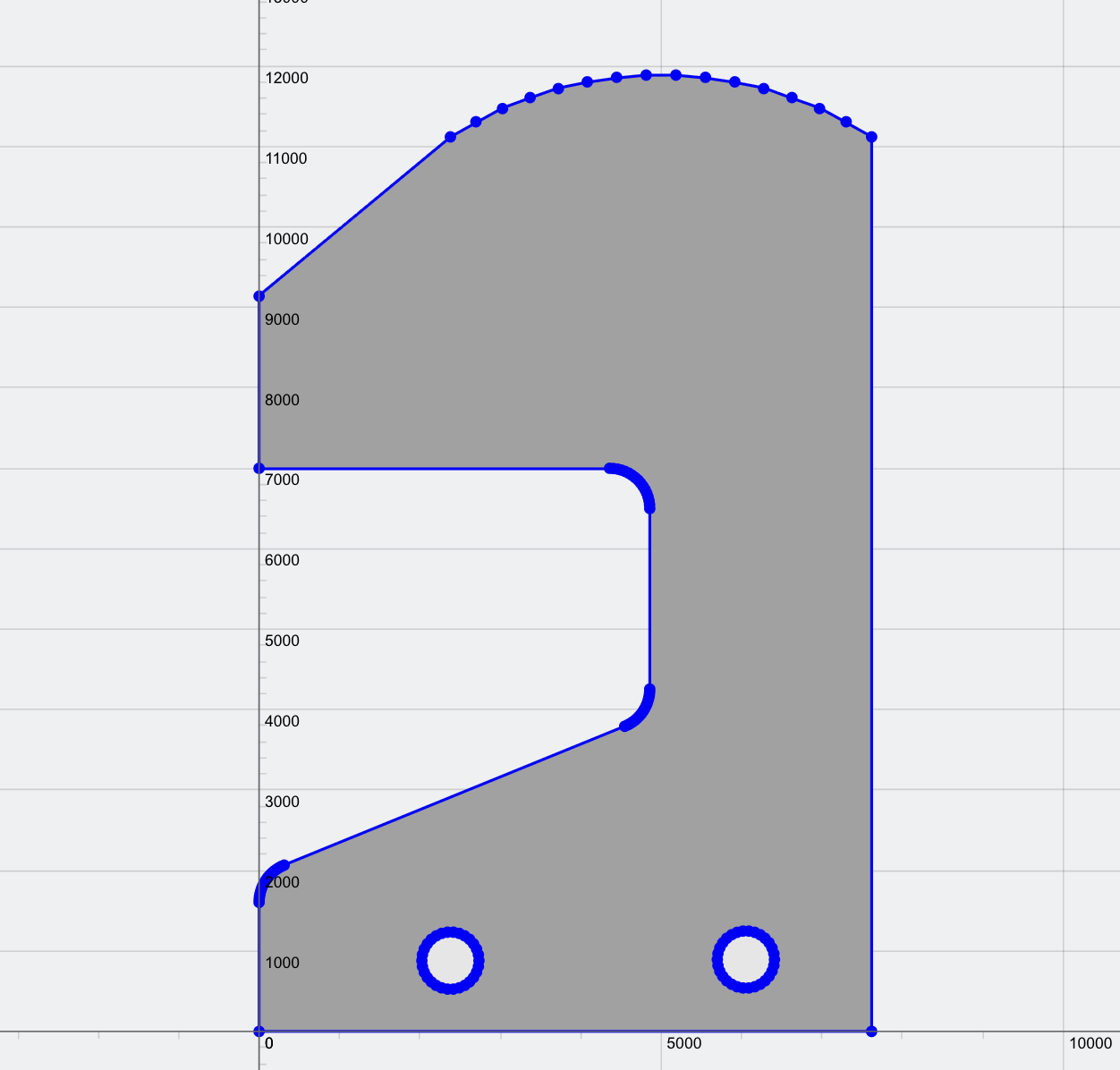
在剖面生成器中完成您的设计
从那里您可以在结构分析模型中使用此部分, 甚至可以直接从剖面生成器执行有限元分析. 剖面生成器将生成一个网格, 并允许用户输入轴向, 弯曲, 扭力和剪力来分析横截面:
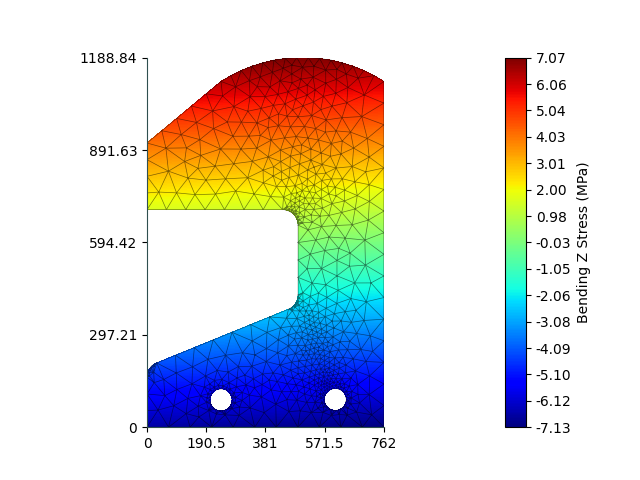
用户还可以将此部分保存到他们的云存储中, 通过 我的版块 用于任何结构 3D 分析模型.
