DIMS / GRIDLINE / CLOUD Commands
的 DIMS / GRIDLINE / CLOUD toolbar group contains annotation, gridline, and revision-markup tools used for drafting and documentation in SkyCiv CAD.
Most tools use click-based placement and support active snap settings for accurate alignment.
方面
Use dimension tools to annotate linear, projected, angular, and radius measurements directly on the canvas.
Create Dimension
Place a standard linear distance dimension between two points
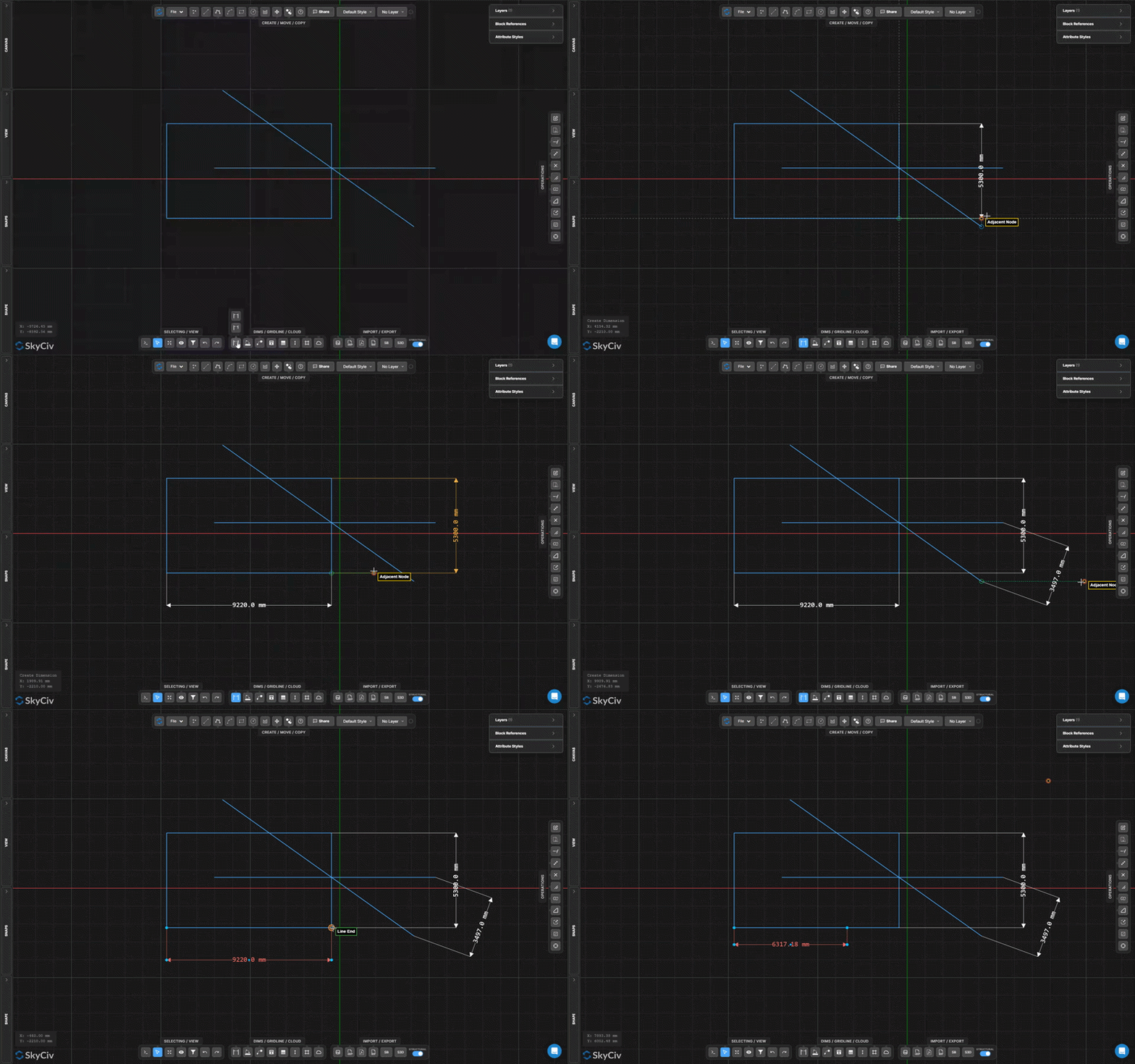
的 Create Dimension tool places a linear dimension showing the true distance between two clicked points, complete with extension lines, dimension line, arrows, and a measurement label.
[__插入图像__]
一步一步
- 1启用 Create Dimension.
- 2Click the first measurement point.
- 3Click the second measurement point.
- 4Move the cursor to offset the dimension line, then click to place it.
提示: Snaps help you align to exact endpoints and midpoints for accurate measurements. Use the Dimensions settings accordion to control arrow style, text offset, and extension line gaps.
Create Projected Dimension
Show horizontal or vertical projection distance between two points
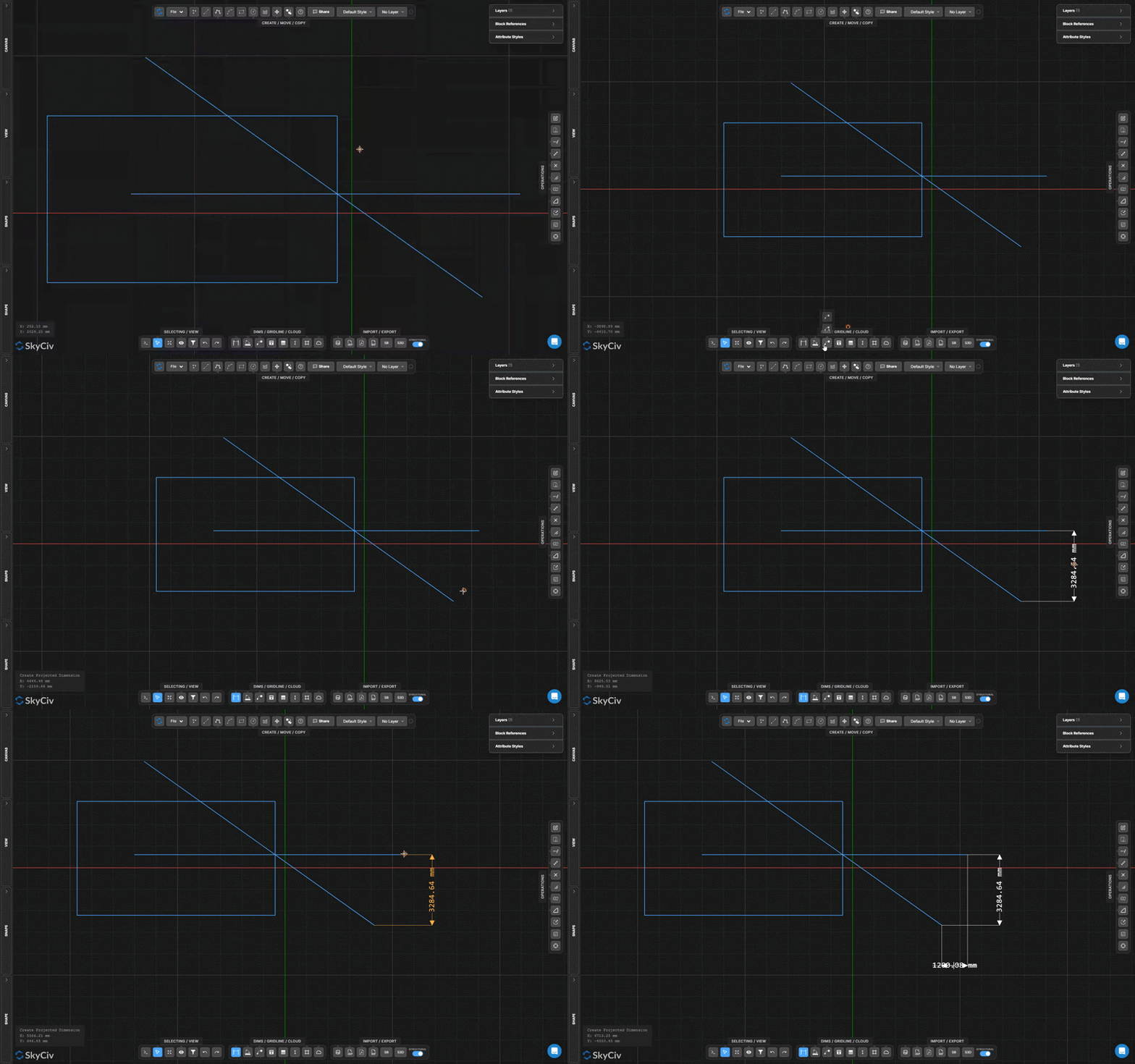
Projected Dimension measures and annotates only the horizontal or vertical component of the distance between two points – useful for sloped members where you need the plan or elevation span.
[__插入图像__]
一步一步
- 1启用 Create Projected Dimension.
- 2Click the first point.
- 3Click the second point.
- 4Click to place the projected dimension.
提示: The projected dimension automatically chooses horizontal or vertical based on the cursor position when placing. Move the cursor above/below the points for horizontal, or left/right for vertical.
Create Angle Dimension
Measure and annotate the angle between two lines
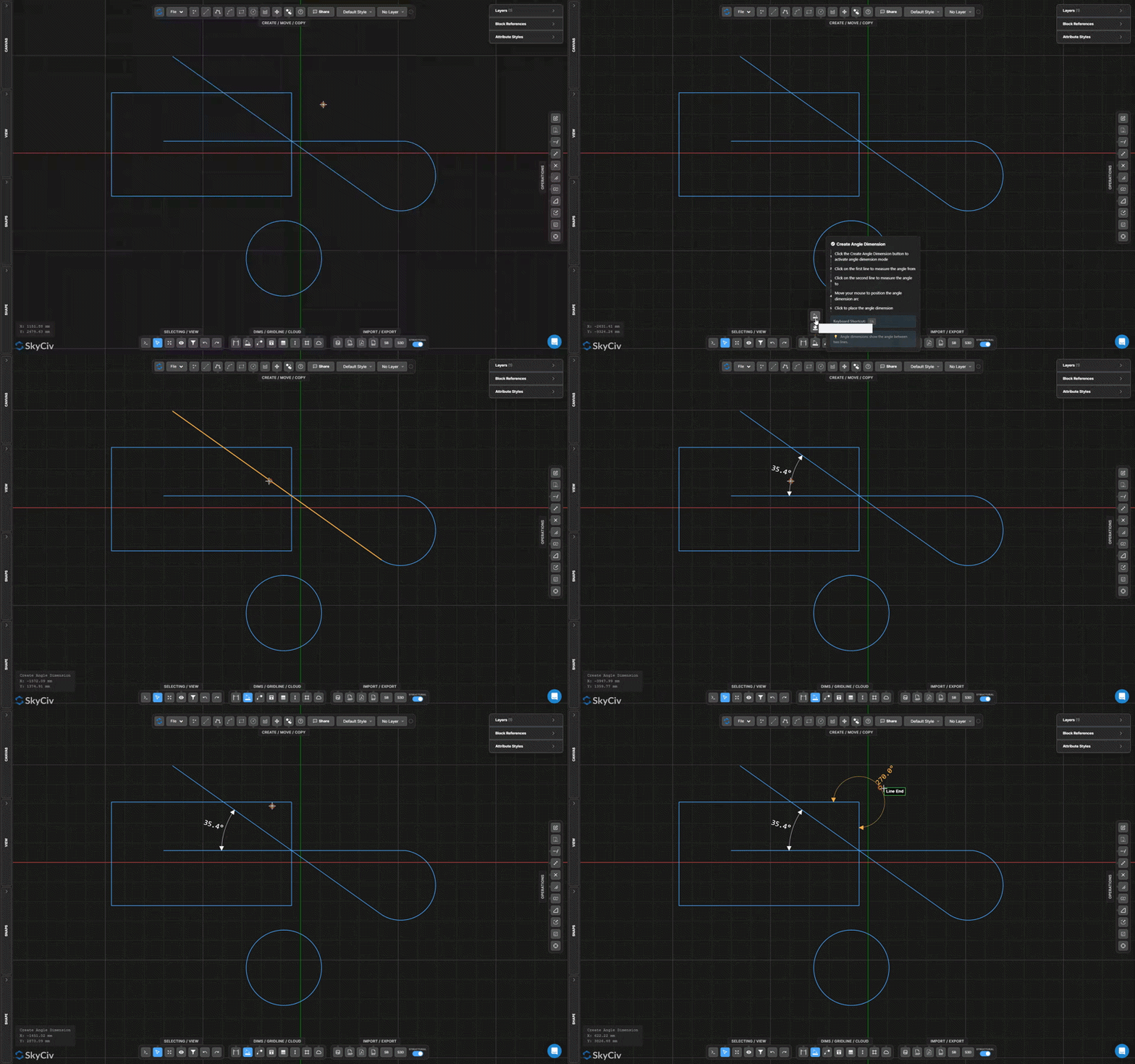
Angle Dimension places an arc-shaped dimension showing the included angle between two selected lines, with the measurement label positioned along the arc.
[__插入图像__]
一步一步
- 1启用 Create Angle Dimension.
- 2Click the first line.
- 3Click the second line.
- 4Move the cursor and click to place the angle arc and label.
提示: The cursor position when placing determines which of the four possible angle sectors is shown – 内部的, 外部的, or the two supplementary angles. Position the cursor inside the desired sector.
Create Radius Dimension
Annotate the radius of an arc or circle
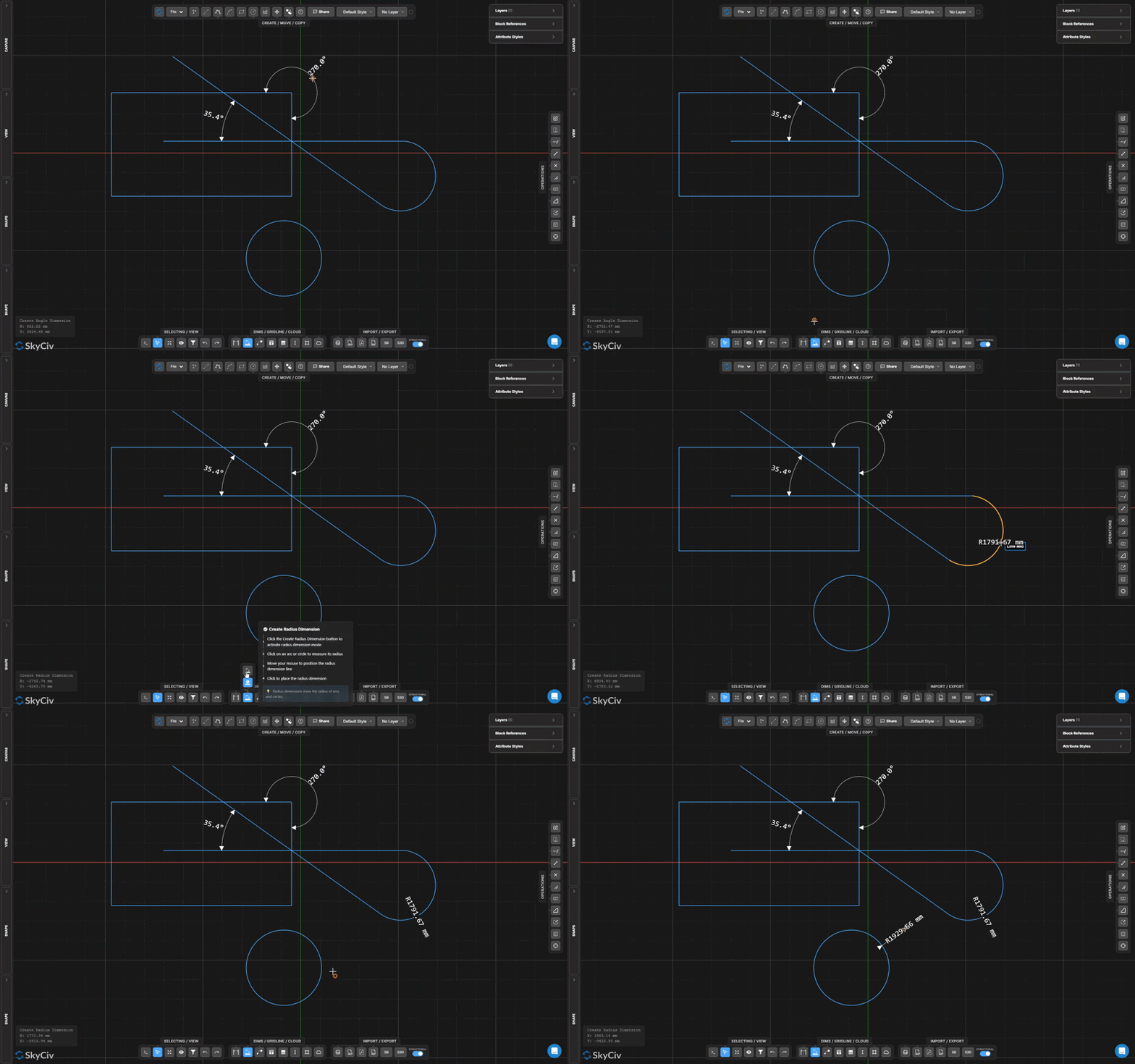
Radius Dimension places a callout from the center of an arc or circle showing its radius, with a leader line and R-prefixed label.
[__插入图像__]
一步一步
- 1启用 Create Radius Dimension.
- 2Click an arc or circle.
- 3Move the cursor and click to position the radius callout leader.
提示: Use the Dimensions settings accordion to control the arrow style and whether to show the R prefix before the value.
Text and Leader
Create Leader Text
Add an arrowhead leader pointing to an object with a text note
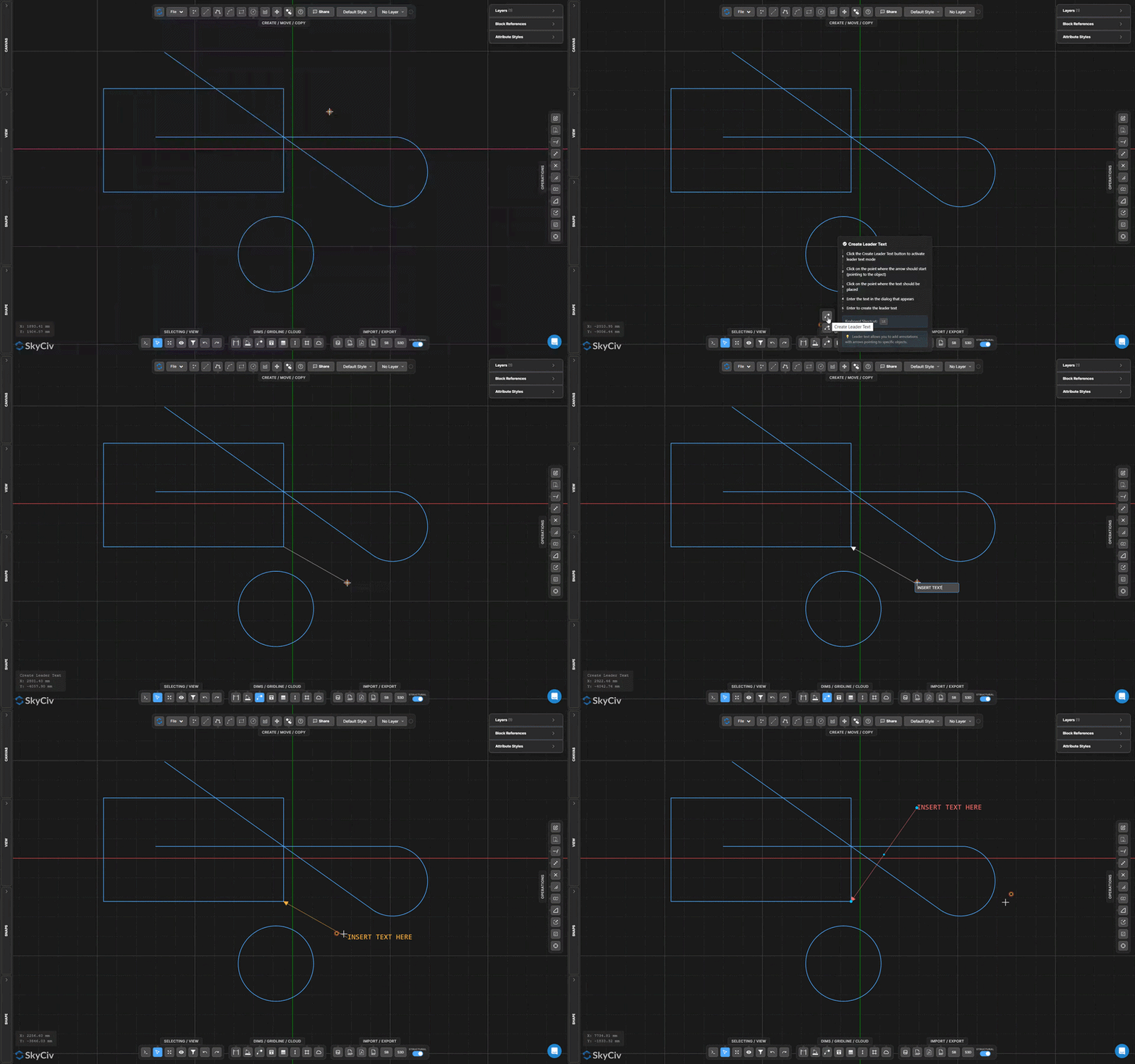
的 领导文字 tool creates an arrowhead pointing to a specific location on the drawing and connects it to a text callout. Used for material notes, detail markers, and reference labels.
[__插入图像__]
一步一步
- 1启用 Create Leader Text.
- 2Click the arrowhead tip location on the object.
- 3Click the text anchor location.
- 4Enter the annotation text and confirm.
提示: When a single note applies to multiple locations, 用 多引线文本 instead to connect several arrowheads to one callout block.
Create Multi-Leader Text
Create one callout note with multiple leader arrows
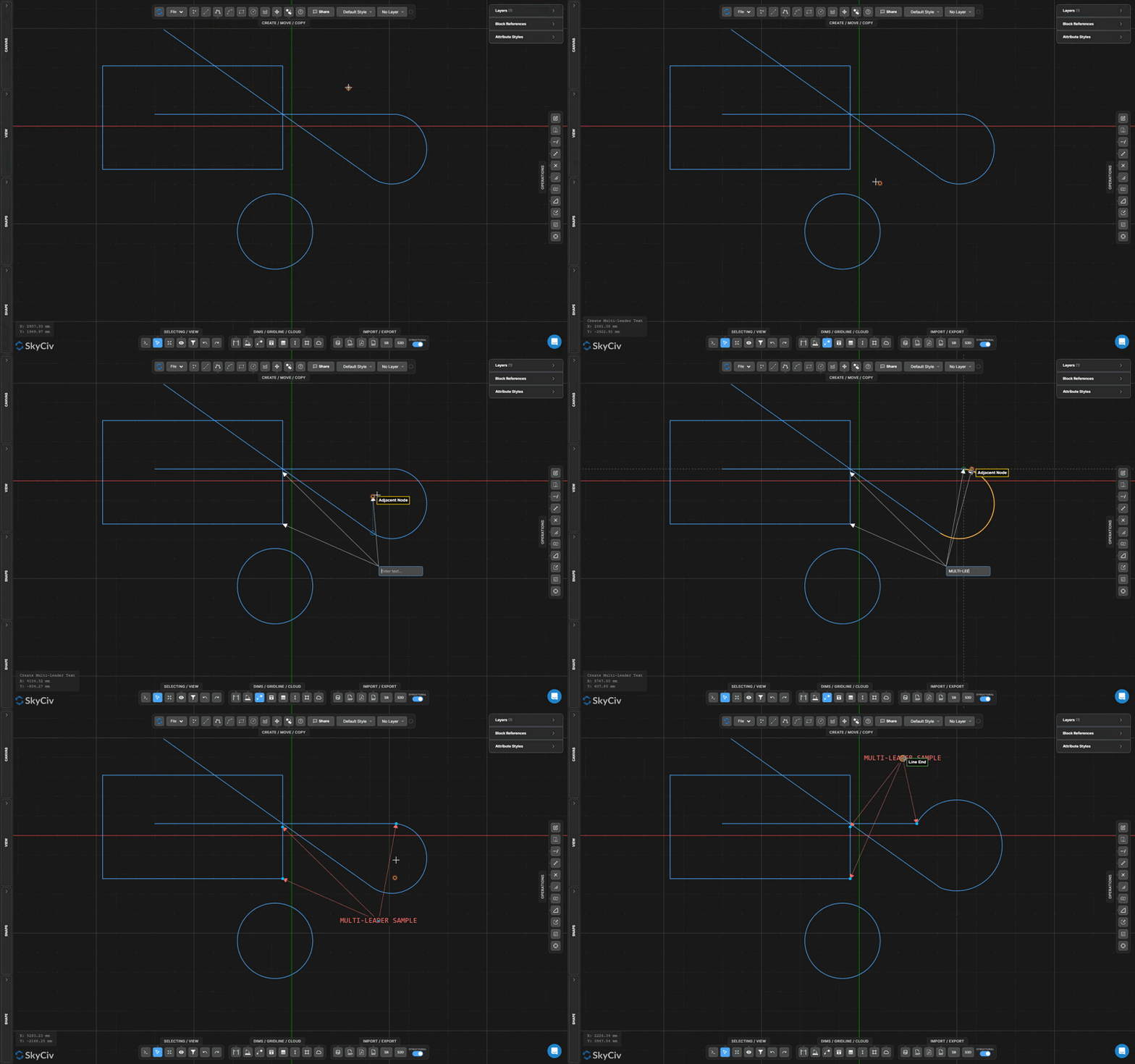
多引线文本 creates a single annotation block with multiple arrowhead leaders pointing to different locations. Use it when one note applies to several objects or positions at once.
[__插入图像__]
一步一步
- 1启用 Create Multi-Leader Text.
- 2Click the text anchor point.
- 3Click each arrowhead tip location.
- 4Enter annotation text and press 通过去 to confirm.
提示: After placing, you can move both the anchor point and individual arrowhead tips independently by selecting the annotation and dragging the handles.
Create Text
Place styled text labels with font, 尺寸, and alignment controls
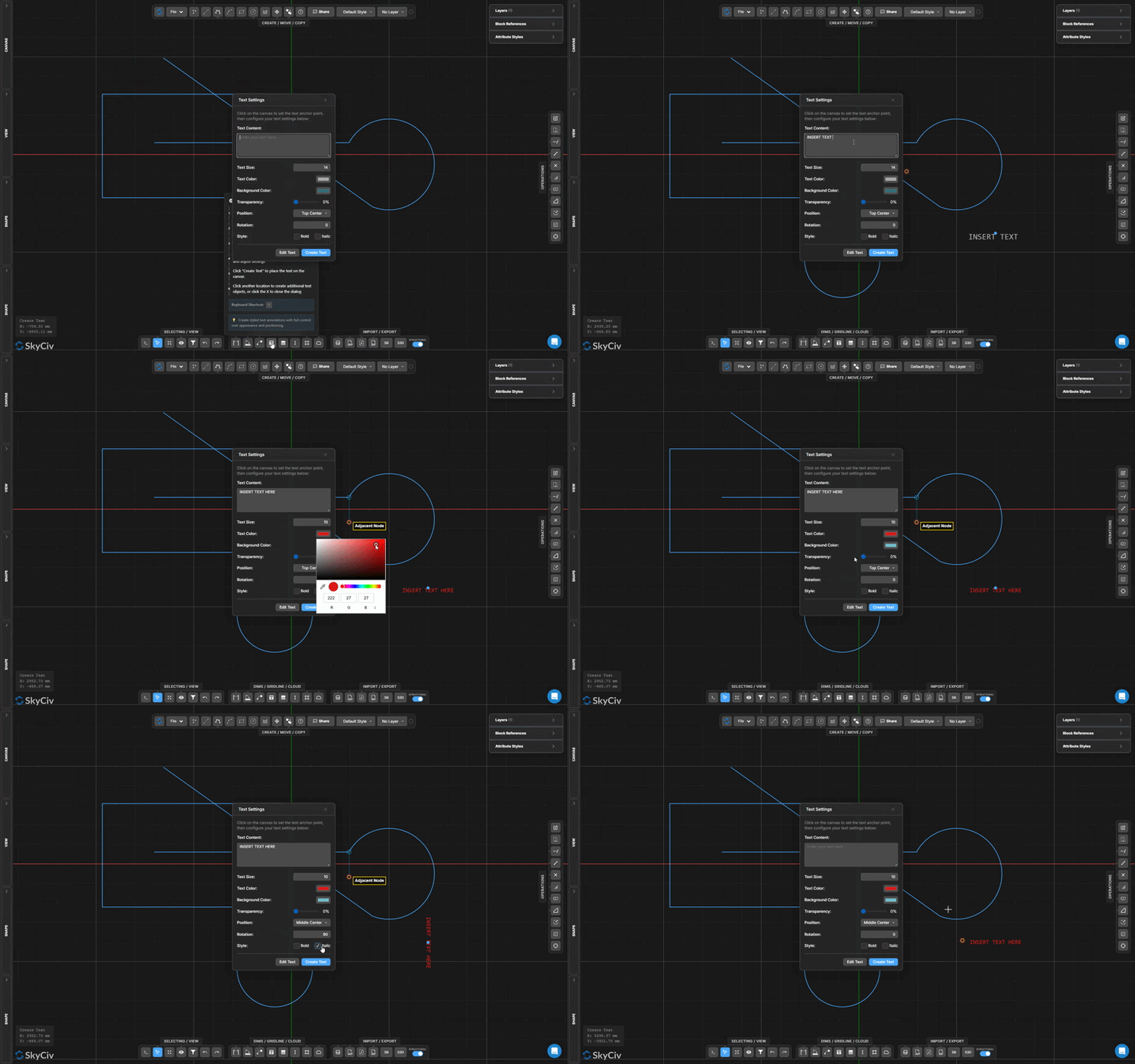
的 Create Text tool places a standalone text label on the canvas. Font, 尺寸, bold/italic styling, alignment, and color are all configurable before or after placement.
[__插入图像__]
一步一步
- 1启用 Create Text.
- 2Click the anchor point on the canvas to open the text dialog.
- 3Enter text content and configure font, 尺寸, and alignment.
- 4请点击 Create Text to place the label.
提示: Text objects snap to the cursor position; enabling Snap to Align makes it easy to horizontally or vertically align labels with existing geometry.
Create Table
Insert a formatted table annotation directly on the drawing
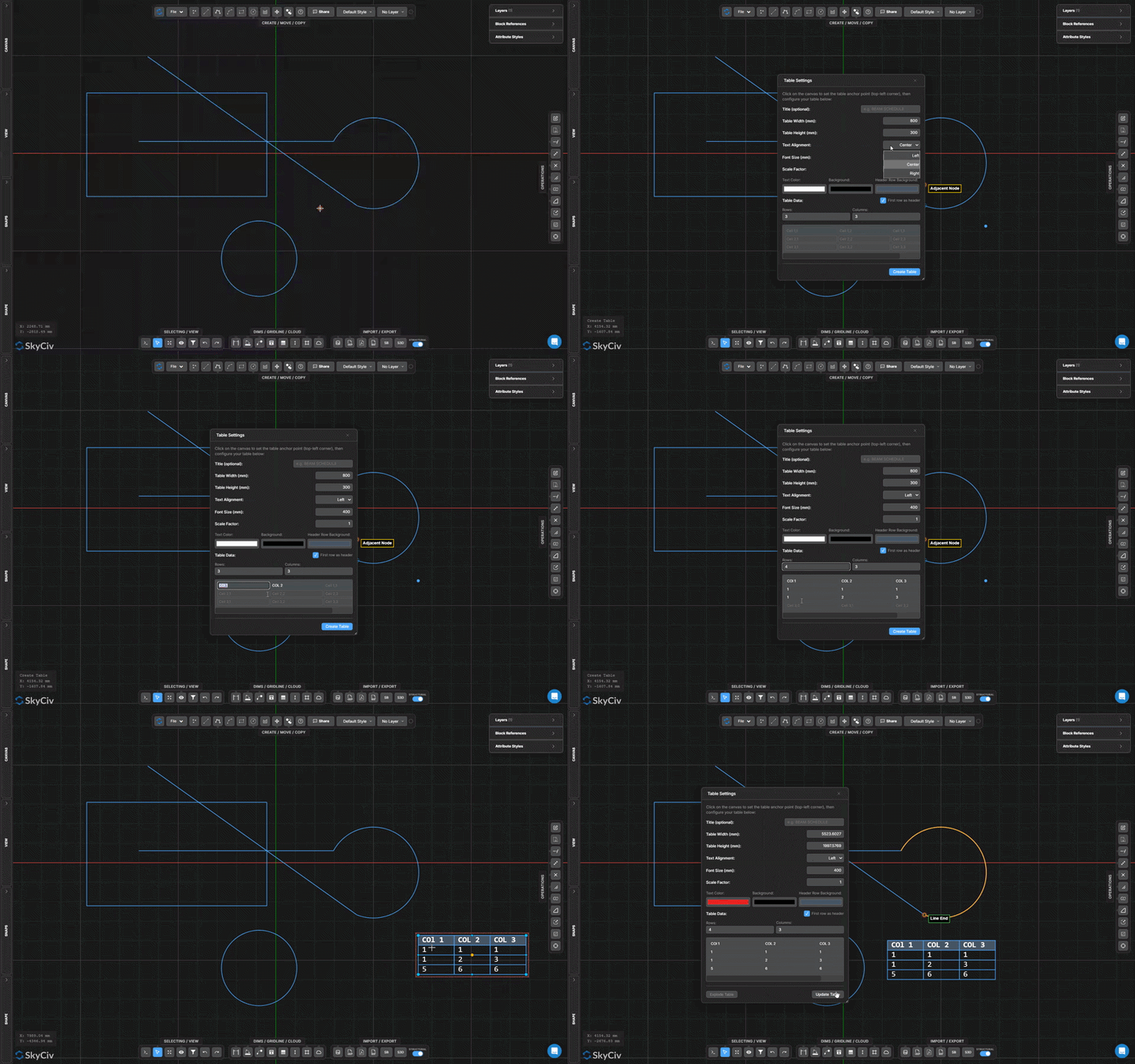
的 Create Table tool inserts a structured data table as a drawing annotation. Use it for schedules, 截面属性, load tables, or general reference data within the sheet.
[__插入图像__]
一步一步
- 1启用 Create Table.
- 2Click the anchor point for table placement.
- 3Configure table content, 行, and styling in the dialog.
- 4Confirm to insert the table.
提示: After placing, double-click the table to re-open the editor and modify cell content, add rows, or adjust column widths.
Gridline and Construction
Create Gridline
Draw labeled structural reference gridlines
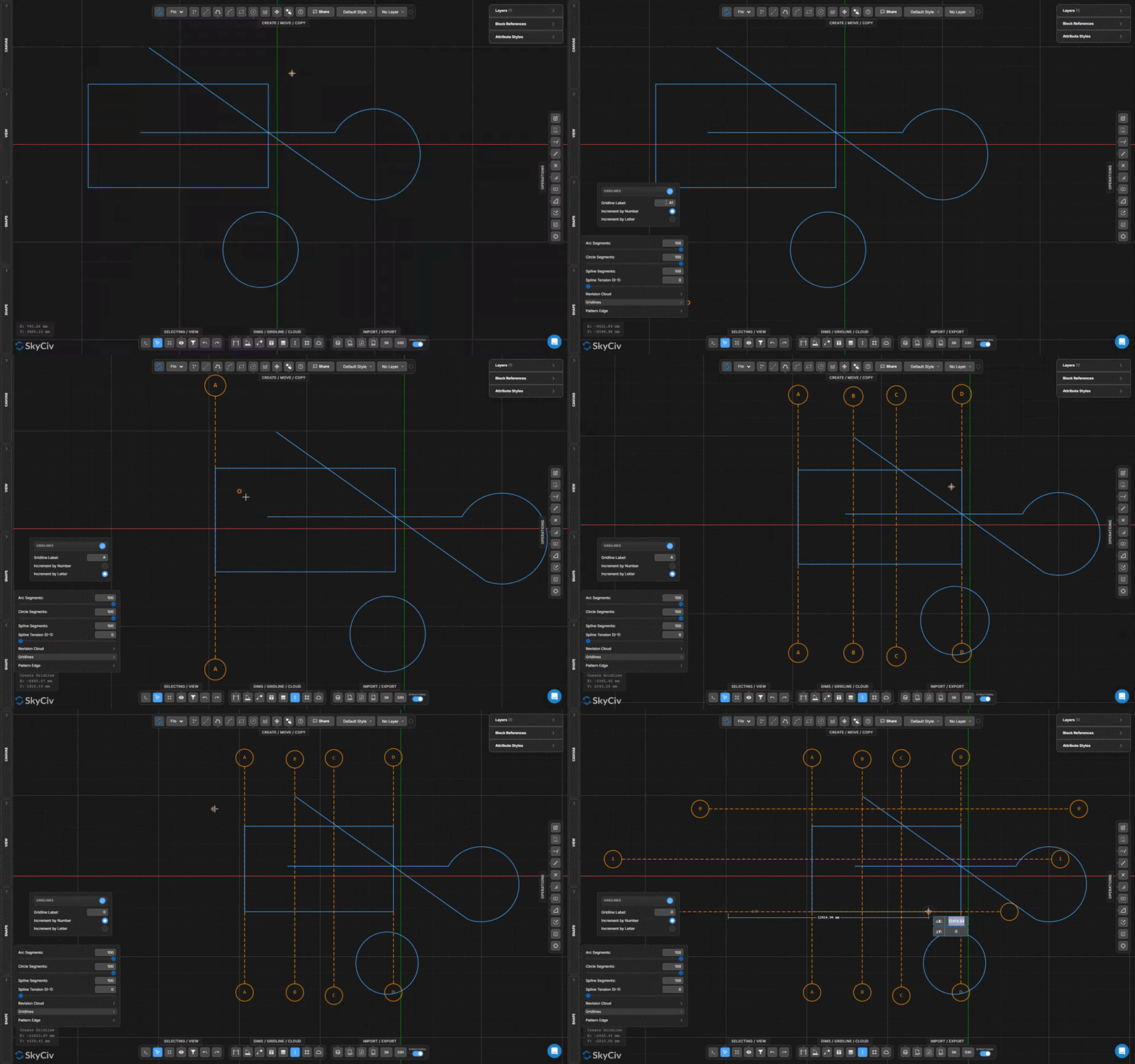
网格线 are labeled reference axes used in structural drawings to define the building grid. They display a label bubble at each end and support snapping via the Snap to Gridlines 选项.
[__插入图像__]
一步一步
- 1启用 Create Gridline.
- 2Set the gridline label in the Settings panel.
- 3Click the first endpoint.
- 4Click the second endpoint to place the gridline.
提示: Gridlines with the same label auto-increment (一个, A1, A2…). 使能够 Snap to Gridlines in the Snaps panel to snap geometry to the extended gridline paths.
Vertical Construction Line
Create infinite vertical reference lines that do not appear in exports
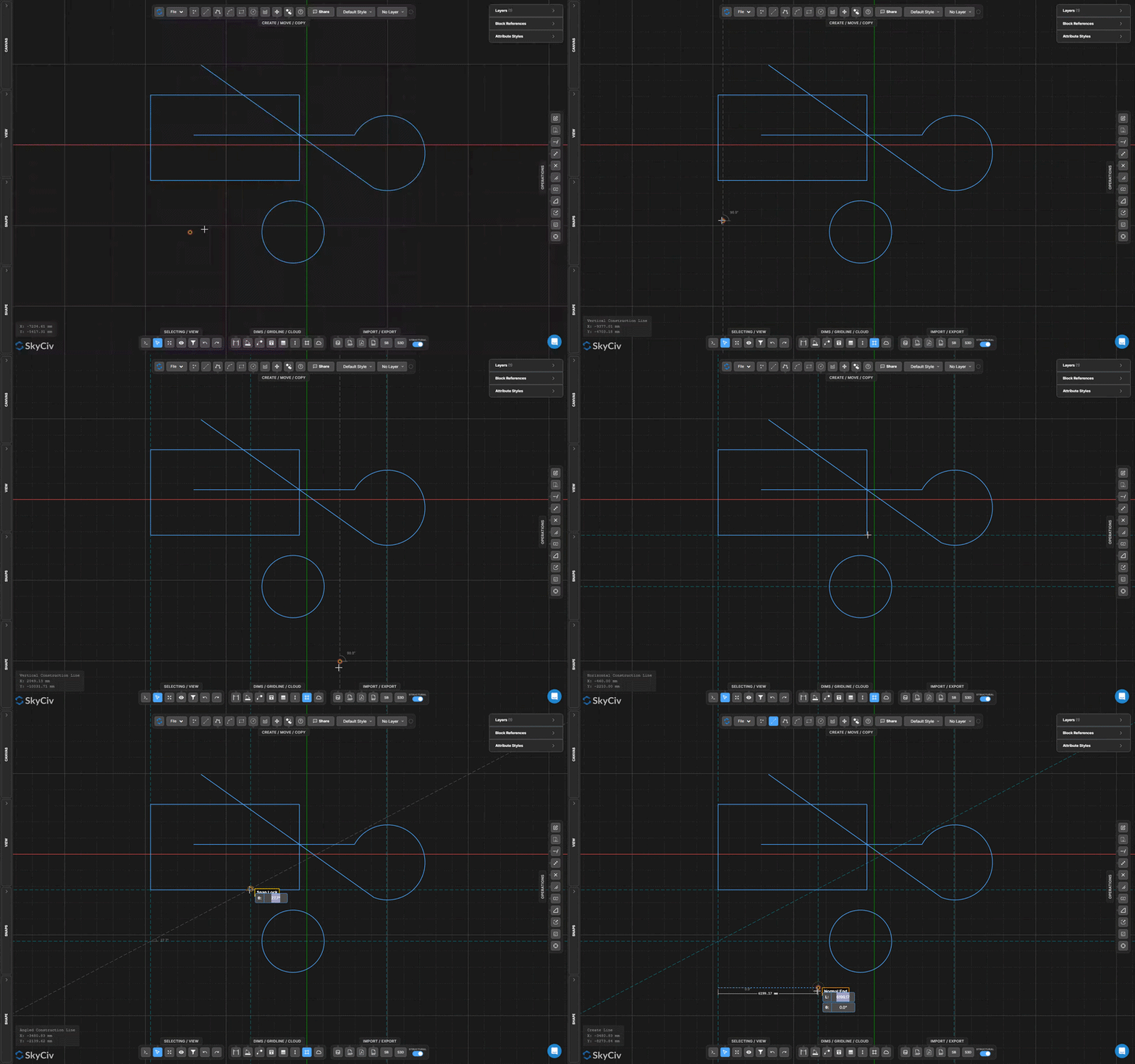
Vertical Construction Lines are infinite vertical reference lines used for alignment and snapping. They are visible on canvas but are excluded from all exports.
[__插入图像__]
一步一步
- 1Activate vertical construction line mode.
- 2Click the X-position on the canvas to place the line.
- 3Continue clicking to place more lines. 按 Esc键 退出.
提示: 使能够 Snap to Construction Lines in the Snaps panel to use construction lines as snap targets when drawing other geometry.
Horizontal Construction Line
Create infinite horizontal reference lines that do not appear in exports
Horizontal Construction Lines are infinite horizontal reference lines for alignment and snapping. Like vertical construction lines, they are visible on canvas but excluded from all exports.
[__插入图像__]
一步一步
- 1Activate horizontal construction line mode.
- 2Click the Y-position on the canvas to place the line.
- 3Continue clicking to place more lines. 按 Esc键 退出.
提示: Combine horizontal and vertical construction lines to create a custom reference grid, then enable Snap to Construction Lines to work precisely within it.
Angled Construction Line
Create infinite reference lines at any angle
Angled Construction Lines are infinite reference lines defined by two clicked points. They extend infinitely in both directions at the angle defined by the two picks, supporting snapping in the same way as vertical and horizontal variants.
[__插入图像__]
一步一步
- 1Activate angled construction line mode.
- 2Click the first point.
- 3Click the second point to define the angle direction.
- 4An infinite line is created through both points.
提示: Use an angled construction line to define a reference direction for a sloped member, then use Snap to Parallel to draw other geometry at the same angle.
Revision Cloud
Create Revision Cloud Frame
Draw a rectangular revision cloud from a click-drag frame
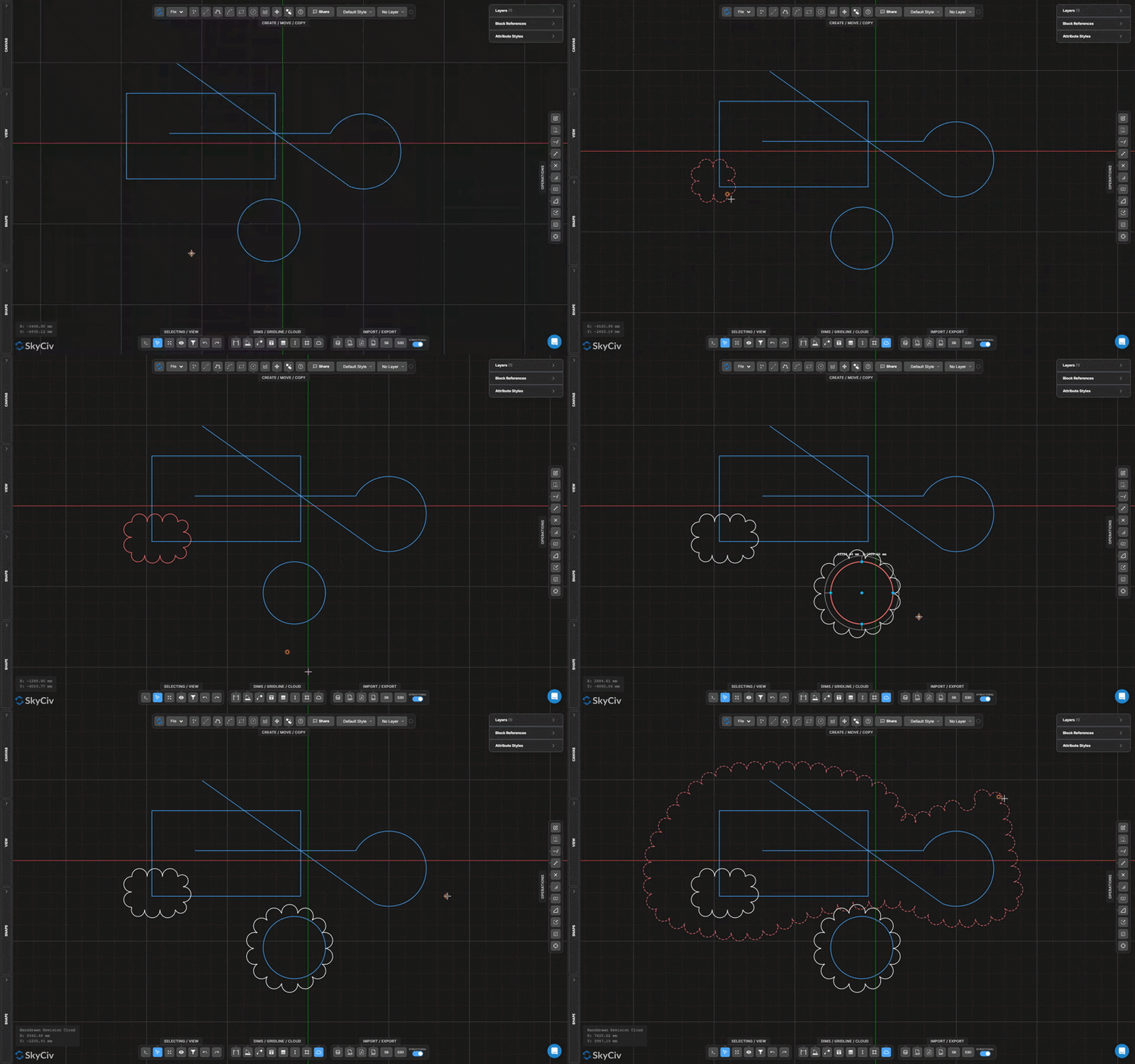
的 Revision Cloud Frame tool generates a rectangular arc-chain border by dragging a bounding box. The arc bump size is configurable in the Shapes accordion.
[__插入图像__]
一步一步
- 1启用 Create Revision Cloud Frame.
- 2Click and drag to define the frame bounds.
- 3Release to generate the cloud border automatically.
- 4Adjust the arc bump radius in the Shapes accordion if needed.
提示: Set the revision arc radius in the Shapes accordion 前 drawing to get the desired cloud density. Larger radius = fewer, rounder bumps; smaller radius = more bumps along the perimeter.
Create Revision Cloud Frame By Circle
Draw a circular revision cloud by center and radius
Cloud Frame by Circle creates a circular arc-chain cloud border defined by a center point and radius – ideal for highlighting a circular or point-based area on the drawing.
[__插入图像__]
一步一步
- 1Activate circle cloud mode.
- 2Click the center point.
- 3Move cursor outward and click to set the radius.
- 4The cloud is created as a circular arc-chain frame.
提示: Type a numeric radius and press 通过去 for a precise circle size instead of clicking visually.
Handdrawn Revision Cloud
Sketch a freeform revision cloud boundary
的 Handdrawn Revision Cloud lets you sketch a freeform outline that is automatically converted into a bumped arc-chain cloud border. Great for organic or asymmetric revision areas.
[__插入图像__]
一步一步
- 1启用 Handdrawn Revision Cloud.
- 2Click once to start the boundary path.
- 3Hold and drag to sketch the freeform outline.
- 4Release to complete the cloud boundary.
提示: Sketch slowly for smoother results. The arc bump frequency follows the Revision Arc Radius setting in the Shapes accordion – smaller values produce denser bumps.