
CloudCAD Komut Konsolu ve Özelleştirilmiş Kısayollarla Daha Hızlı Çalışın
Komut Konsolu
Komut konsolu (varsayılan olarak açılır) kullanıcıların yürütmek istedikleri işlevi hızlı bir şekilde yazmalarına olanak tanır, koşmak ve aradıklarını bulmak, Daha hızlı. Örneğin, kullanıcı yazarsa “LI” içinde LI bulunan herhangi bir işlevi otomatik olarak gösterecektir:
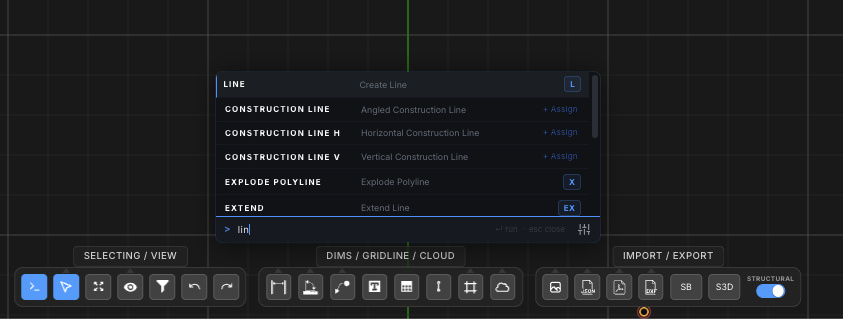
Kullanıcı daha sonra yürütmek için tuşa veya boşluk tuşuna basabilir ve enter tuşuna basabilir.. Kullanıcılar tıklayabilir Ata+ kısayollar atamak için. Örneğin RC revizyon bulutu için, ve kullanıcı vurduğunda “RC” konsolu otomatik olarak açacak ve bu işlemi vurgulayacaktır:
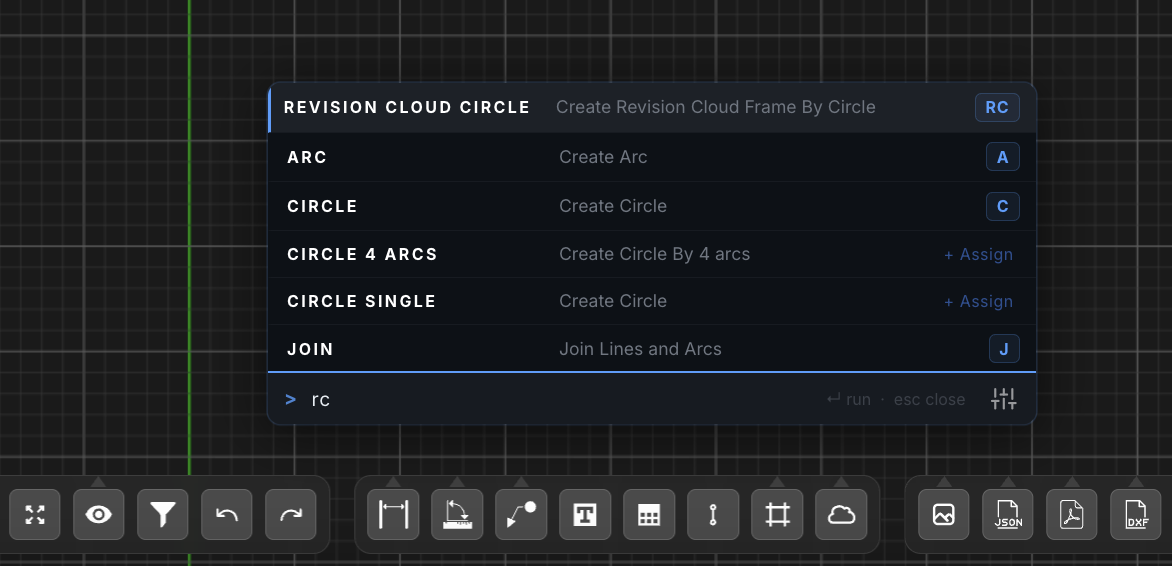
Konsol Ayarları
Ayarlar, işlev listesinin altında sağ alt simgeye tıklanarak kontrol edilebilir. Bu, kullanıcıların aşağıdakileri düzenlemesine olanak tanır:
- Tuşa basıldığında Komut Satırını aç – işaretlendiğinde (varsayılan olarak) herhangi bir harf tuşuna basıldığında komut satırı açılır
- Komut Satırını Çalıştırmak için SPACE tuşuna basın – işaretlendiğinde, boşluk çubuğu vurgulanan işlevi otomatik olarak çalıştıracaktır
Kısayolları Özelleştirme
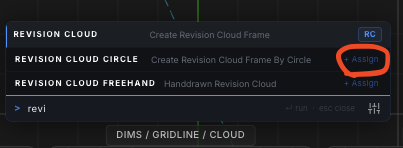
Kullanıcılar modelleme ve iş akışlarını hızlandırmak için kısayollarını özelleştirebilir. Şu anda, kendi kısayollarınızı özel olarak ayarlamanın iki yolu vardır SkyCiv CAD:
Seçenek 1: Komut Satırı
Kullanıcılar bunları komut satırından tanımlayabilir (CTRL+BOŞLUK):
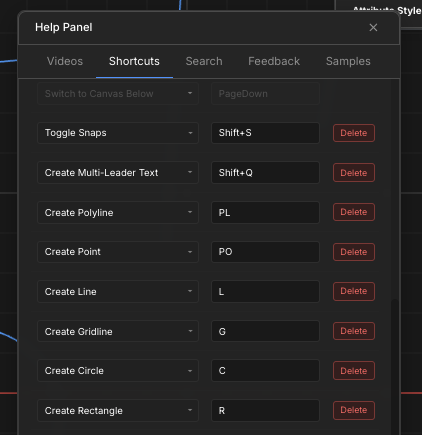
Seçenek 2: Yardım Paneli
Üst araç çubuğu aracılığıyla, kullanıcılar Yardım Paneline gidebilir – kısayollar:
Varsayılan Kısayollar
