
セクション ジオメトリのモデル化とエクスポート, CADから直接
ユーザーは、CloudCAD でハッチングを作成することで、形状をセクション ビルダーにエクスポートできます。, 独自のカスタム形状の構築と分析をより簡単かつ効率的に行うことができます。. 完全なモデリングの使用 CloudCAD の機能, 複雑な形状を作成し、セクション ビルダーに直接エクスポートできるようになりました。. このガイドに従って、わずか数ステップでこれを行う方法を説明します。.
ステップ 1: 閉じた形状を構築する
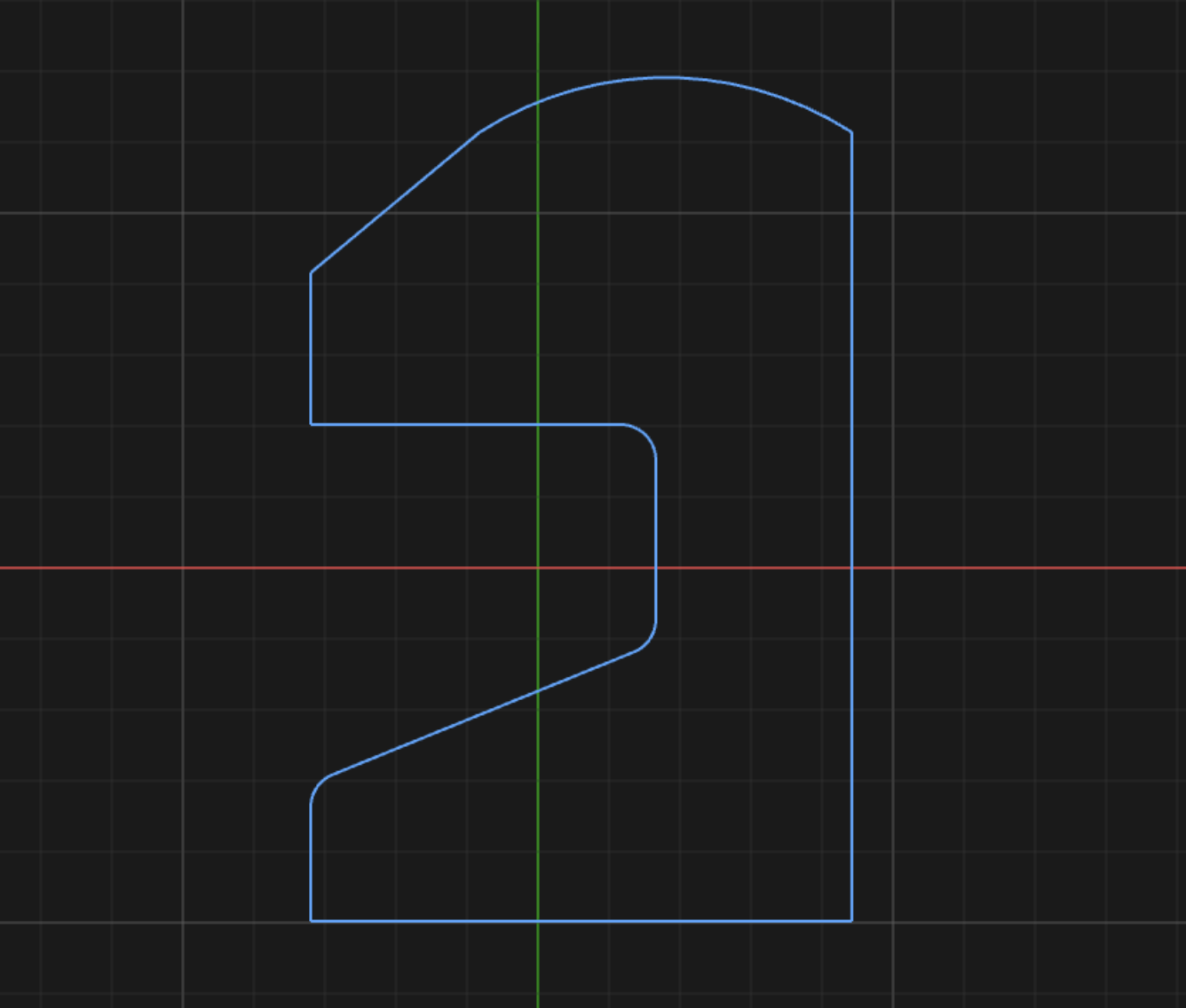
ラインなどの一般的なモデリング機能の使用, ポリライン, スプラインと円, ユーザーは、高度で簡単なモデリング ツールを使用して、閉じた形状を作成できます。. 機能を組み合わせて複雑な形状を作成できます, 閉じた形を作る限り. 例えば, ここでは線の組み合わせを使用しています, 円弧と半径/フィレット関数:
ステップ 2: 形状に切り抜きや穴を作成します (オプション)
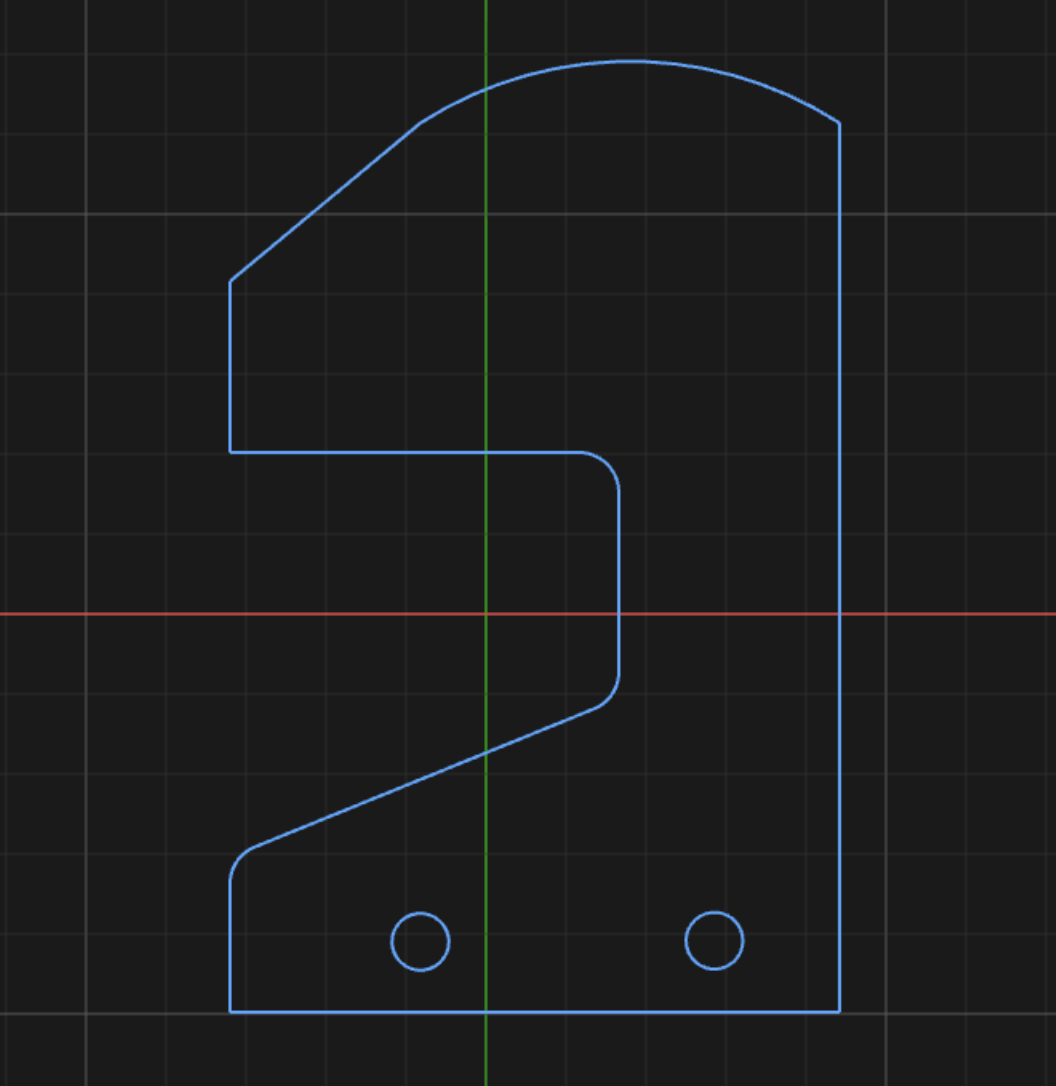
ユーザーは、断面の切り抜きまたは穴として使用する内部の閉じた形状を指定することもできます。. 例えば, 形状にいくつかの円形の穴を含めることができます:
また 3: ハッチングを作成する
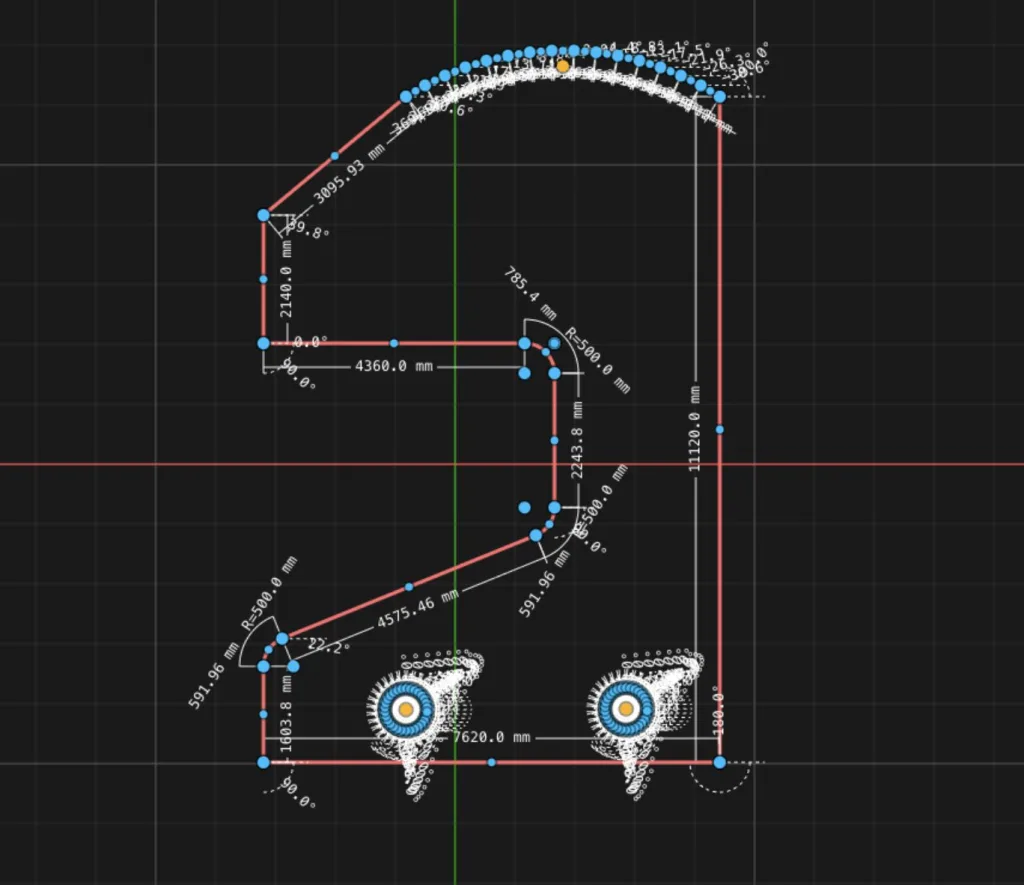
そこから, ユーザーは、セクションとして生成したい領域を強調表示して、 ハッチ (またはショートカットとして H). セクションの一部をクリックしてドラッグするだけで、ポリゴン全体を選択できます。, またはCTRL + A を使用して、キャンバス内の図形全体を選択します:
次に、ハッチング機能をクリックすると、形状のハッチングが生成されます。, そして同時に, 内部の形状を切り取る:
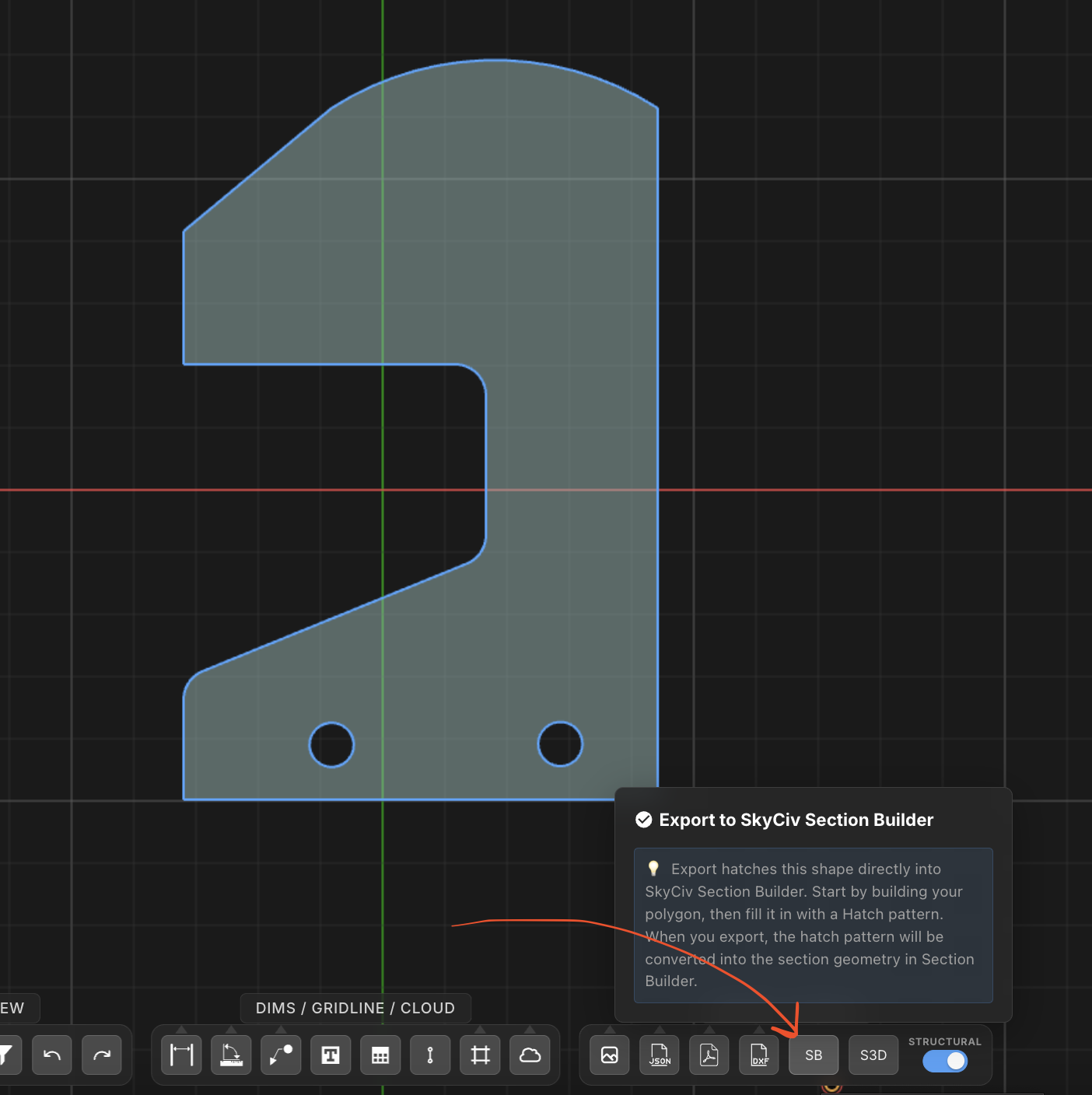
それで終わりです! クリックするだけです SBにエクスポート ボタンをクリックすると、セクション ビルダー ソフトウェア上で表示されます。:
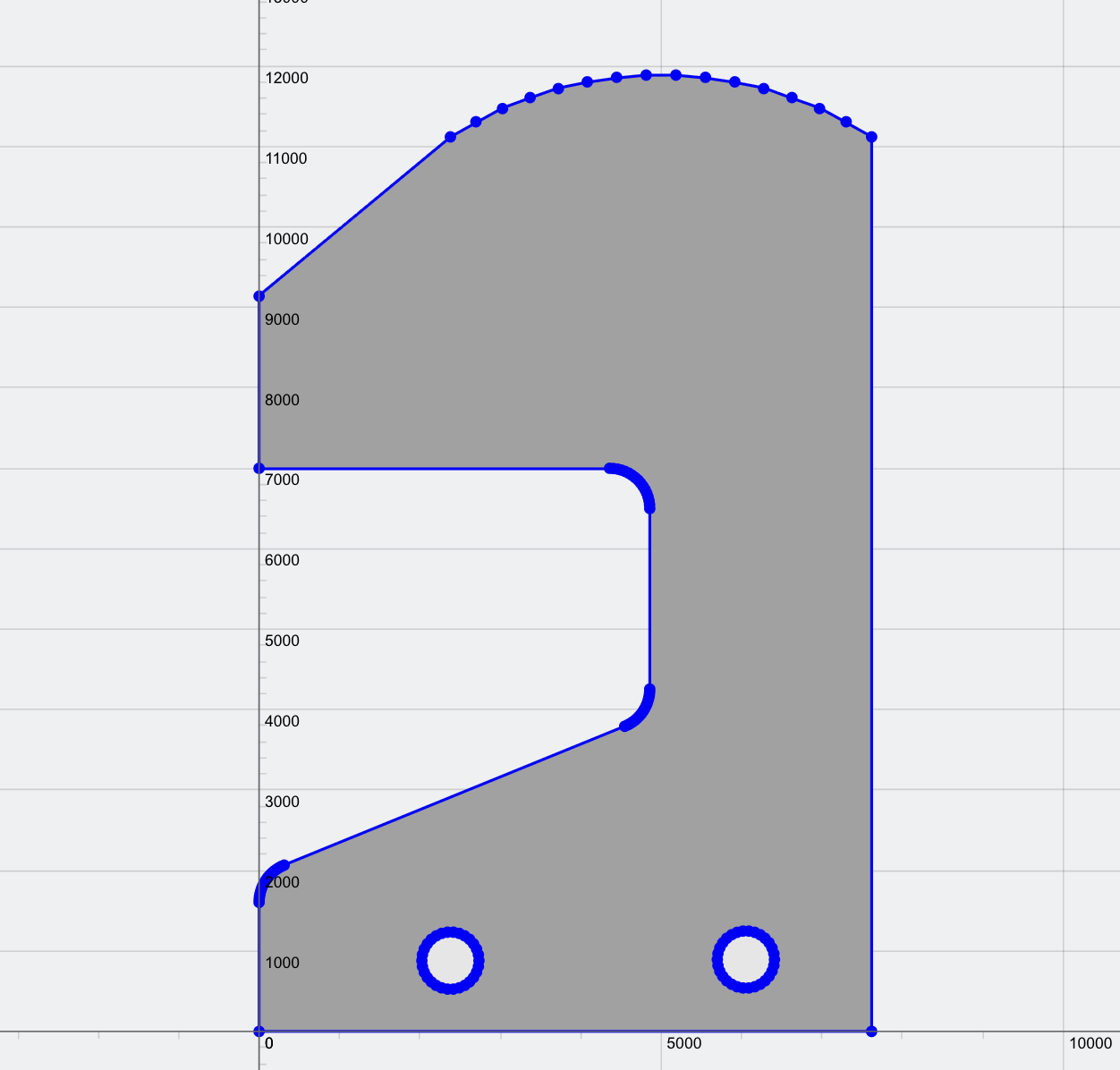
セクションビルダーでデザインを完成させる
そこから、このセクションを構造解析モデルで使用できます。, または、セクション ビルダーからその場で FEA を実行することもできます。. セクションビルダーはメッシュを生成します, ユーザーが軸方向を入力できるようにします, 曲げ, 断面を分析するためのねじり力とせん断力:
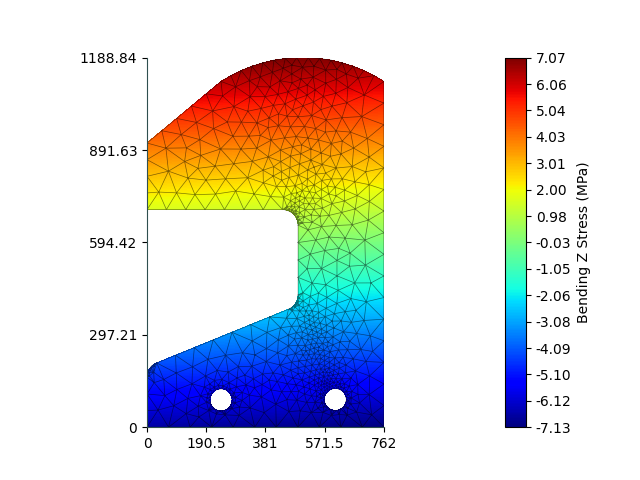
ユーザーはこのセクションをクラウド ストレージに保存することもできます, 経由 私のセクション あらゆる構造 3D 解析モデルで使用可能.
