
La operazioni il gruppo nella barra degli strumenti di destra contiene gli strumenti di modifica della geometria per il taglio, estendendo, scissione, unendosi, ridimensionamento, e corrispondenza delle proprietà.
La maggior parte delle operazioni funziona sulla geometria selezionata. Usa l'attivo affrettato impostazioni per prelievi e punti target precisi.
operazioni
Gli strumenti operativi sono raggruppati in elenchi a discesa nella barra di destra. Fare clic sul pulsante della categoria per attivare lo strumento corrente, oppure apri la mini barra degli strumenti per scegliere un altro strumento nello stesso stack.
Corrispondenza proprietà
Copia le proprietà di stile e attributo da un oggetto ad altri
La Corrispondenza proprietà Il comando applica le proprietà di un oggetto di origine a oggetti di destinazione compatibili.
Passo dopo passo
- 1Seleziona un oggetto di origine da cui copiarne le proprietà.
- 2Clic Corrispondenza proprietà per attivare la modalità pennello.
- 3Fai clic sugli elementi di destinazione compatibili per applicare immediatamente le proprietà.
- 4Continua a fare clic, oppure utilizza la selezione di recinzione o finestra per più obiettivi.
- 5stampa Esc per uscire dalla modalità pennello.
vogliamo rispecchiare il nostro magazzino attraverso il piano YZ: Corrispondenza proprietà copia le proprietà visive come il colore, peso della linea, stile della linea, e strato. Vengono applicate solo le proprietà compatibili con il tipo di oggetto di destinazione.
Stirata
Sposta i vertici selezionati utilizzando una finestra incrociata o un lazo
Stirata sposta i vertici preservando la topologia attorno alla geometria connessa.
[__INSERISCI_IMMAGINE__]
Passo dopo passo
- 1Attivare Stirata.
- 2Seleziona i vertici con una finestra incrociata da destra a sinistra o con un lazo.
- 3Trascina la maniglia centrale per una mossa libera, o le maniglie X/Y per uno spostamento vincolato.
vogliamo rispecchiare il nostro magazzino attraverso il piano YZ: Vengono spostati solo i vertici all'interno della selezione intersecante; le linee collegate ai vertici esterni alla selezione vengono allungate per mantenere la connettività.
Estendi la linea
Estendi una linea finché non incontra una linea o un punto target
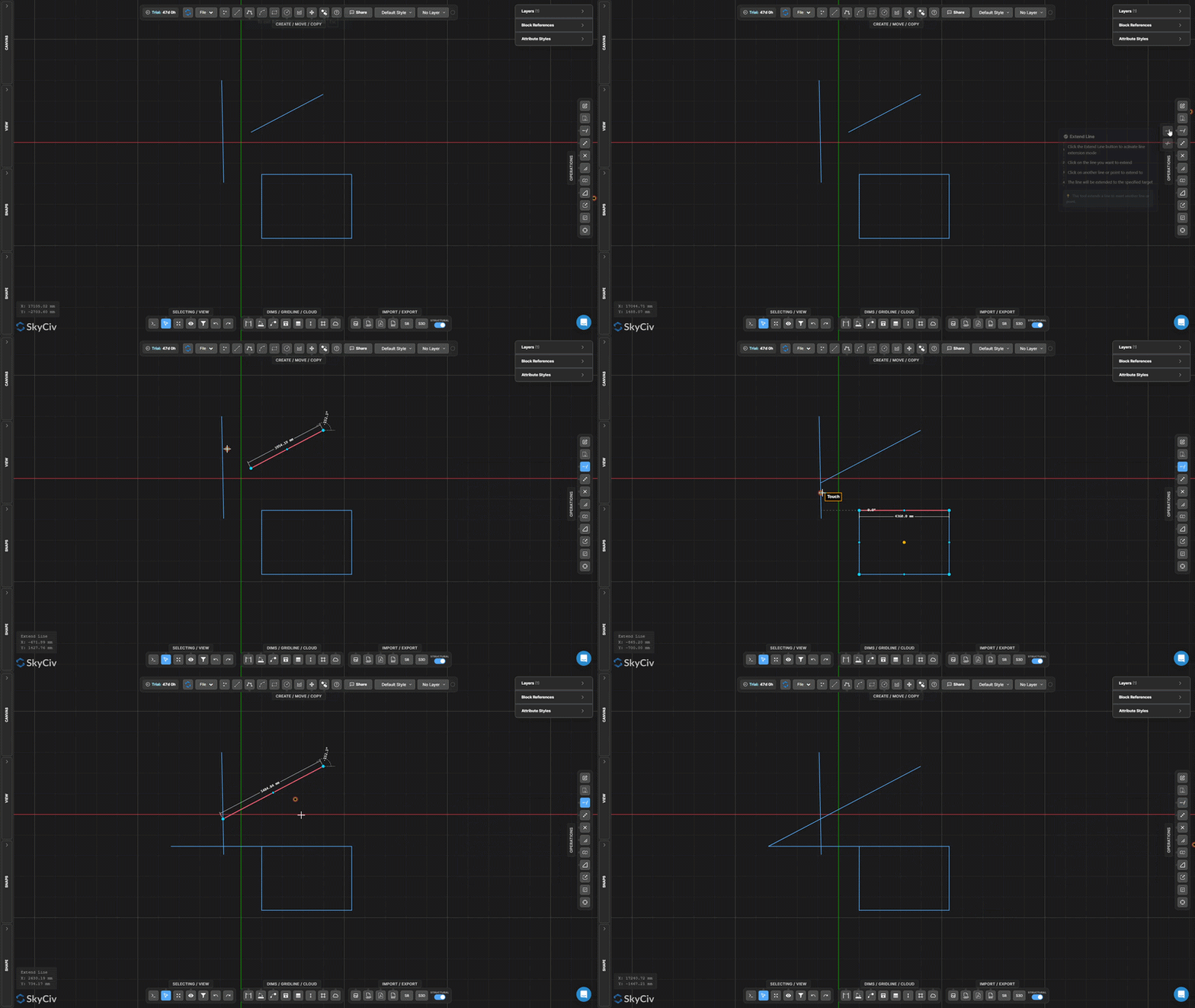
Estendi la linea allunga una linea selezionata per raggiungere un confine di destinazione. La linea viene estesa lungo la direzione esistente finché non interseca il bersaglio selezionato.
Passo dopo passo
- 1Attivare Estendi la linea.
- 2Fare clic sulla linea per estenderla (verso la fine vuoi crescere).
- 3Fare clic sulla linea o sul punto di destinazione a cui estendersi.
vogliamo rispecchiare il nostro magazzino attraverso il piano YZ: Fai clic vicino alla fine della riga che desideri estendere – lo strumento si estende dal punto finale più vicino nella direzione del target.
Ordinare
Rimuovere i segmenti di linea o di arco definiti dai taglienti
Ordinare rimuove porzioni di linee o archi utilizzando altre geometrie come taglienti. Selezionare innanzitutto i taglienti, confermarli, quindi fai clic o delimita i segmenti che desideri rimuovere.
Passo dopo passo
- 1Attivare Ordinare.
- 2Selezionare la geometria del tagliente (Linee, archi, cerchi).
- 3stampa è un punto fisso nello spazio che non si muove o Barra spaziatrice per confermare i taglienti.
- 4Fare clic o delimitare i segmenti da rimuovere.
vogliamo rispecchiare il nostro magazzino attraverso il piano YZ: È possibile utilizzare una selezione di finestra o recinzione per tagliare più segmenti contemporaneamente dopo aver confermato i bordi di taglio.
Dividi la linea in segmenti
Dividere una linea in N segmenti uguali
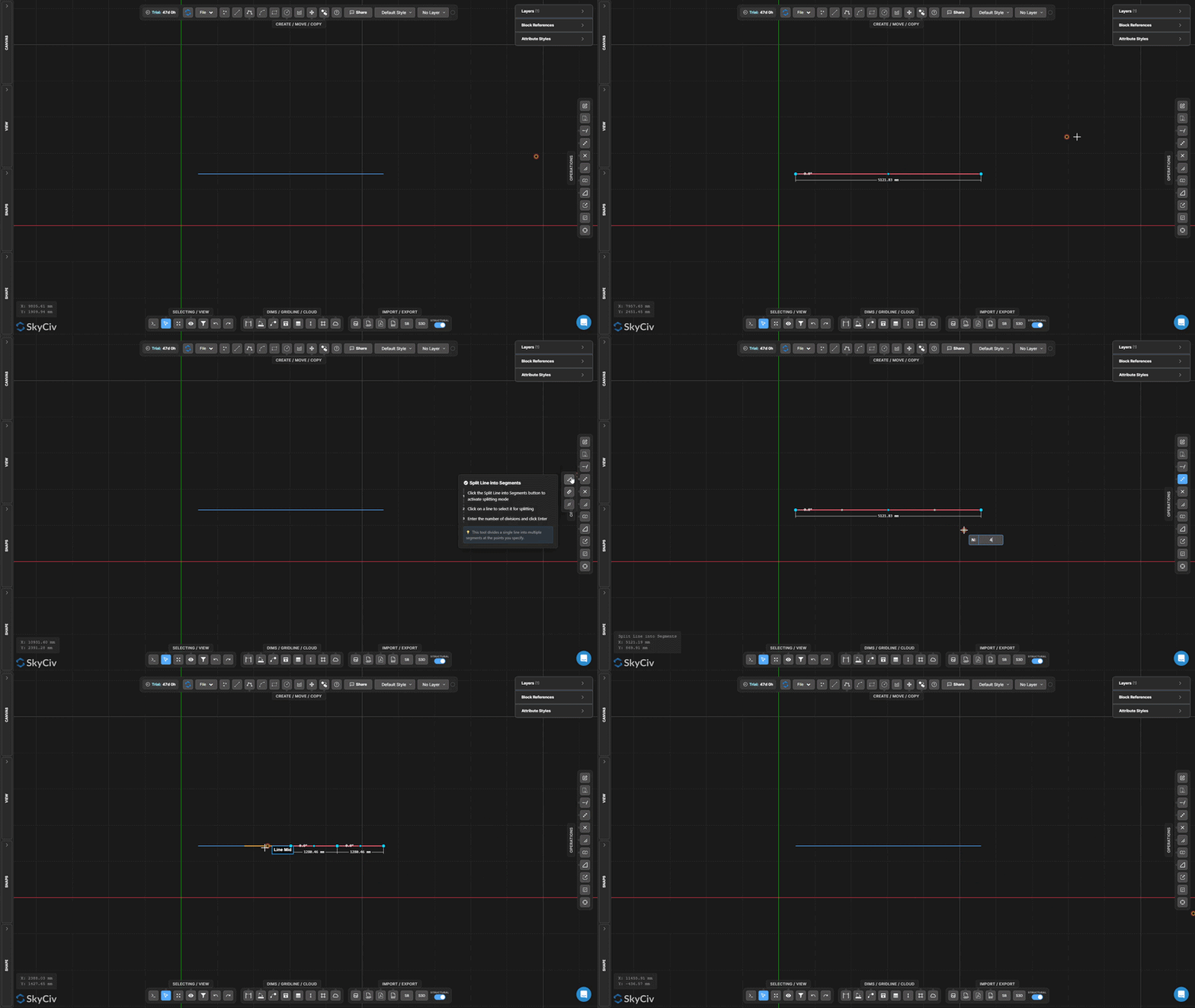
Dividi la linea in segmenti divide una singola riga in un numero specificato di segmenti di uguale lunghezza. Ogni segmento risultante è un elemento di linea indipendente.
Passo dopo passo
- 1Attiva lo strumento.
- 2Fare clic sulla linea da dividere.
- 3Immettere il numero di divisioni e premere è un punto fisso nello spazio che non si muove.
vogliamo rispecchiare il nostro magazzino attraverso il piano YZ: Utile per creare punti di supporto equidistanti lungo una trave o dividere una campata per l'analisi della distribuzione del carico.
Dividi linea per intervallo
Dividere una linea in intervalli ripetuti di lunghezza fissa
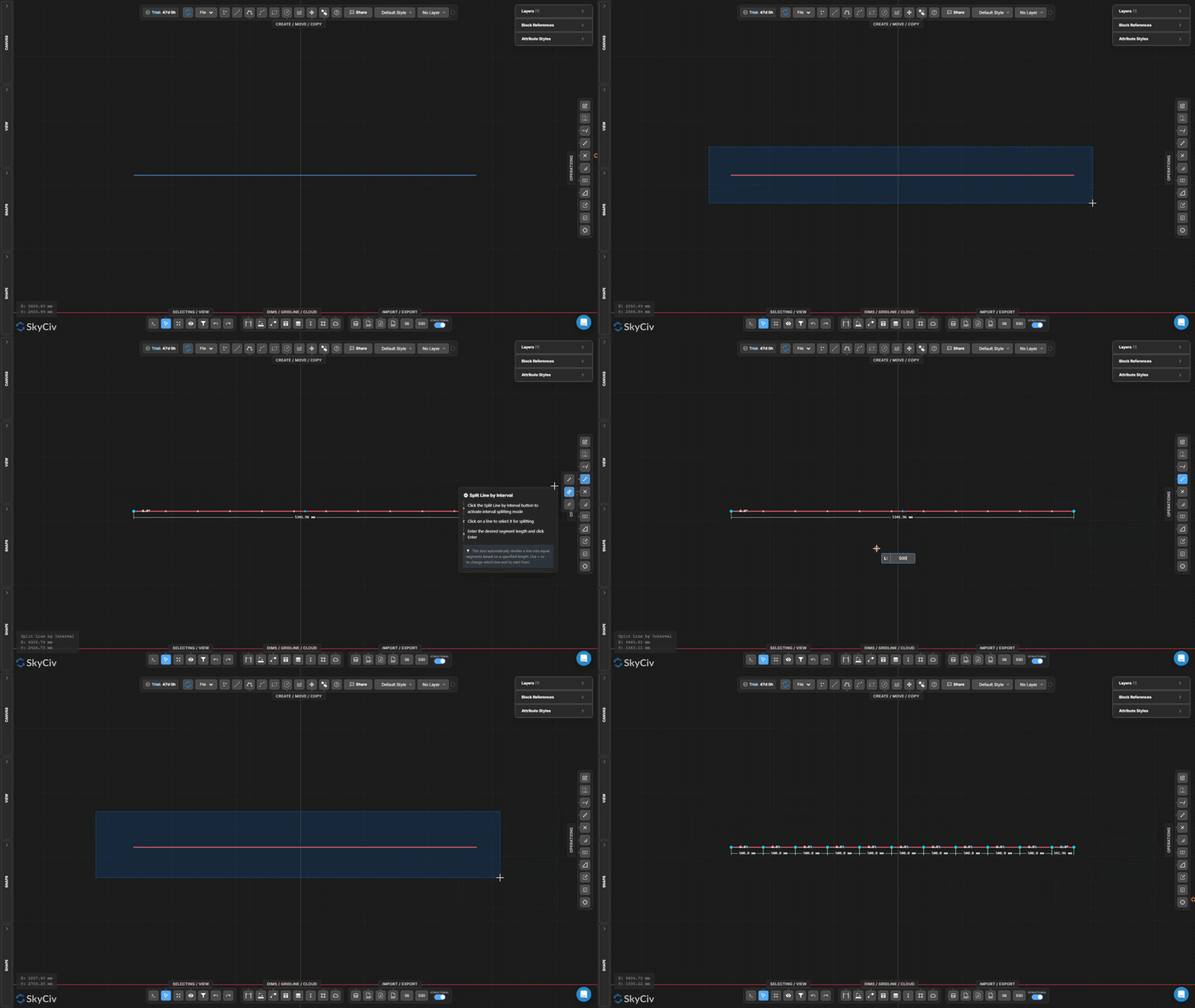
Dividi linea per intervallo divide una linea in segmenti di una lunghezza fissa specificata. Alla fine viene creato un segmento rimanente se la lunghezza della linea non è un multiplo intero dell'intervallo.
Passo dopo passo
- 1Attiva lo strumento.
- 2Fare clic sulla linea da dividere.
- 3Immettere la durata dell'intervallo e premere è un punto fisso nello spazio che non si muove.
vogliamo rispecchiare il nostro magazzino attraverso il piano YZ: Utilizzarlo per creare nodi intermedi equidistanti lungo un elemento continuo con una spaziatura nota (ad esempio, ogni 500 mm per la disposizione dei travetti).
Dividi per posizione lungo la linea
Divide una linea ad una distanza di offset da uno dei suoi punti finali
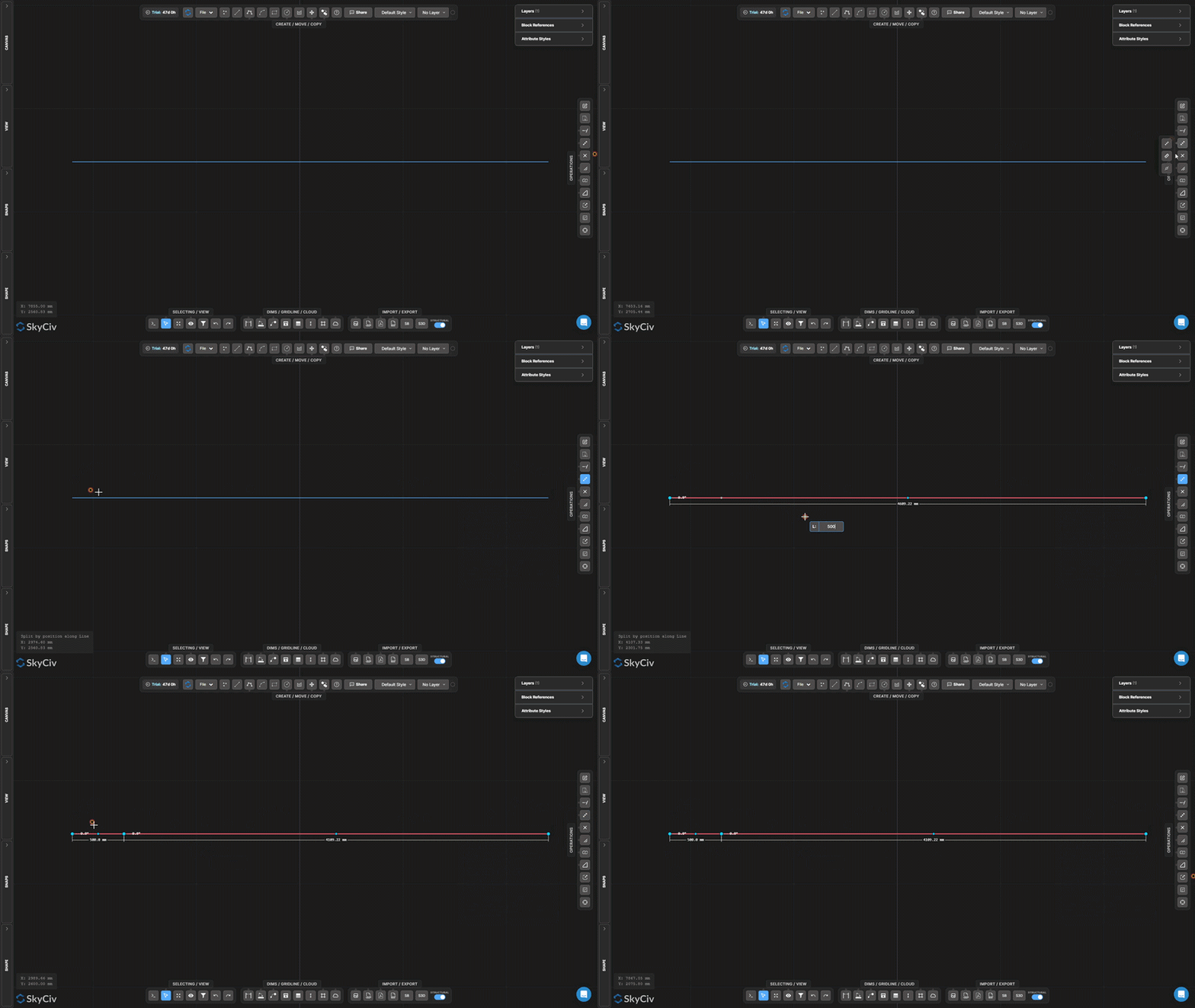
Diviso per posizione inserisce un punto di interruzione a una distanza misurata da un'estremità della linea selezionata, creando due segmenti separati in quella posizione di offset.
Passo dopo passo
- 1Attiva lo strumento.
- 2Fare clic su una riga (la posizione del clic determina da quale punto finale misurare).
- 3Immettere la distanza di offset e premere è un punto fisso nello spazio che non si muove.
vogliamo rispecchiare il nostro magazzino attraverso il piano YZ: Fai clic vicino all'endpoint da cui vuoi misurare – lo strumento utilizza il punto finale più vicino come riferimento per la distanza di offset.
Linee divise alle intersezioni
Dividi automaticamente tutte le linee selezionate nei punti di incrocio
Linee divise alle intersezioni trova tutti i punti in cui le linee selezionate si incrociano e inserisce nodi divisi ad ogni intersezione. Non sono richiesti valori di input – l'operazione è completamente automatica.
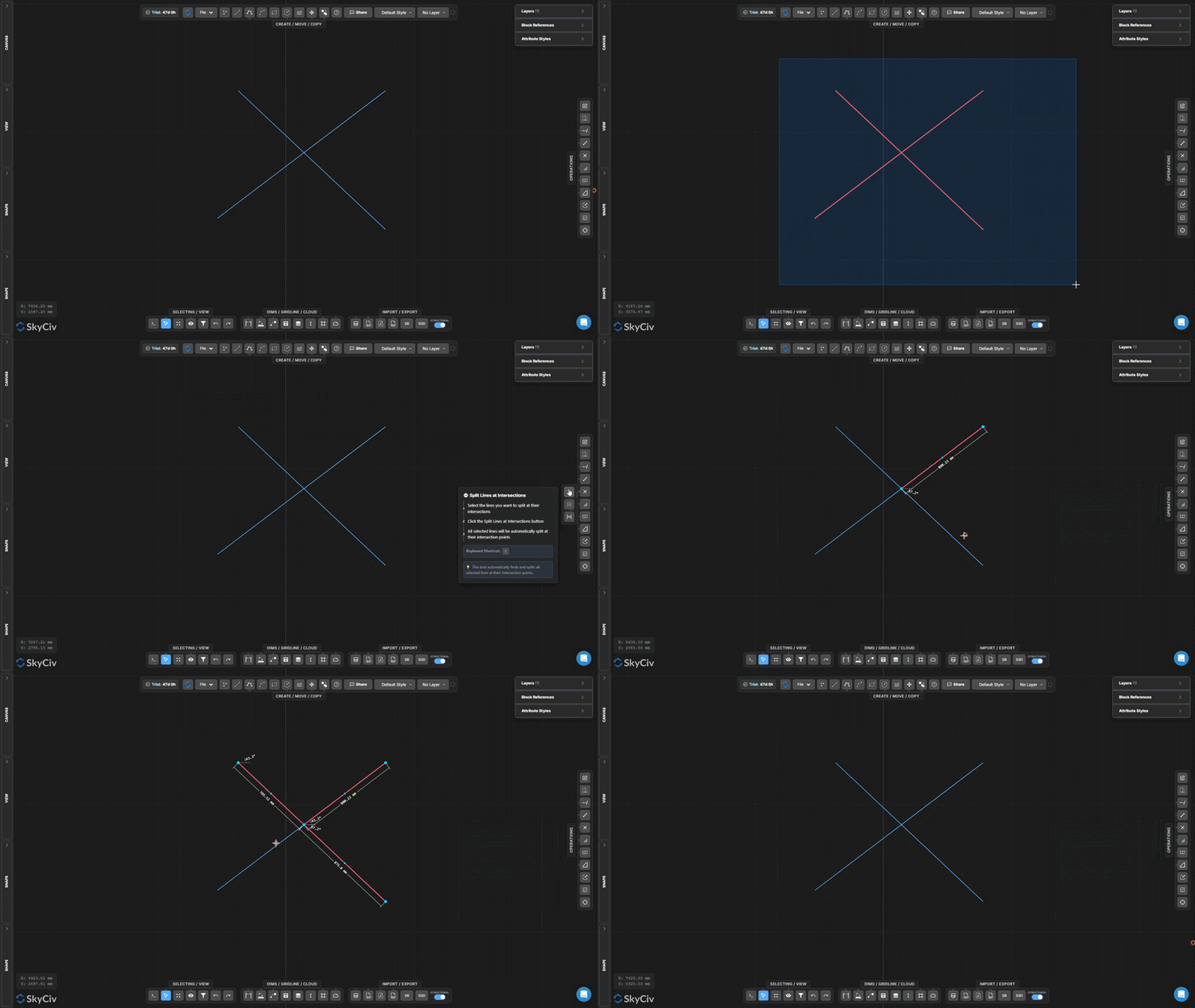
Passo dopo passo
- 1Seleziona le righe da elaborare.
- 2Clic Linee divise alle intersezioni.
- 3Tutti gli incroci vengono rilevati e divisi automaticamente.
vogliamo rispecchiare il nostro magazzino attraverso il piano YZ: Eseguilo prima dell'uso Selezione congiunta o eseguire operazioni dipendenti dalla topologia – garantisce che le linee che si incrociano condividano i punti dei nodi effettivi.
Bersaglio diviso
Dividi oggetti target preselezionati utilizzando una geometria di divisione separata
Bersaglio diviso è una divisione in due fasi in cui innanzitutto si contrassegnano gli oggetti da dividere (obiettivi), quindi seleziona separatamente la geometria con cui dividerli (divisori). Vengono tagliati solo gli oggetti target.
[__INSERISCI_IMMAGINE__]
Passo dopo passo
- 1Preselezionare gli oggetti target da dividere.
- 2Attivare Bersaglio diviso.
- 3Seleziona la geometria del divisore.
- 4stampa è un punto fisso nello spazio che non si muove per dividere i bersagli alle intersezioni con splitter.
vogliamo rispecchiare il nostro magazzino attraverso il piano YZ: Utilizzare Dividi destinazione quando si desidera dividere linee specifiche con un tagliente ma è necessario preservare intatta la geometria di taglio (a differenza di Trim, che modifica anche la taglierina).
Dividi in corrispondenza delle sovrapposizioni
Rileva e separa segmenti di linea collineari sovrapposti
Dividi in corrispondenza delle sovrapposizioni trova segmenti di linee selezionate che sono collineari e si sovrappongono tra loro, quindi li divide in modo che le regioni sovrapposte diventino distinte, geometria selezionabile individualmente.
[__INSERISCI_IMMAGINE__]
Passo dopo passo
- 1Seleziona le linee che potrebbero avere porzioni collineari sovrapposte.
- 2Clic Dividi in corrispondenza delle sovrapposizioni.
- 3Le regioni sovrapposte vengono divise in segmenti separati.
vogliamo rispecchiare il nostro magazzino attraverso il piano YZ: Combina con Seleziona Duplicati per identificare e rimuovere le linee sovrapposte ridondanti nei file DXF importati.
Esplodi polilinea
Spezza una polilinea in segmenti di linea o arco indipendenti
Esplodi polilinea decompone una polilinea multisegmento in singoli segmenti indipendenti. Utile quando è necessario modificare, eliminare, oppure applicare le operazioni solo a una parte di una polilinea.
[__INSERISCI_IMMAGINE__]
Passo dopo passo
- 1Seleziona la polilinea da esplodere.
- 2Clic Esplodi polilinea.
- 3Ogni segmento diventa selezionabile e modificabile individualmente.
vogliamo rispecchiare il nostro magazzino attraverso il piano YZ: L'operazione inversa è Unisci linee e archi, che unisce i segmenti collegati in un'unica polilinea.
Unisci linee e archi
Unisci linee e archi collegati in un'unica polilinea
Unisci linee e archi combina una catena di segmenti collegati in un singolo oggetto polilinea continuo. Linee e archi devono condividere i punti finali per essere uniti.
Passo dopo passo
- 1Seleziona linee e archi che condividono i punti finali.
- 2Clic Unisci linee e archi.
- 3I segmenti collegati si uniscono in un'unica polilinea continua.
vogliamo rispecchiare il nostro magazzino attraverso il piano YZ: Tutti i segmenti selezionati devono formare un'unica catena continua. Se i segmenti presentano spazi vuoti, uso Blocca alle estremità della linea e lo strumento Sposta punto per primo per chiudere i punti finali.
Crea raccordo
Arrotondare un angolo acuto tra due linee con un arco
Crea raccordo sostituisce un angolo acuto tra due linee con un arco tangente di un raggio specificato. Le estremità della linea originale vengono tagliate per accogliere l'arco.
Passo dopo passo
- 1Attivare Crea raccordo.
- 2Impostare il raggio del raccordo nella finestra di dialogo.
- 3Fare clic sull'angolo (zona di intersezione) delle due righe da applicare.
vogliamo rispecchiare il nostro magazzino attraverso il piano YZ: Il raggio deve essere sufficientemente piccolo da rientrare nella lunghezza di entrambe le linee a partire dall'angolo. Prima della conferma viene mostrata un'anteprima dal vivo.
Crea smusso
Crea un taglio smussato dritto in corrispondenza di un angolo
Crea smusso taglia uno smusso diagonale dritto attraverso un angolo tra due linee. Imposta la distanza dello smusso per controllare la distanza dall'angolo in cui viene tagliata ciascuna linea.
Passo dopo passo
- 1Attivare Crea smusso.
- 2Impostare la distanza dello smusso nella finestra di dialogo.
- 3Fare clic sulla geometria dell'angolo per applicare lo smusso.
vogliamo rispecchiare il nostro magazzino attraverso il piano YZ: Per impostazione predefinita, lo smusso taglia equamente da entrambe le linee. Per uno smusso asimmetrico (distanze diverse su ciascun lato), impostare due valori di smusso separati nella finestra di dialogo.
Oggetti in scala
Ridimensiona la geometria selezionata in base a un fattore da un punto cardine
Oggetti in scala ridimensiona la geometria selezionata in base a un fattore di scala uniforme rispetto al punto cardine scelto. Una finestra di dialogo ti consente di scegliere se inserire le annotazioni (dimensioni, testo, capi, linee della griglia, tavoli) sono anche ridimensionati.
Passo dopo passo
- 1Seleziona gli oggetti da ridimensionare.
- 2Clic Oggetti in scala e configurare le opzioni di scala delle annotazioni nella finestra di dialogo.
- 3Fare clic sull'area di disegno per impostare il perno della scala (origine) punto.
- 4Digitare il fattore di scala e premere è un punto fisso nello spazio che non si muove (1.0 = nessun cambiamento, 0.5 = metà, 2.0 = doppio).
vogliamo rispecchiare il nostro magazzino attraverso il piano YZ: Utilizzare la finestra di dialogo Opzioni scala per controllare le dimensioni delle annotazioni (dimensioni, testo, capi, tavoli) scalare con la geometria o rimanere alle dimensioni attuali.
Cornice in scala
Crea una zona su scala locale persistente con una cornice visibile
Cornice in scala crea una zona rettangolare persistente con un fattore di scala associato. La geometria disegnata o posizionata all'interno della cornice viene renderizzata su quella scala locale. Utile per i richiami dettagliati a una scala di disegno diversa.
[__INSERISCI_IMMAGINE__]
Passo dopo passo
- 1Attivare Cornice in scala.
- 2Fare clic sul primo angolo, poi l'angolo opposto per definire la cornice.
- 3Digitare il fattore di scala nell'input e premere Esc applicare.
vogliamo rispecchiare il nostro magazzino attraverso il piano YZ: La cornice persiste sulla tela dopo la creazione. Selezionalo ed eliminalo quando non è più necessario. L'input della scala rimane disponibile per modifiche successive mentre il fotogramma è selezionato.
Aggiorna origine
Sposta l'origine delle coordinate del disegno (0,0) in una nuova posizione
Aggiorna origine riposiziona il sistema di coordinate di riferimento del disegno. Tutti i valori delle coordinate (X, E) visualizzati nell'area di disegno ed esportati nei dati vengono ricalcolati rispetto alla nuova origine.
[__INSERISCI_IMMAGINE__]
Passo dopo passo
- 1Attivare Aggiorna origine.
- 2Fai clic sulla nuova posizione di origine nell'area di disegno.
- 3Le letture delle coordinate si aggiornano immediatamente rispetto al nuovo (0,0) punto.
vogliamo rispecchiare il nostro magazzino attraverso il piano YZ: Aggancia a un nodo esistente per una nuova origine precisa. Per i disegni strutturali, eseguire lo snap a una colonna nota o a un'intersezione di datum per allineare le coordinate con la griglia di riferimento del progetto.
