
SkyCiv Project Manager bevat een ingebouwde Report Manager waarmee u rapporten die in uw SkyCiv-modellen zijn opgeslagen, kunt combineren in één enkele PDF, of download ze afzonderlijk. Starten, Ga naar het tabblad Rapporten in het menu Projectmanager aan de linkerkant.
Met behulp van de Rapportbuilder
Met de rapportbouwer kunt u rapporten maken met een titelpagina en inhoudsopgave. Starten, Klik op de Rapportbouwer knop in de rechterbovenhoek.
Stap 1: Kies een sjabloon
Kies een sjabloon voor de titelpagina en de inhoudsopgave met behulp van de sjabloonschuifregelaar; schuif naar links of rechts om een voorbeeld van de sjablonen te bekijken, en klik Selecteer om uw sjabloon te kiezen. Er zijn vijf beschikbare sjablonen.
Stap 2: Vul gegevens in
Met deze stap kunt u projectdetails invullen. Als u dat in deze stap wilt, kunt u de titelpagina en de inhoudsopgave overslaan. Details worden automatisch opgehaald uit uw projectinstellingen; echter, als u deze voor het rapport wilt wijzigen, dat kun je doen. Als u dit doet, worden uw opgeslagen projectgegevens niet aangepast.
Stap 3: Rapportvolgorde
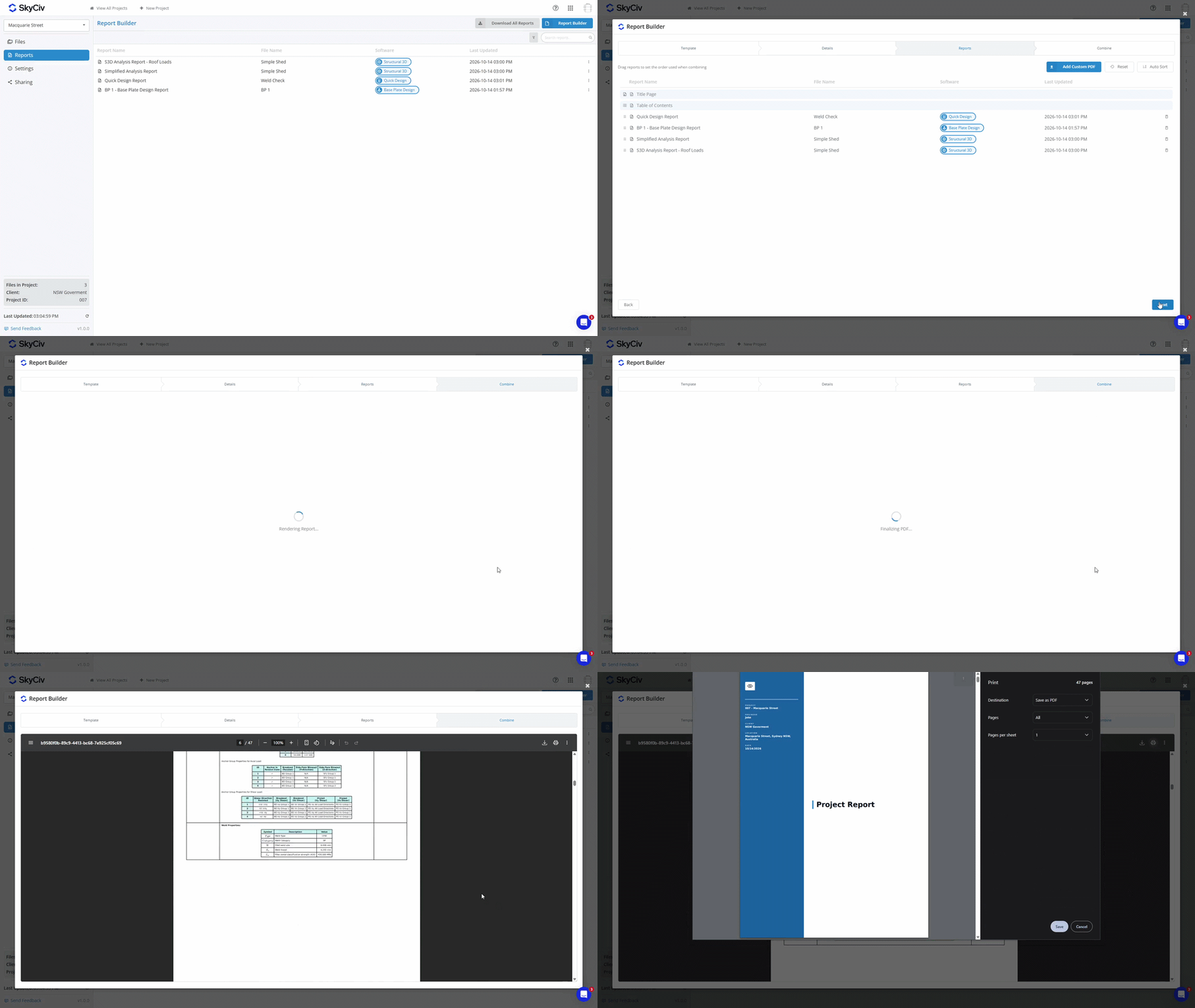
Kies in welke volgorde u uw rapporten wilt hebben zodra ze zijn gecombineerd. Sleep rapporten rond of gebruik de Automatisch sorteren opties om rapporten automatisch te ordenen op bestands-/rapportnaam, softwaremodule, of laatst bijgewerkte tijd. U kunt in deze stap ook aangepaste PDF-documenten uploaden die u in het eindrapport wilt opnemen.
Stap 4: Combineren
Klik op de Combineren tabblad om het gecombineerde PDF-rapport te genereren. Om te downloaden, klik op het downloadpictogram linksboven in het voorbeeldvenster.
Alle rapporten downloaden
Als u in plaats daarvan alle rapporten als afzonderlijke PDF's in een ZIP-bestand wilt downloaden, U kunt dit bereiken door gebruik te maken van de Alle rapporten downloaden knop.

Rapporten bekijken
Dubbelklik op een rapport om het in een nieuw tabblad te bekijken. Alternatief, u kunt met de rechtermuisknop op een rapport klikken om een link naar het rapport te kopiëren of het SkyCiv-bestand met betrekking tot het rapport te bekijken.

