
The SkyCiv File Manager is where you organize, buscar, share and manage the files you save in SkyCiv’s cloud-based structural software, such as Structural 3D, Beam and the design modules. Pick the software your file was saved in on the left, then browse to the folder that holds it.
Opening the File Manager
From your SkyCiv Dashboard, haga clic en Administrador de archivos debajo Espacio de trabajo in the panel on the right. You can also click Show All Files next to your Recent Files, o el Archivos link on a software’s card to go straight to the files of that software.
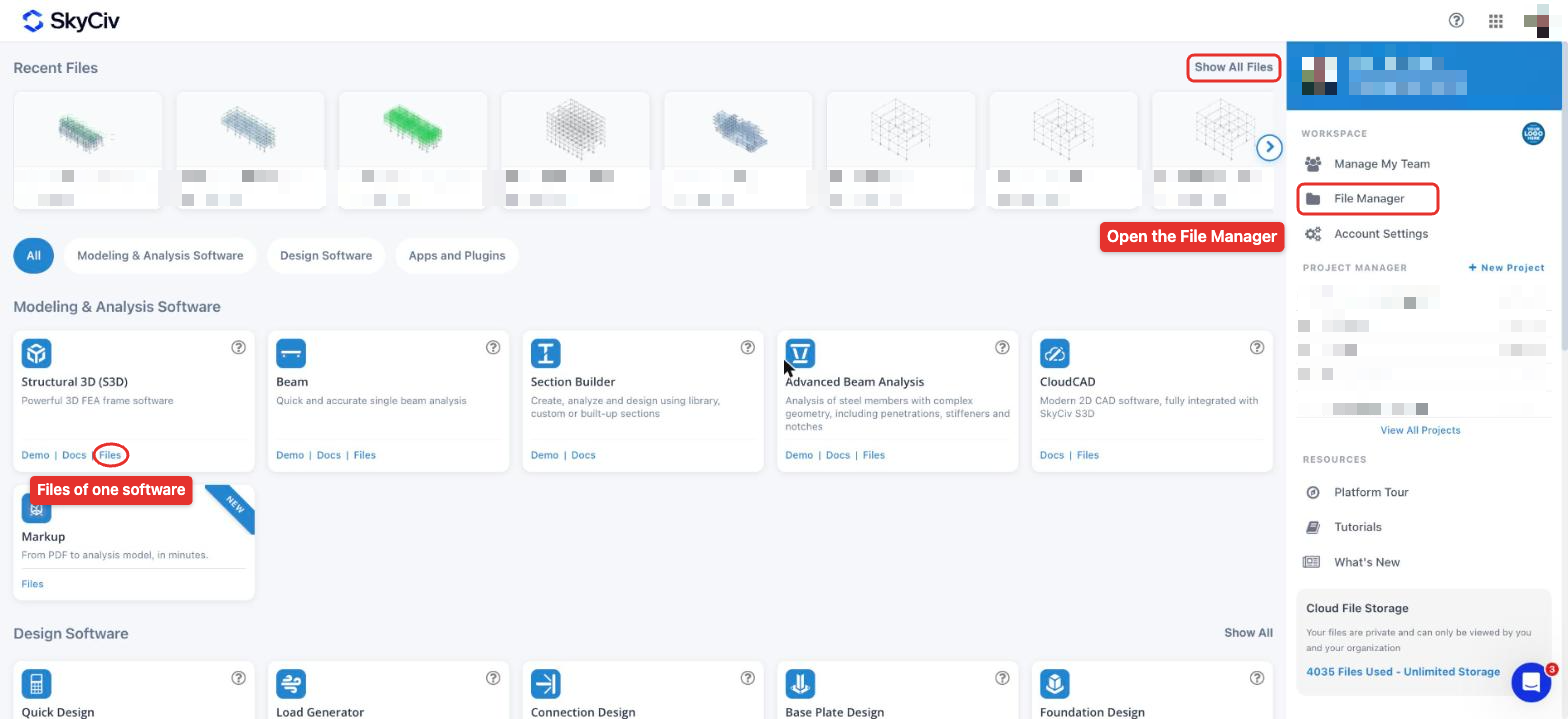
Administrador de archivos principal
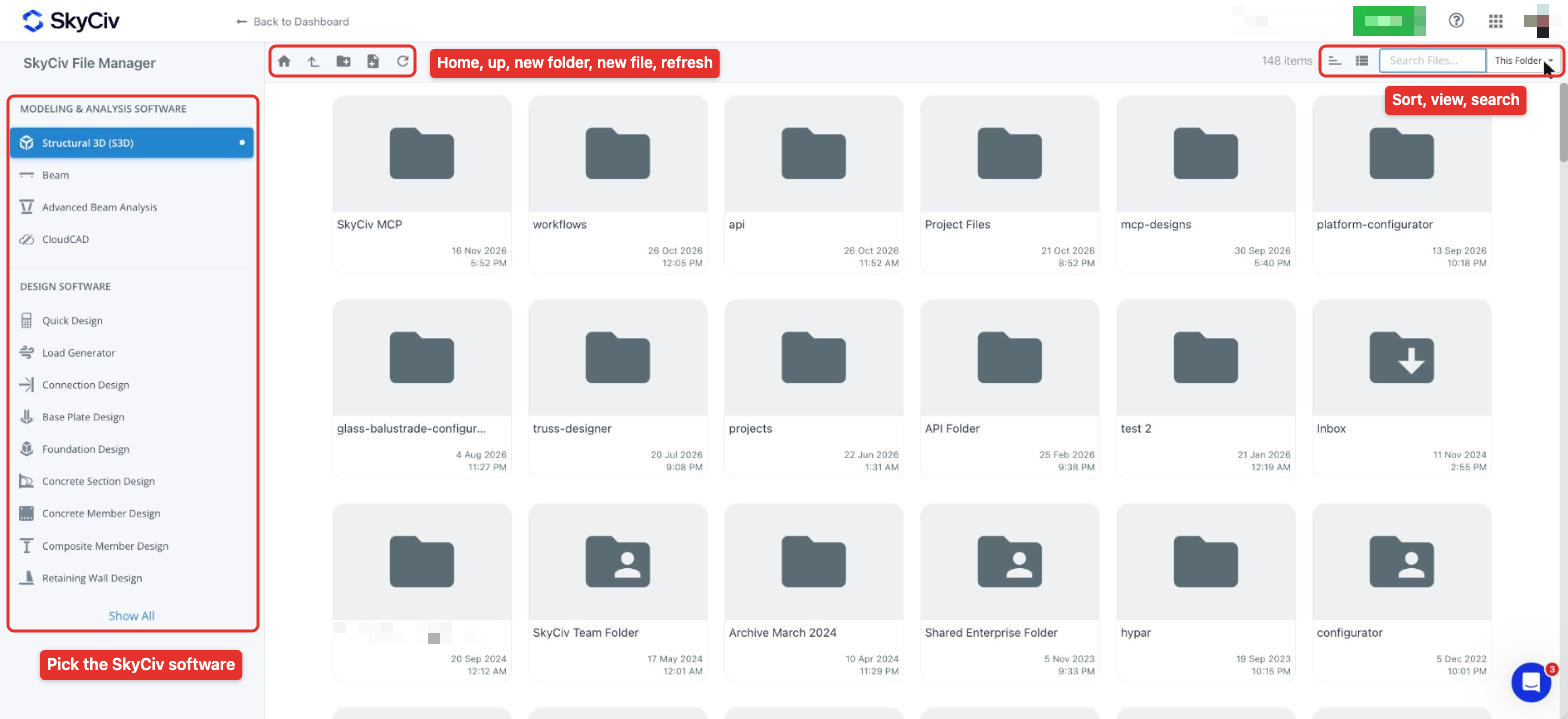
The left panel lists the SkyCiv software, grouped into Modelado & Software de Análisis y Software de Diseño (haga clic en Mostrar todo for the rest). Each software keeps its own files and folders. The toolbar above the files lets you go to the root folder, go up to the parent folder, create a new folder, start a new file in the selected software and refresh the folder contents. A la derecha, you can sort the files (newest, oldest, names A-Z or Z-A), switch between the tile and list views, y buscar.
Structural 3D models show a preview of the model and a count of its nodes (norte), elementos (M), placas (PAG) y placas de malla (MP), with the date of the last save.
El Administrador de archivos tiene la siguiente funcionalidad para una fácil administración de archivos:
- Crea nuevas carpetas y subcarpetas
- Busca para encontrar tus modelos rápidamente
- Drag and drop to move files and folders
- Select multiple files using the Ctrl/Shift keys
- Rename and delete files
- Restore previous versions of models
- Share files and folders with other SkyCiv users
Right-click options
Right-click a file to see what you can do with it:
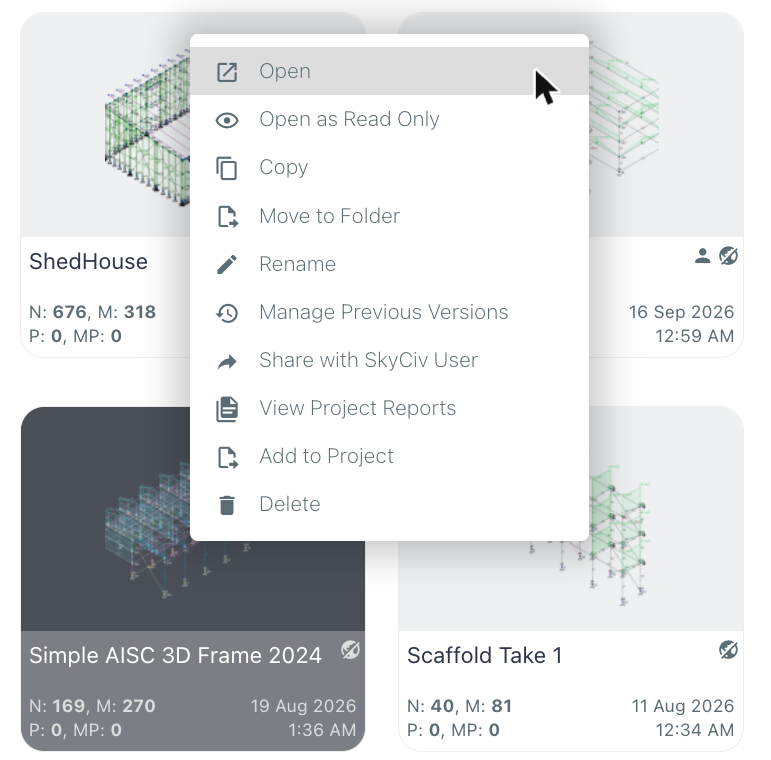
- Abierto o Open as Read Only
- Copiar, Move to Folder, Rebautizar y Eliminar
- Administrar versiones anteriores, to review and restore earlier saves of the model
- Compartir con el usuario de SkyCiv
- Ver informes de proyectos y Agregar al proyecto, to work with the file in a SkyCiv project
Search options
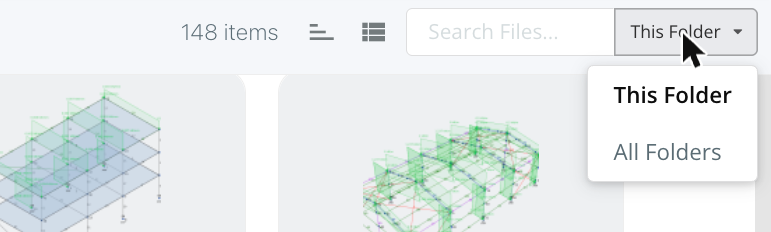
Click the search icon at the top right to open the search box. You can choose from two options to help you quickly find the file or files you need. Con Comparta archivos y carpetas con los usuarios de SkyCiv, you only search the files in the current folder (files that match the search term in other folders are ignored). Con Comparta archivos y carpetas con los usuarios de SkyCiv, the search returns all files that match your search term, whichever folder they are in. En ambos casos, the search only shows files of the software selected on the left-hand side.
Compartir archivos
Dado que SkyCiv está basado en la nube, puede compartir archivos fácilmente con otros usuarios de SkyCiv. Right-click the model and click Compartir con el usuario de SkyCiv. Enter the emails of the SkyCiv users to share with, then choose between two options: Compartir the model with them in real time (el valor por defecto), o Enviar copia so they get their own copy and can modify it without affecting your model. When sharing, you also choose whether they Puede editar y Puede compartir the file.
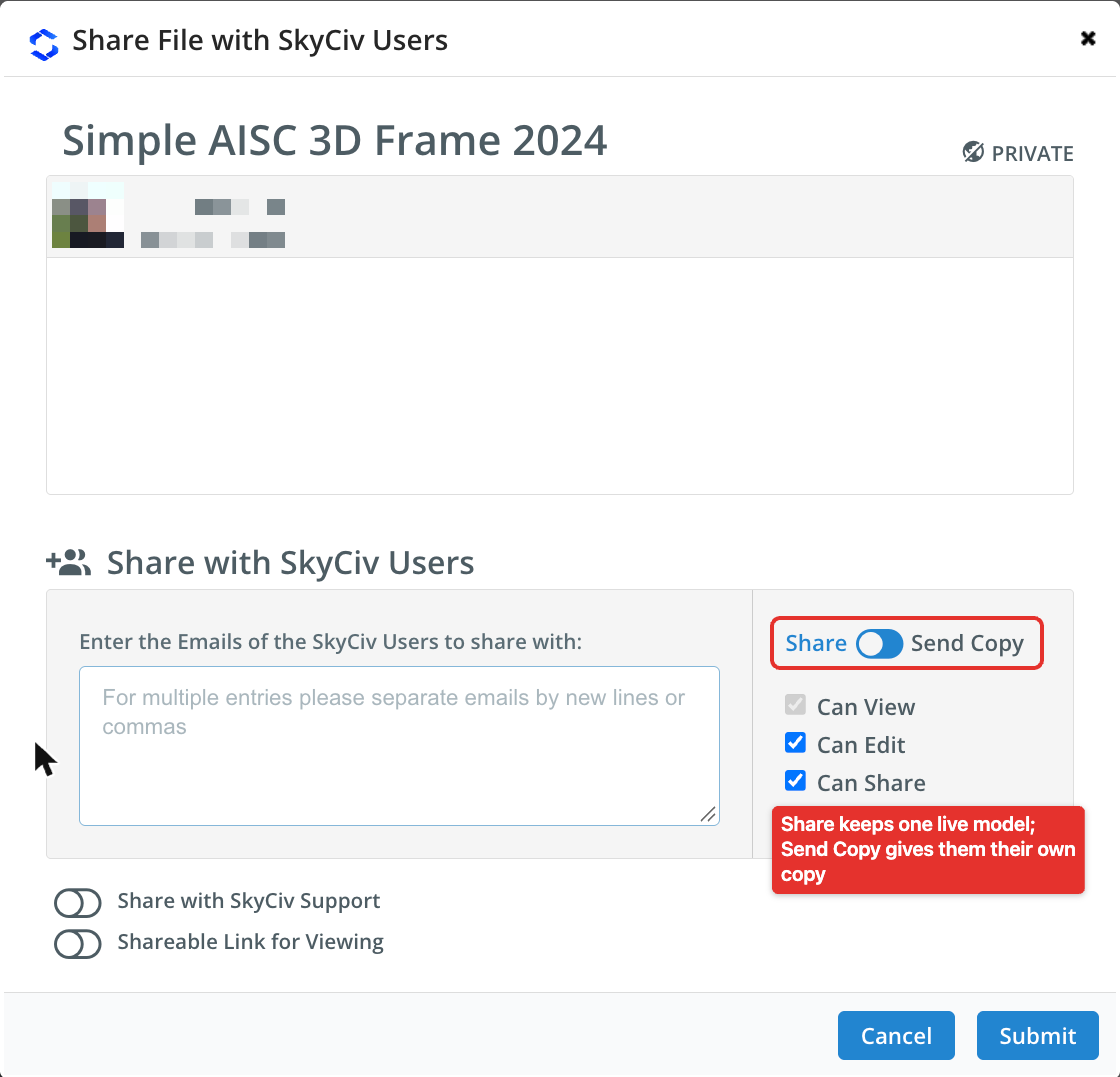
Los archivos que se han compartido contigo aparecen automáticamente en tu Comparte conmigo carpeta. Las personas con las que compartes también reciben un correo electrónico para informarles que se ha compartido un modelo con ellas..
Más información en sharing files in SkyCiv.
Control de revisión
Todas sus revisiones y guardados anteriores se almacenan dentro de un modelo, para que pueda revisar e incluso revertir revisiones anteriores en cualquier momento. Este es otro beneficio del almacenamiento en la nube de SkyCiv: todos los miembros de un equipo tienen una sola fuente de verdad, and everyone can review and keep up to date with any changes to your model. Revision control can be reviewed from the File Manager (right-click a file and click Administrar versiones anteriores) or within the model itself:

Más información sobre revision control of your models.
Otros ajustes
Los usuarios tienen control sobre algunas configuraciones de administración de archivos bajo Configuraciones de la cuenta -> Configuraciones de software. From here they can turn on autosaving, where your model saves itself every minute. This is designed so that you don’t need to think about saving your file to protect your progress against computer or browser crashes. Users can also control what appears in their File Manager (for instance the Public User Folder) and the view in which the File Manager is displayed (vista en mosaico o vista de lista).
¿Dónde se almacenan mis archivos??
Sus archivos se almacenan en el servidor seguro de SkyCiv en Chicago, Estados Unidos, which is both SOC1 and SOC2 compliant. Business Accounts can integrate the file storage system with their own FTPs and servers.
¿Están mis archivos seguros??
SkyCiv almacena a nuestros usuarios’ archivos en nuestros servidores seguros, al que solo pueden acceder el usuario y los desarrolladores de SkyCiv. SkyCiv también cuenta con sistemas para proteger su información de cualquier persona que no haya iniciado sesión con su cuenta..
¿Mis archivos están respaldados??
SkyCiv almacena a nuestros usuarios’ archivos en nuestros servidores seguros, escondido lejos del acceso público. Estos archivos se respaldan todos los días en caso de pérdida de información., corrupto, o si borra accidentalmente un archivo que necesita. Simplemente envíenos un correo electrónico a [email protected] y podemos localizar y recuperar su modelo por usted.
¿Puedo descargar mis archivos??
Sí, puedes descargar tus archivos bajo Expediente – Exportar, que le permitirá almacenar los datos como CSV o como datos originales de SkyCiv (JSON).
¿Puedo guardar automáticamente mis archivos??
Sí, SkyCiv can automatically save your model (cada minuto) mientras trabajas. This suits working in the cloud and ensures your work is always protected so you don’t lose any of your progress. Para encender esto, visitar Configuraciones de la cuenta -> Configuraciones de software.
