
SkyCiv Project Manager includes an inbuilt Report Manager that allows you to combine reports saved to your SkyCiv models into a single PDF, or download them individually. To get started, visit the Reports tab in the left-side Project Manager menu.
Using the Report Builder
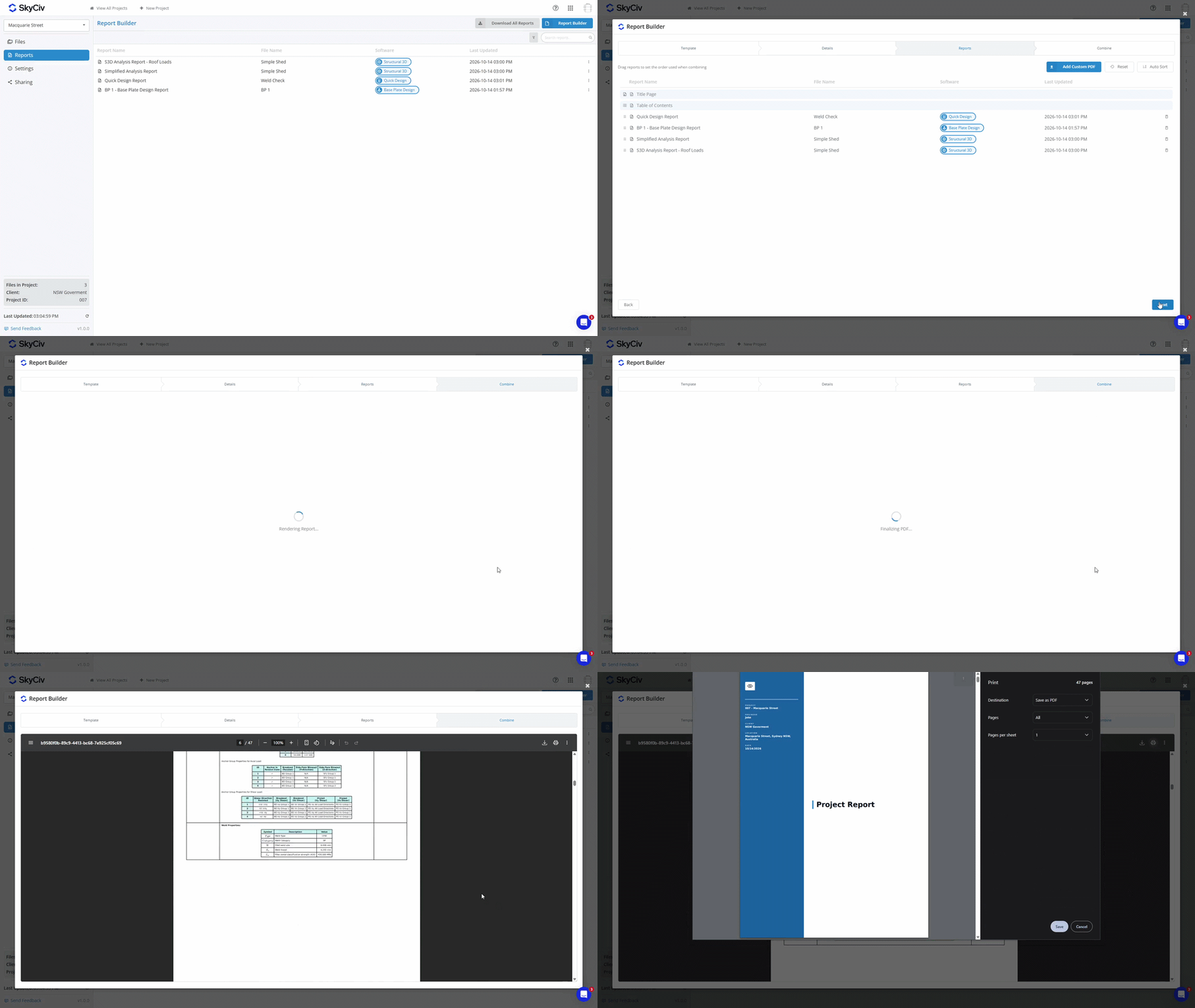
The report builder allows you to build reports with a title page and table of contents. To get started, click the Report Builder button in the top right corner.
Step 1: Choose a Template
Choose a template for the Title Page and Table of Contents using the template slider; slide left or right to preview templates, and click Select to choose your template. There are five available templates.
Step 2: Fill out Details
This step allows you to fill out project details. You can skip the Title Page and Table of Contents if you wish to do so in this step. Details are automatically pulled in from your Project Settings; however, if you wish to change them for the report, you can do so. Doing so will not adjust your saved project details.
Step 3: Report Order
Choose what order you would like your reports to be in once combined. Drag reports around or use the Auto Sort options to automatically order reports by file/report name, software module, or last updated time. You can also upload custom PDF documents to be included in the final report in this step.
Step 4: Combine
Click the Combine tab to generate the combined PDF report. To download, click the download icon at the top left of the preview window.
Downloading all Reports
If you instead wish to download all reports as individual PDFs inside a ZIP, you can achieve this by using the Download All Reports button.

Viewing Reports
Double-click a report to view it in a new tab. Alternatively, you can right-click on a report to copy a link to the report or view the SkyCiv file related to the report.

