
You can share your SkyCiv files and folders with any other SkyCiv user, and share whole projects with your team from the Project Manager. Because SkyCiv works 100% in the cloud, everyone works on the same file, updated in real time, in SkyCiv’s cloud structural analysis software and the other SkyCiv modules.
Your models can be shared at any time, with anyone who has a SkyCiv account. You and your team can collaborate on a single source of truth with confidence, knowing you’re accessing the most up-to-date file.
"You and your team can collaborate on a single source of truth, all in real time! No USBs, no software compatibility issues, FTPs or version controls."
Sharing is useful for:
- Teams working on a single design
- Sharing with SkyCiv Support for live support on your current model
- Sharing folders, for team organization
- School and university team projects
Sharing a File from the File Manager
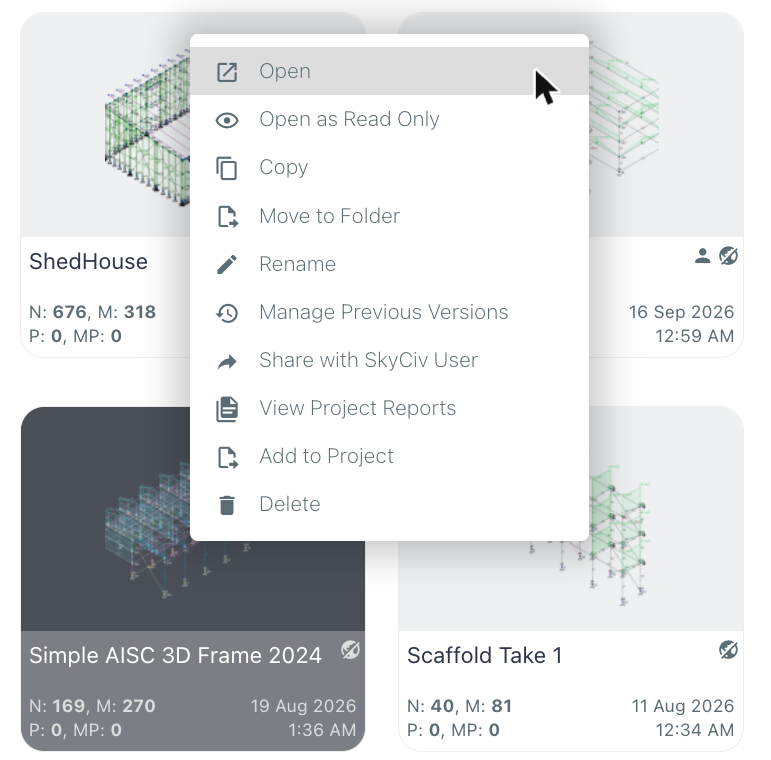
To share a file or folder, open the SkyCiv File Manager, right-click the model and click Share with SkyCiv User:
The Share File with SkyCiv Users window opens. Enter the emails of the SkyCiv users you want to share the model with (separate several emails with commas or new lines), then choose how to share it:
- Share (the default): they work on your model, and every change is saved to the same file in real time.
- Send Copy: they get their own copy of the model, and can modify it without affecting yours.
You also control their permissions: whether they Can Edit the model and Can Share it with others (everyone you share with Can View it). Click Submit to share.
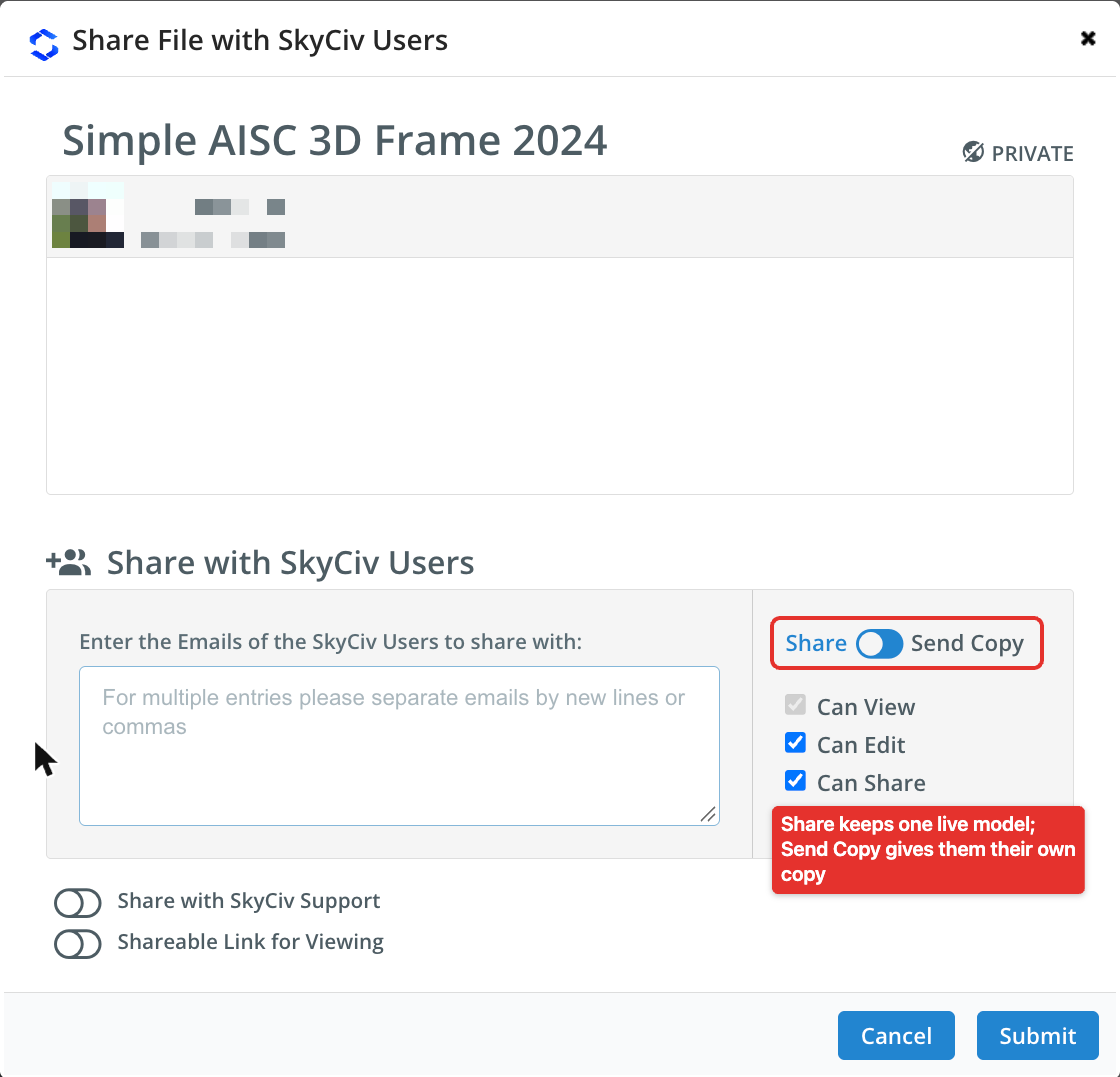
At the bottom of the window, Share with SkyCiv Support gives our support team access to the model, so they can help you with it directly, and Shareable Link for Viewing creates a link to view the model.
Files that have been shared with you automatically appear in your Shared with Me folder in the File Manager. The people you share with also receive an email to let them know a model has been shared with them.
What happens if two users edit the model at the same time?
If a second engineer attempts to enter the file while one is already editing, the SkyCiv platform will detect this and notify the second user. They can either Take Over or Leave Access for the engineer currently working on the project.
Sharing Projects in the Project Manager
The SkyCiv Project Manager groups the files of a project from any SkyCiv module, from analysis through to design, with their reports. To add a file to a project from the File Manager, right-click it and click Add to Project (see the menu above), then pick the project.
To share a whole project with your team, click the Sharing option on the left side of the Project Manager toolbar. Once shared, all teammates listed in the My Team section of your account see the project and its files. Learn more in sharing projects with your team, and see Team Account Setup to add teammates.
Note: only SkyCiv Business Accounts have access to project sharing.
