
Inhaltsverzeichnis
- Erstellen eines neuen Projekts
- Dateien hinzufügen
- Dateien öffnen
- Ordner erstellen
- Berichte speichern
- Projektdaten herunterladen
- Projekte teilen
Erstellen eines neuen Projekts
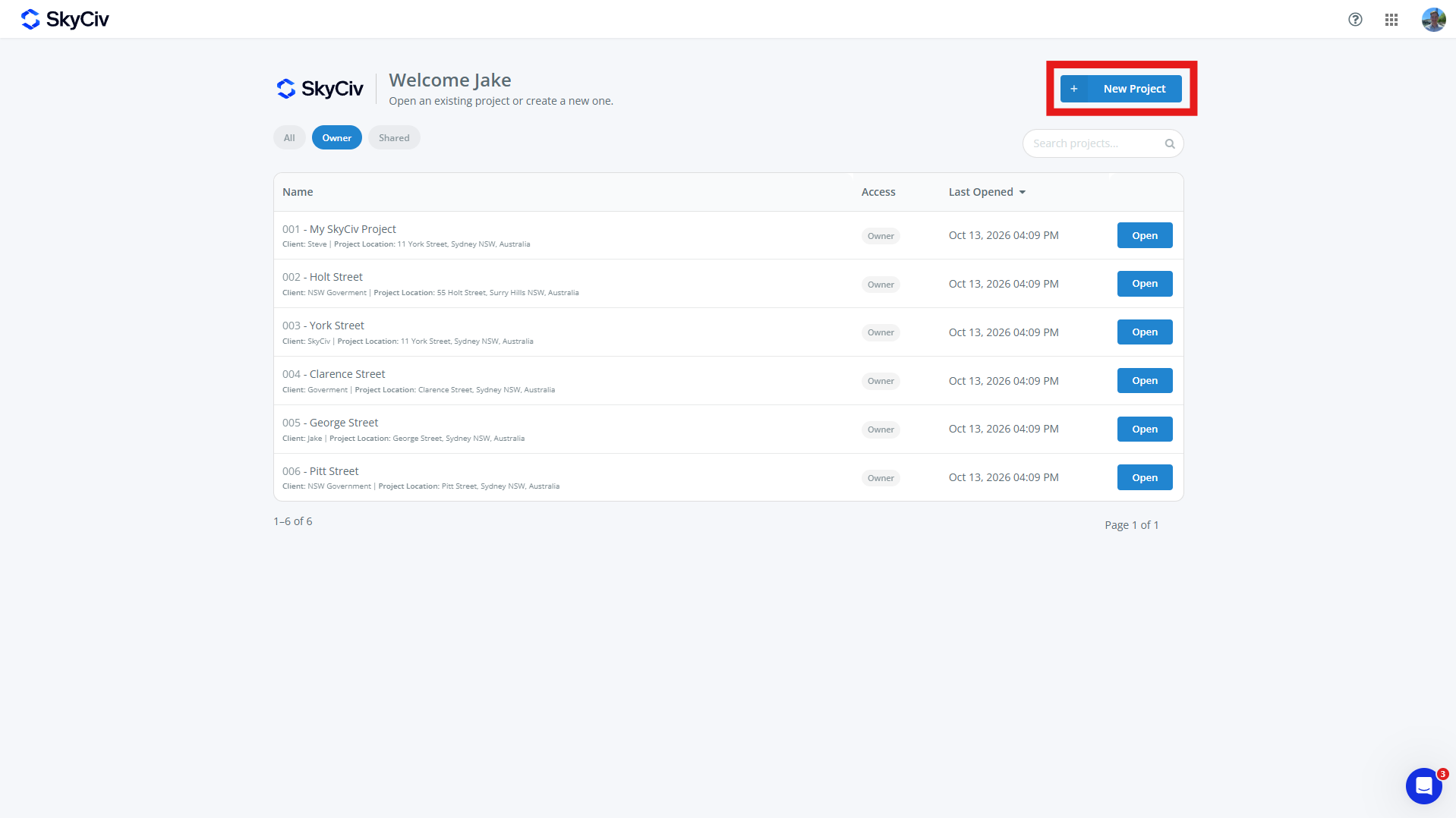
Um ein neues Projekt zu erstellen, drücke den Neues Projekt Schaltfläche auf der SkyCiv-Dashboard- oder Projektseite. Neue Projekte können auch innerhalb eines SkyCiv-Moduls erstellt werden.
Füllen Sie das angezeigte Projektformular aus. Ein Projekt kann haben:
-
- Projekt-ID (Optional)
- Projektname (erforderlich)
- Projekt Information
- Ingenieur (Optional)
- Klient (Optional)
- Ort (Optional)
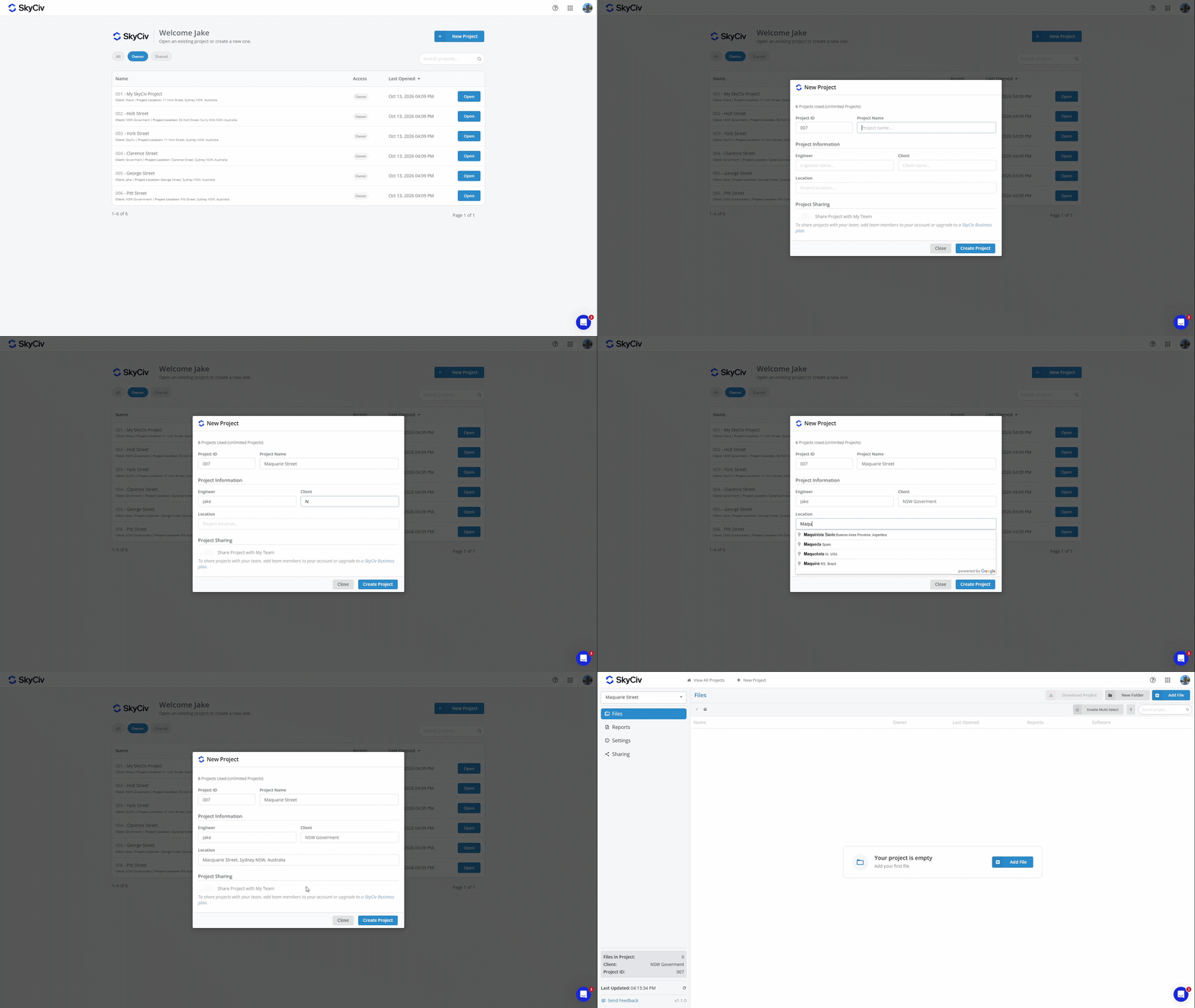
Klicken Sie auf „Projekt erstellen“, um das neue Projekt zu erstellen. Ihr Projekt ist nun bereit, auch Dateien hinzuzufügen.
Hinweis: Konten haben eine begrenzte Anzahl von Projekten. Zum Upgrade auf Unlimited Projects, Fügen Sie Project Manager zu Ihrem Abonnement hinzu unter Kasse oder kaufen Sie ein Skyciv Business Account
Dateien hinzufügen
Dateien können zu einem Projekt hinzugefügt werden, indem eine vorhandene Datei ausgewählt oder eine neue erstellt wird. Jede Datei kann jeweils nur zu einem Projekt gehören.
Hinzufügen einer Datei aus einem Projekt heraus
Dateien können aus einem Projekt heraus mit hinzugefügt werden Datei hinzufügen Schaltfläche oben links auf dem Bildschirm.
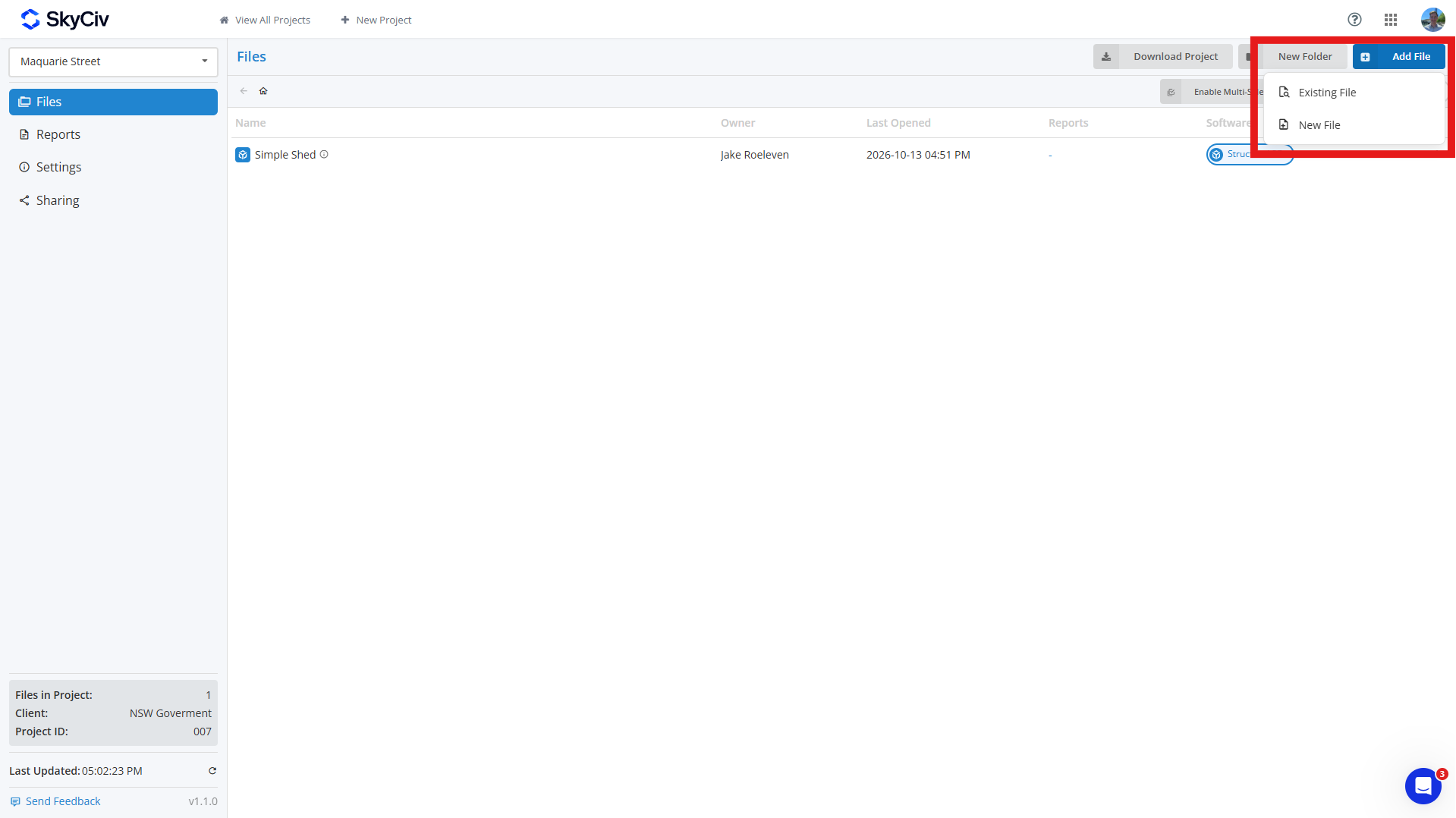
Um eine hinzuzufügen vorhandene Datei, klicken Vorhandene Datei und wählen Sie die Datei aus(s) Sie möchten Ihrem Projekt hinzufügen. Sie können nach Dateien suchen und diese nach dem SkyCiv-Modul oben links im Popup filtern.
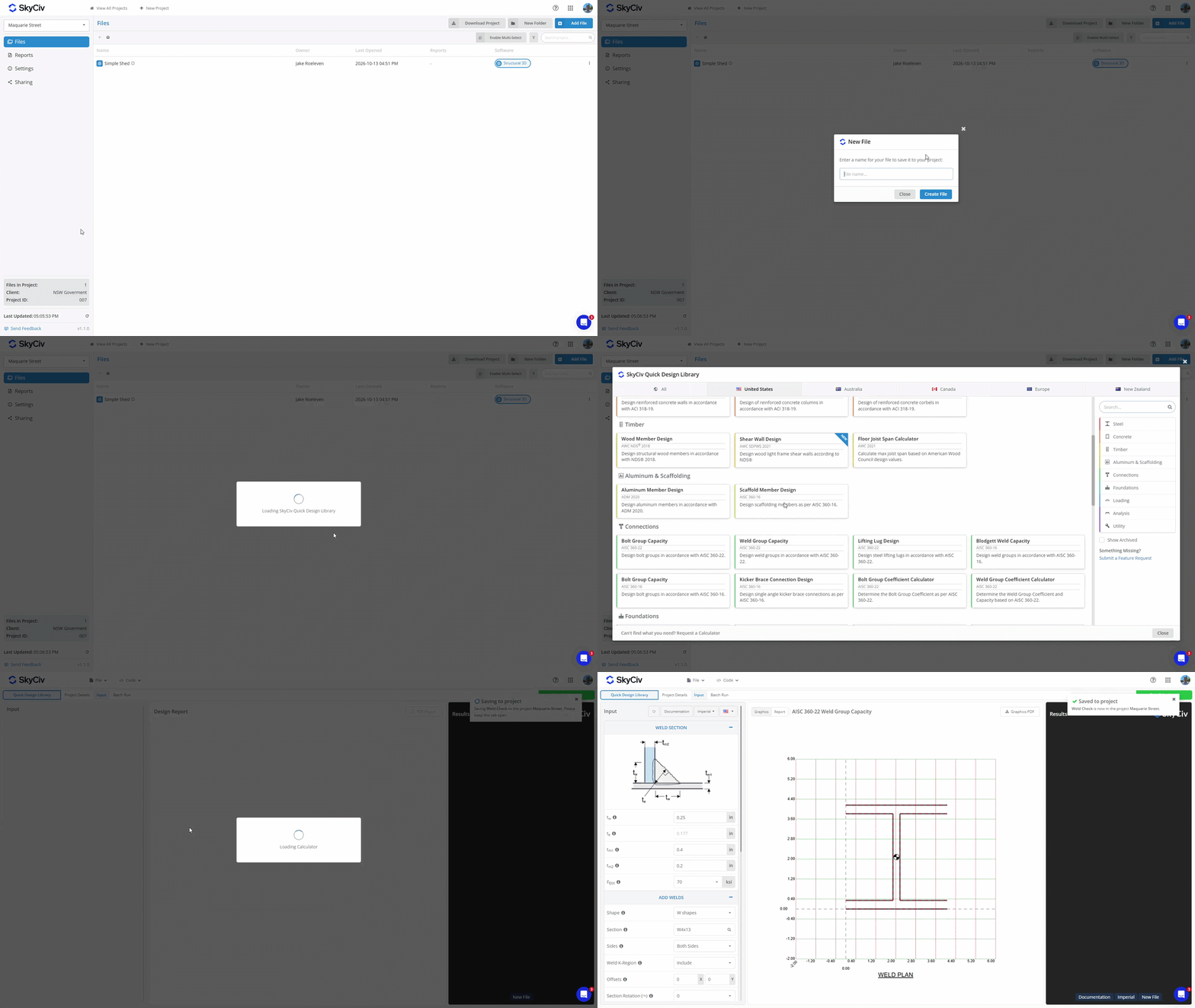
Um eine zu erstellen neue Datei, klicken Neue Datei und wählen Sie das Softwaremodul aus, das Sie verwenden möchten. Geben Sie einen Namen für die Datei ein, und eine neue Registerkarte wird angezeigt. Wenn das ausgewählte Modul eine zusätzliche Einrichtung erfordert, B. die Auswahl eines Designcodes oder einer Konfiguration, Schließen Sie dies ab, bevor Sie die Datei speichern. Sobald die Datei im Projekt gespeichert ist, In der oberen rechten Ecke erscheint ein Popup, das bestätigt, dass es gespeichert wurde.
Hinzufügen einer Datei aus einem Softwaremodul heraus
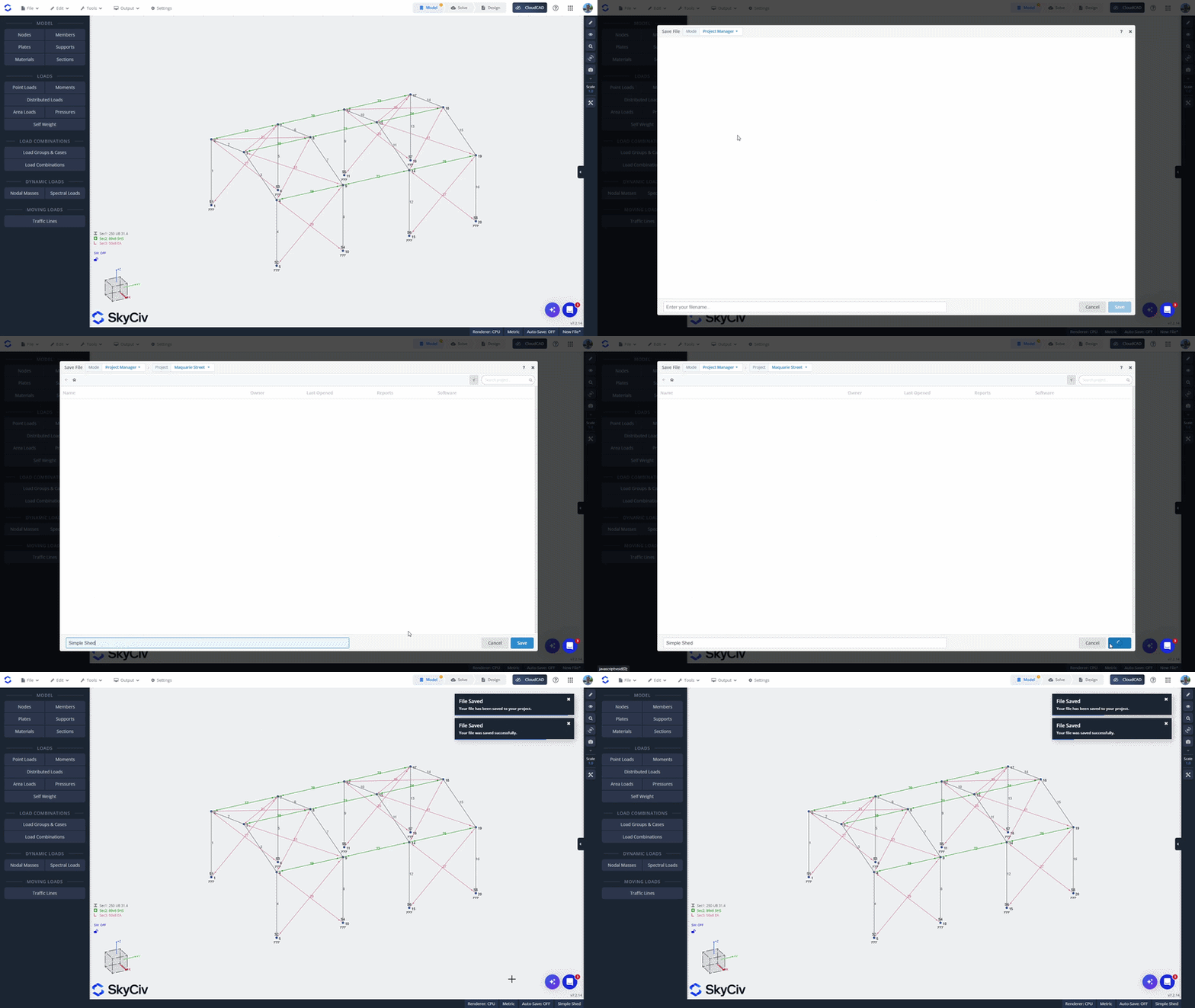
Wenn Sie eine Datei erstellt haben, indem Sie ein SkyCiv-Modul direkt gestartet haben, Sie können es aus dem Modul heraus in einem Projekt speichern. Öffnen Sie die Datei Menü aufrufen und auswählen sparen oder Speichern als. Stellen Sie sicher, dass Sie sich im Projektmanagermodus befinden, die oben links im Popup angezeigt wird.
Wählen Sie ein Projekt aus der Liste aus oder erstellen Sie ein neues. Geben Sie einen Namen für die Datei ein und klicken Sie auf sparen unten links, um es im Projekt zu speichern.
Hinzufügen einer Datei aus dem SkyCiv-Dateimanager
So fügen Sie eine vorhandene Datei aus dem SkyCiv-Dateimanager hinzu, Klicken Sie mit der rechten Maustaste auf die Datei und wählen Sie sie aus Zum Projekt hinzufügen. Wählen Sie das Projekt aus, zu dem Sie es hinzufügen möchten.
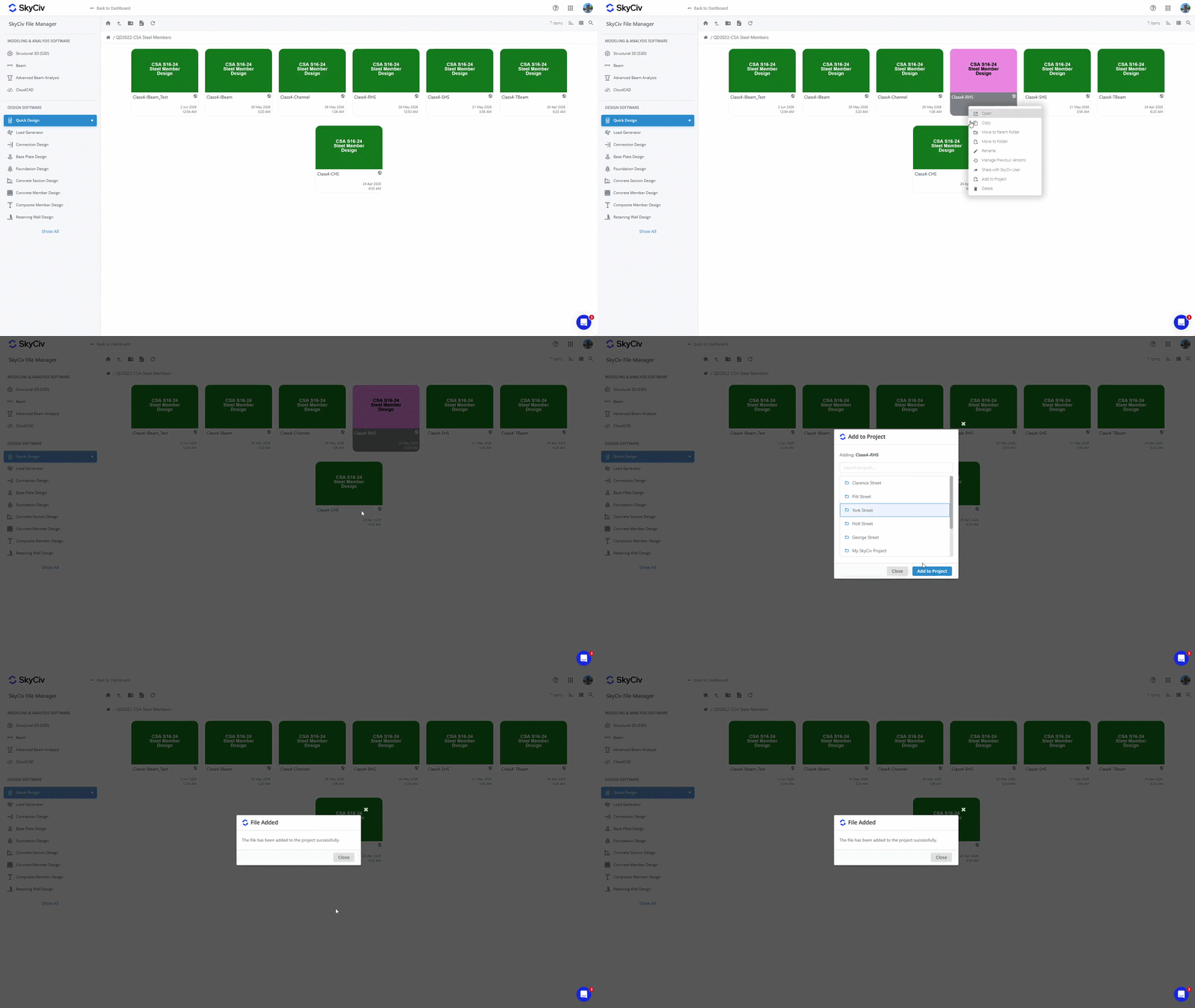
Hinweis: Auf die in Ihren Projekten gespeicherten Dateien kann auch über den Dateimanager zugegriffen werden. Durch das Hinzufügen einer Datei zu einem Projekt wird der vorhandene Speicherort im Dateimanager nicht geändert. Sehen Wo werden Projektdateien gespeichert?? im Loslegen für mehr Details.
Dateien öffnen
Öffnen einer Datei aus dem Projekt heraus
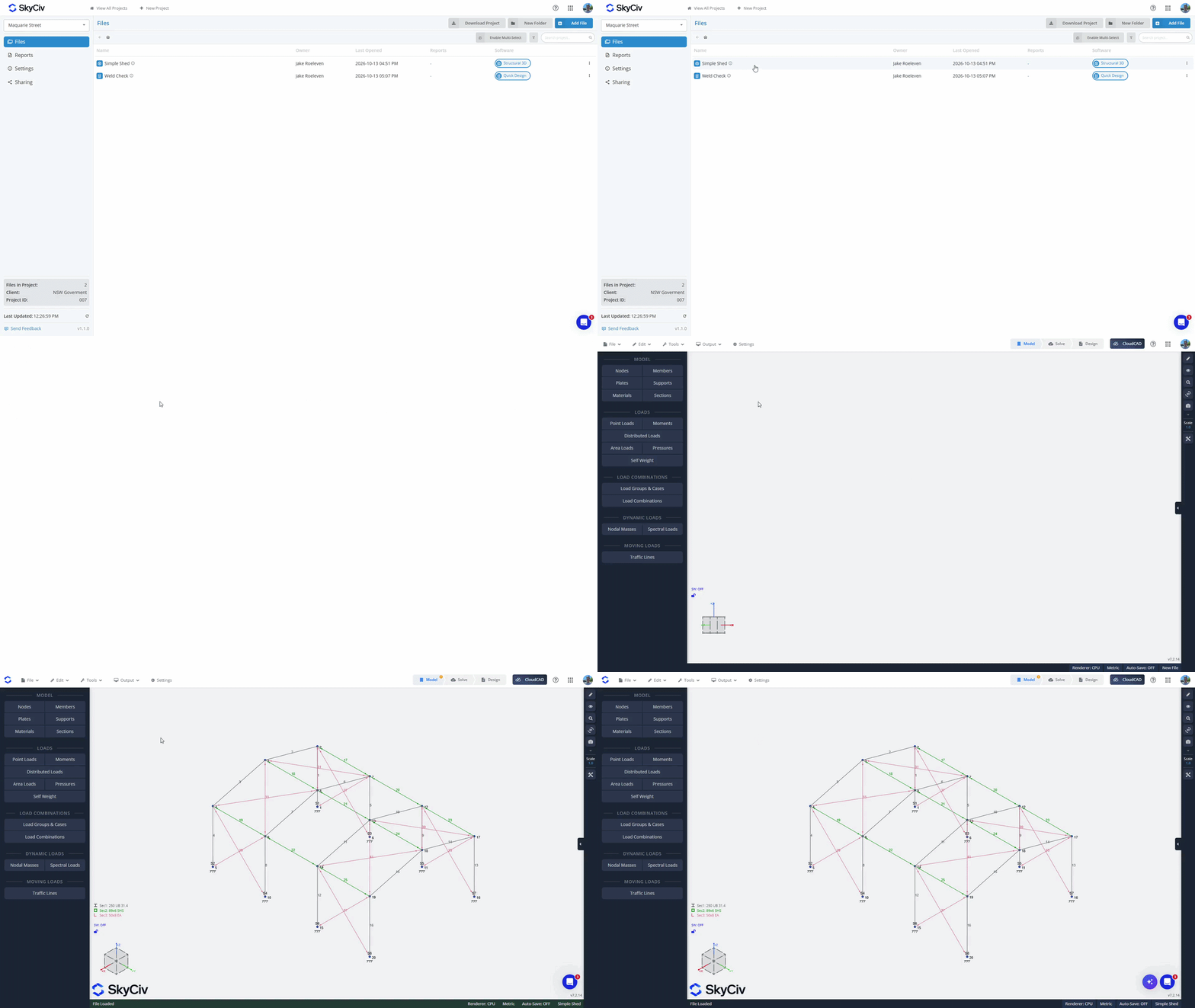
Um eine Datei von innen zu öffnen, Doppelklicken Sie, um es in einem neuen Tab zu öffnen. Alternative, Klicken Sie mit der rechten Maustaste auf die Datei, um das Dateimenü aufzurufen, und wählen Sie die Option „Öffnen“..
Öffnen einer Datei aus einem Softwaremodul heraus
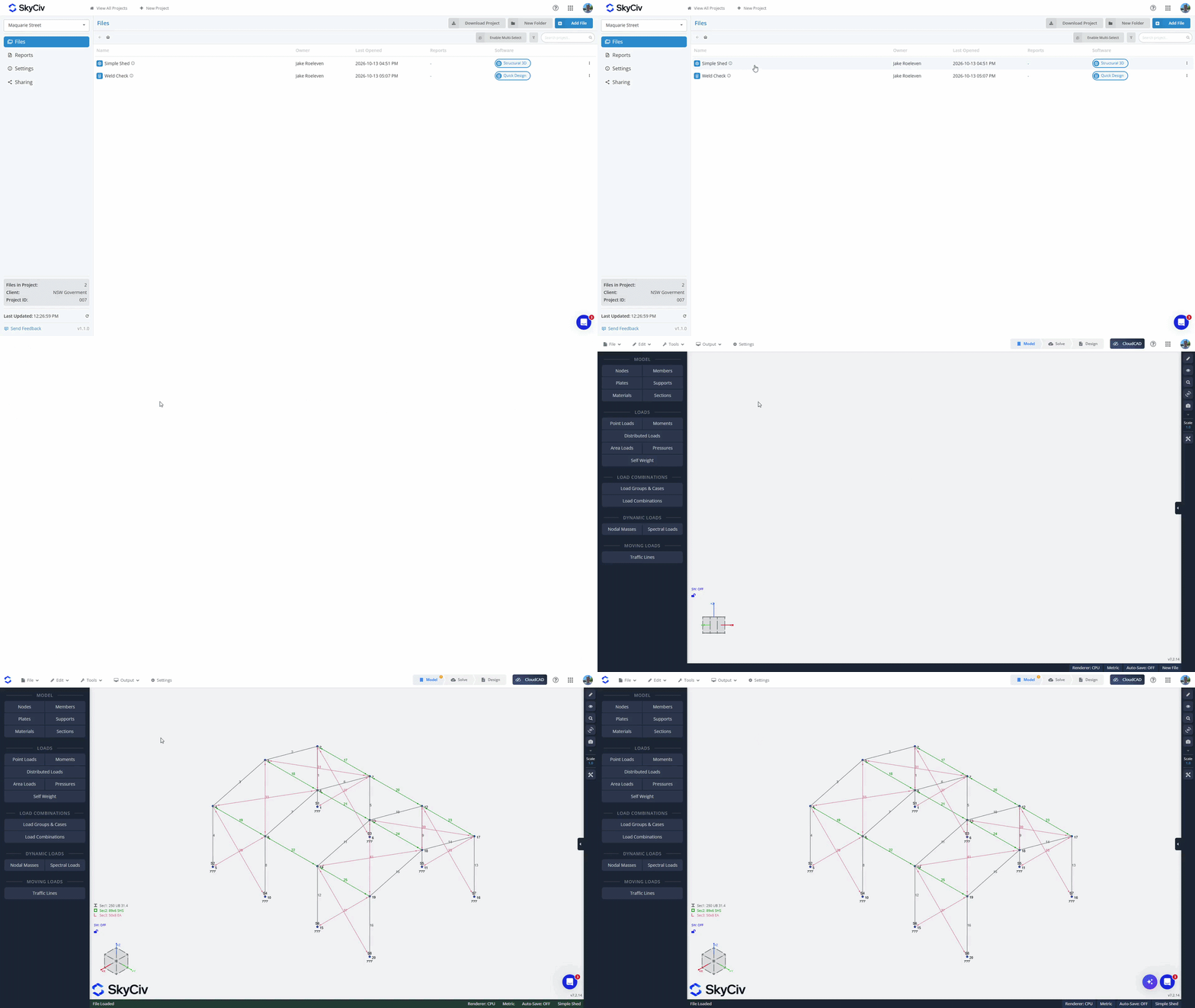
Von der Datei Speisekarte, Klicken Sie auf „Öffnen”. Stellen Sie sicher, dass Sie sich im Projektmanagermodus befinden; Sie können dies oben links im Popup überprüfen. Wählen Sie Ihr Projekt aus, um verfügbare Dateien zu laden. Dateien aus dem aktuellen Modul werden oben in der Liste geladen. Wenn Sie eine Datei aus dem aktuellen Modul auswählen, Es wird im aktuellen Tab geöffnet. Dateien aus anderen Modulen werden unten in der Liste ausgegraut. Wenn Sie eine Datei aus einem anderen Modul auswählen, werden diese in einem neuen Tab geladen.
Ordner erstellen
Organisieren Sie Ihre Dateien in Ordnern, indem Sie „Neuer OrdnerKlicken Sie im Projektmanager auf die Schaltfläche „ und erstellen Sie einen Namen für Ihren Ordner. Ziehen Sie Dateien per Drag-and-Drop in Ordner, um sie zu verschieben, oder verwenden Sie die „Aktivieren Sie die Mehrfachauswahl”Option zum Massenverschieben von Dateien in Ordner.
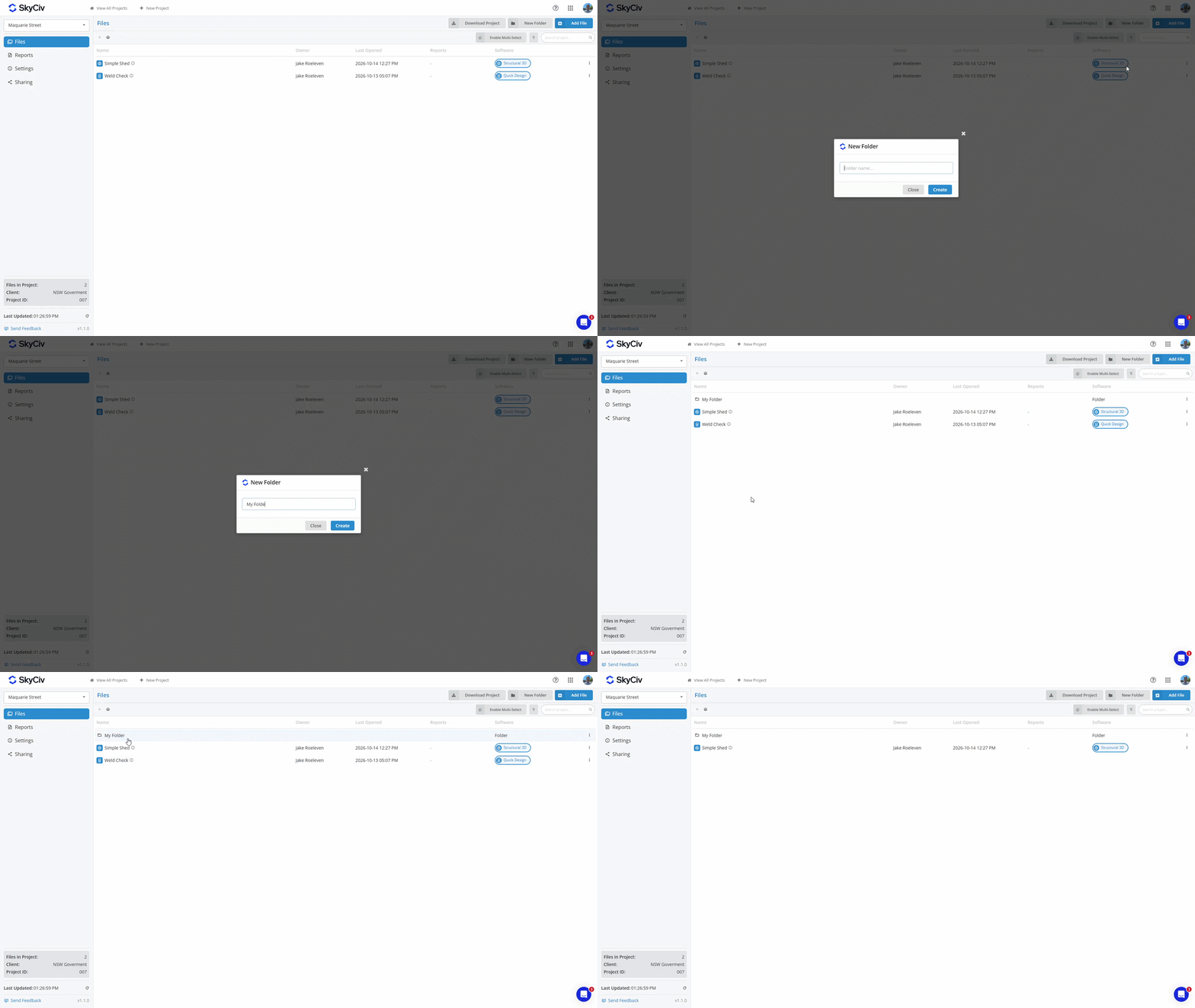
Um eine Datei zurück in den übergeordneten Ordner zu verschieben, Klicken Sie mit der rechten Maustaste auf die Datei und wählen Sie die Option „Datei verschieben“.. Wählen Sie den übergeordneten Ordner oder das „Projektstamm” für die oberste Ebene des Projekts.
Berichte speichern
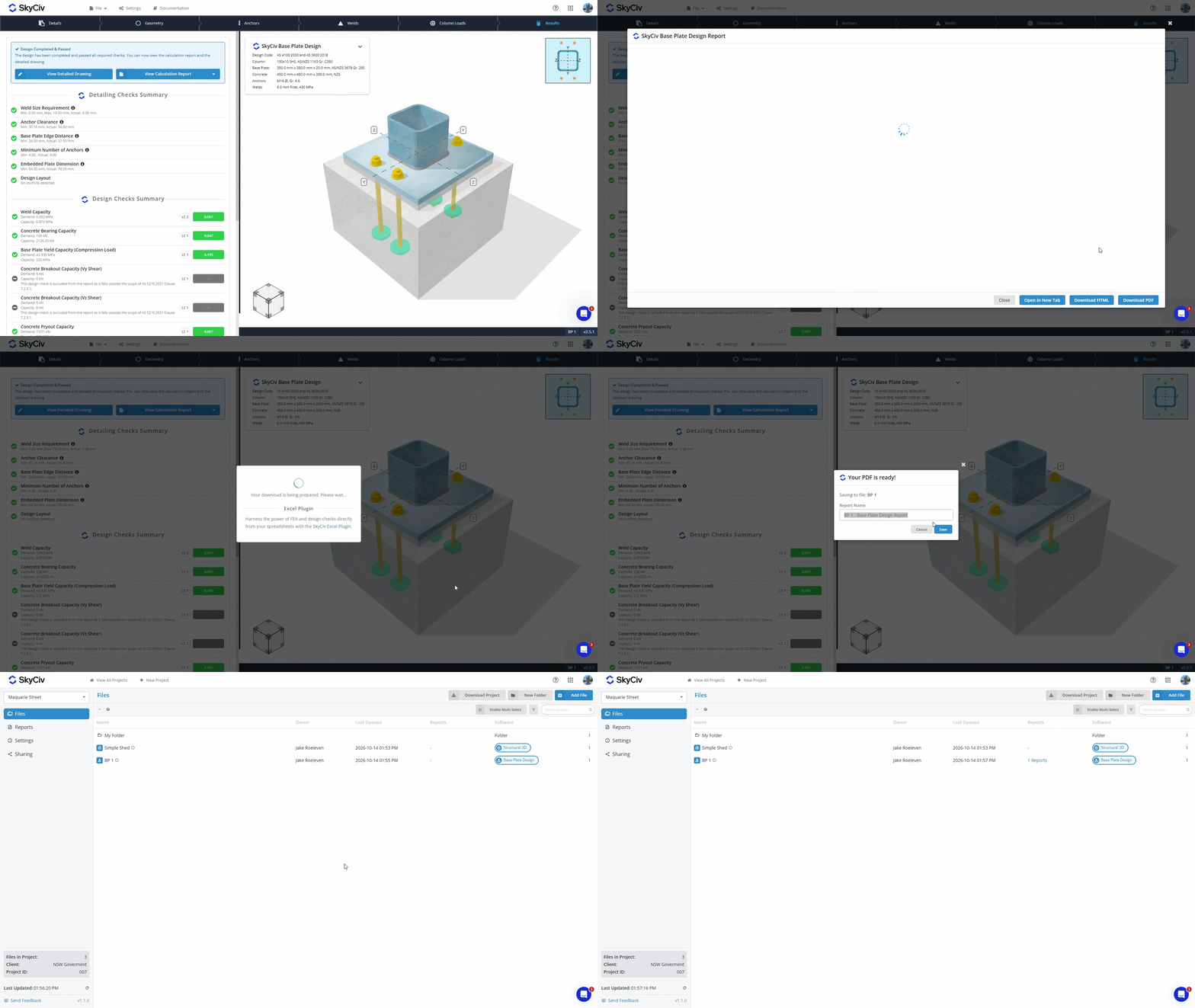
Wenn Sie ein PDF aus einem SkyCiv-Modul generieren, Sie haben jetzt die Möglichkeit, beides zu tun:
- Download und speichern Sie das PDF auf Ihrem lokalen Gerät.
- sparen es mit Ihrer Datei in unserem Cloud-Speicher.
PDFs, die in Ihrer Datei im Cloud-Speicher gespeichert sind, können im Projektmanager auf den Registerkarten „Dateien“ und „Berichte“ angezeigt werden. Erfahren Sie mehr im Report Manager-Dokumentation.
Projektdaten herunterladen
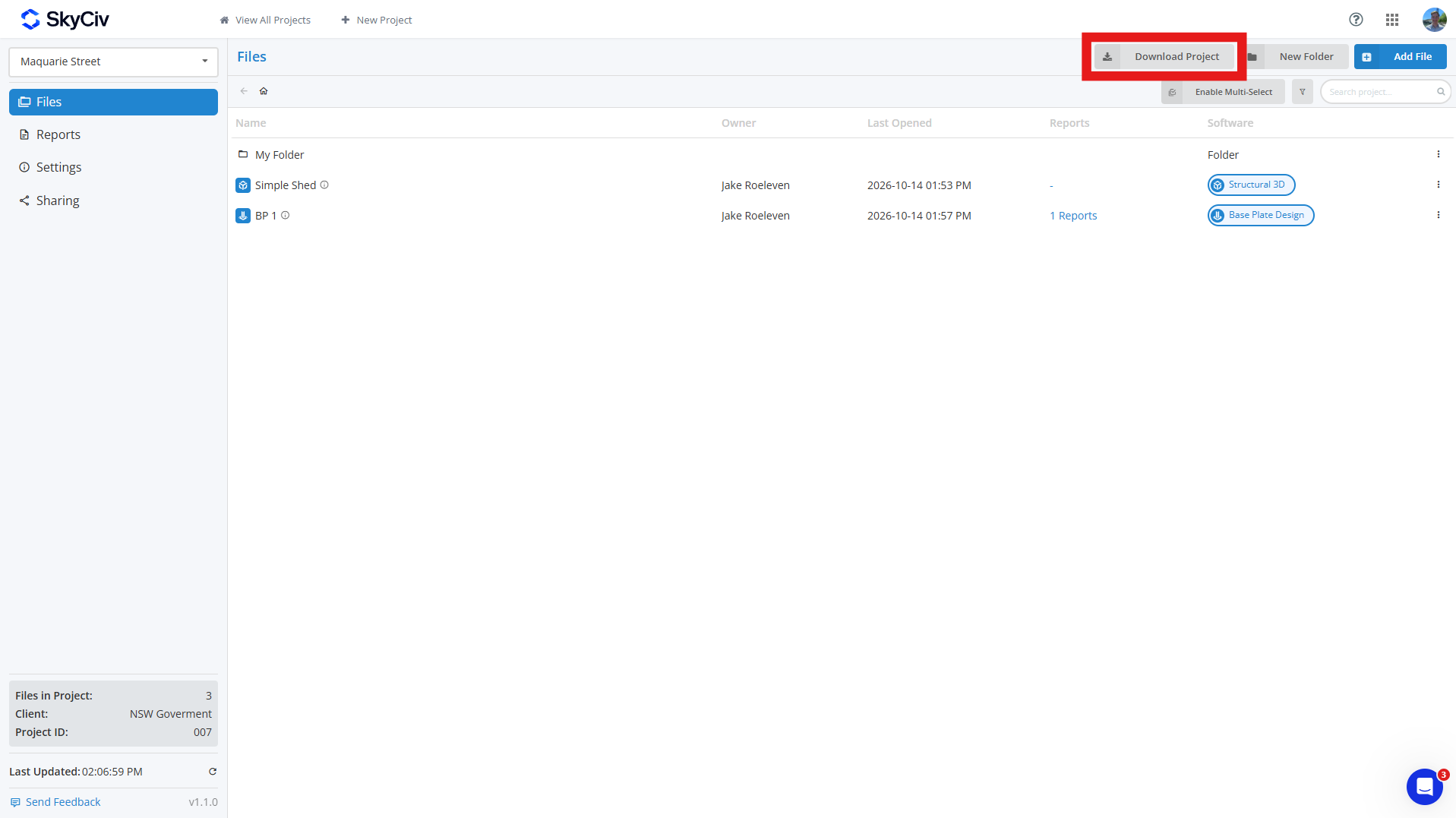
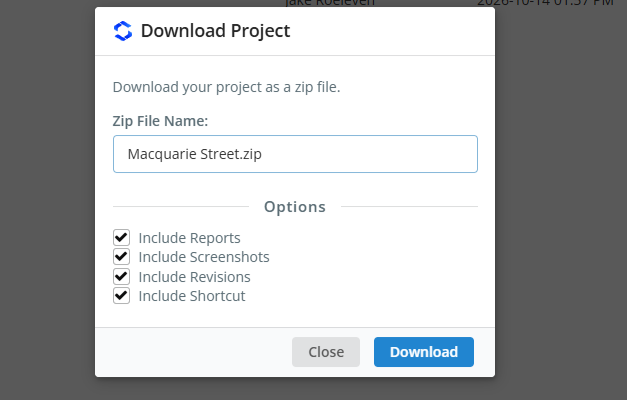
Ihre Projektdaten können Sie hier herunterladen Dateien Klicken Sie in Ihrem Projekt auf die Registerkarte „ Projekt herunterladen Taste. Dadurch können Sie eine ZIP-Datei des Projekts erstellen, darunter:
- Modelldatei (JSON-Datei)
- Revisionsdaten (Optional)
- Screenshots (Optional)
- Gespeicherte Berichte (Optional)
- Verknüpfungslink (Optional)
Wenn Sie optionale Felder auswählen, dann ist jedes Modell in Ihrer ZIP-Datei ein eigener Ordner, der alle diese Daten enthält; wenn Sie nur Modelle einbeziehen, Jedes Modell wird als JSON-Datei heruntergeladen. Projektordner werden im ZIP repliziert, wobei jeder Ordner durch ein unterschieden wird [ORDNER] -Tag wird seinem Namen vorangestellt.
Projekte teilen
Über können Sie Projekte mit Ihren Teamkollegen teilen Teilen Option auf der linken Seite der Projektmanager-Symbolleiste. Wenn geteilt, Alle Teamkollegen, die im Abschnitt „Mein Team“ Ihres Kontos aufgeführt sind, können das Projekt sehen. Siehe die Einrichtung des Teamkontos um mehr zu lernen.
Hinweis: Nur SkyCiv-Geschäftskonten haben Zugriff auf die Freigabefunktion.

