
The SkyCiv File Manager is where you organize, search, share and manage the files you save in SkyCiv’s cloud-based structural software, such as Structural 3D, Beam and the design modules. Pick the software your file was saved in on the left, then browse to the folder that holds it.
Opening the File Manager
From your SkyCiv Dashboard, нажмите Файловый менеджер под Рабочая область in the panel on the right. You can also click Show All Files next to your Recent Files, или Файлы link on a software’s card to go straight to the files of that software.
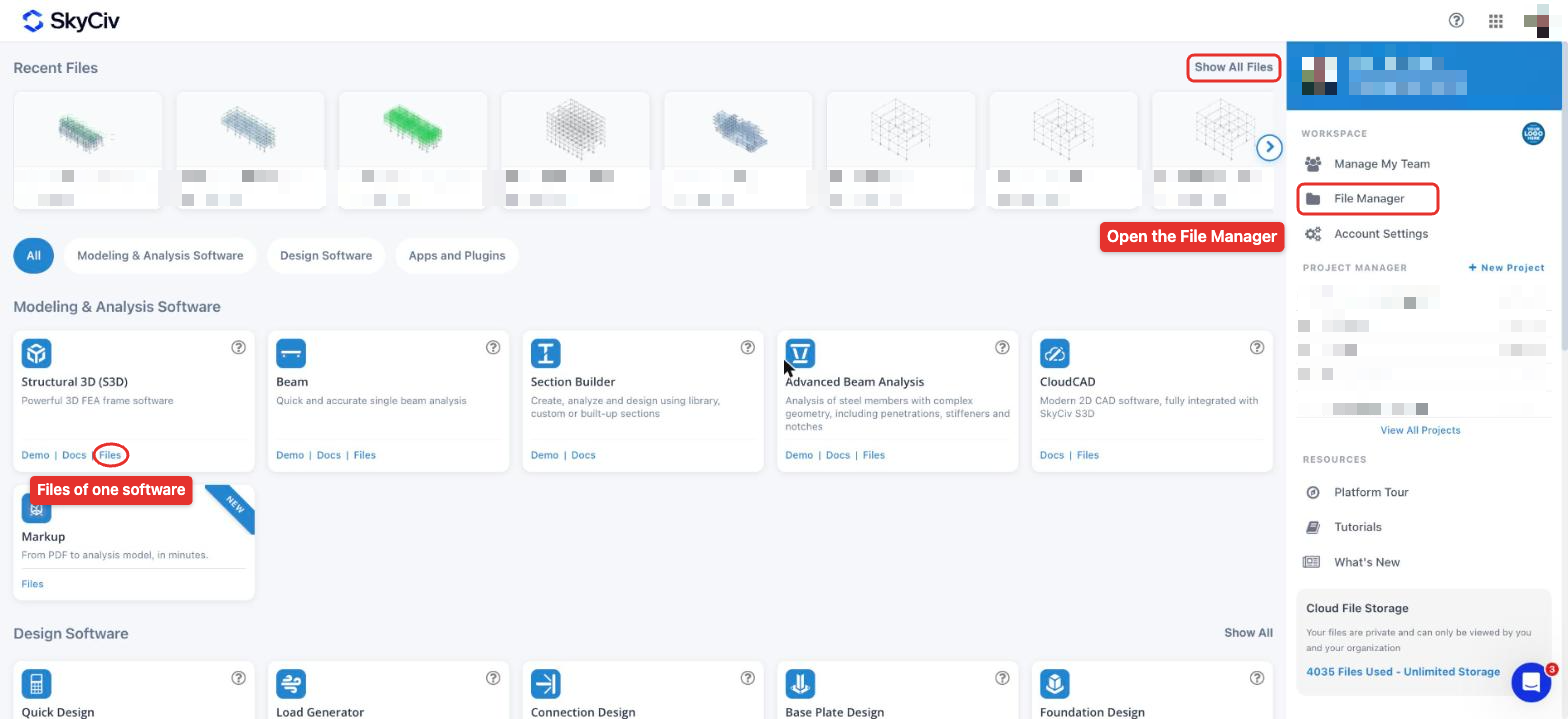
Главный файловый менеджер
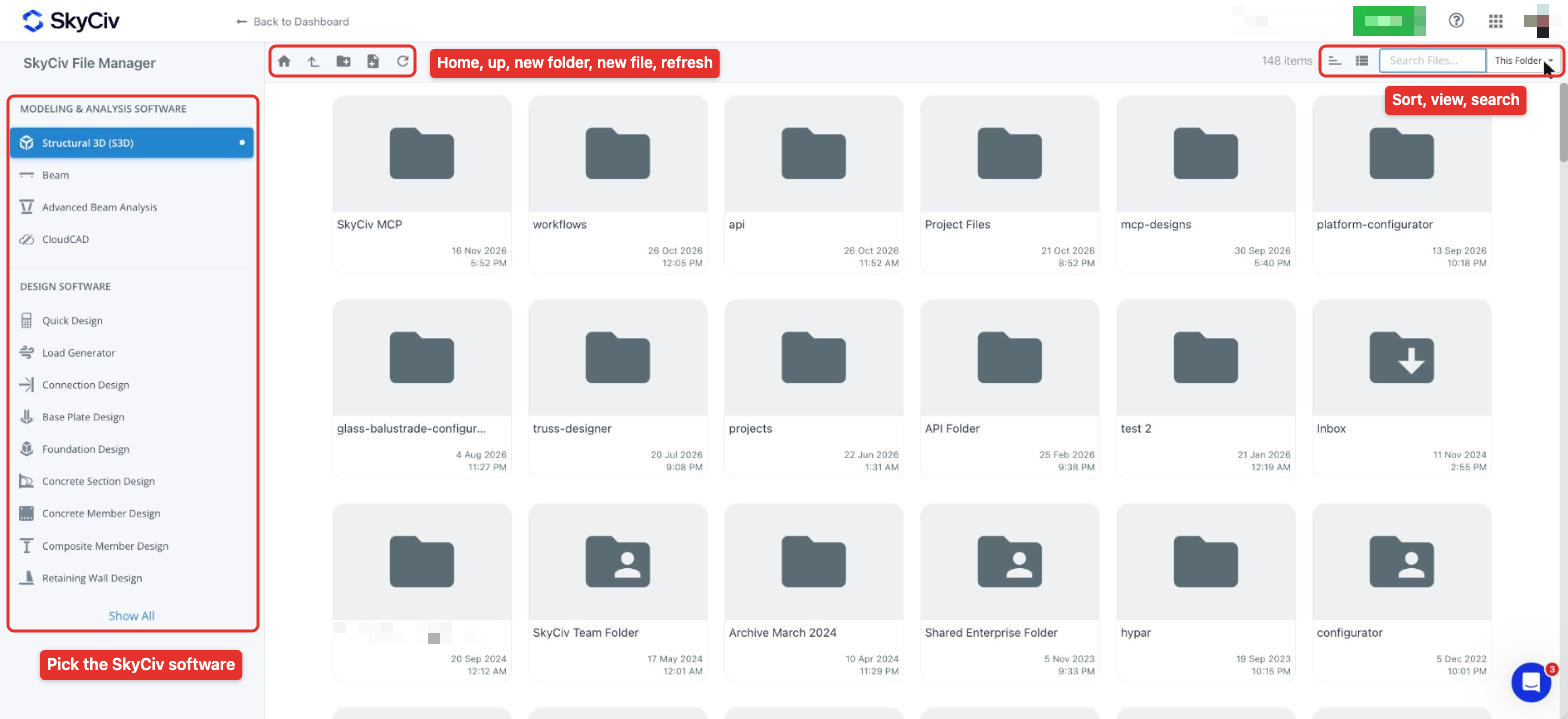
The left panel lists the SkyCiv software, grouped into Моделирование & Программное обеспечение для анализа и Программное обеспечение для дизайна (нажмите Показать все for the rest). Each software keeps its own files and folders. The toolbar above the files lets you go to the root folder, go up to the parent folder, create a new folder, start a new file in the selected software and refresh the folder contents. Справа, you can sort the files (newest, oldest, names A-Z or Z-A), switch between the tile and list views, и искать.
Structural 3D models show a preview of the model and a count of its nodes (N), элементов (M), пластины (п) рассматриваются только компланарные пластины (MP), with the date of the last save.
Файловый менеджер имеет следующие функции для удобного управления файлами.:
- Создавать новые папки и подпапки
- Ищите, чтобы быстро найти свои модели
- Drag and drop to move files and folders
- Select multiple files using the Ctrl/Shift keys
- Rename and delete files
- Restore previous versions of models
- Share files and folders with other SkyCiv users
Right-click options
Right-click a file to see what you can do with it:
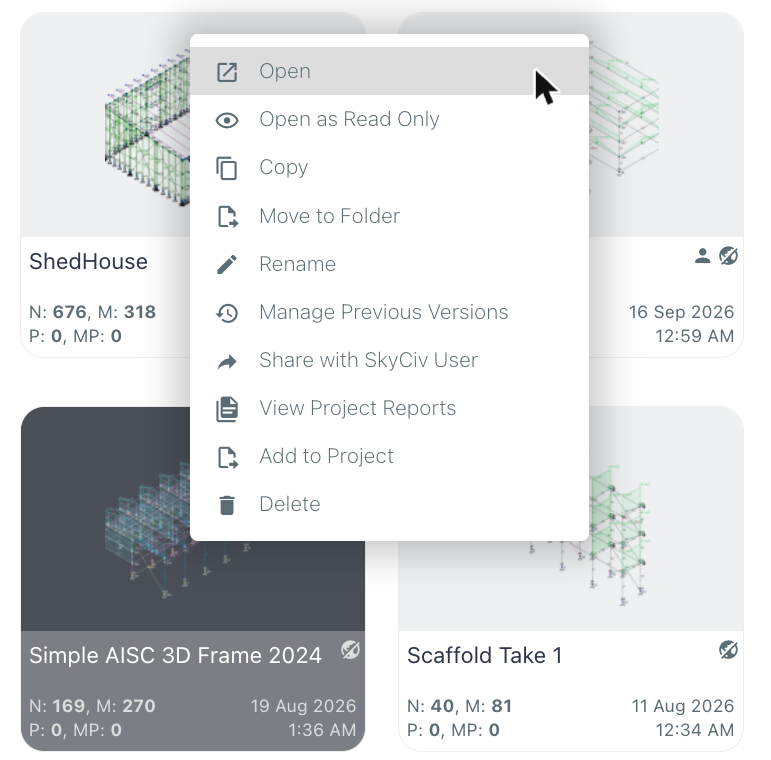
- Открыть или Open as Read Only
- Подавить элемент, Move to Folder, Переименовать и Удалить
- Управление предыдущими версиями, to review and restore earlier saves of the model
- Поделиться с пользователем SkyCiv
- Просмотр отчетов проекта и Добавить в проект, to work with the file in a SkyCiv project
Search options
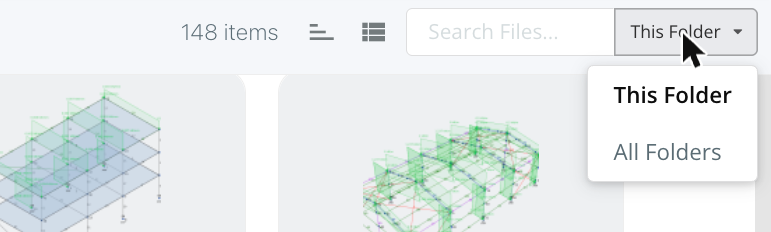
Click the search icon at the top right to open the search box. You can choose from two options to help you quickly find the file or files you need. С Эта папка, you only search the files in the current folder (files that match the search term in other folders are ignored). С Все папки, the search returns all files that match your search term, whichever folder they are in. Нелинейный или статический анализ второго порядка подходит, когда конструкция демонстрирует нелинейное поведение., the search only shows files of the software selected on the left-hand side.
Обмен файлами
Поскольку SkyCiv основан на облаке, вы можете легко обмениваться файлами с другими пользователями SkyCiv. Right-click the model and click Поделиться с пользователем SkyCiv. Enter the emails of the SkyCiv users to share with, then choose between two options: доля the model with them in real time (по умолчанию), или Отправить копию so they get their own copy and can modify it without affecting your model. When sharing, you also choose whether they Можно редактировать и Могу поделиться the file.
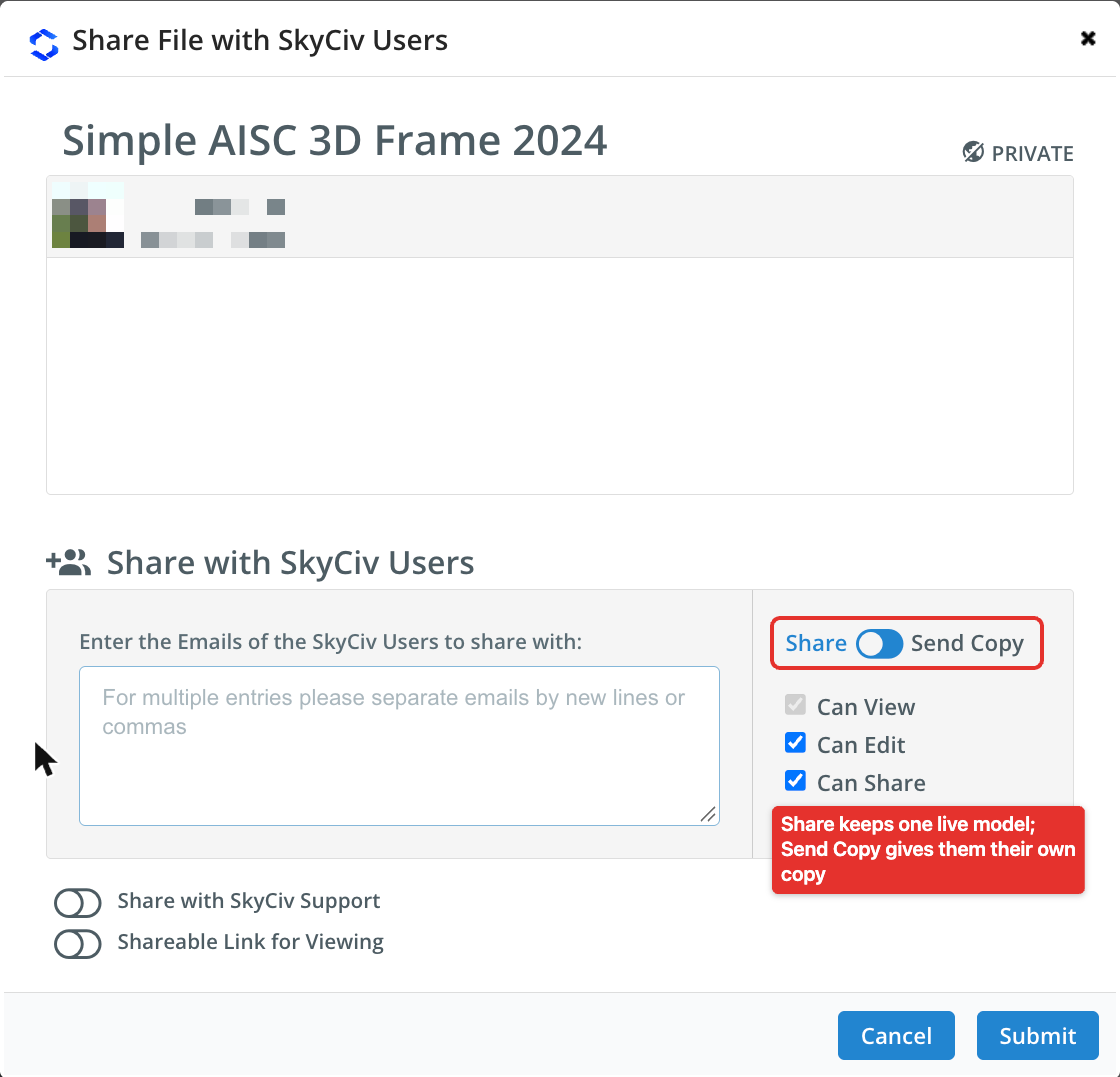
Файлы, которыми вам поделились, автоматически появляются в вашем Поделился со мной папка. Люди, с которыми вы делитесь информацией, также получают электронное письмо с уведомлением о том, что им поделились моделью..
Узнайте больше в sharing files in SkyCiv.
Ревизионный контроль
Все ваши ревизии и предыдущие сохранения хранятся в одной модели, так что вы можете просмотреть и даже откатить предыдущие версии в любое время. Это еще одно преимущество облачного хранилища SkyCiv.: все члены команды имеют единственный источник правды, and everyone can review and keep up to date with any changes to your model. Revision control can be reviewed from the File Manager (right-click a file and click Управление предыдущими версиями) or within the model itself:
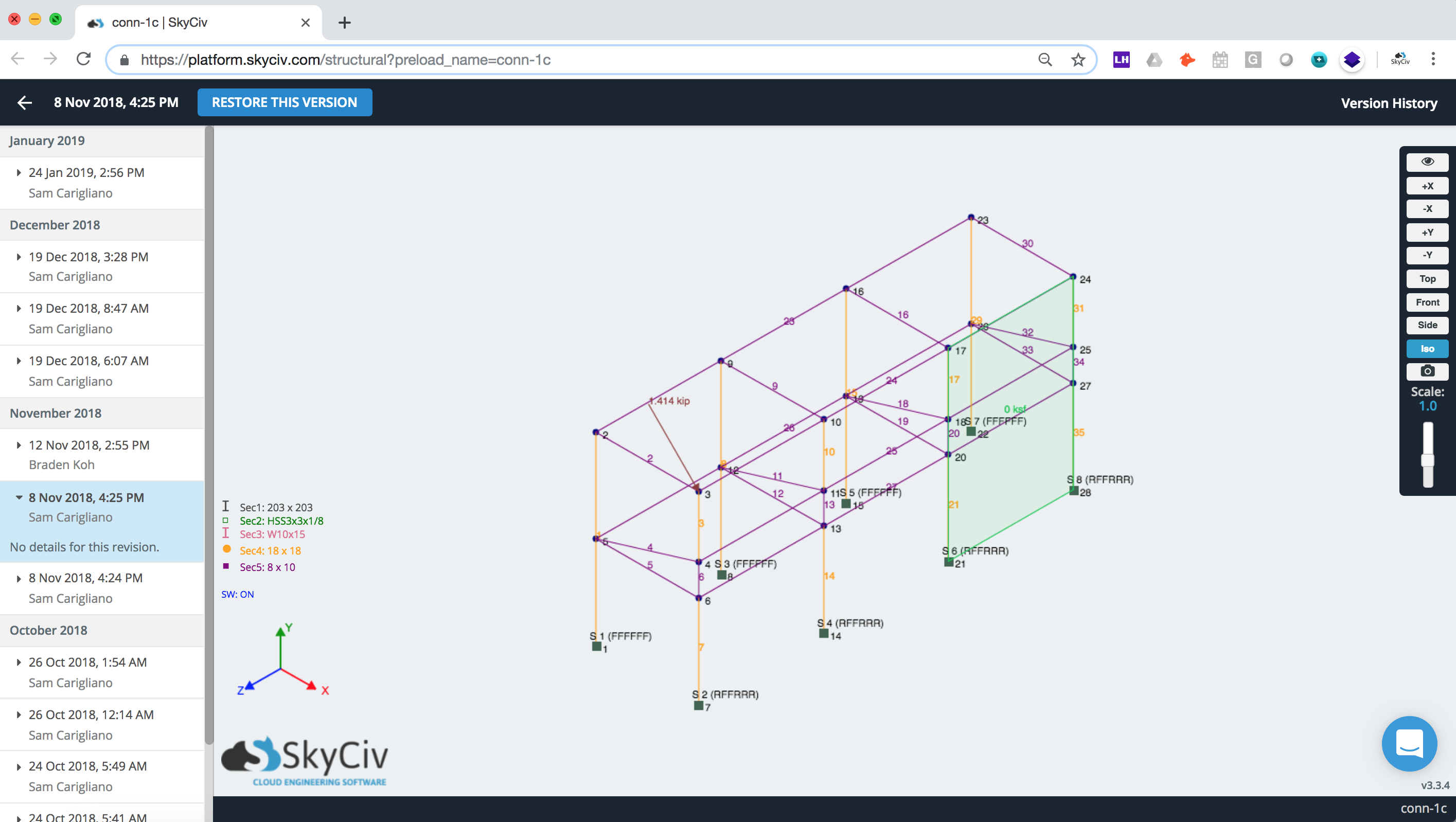
Узнать больше о revision control of your models.
Другие настройки
Пользователи могут управлять некоторыми настройками управления файлами в Настройки учетной записи -> Настройки программного обеспечения. From here they can turn on autosaving, where your model saves itself every minute. This is designed so that you don’t need to think about saving your file to protect your progress against computer or browser crashes. Users can also control what appears in their File Manager (for instance the Public User Folder) and the view in which the File Manager is displayed (мозаичный вид или список).
Где хранятся мои файлы?
Ваши файлы хранятся на защищенном сервере SkyCiv в Чикаго., Соединенные Штаты Америки, which is both SOC1 and SOC2 compliant. Business Accounts can integrate the file storage system with their own FTPs and servers.
Мои файлы в безопасности??
SkyCiv stores our users’ files on our secure servers, к которому могут получить доступ только пользователь и разработчики SkyCiv. SkyCiv также имеет системы для защиты вашей информации от доступа со стороны любого, кто не вошел в систему под вашей учетной записью..
Сделаны ли резервные копии моих файлов??
SkyCiv stores our users’ files on our secure servers, скрыто от публичного доступа. Эти файлы копируются каждый день на случай потери информации., испорченный, или если вы случайно удалили нужный вам файл. Просто напишите нам по адресу [email protected], и мы найдем и восстановим вашу модель для вас..
Могу ли я скачать свои файлы?
Да, вы можете скачать свои файлы в файл – Экспорт, что позволит вам хранить данные в формате CSV или исходных данных SkyCiv. (JSON).
Могу ли я автоматически сохранять свои файлы?
Да, SkyCiv can automatically save your model (каждую минуту) как ты работаешь. This suits working in the cloud and ensures your work is always protected so you don’t lose any of your progress. Чтобы включить это, посещение Настройки учетной записи -> Настройки программного обеспечения.
