
Tabella dei contenuti
- Creazione di un nuovo progetto
- Aggiunta di file
- Apertura dei file
- Creazione di cartelle
- Salvataggio dei report
- Download dei dati del progetto
- Condivisione di progetti
Creazione di un nuovo progetto
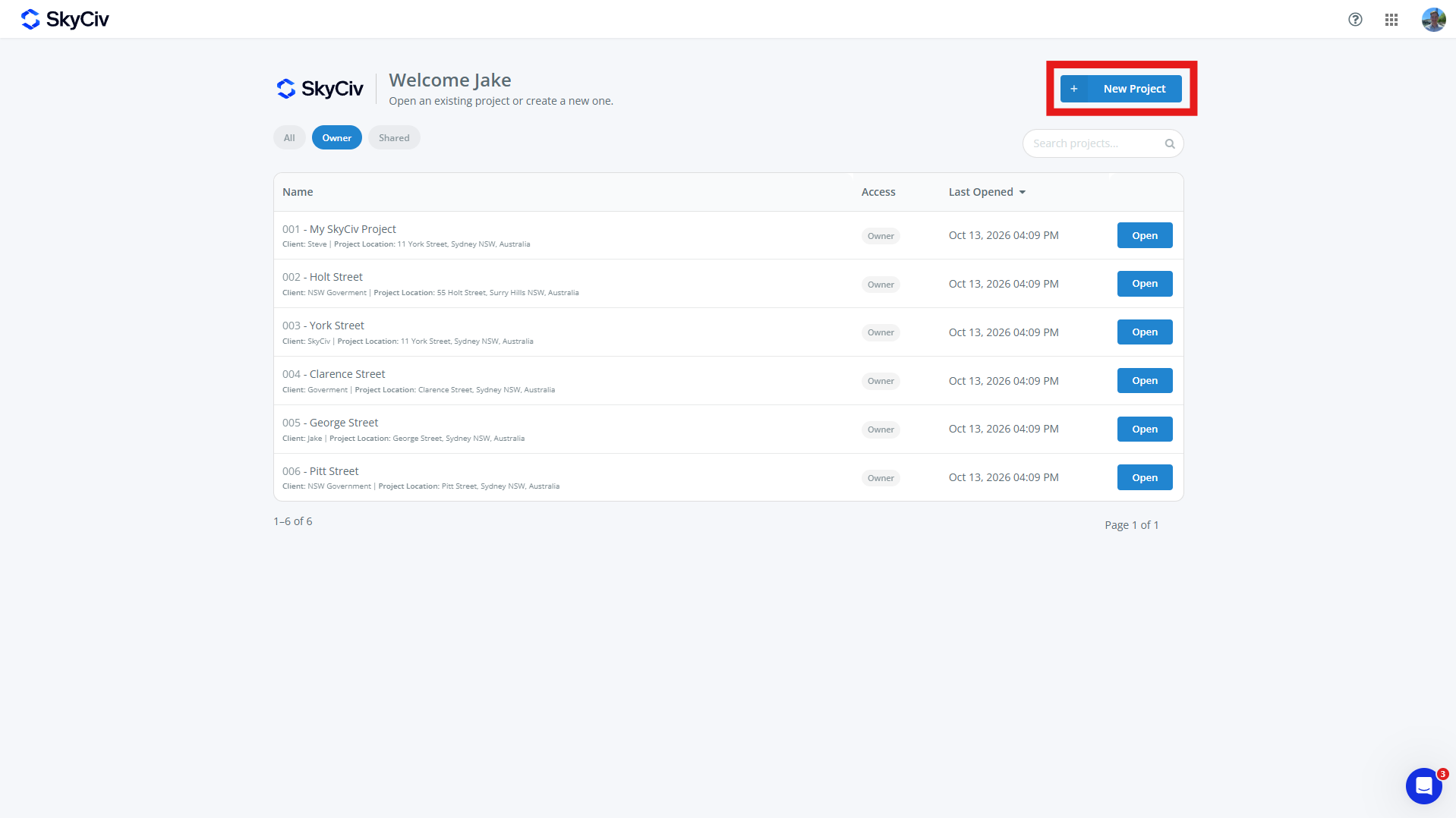
Per creare un nuovo progetto, clicca il Nuovo progetto pulsante dalla dashboard SkyCiv o dalla pagina Progetti. Nuovi progetti possono essere creati anche dall'interno di un modulo SkyCiv.
Compila il modulo di progetto che si apre. Un progetto può avere:
-
- ID progetto (opzionale)
- Nome del progetto (necessario)
- Informazioni di progetto
- Ingegnere (opzionale)
- Cliente (opzionale)
- Posizione (opzionale)
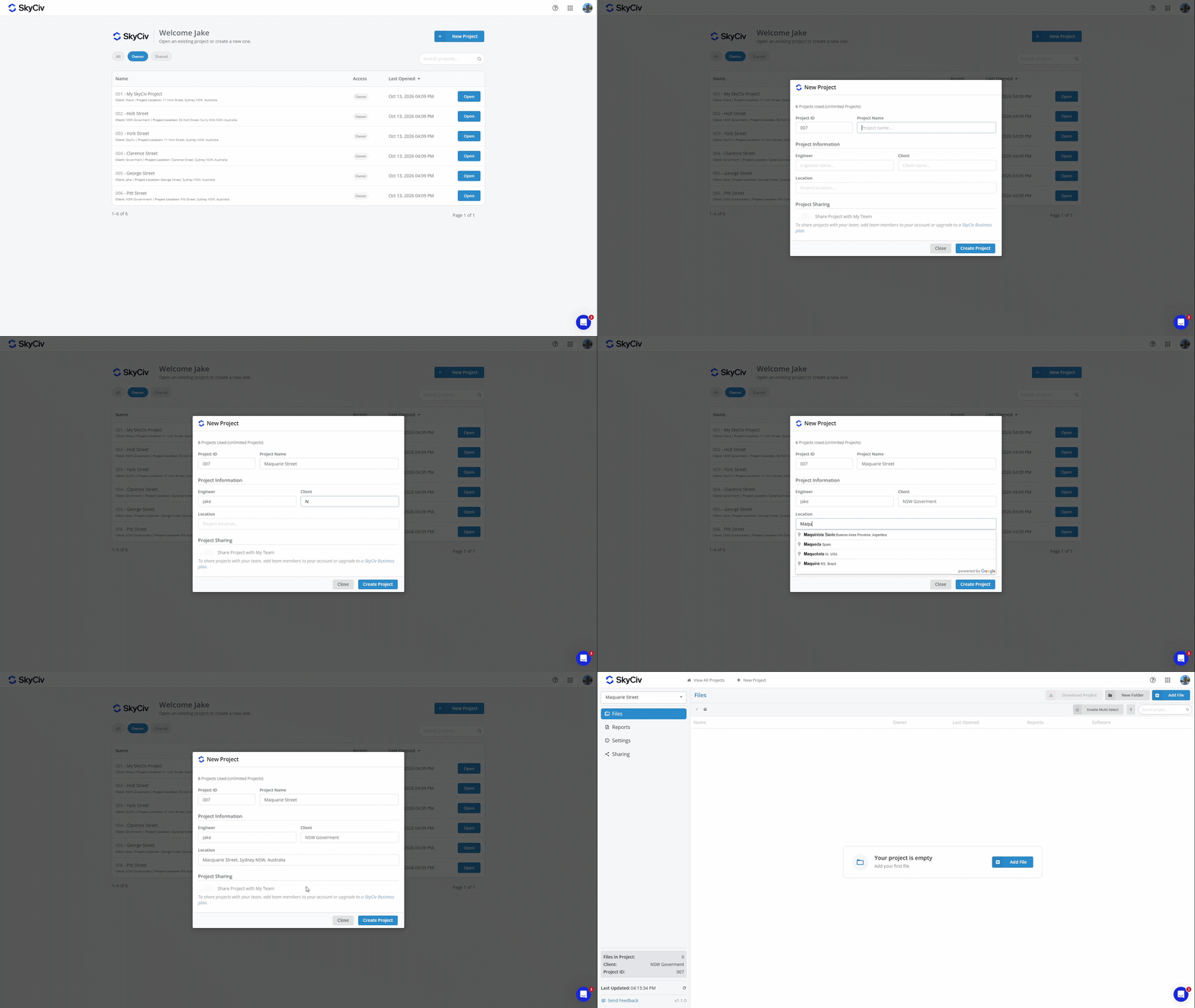
Fare clic su "Crea progetto" per creare il nuovo progetto. Il tuo progetto è ora pronto per aggiungere anche file.
Nota: Gli account hanno un numero limitato di progetti. Per passare a Progetti illimitati, aggiungi Project Manager al tuo abbonamento su guardare o acquistare un Account aziendale Skyciv
Aggiunta di file
I file possono essere aggiunti a un progetto selezionando un file esistente o creandone uno nuovo. Ogni file può appartenere a un solo progetto alla volta.
Aggiunta di un file dall'interno di un progetto
I file possono essere aggiunti dall'interno di un progetto utilizzando il file Aggiungi file pulsante in alto a sinistra sullo schermo.
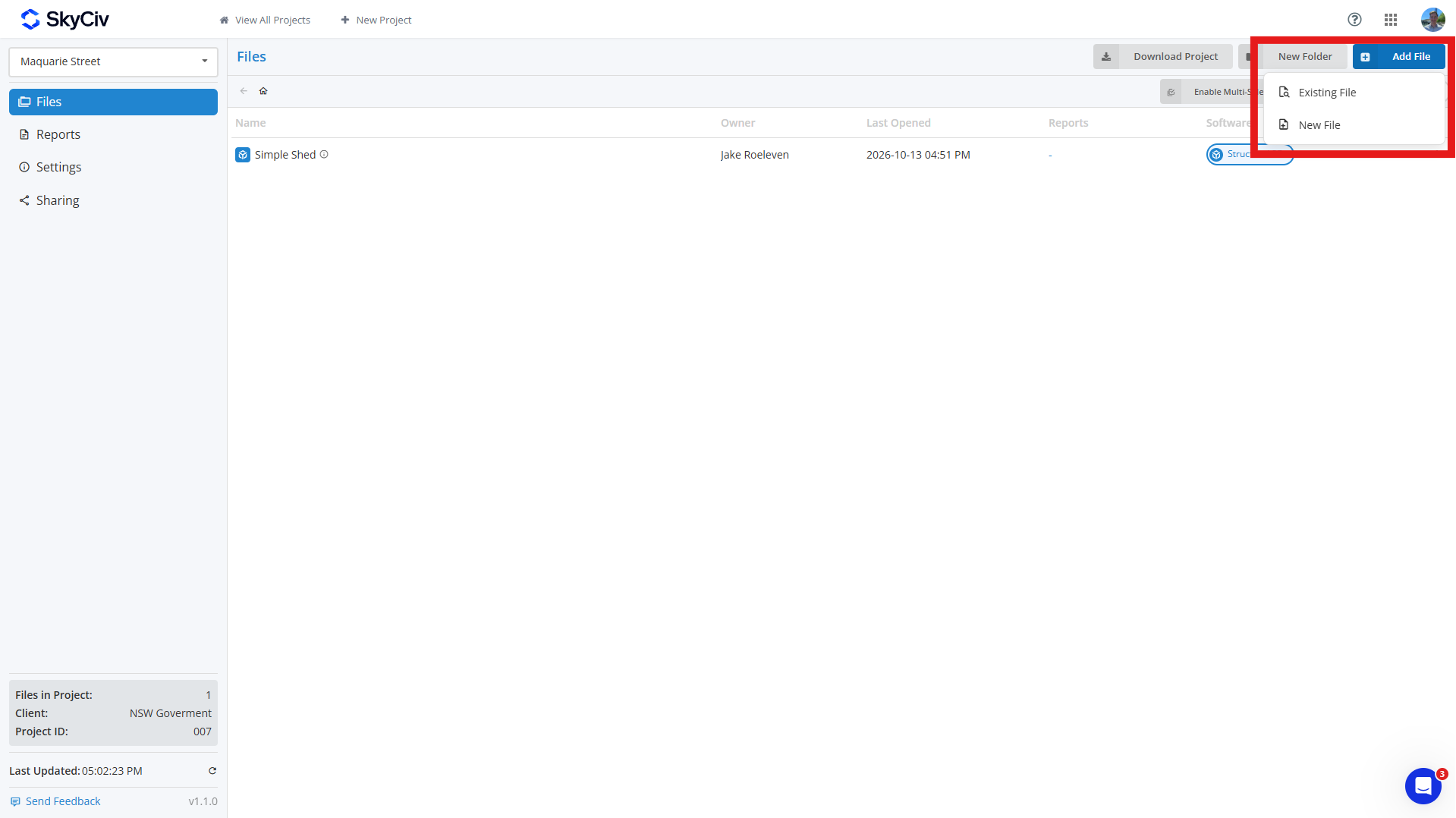
Per aggiungere un file esistente, clic File esistente e seleziona il file(S) vuoi aggiungere al tuo progetto. Puoi cercare file e filtrarli in base al modulo SkyCiv nella parte in alto a sinistra del popup.
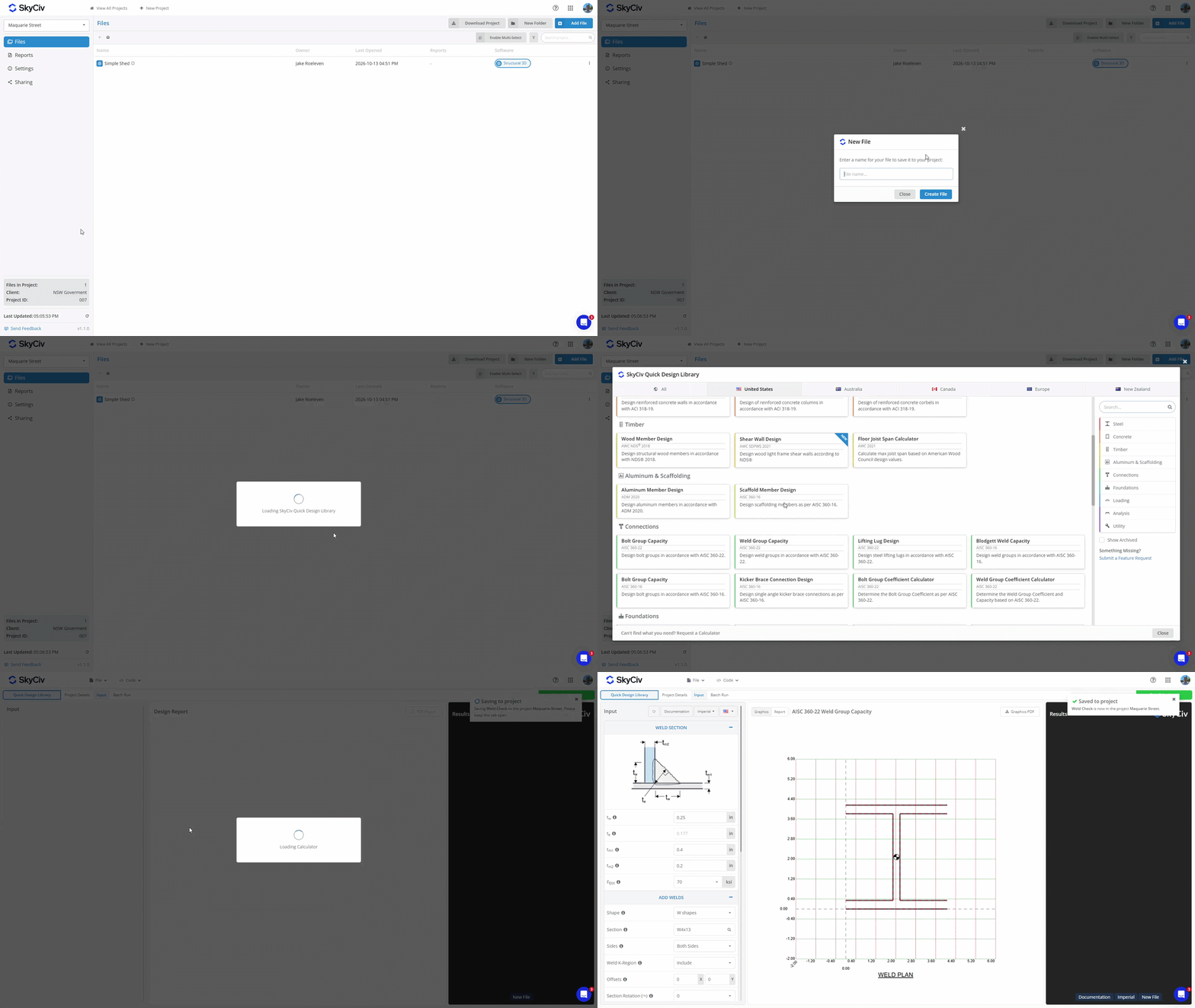
Per creare un nuovo file, clic Nuovo fascicolo e seleziona il modulo software che desideri utilizzare. Immettere un nome per il file, e apparirà una nuova scheda. Se il modulo selezionato richiede una configurazione aggiuntiva, come la scelta di un codice di progettazione o di una configurazione, completarlo prima di salvare il file. Una volta salvato il file nel progetto, apparirà un pop-up nell'angolo in alto a destra che confermerà che è stato salvato.
Aggiunta di un file dall'interno di un modulo software
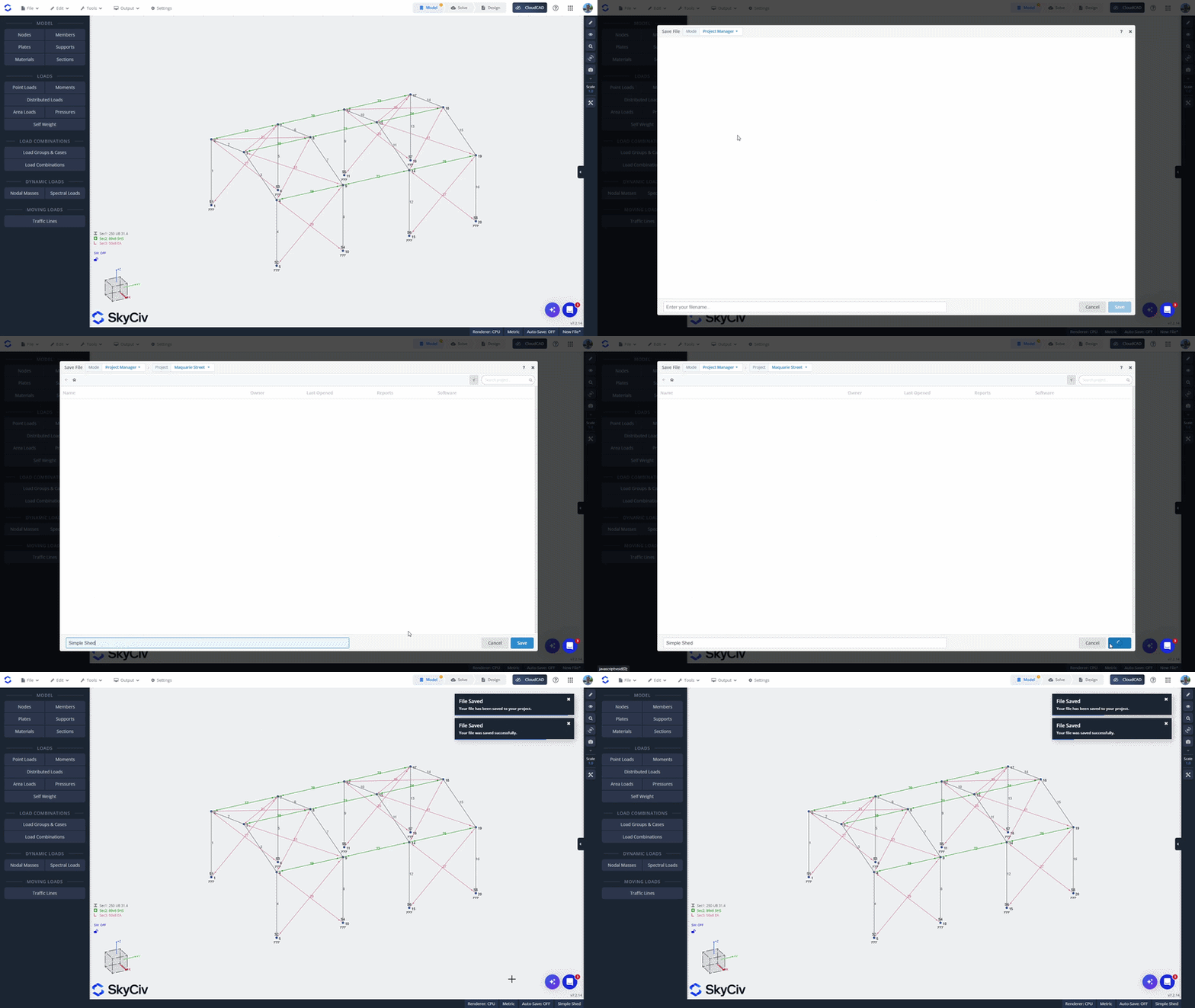
Se hai creato un file avviando direttamente un modulo SkyCiv, puoi salvarlo in un progetto dall'interno del modulo. Apri il File menu e selezionare Salva o Salva come. Assicurati di essere in modalità Project Manager, che viene visualizzato in alto a sinistra nel popup.
Seleziona un progetto dall'elenco o creane uno nuovo. Immettere un nome per il file e fare clic Salva in basso a sinistra per salvarlo nel progetto.
Aggiunta di un file dal File Manager SkyCiv
Per aggiungere un file esistente da SkyCiv File Manager, fare clic con il pulsante destro del mouse sul file e selezionare Aggiungi al progetto. Seleziona il progetto a cui vuoi aggiungerlo.
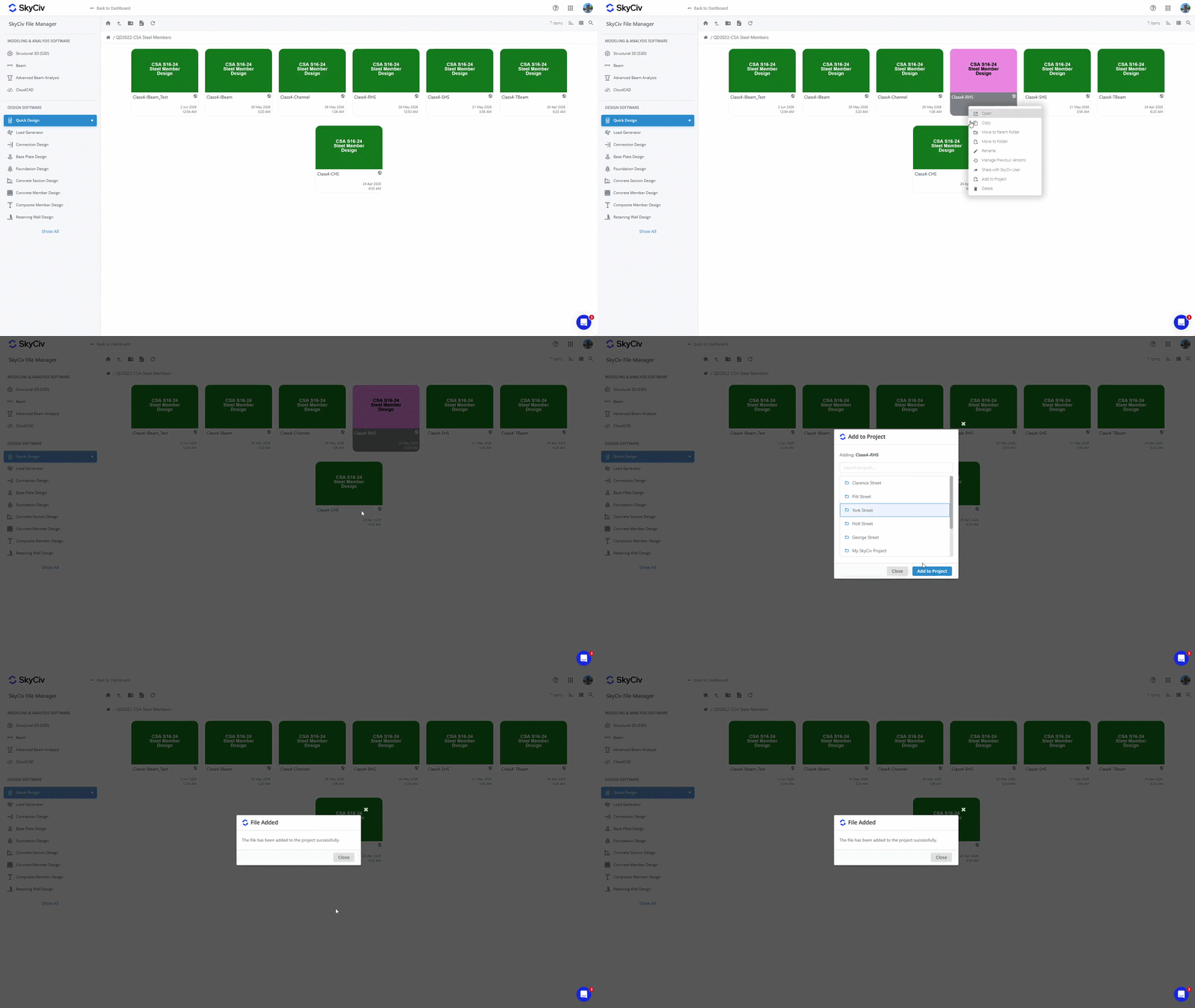
Nota: I file salvati nei tuoi progetti sono accessibili anche dal File Manager. L'aggiunta di un file a un progetto non modifica la sua posizione esistente nel File Manager. Vedere Dove vengono salvati i file di progetto? pollici Iniziare per ulteriori dettagli.
Apertura dei file
Apertura di un file dall'interno del progetto
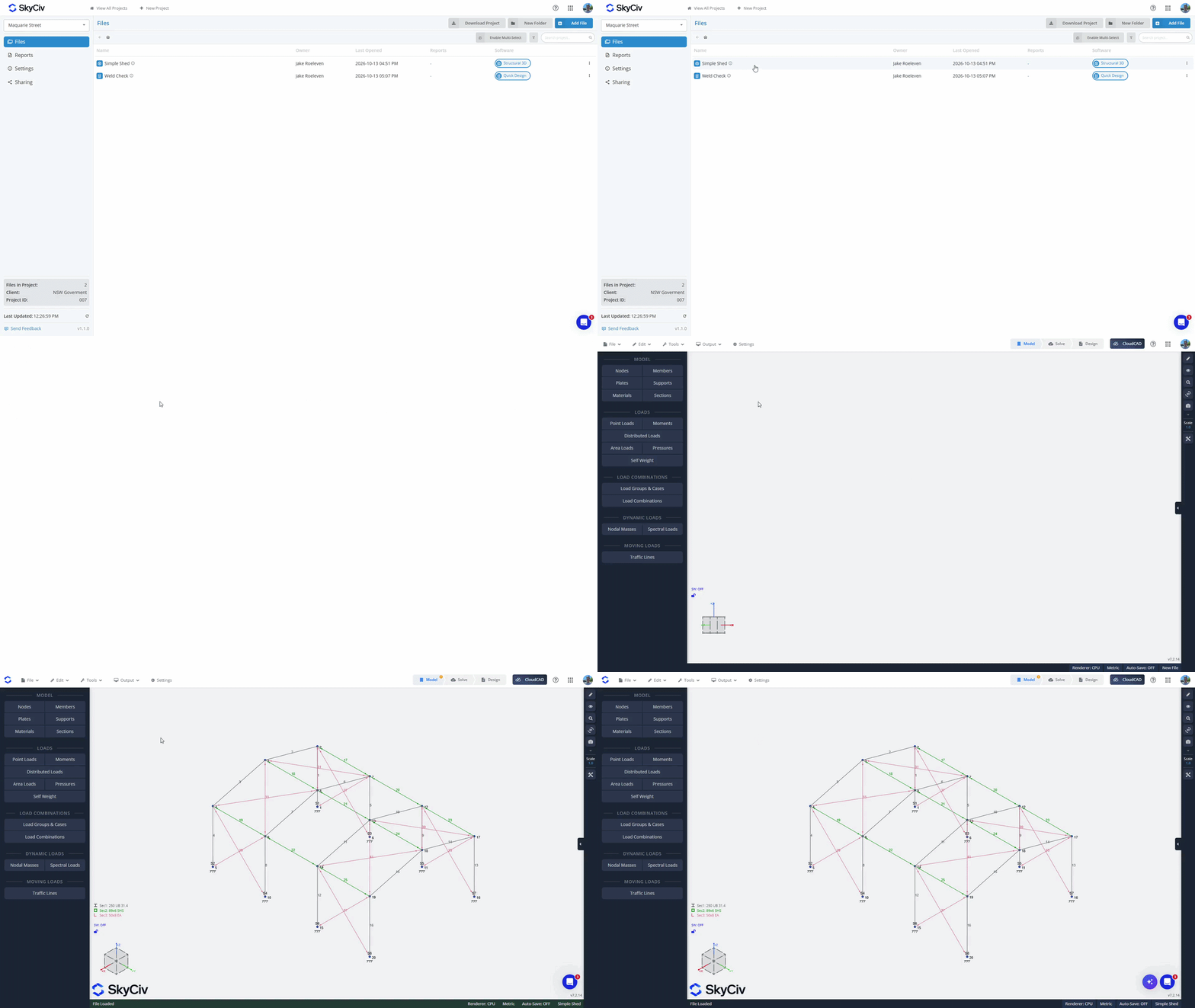
Per aprire un file dall'interno, fare doppio clic per aprirlo in una nuova scheda. In alternativa, fare clic con il tasto destro sul file per visualizzare il menu file e selezionare l'opzione "Apri"..
Apertura di un file dall'interno di un modulo software
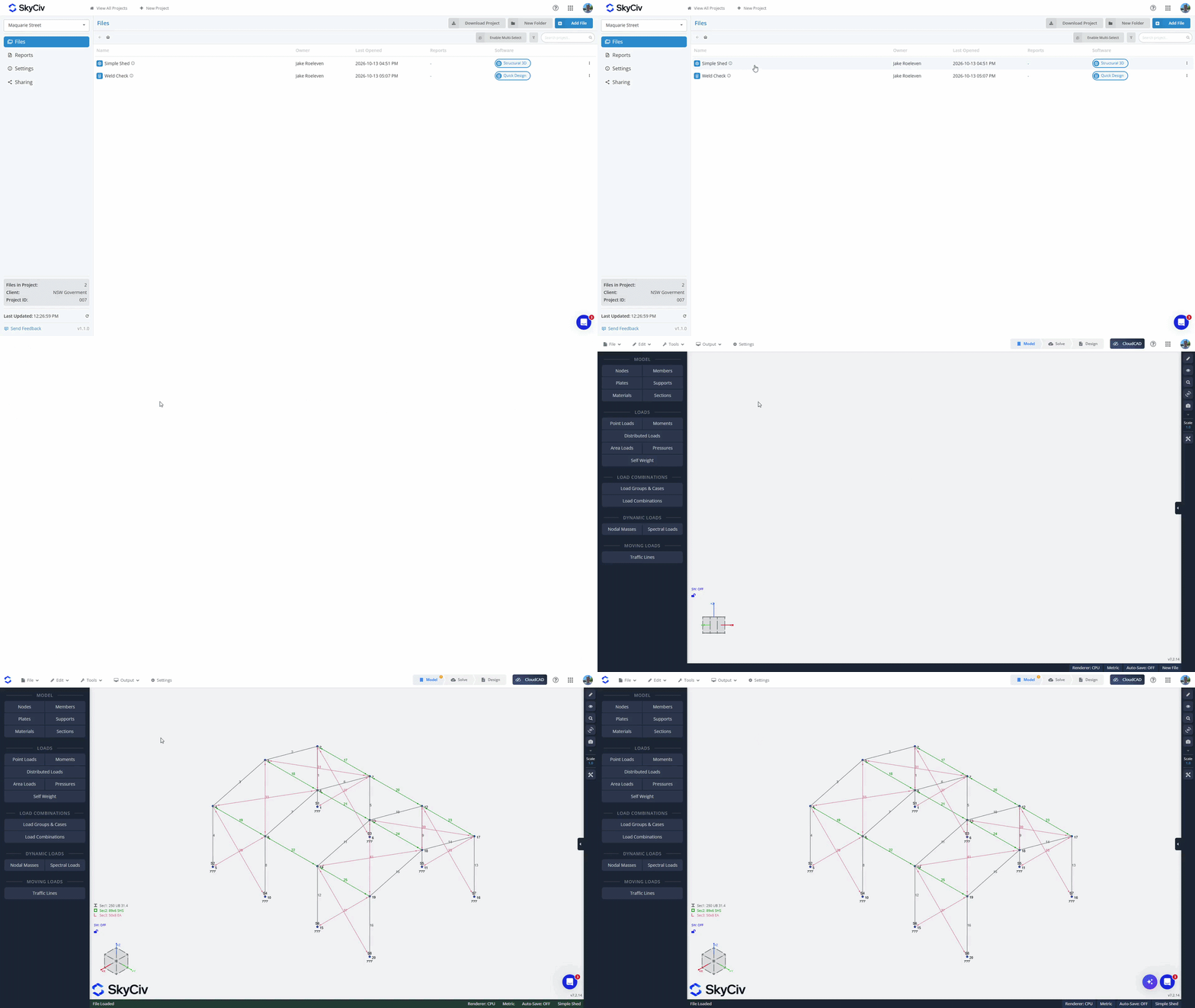
Dal File menù, fare clic su "fai clic sulla scheda e ti verrà presentata una nuova barra multifunzione di strumenti come mostrato di seguito”. Assicurati di essere in modalità Project Manager; puoi verificarlo nella parte in alto a sinistra del pop-up. Seleziona il tuo progetto per caricare i file disponibili. I file del modulo corrente verranno caricati in cima all'elenco. Se selezioni un file dal modulo corrente, si aprirà nella scheda corrente. I file di altri moduli verranno visualizzati in grigio in fondo all'elenco. Se selezioni un file da un altro modulo, verrà caricato in una nuova scheda.
Creazione di cartelle
Organizza i tuoi file in cartelle utilizzando il pulsante "Nuova cartella" all'interno del Project Manager e creando un nome per la tua cartella. Trascina e rilascia i file nelle cartelle per spostarli, oppure usa il "Abilita selezione multipla" opzione per spostare in blocco i file nelle cartelle.
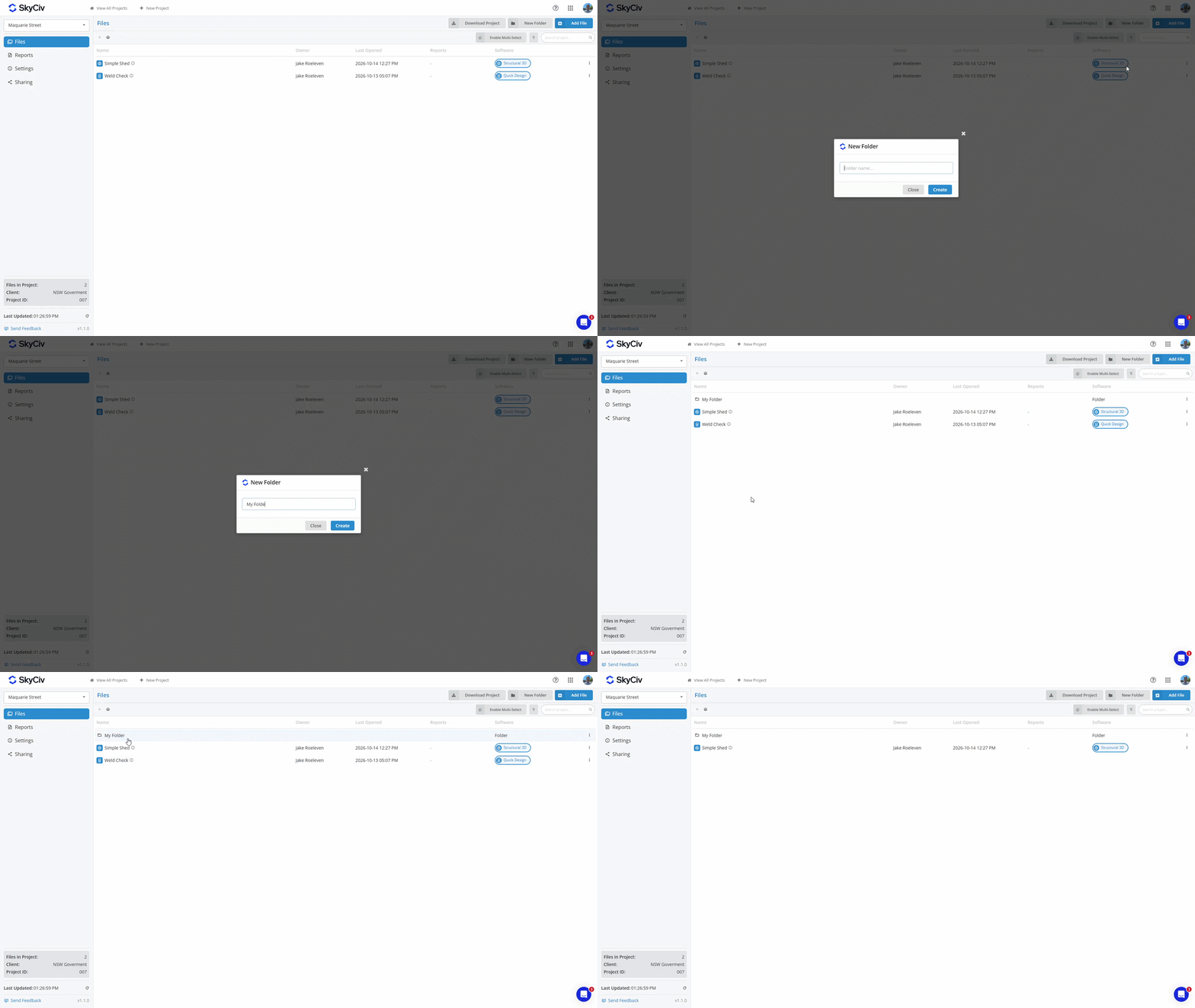
Per spostare nuovamente un file nella cartella principale, fare clic con il tasto destro sul file e selezionare l'opzione Sposta file. Seleziona la cartella principale o "Radice del progetto" per il livello più alto del progetto.
Salvataggio dei report
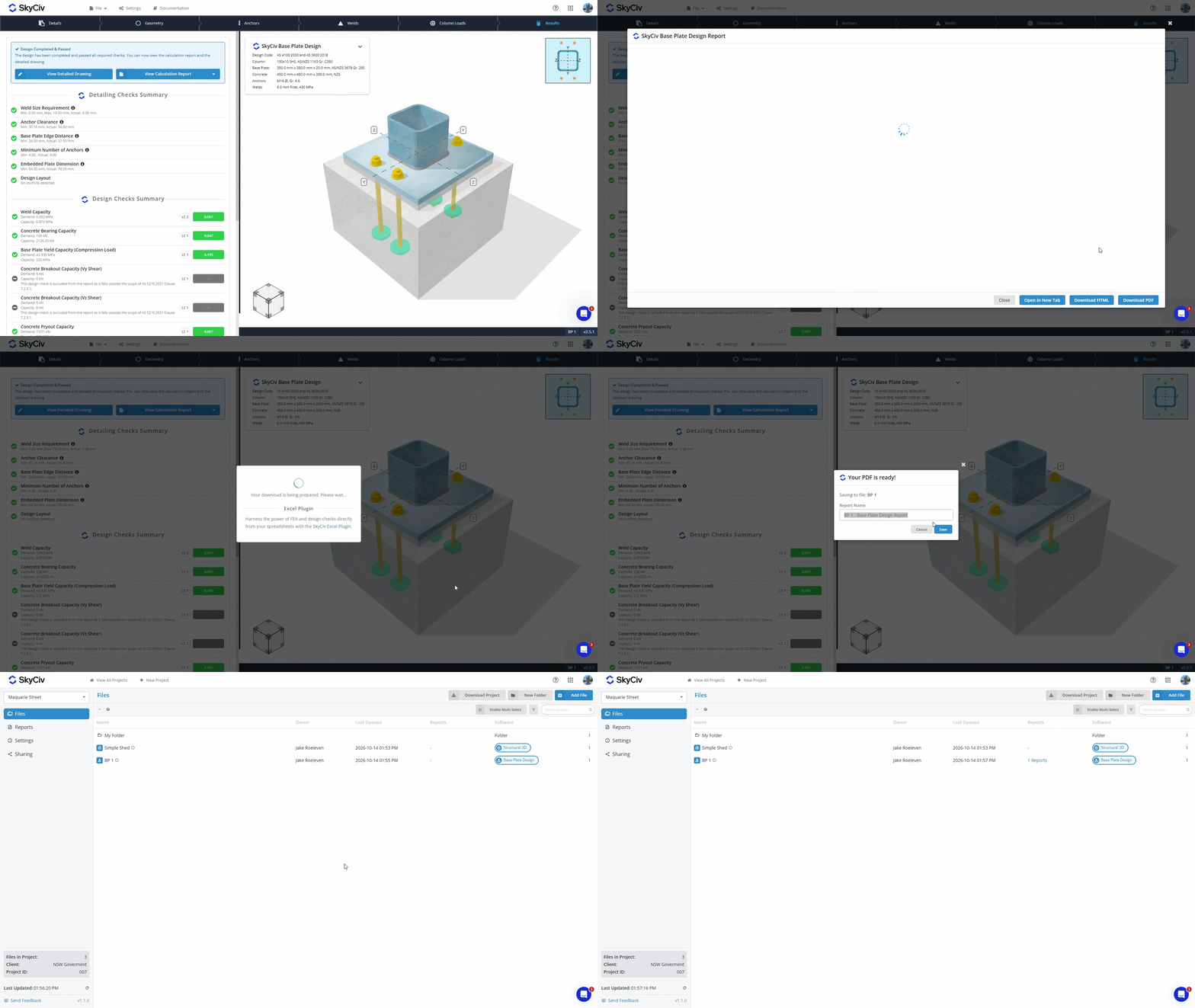
Quando generi un PDF da un modulo SkyCiv, ora hai la possibilità di farlo:
- Scarica e archivia il PDF sul tuo dispositivo locale.
- Salva salvalo con il tuo file nel nostro archivio cloud.
I PDF salvati nel tuo file nell'archivio cloud possono essere visualizzati dal Project Manager in entrambe le schede File e Report. Scopri di più nella Documentazione di Gestione report.
Download dei dati del progetto
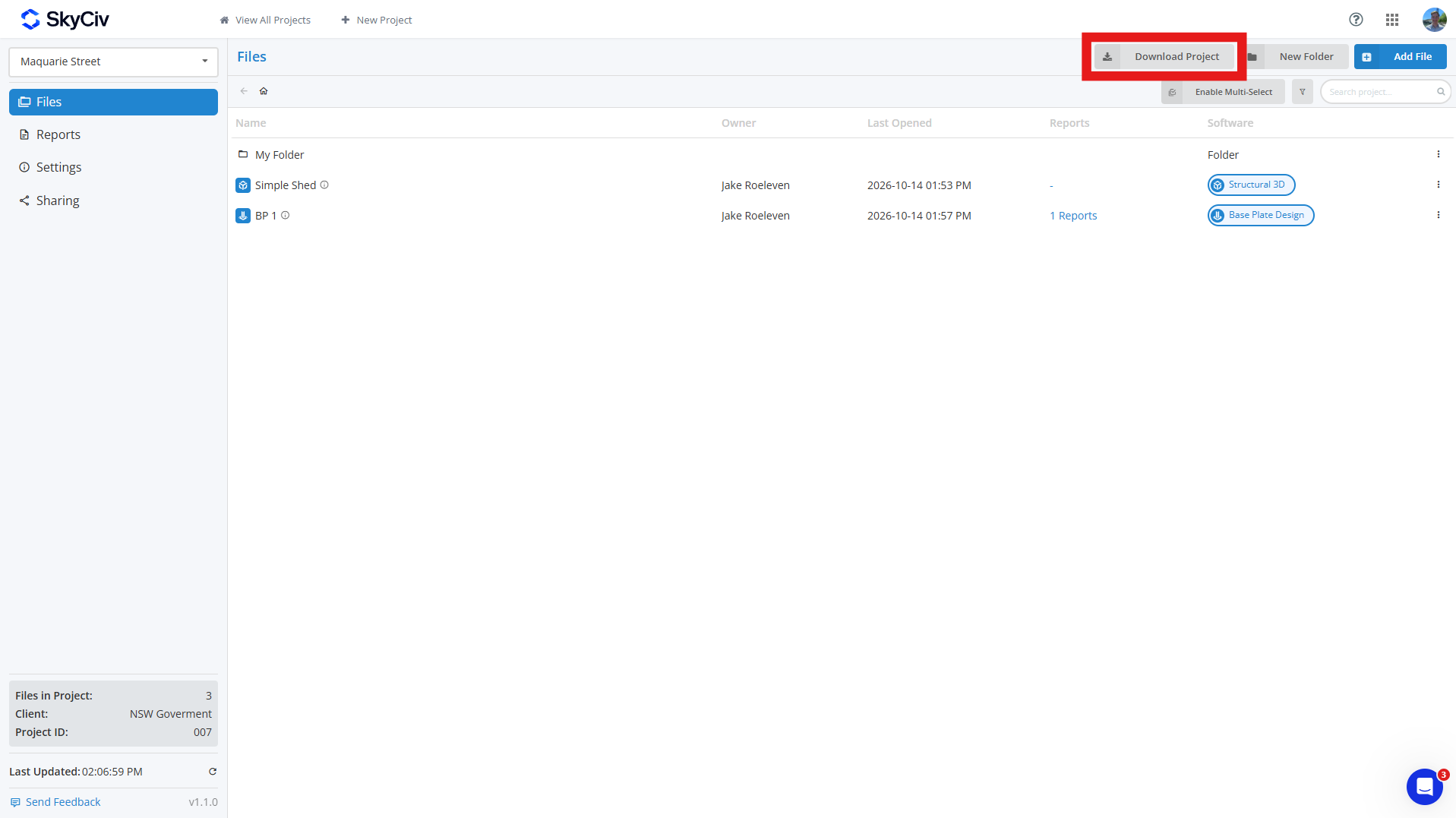
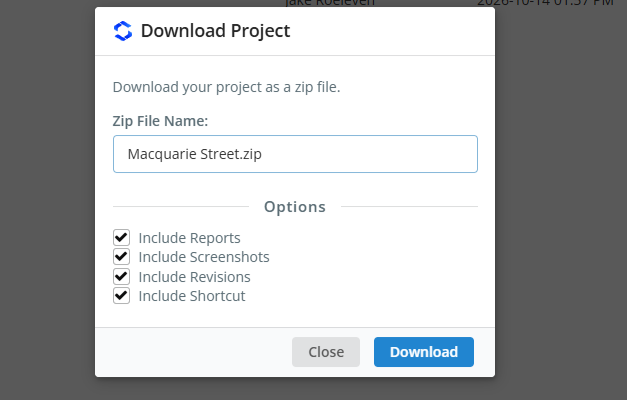
Puoi scaricare i dati del tuo progetto da File scheda nel progetto facendo clic su Scarica progetto pulsante. Ciò consente di generare uno ZIP del progetto, Compreso:
- File del modello (File JSON)
- Dati di revisione (opzionale)
- Schermate (opzionale)
- Rapporti salvati (opzionale)
- Collegamento di scelta rapida (opzionale)
Se selezioni i campi facoltativi, quindi ogni modello nel tuo ZIP sarà la propria cartella contenente tutti questi dati; se includi solo modelli, ogni modello verrà scaricato come file JSON. Le cartelle del progetto verranno replicate nello ZIP, con ogni cartella differenziata con a [CARTELLA] tag anteposto al suo nome.
Condivisione di progetti
Puoi condividere progetti con i tuoi compagni di squadra tramite Condivisione opzione sul lato sinistro della barra degli strumenti del Project Manager. Quando condiviso, tutti i compagni di squadra elencati nella sezione Il mio team del tuo account vedranno il progetto. Vedi il Configurazione dell'account della squadra per saperne di più.
Nota: solo gli account aziendali SkyCiv hanno accesso alla funzionalità di condivisione.

